
Posting
Schedule posts on your managed account, choose what kind of post it is, follow each post's status and check it once it's live.
Once your account is live, you upload the file, write the caption and pick a day. A person publishes it from your account by hand, on that day or the next one. Each post uses one post from the account's posts.
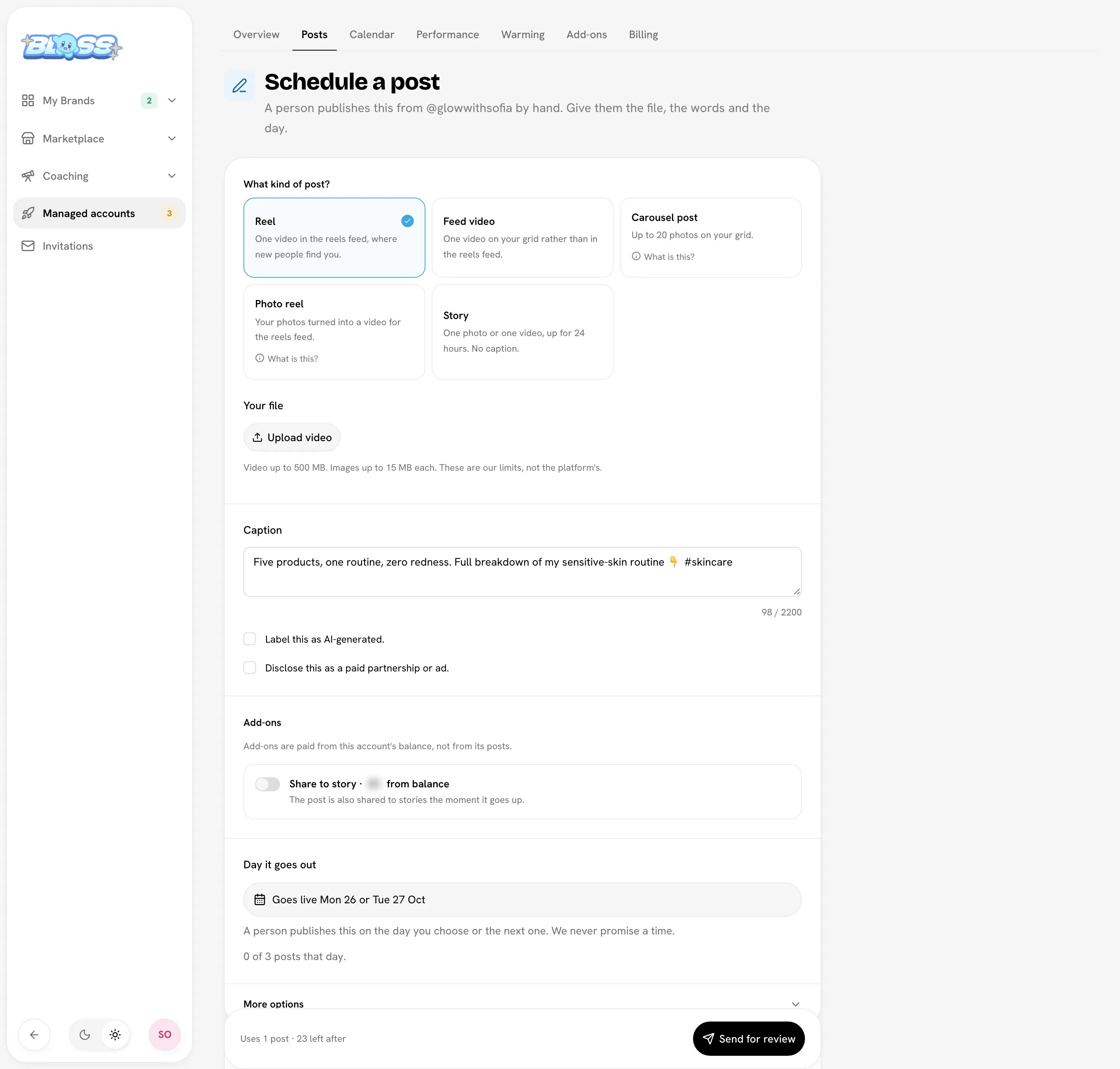
Schedule a post
Open the account and click Schedule a post (from Calendar or Posts).
Choose the kind of post
| Platform | Options |
|---|---|
| TikTok | Video, Photo carousel (up to 20 photos over a sound), Story (24 hours, no caption) |
| Reel, Feed video, Carousel post (up to 20 photos people swipe), Photo reel (photos turned into a video, not swipeable), Story (24 hours, no caption) |
Upload your file
Videos up to 500 MB (MP4, MOV or WebM); images up to 15 MB each (JPG, PNG or WebP).
A TikTok photo carousel also needs a sound. Open the sound on TikTok, tap Share, then Copy link, and paste it under Sound. Once the link is right, the sound's name shows under the field. A short share link from the app is opened for you when you save. A link to a video or a profile isn't a sound, and the field says so.
Write the caption
Up to 2,200 characters. Tick Label this as AI-generated. or Disclose this as a paid partnership or ad. when they apply. More options has the sound link, location, collaborators (up to 5) and a private name for the post.
Pick the day it goes out
Click Pick a day. The post goes out on that day or the next one; there's never a set time. The earliest day is 2 days from now on a live account. An account can take 3 posts a day at most.
Accept the content rules and send
The first time you send a post from an account, read Topics that give up your free rebuild, tick "I've read the content rules. I understand an account that breaks them can be banned and won't be rebuilt for free.", and click Send for review. The tick is asked once per account in each browser; after that the composer says You've accepted the content rules for this account.
A short reminder of the content rules sits above the caption. Click Hide once you've read it.
Topics that give up your free rebuild
If a platform takes your account down, Bloss builds you a replacement once, free. An account that posts about finance, crypto, gambling and casinos, health or psychology claims, politics or violence, or that reuses the same content across accounts, can be banned, and a ban for this isn't covered by the free rebuild. See the content rules.
Add-ons on a post, such as Share to story, are paid from the account's balance, not from its posts.
If the account has no posts left, your post is saved as a draft. Buy posts, then send it from the draft. See Plan, posts & balance.
Post statuses
| Status | What it means |
|---|---|
| Draft | Not sent yet. Only you can see it. |
| Needs your edit | It came back to you with what to fix. See below. |
| Scheduled | Booked for the day you chose. Its post is set aside. |
| Taking longer to send | Something on our side is holding it up. We're on it; nothing to do. |
| With your manager | It's been picked up for publishing and goes out on its day or the next. |
| Live, check by … | It's up. Approve it or ask for a change before the deadline. |
| Changes requested | Your changes were passed on; the post comes back for another look. |
| Published | Up and closed. Stats appear about a day later. |
| Needs a new file | The file couldn't be opened. Upload a replacement. |
| Cancelled | It won't go out. If work hadn't started, its post went back to the account. |
If a post comes back to you
Sometimes a post can't be sent as it is: a sound link that doesn't open a sound, a caption that can't go out as written, or something in More options. Then it comes back to you as Needs your edit, and:
- the post page, the Posts list and your email all say what to fix, in one sentence;
- its post and any money it took are back on the account;
- the day you picked is kept when you send it again, if it's still open.
Click Fix and send, change what it says, and send it again. It costs nothing extra.
Check a live post
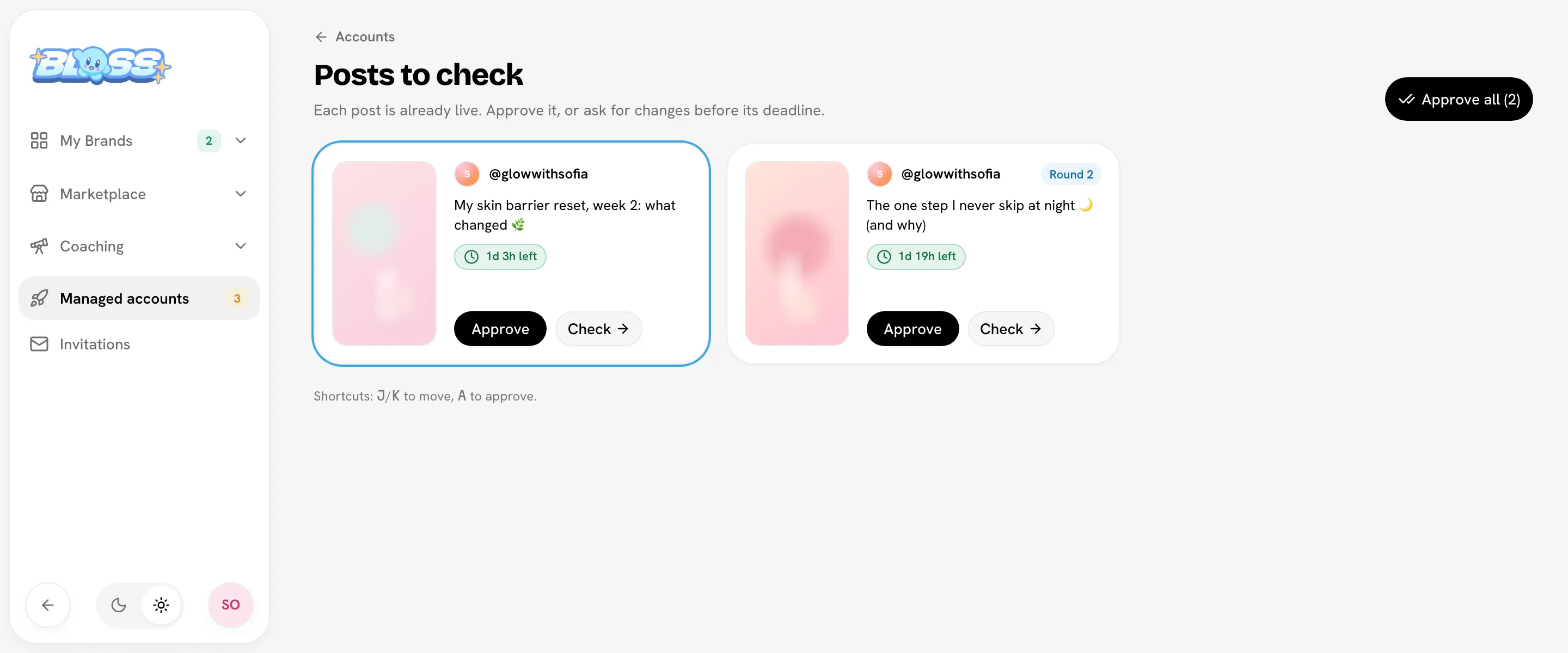
Your manager publishes each post, and then it waits for your check. The post is already live while you check it. You get 48 hours; the post shows a countdown and the time it's due.
- Open the post from the email, from Needs you on Accounts, or from Managed accountsPosts to check, which lists every post waiting across your accounts.
- Watch it as it went out with Live on TikTok (or Instagram). What you sent shows your own upload to compare. If the post was also shared to your story, the manager's proof is under it.
- Click Approve. You have 5 seconds to Undo before it's sent; after that it's final.
- Or click Ask for changes, tick what's wrong (video, caption, editing, sound) and say what it should be. The post stays live while it's fixed, and we email you when it's back. It then shows Back with your changes, with what you asked for, for another check.
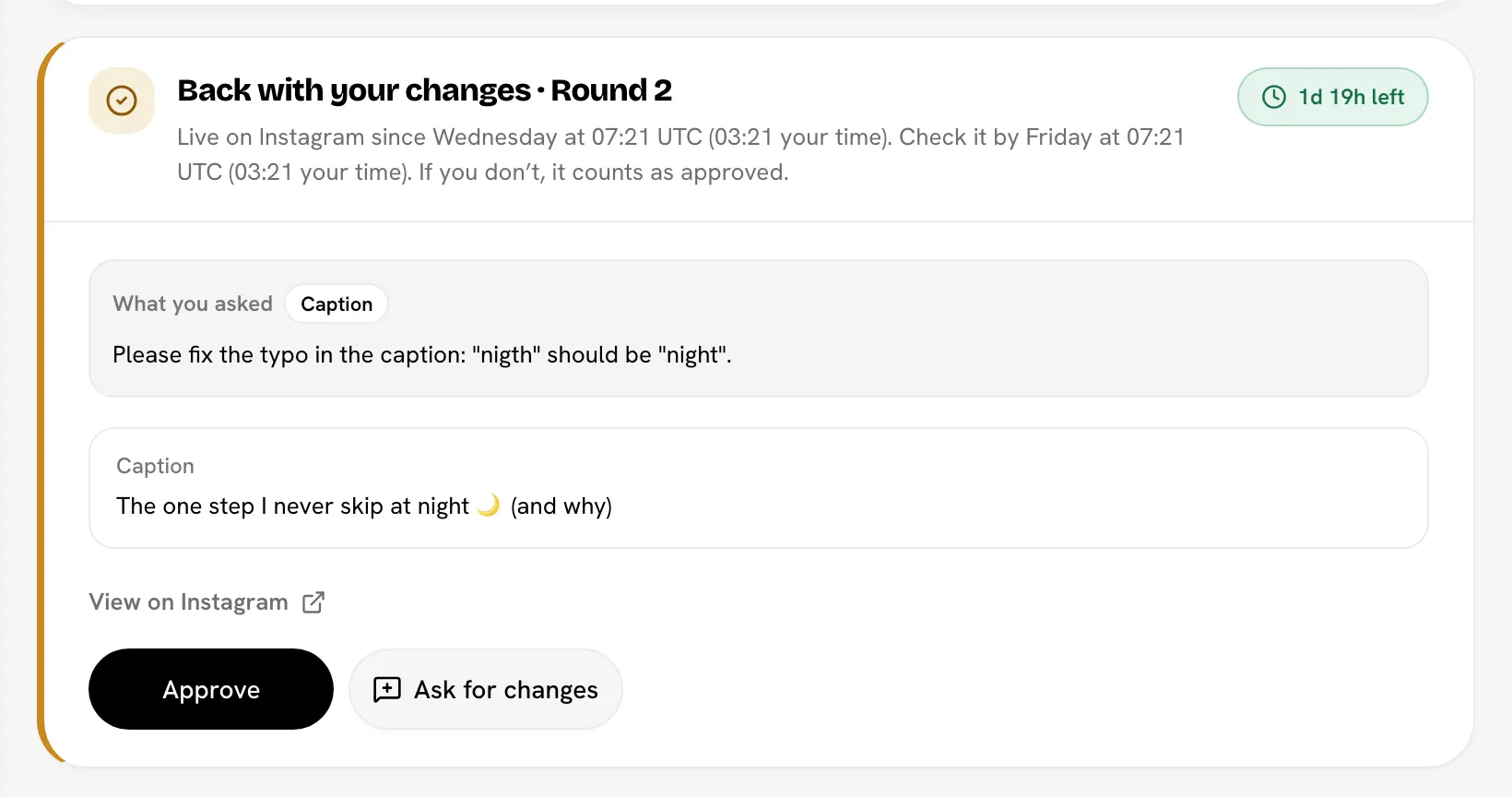
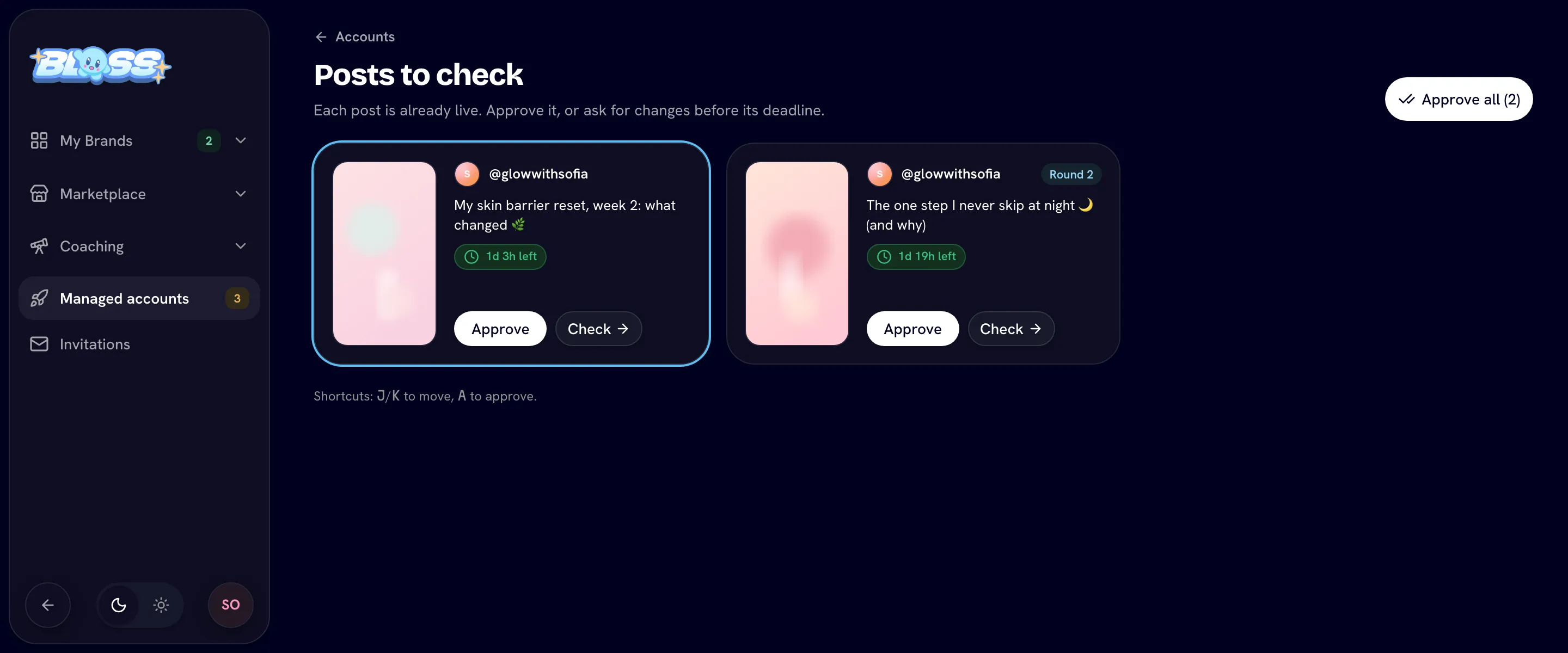
If you don't check it in time, it counts as approved. Each post keeps a history of its rounds: what you asked for, and how each one ended. On Posts to check you can also Approve all, or press J/K to move between posts and A to approve.
Don't want to check every post? On the Billing tab, turn on Skip post checks: each post then counts as approved as soon as it's live, and you can't ask for changes on it. Off (the default), you get 48 hours to check each post. See Billing & account states.
Change, move or cancel a post
From the Posts list, open a post's menu:
- Edit: a scheduled post can change its caption, day, extras and name. Its file and type can't change.
- Move to another day
- Replace the file: for a post that Needs a new file.
- Cancel the post: if work on it hadn't started, its post goes back to the account.
- Delete draft
Once a post is With your manager, it can't be changed.
Calendar
The Calendar shows every post by day, coloured by its status. The solid part is the day you chose; the faint dashed part next to it is the next day, since posts can go out on either. Hover a post to see it, and How dates work explains the window.
Related
Last reviewed Oct 22, 2026