
Getting your money
Withdraw your earnings through Whop or your SideShift wallet, set your payout email, and add PayPal details.
Each brand chooses how it pays creators: through Whop or through a SideShift wallet. That choice is called the brand's payout provider. You'll find everything about getting paid for a brand under My Payouts and on the Payout Settings card on the portal dashboard.
Open My PayoutsBrands that pay through Whop
Your earnings land in a Whop account in your name. You withdraw from Whop.
Set your payout email
On the portal Dashboard, find Payout Settings › Whop Payouts and click Set payout email. Enter an inbox you can open (or click Use my Bloss email) and click Save email.
Whop ties your payout account to this address. Your brand admin can't open your account until you set it.
Wait for the brand to open your account
The status shows Awaiting account until the brand creates it, then Payouts active. Until then you can still change the email.
Withdraw from Whop
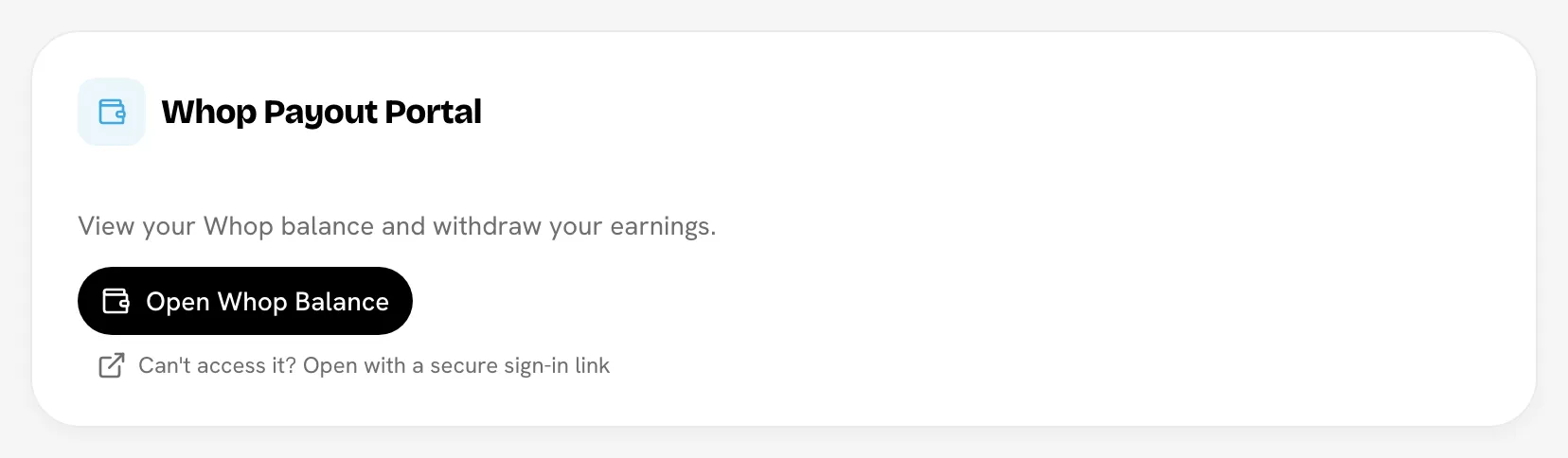
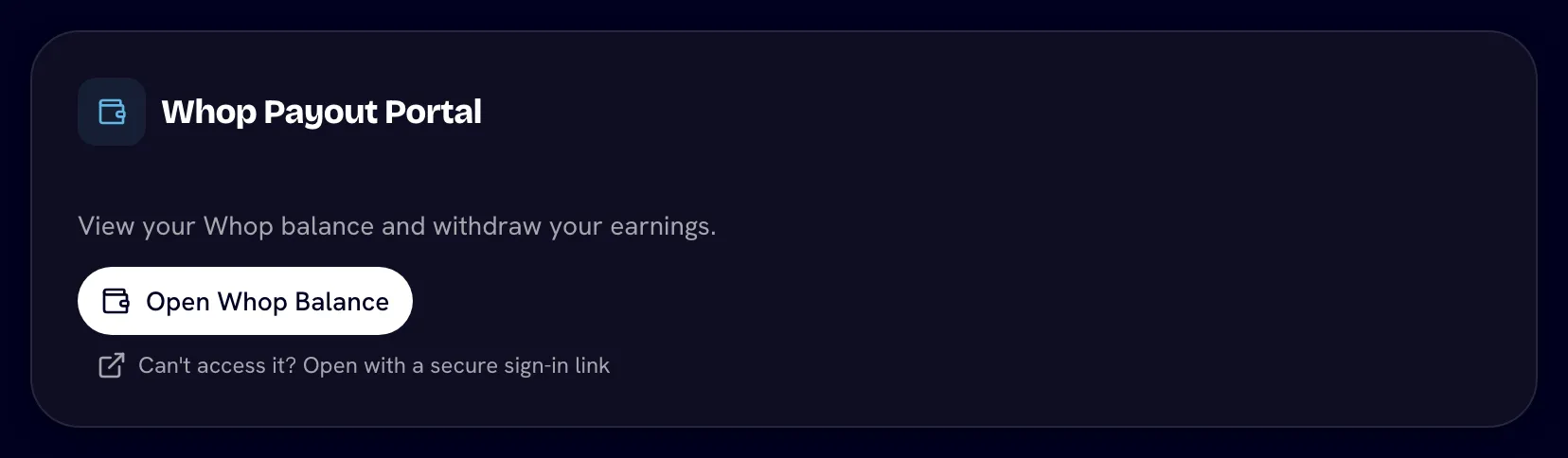
Go to My Payouts. On the Whop Payout Portal card, click Open Whop Balance to see your balance and withdraw. It opens Whop in a new tab.
Can't get in? Click Can't access it? Open with a secure sign-in link. Bloss creates a one-time link that signs you in to Whop and brings you back to My Payouts afterwards.
Your payout email locks once the account exists
After the brand opens your Whop account, the email shows Locked — set when the account was created. and can't be changed in Bloss. Make sure it's an inbox you'll keep.
If you see Whop payouts are not set up for your account yet. Contact your brand admin., the brand hasn't created your account yet. Set your payout email if you haven't, then ask the brand.
Brands that pay through SideShift
Your earnings land in a SideShift wallet that's set up for you automatically. There's nothing to connect.
- Go to My Payouts.
- The SideShift Wallet card opens your wallet right on the page and shows your SideShift balance and how much is withdrawable. Click Refresh to update it.
- Withdraw from inside the wallet. The first time, you may need to verify your identity there.
On the dashboard, Payout Settings shows Wallet ready once your wallet exists, with a Go to payouts → link.
If the wallet doesn't load you'll see Couldn't open your wallet. Click Try again.
When money arrives
- Base pay sent early lands in your Whop balance or SideShift wallet as soon as the brand approves it. It shows as Auto base paid on the set and under Base Pay Transfers on My Payouts.
- Cycle payouts arrive when the brand pays the cycle. The cycle's status changes to Paid.
- Bonuses come with the cycle payout, or set by set. They're listed under Bonus Payouts.
See How you get paid for what each status means.
PayPal details
Some brands ask for PayPal details for their records. They're separate from Whop and SideShift.
- On the portal Dashboard, find Payout Settings › PayPal Details and click Add PayPal Details.
- Enter your PayPal Email, Legal First Name and Legal Last Name.
- Click Save.
PayPal details lock after saving
You can save your PayPal details once. After that they show Locked — contact support to change. To change them, send a message through Contact Support and the brand can update them for you.
Related
Last reviewed Oct 12, 2026