
My videos & payouts
Find your tracked videos and sets, fix how videos are grouped, and read your payout history.
Two pages in each brand's portal show what you've posted and what you've been paid: My Videos and My Payouts.
My Videos
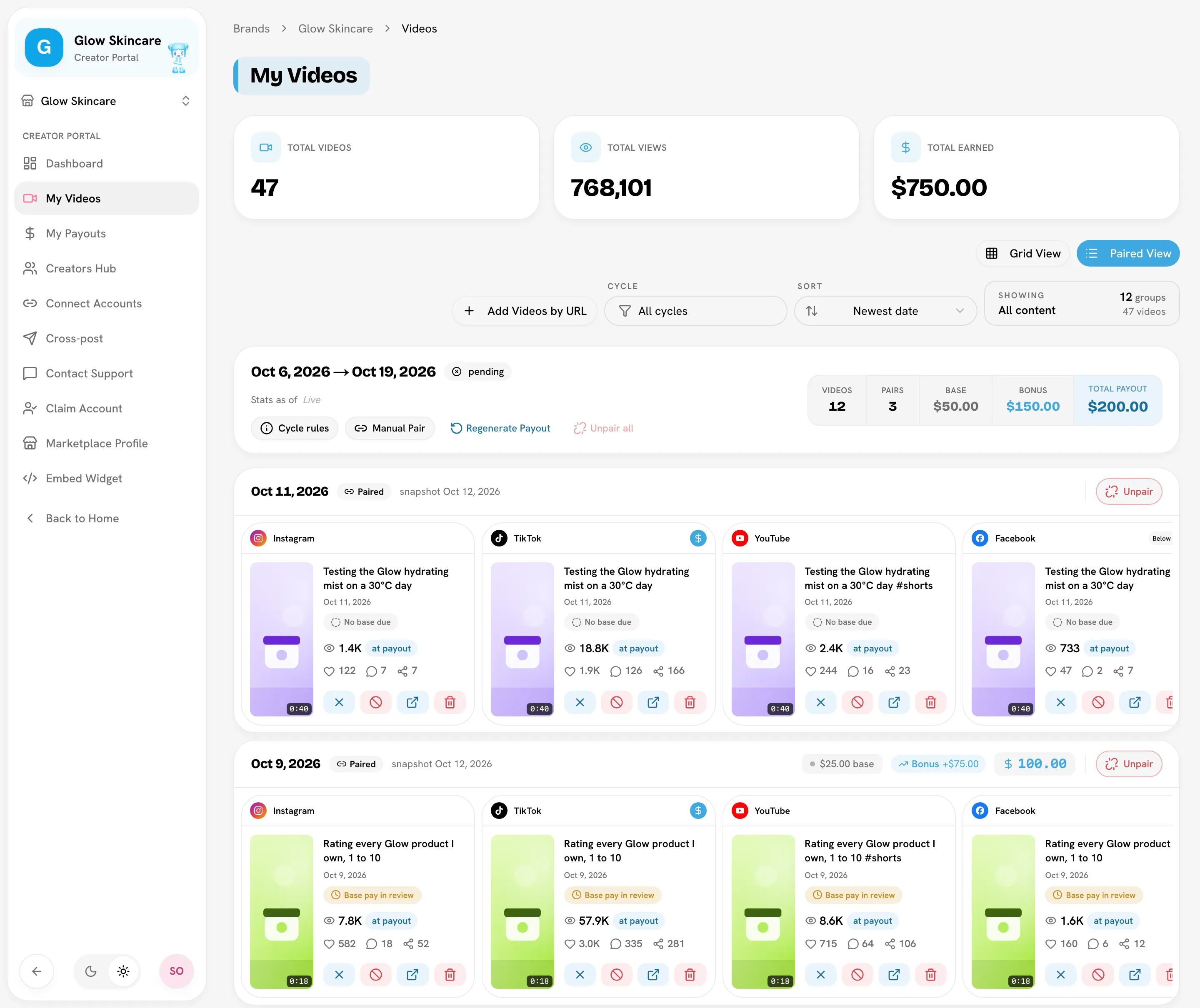
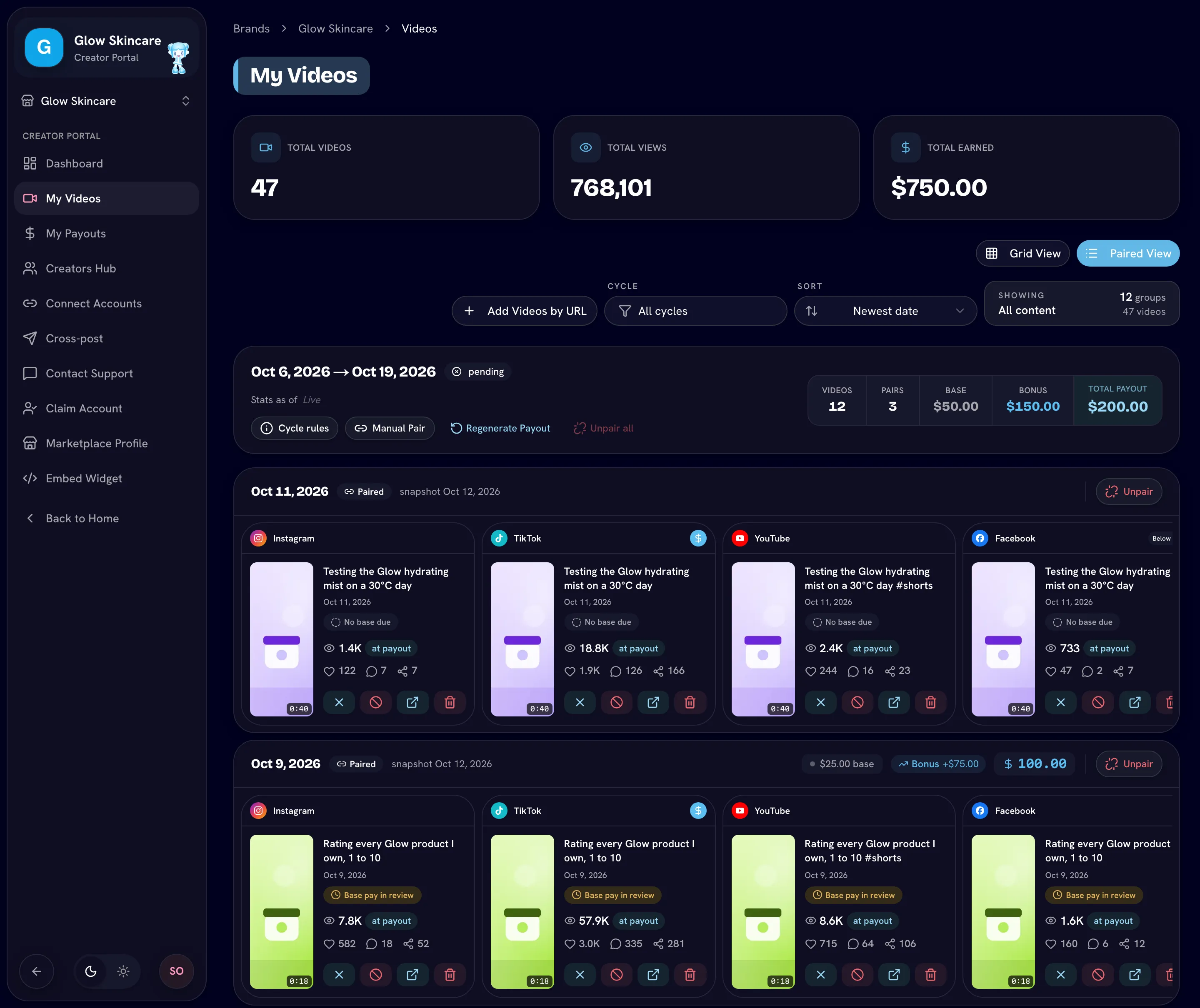
The top of the page shows your Total Videos, Total Views and Total Earned for this brand. Switch views with Grid View and Paired View. Paired View is the default.
Open My VideosPaired View
Paired View groups your videos into sets, under a header for each payout cycle, labeled with its start and end dates. Each cycle header shows its Videos, Pairs, Base, Bonus and Total Payout. Click Cycle rules to see the exact pay rules for that cycle.
Each set shows one column per platform (Instagram, TikTok, YouTube, Facebook), with the post's views, likes, comments and shares, plus the set's base pay, bonus and total. If a platform is missing and the brand needs all of them, the set shows $0 — missing with the platforms it's missing.
Use the toolbar to filter by Cycle and Sort by date, views or payout.
Fix a set
If Bloss grouped your videos wrong, you can fix the current cycle yourself:
- Split a video out: on the video, click Remove this video from the pair. To break up a whole set, click Unpair.
- Join videos into a new set: on the cycle header, click Manual Pair, select the videos, then click Create New Pair.
- Add to an existing set: in pairing mode, select videos and click Add selected on the set.
Paid sets can't be changed
Once a set has been paid, it's frozen: This set has been paid and can't be changed — contact the brand. Send a message through Contact Support if something's wrong.
Add a video Bloss missed
Click Add Videos by URL and paste one or more Instagram or TikTok post links. Added videos pair and count toward pay like any other, and they refresh on every sync.
Grid View
Grid View shows each video as a card with its views, likes and posted date. Filter by Tags at the top. You can add tags to your own videos with + Tag. Brands use tags to compare what performs best.
You can delete a video you posted in the current cycle with the trash icon. This removes it and its stats from Bloss, not from the platform. A later sync may add it back if it's still on your profile. Videos in a paid set can't be deleted.
Badges on your videos
| Badge | What it means |
|---|---|
| Paired | The video is part of a set. |
| Marked Irrelevant | The brand excluded this video. It doesn't count toward pay or stats. |
| Below min | The post is under the brand's minimum views. |
| Link dead | The post no longer opens on the platform (deleted, private, or removed). Your views and pay for it are unchanged. |
| Handle changed | The post now shows a different handle as its owner. Update your handle in Connect Accounts and tell your brand admin, or new posts may stop being tracked. |
| Custom rate | The brand set this set's pay by hand. |
Base pay and bonus badges are explained in How you get paid.
My Payouts
My Payouts shows what you've earned and been paid by this brand.
Open My Payouts| Tile | What it shows |
|---|---|
| Total Earned | Everything you've earned |
| Total Paid | Everything you've been sent, including early base pay and bonuses |
| Pending | Earned but not paid yet |
| Base Paid Early | Base pay already in your Whop or SideShift balance |
| Bonus Paid | Bonuses already sent |
Below the tiles you'll find:
- Your Whop or SideShift card, where you withdraw. See Getting your money.
- Base Pay Transfers: base pay sent as soon as your sets qualified, without waiting for the cycle to end.
- Bonus Payouts: each bonus payment, the sets it covered and the tier they reached.
- The payouts table: one row per cycle with its Period, Status, Paid early, Bonus, Transfer (what's left to send at the end of the cycle) and Paid At date.
Until your first cycle is processed, the table says No payouts yet.
Related
Last reviewed Oct 12, 2026