
Becoming a coach
Apply for a coach account, follow your application's status and resubmit if the Bloss team asks for changes.

A coach account lets you follow how your students perform for the brands they work with on Bloss. The Bloss team reviews every application before your account is activated.
Bloss is for monitoring only. Coaching sessions, chat and payments between you and your students happen outside Bloss.
What you get as a coach
Once your account is active, the coach console gives you:
- A dashboard that rolls up each student's deals, cash collected and brand posts across every brand they work with.
- Invites by email or share link, plus a public coach page.
- Student profiles with deals, performance charts and private notes.
- Accountability flags that point out students who are slipping.
- AI agents and the API to ask about your students in plain language, or read your workspace from your own code. Free.
Who can apply
| You are… | How to start |
|---|---|
| New to Bloss | Sign up. On How will you use Bloss?, pick Coach, then click Continue as Coach. |
| Already on Bloss with brand or agency access (including creators who work with a brand) | In the main sidebar, click Apply to be a Coach. Your existing access stays as it is. |
Marketplace-only creator profiles
If you've finished setting up a standalone marketplace creator profile, and you don't have brand or agency access, you can't open a coach account on that same login.
Fill in your application
The application is a short step-by-step form. Your answers are kept if you refresh the page, but not if you close the tab.
Start the form
Click Get started.
Add your details
Answer each step and click Continue.
| Step | What to enter | Rules |
|---|---|---|
| What should we call you? | Your coach name. It's shown on the invite cards your students see. | 2–80 characters |
| Tell us about your coaching | What you teach, how you work with creators and the results they can expect. | 40–2,000 characters |
| How long have you been at this? | Roughly how many years you've coached creators. | A whole number from 0 to 60 |
| Your specialties | Specific things you help with, like TikTok growth or brand outreach. Type one and press Enter to add it. | Optional. Up to 8, each up to 60 characters |
| Niches you focus on | Pick from Beauty, Fashion, Tech, Food, Fitness, Lifestyle, Travel, Home, Pets, Gaming, Health, Education, Productivity, Finance and Parenting. | Optional. Up to 6 |
| Your socials & portfolio | Your Instagram and TikTok handles and a portfolio link. | All optional. The portfolio link must be a full URL (starting with https://) |
Be specific. The more context you give, the easier your application is to review.
Review and submit
On Ready to submit?, check each answer. Click Edit next to any row to go back to that step. When everything looks right, click Submit application.
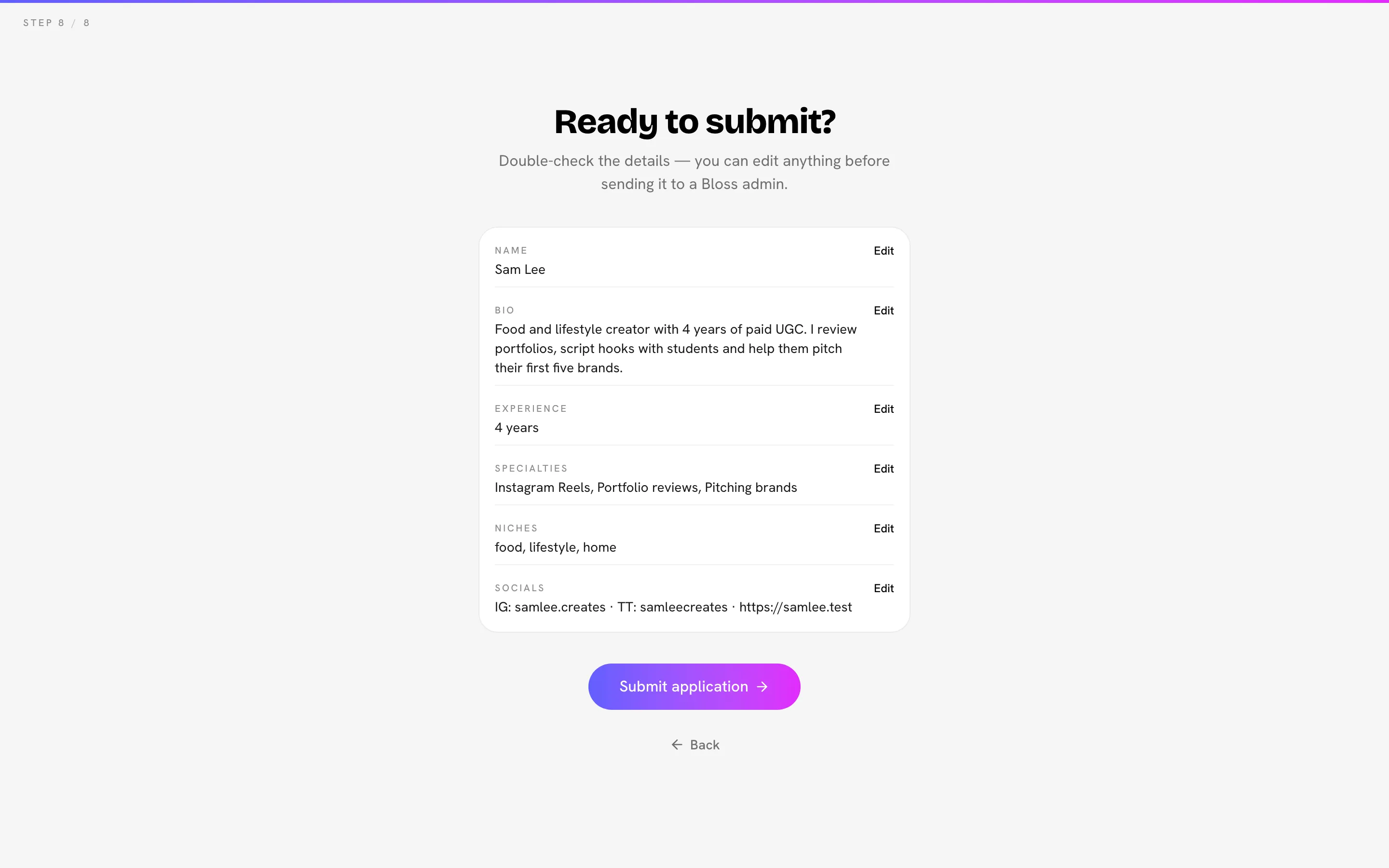
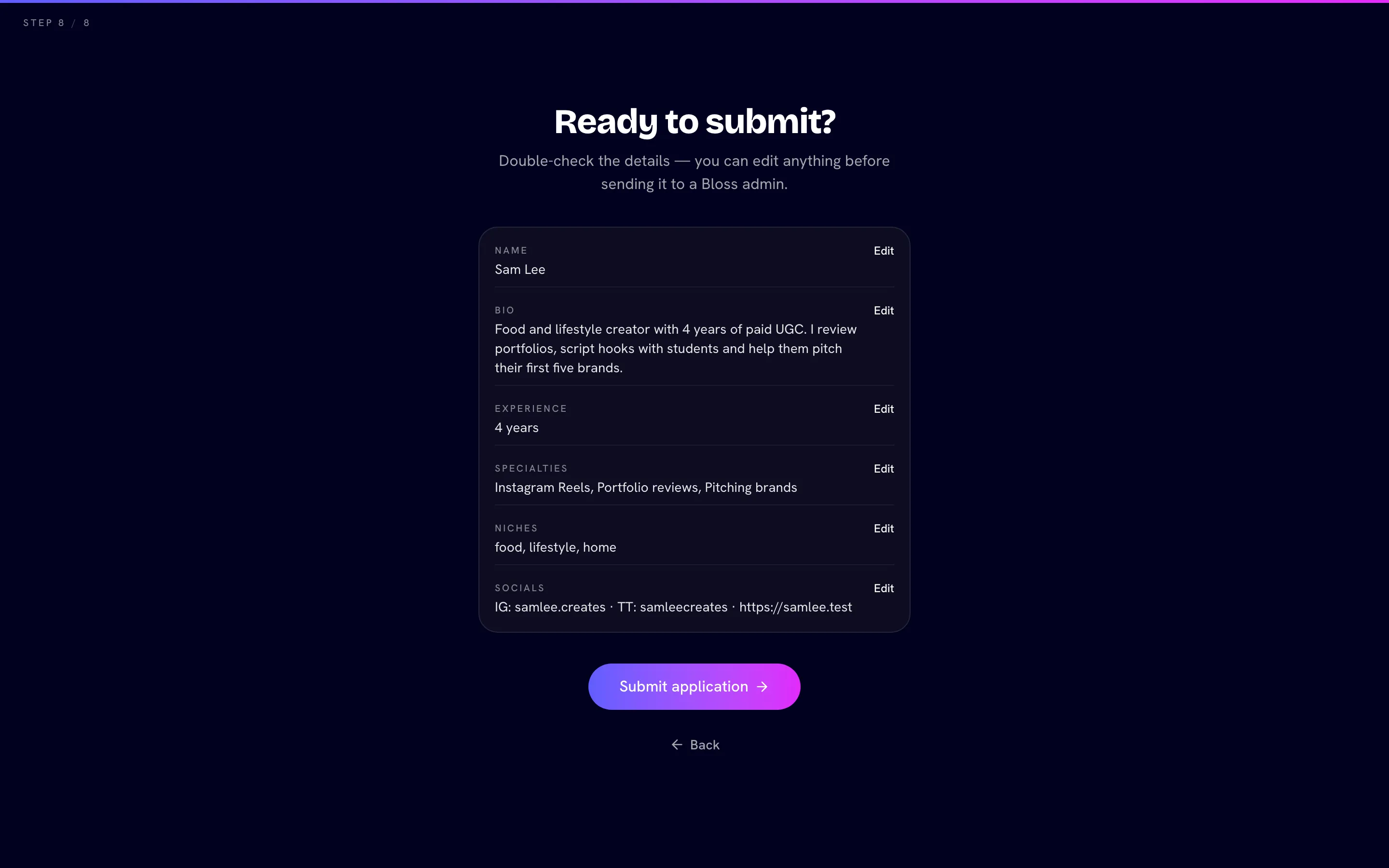
After you submit, you land on the Application status page.
Application statuses
While your account isn't active, the coach console shows only Application status. In the main Bloss sidebar, your coach link is called Coach Application and carries a badge that shows your status. Once you're approved, it becomes Coach Dashboard.
| Sidebar badge | Status page | What it means | What you can do |
|---|---|---|---|
| In review | Application under review | The Bloss team is reviewing your application. The page shows the date you submitted. | Click Edit application to change your answers at any time before it's reviewed. |
| Action needed | Application rejected | Your application wasn't approved this time. Any Reviewer feedback is shown on the page. | Click Edit and resubmit. See Resubmit your application. |
| No badge | You go straight to the dashboard | Your account is active. | Everything: invite students, track performance, set accountability rules. |
| Paused | Account paused | Your coach account is paused. Your students stay in your camp. | Contact the Bloss team to reactivate it. See Pause your account. |
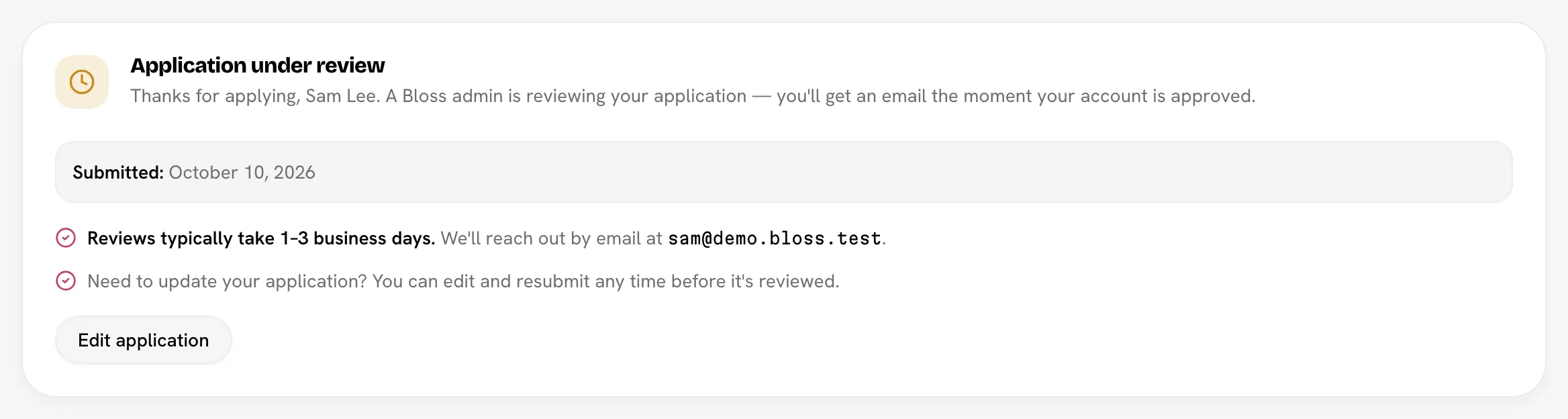
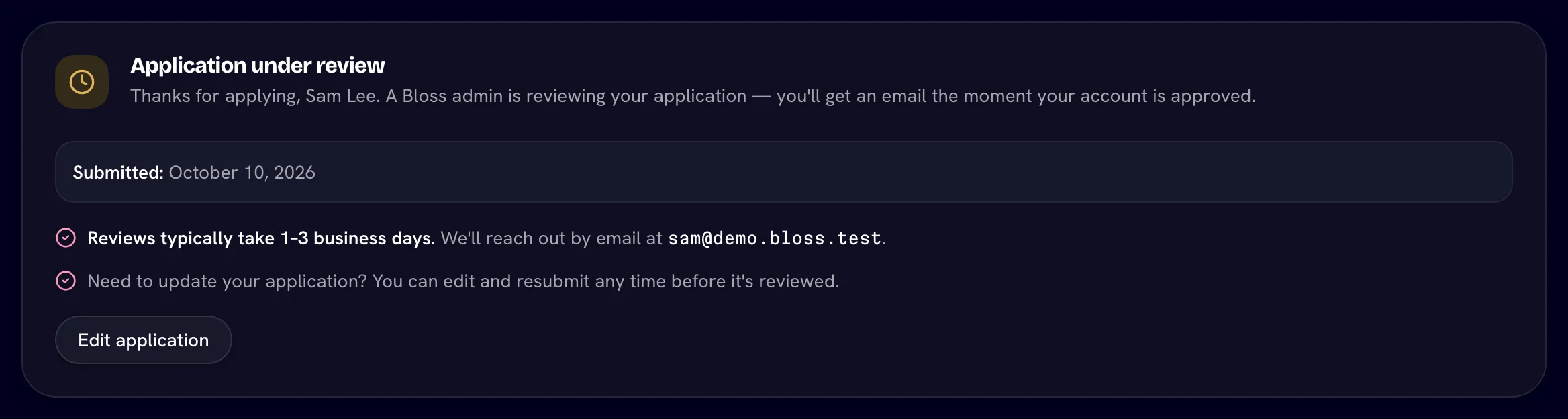
The status page says reviews typically take 1–3 business days. You get an email when a decision is made:
- Approved: the email has an Open your dashboard button.
- Not approved: the email includes the reviewer's feedback and an Edit and resubmit button. You can reply to it if you think it's a mistake.
Resubmit your application
Open your application
On the Application status page, click Edit and resubmit. The form opens with your previous answers filled in, and the reviewer's reason is shown at the top.
Update your answers
Address the feedback, then go through the steps again.
Resubmit
On the review step, click Resubmit application. Your status goes back to In review and the Bloss team reviews it again.
Coaches and student accounts
A coach can't be a student in another coach's camp. While your application is In review, or your account is Active or Paused, coach invites sent to you can't be accepted.
To leave the coach console and get back to the rest of Bloss, click Back to Bloss at the bottom of the coach sidebar.
Related
In this section
- Your coach dashboardRead your camp's metrics, charts and stage funnel, and use the student roster and its health flags.
- Inviting studentsAdd students to your camp with email invites or share links, and use your public coach page.
- Student profilesSee one student's deals, brand posts and performance, keep private notes, set their stage or remove them from your camp.
- Accountability rulesThe four rules that flag students who are slipping, their default thresholds, and how Low, Med and High severity is worked out.
- Coach settingsEdit your public profile, links and focus, set up custom student stages, and pause your coach account.
- Use your coaching data with AI agentsConnect an AI agent such as Claude to your coaching workspace and ask it about your students, their deals and brand posts, your notes, stages and rules. Free for coaches.
Last reviewed Oct 22, 2026