
Accountability rules
The four rules that flag students who are slipping, their default thresholds, and how Low, Med and High severity is worked out.
Accountability rules watch your students' brand posts and flag anyone who's slipping on posting cadence, views, engagement or activity. Flags are worked out live from current data, so they clear themselves when the student recovers.
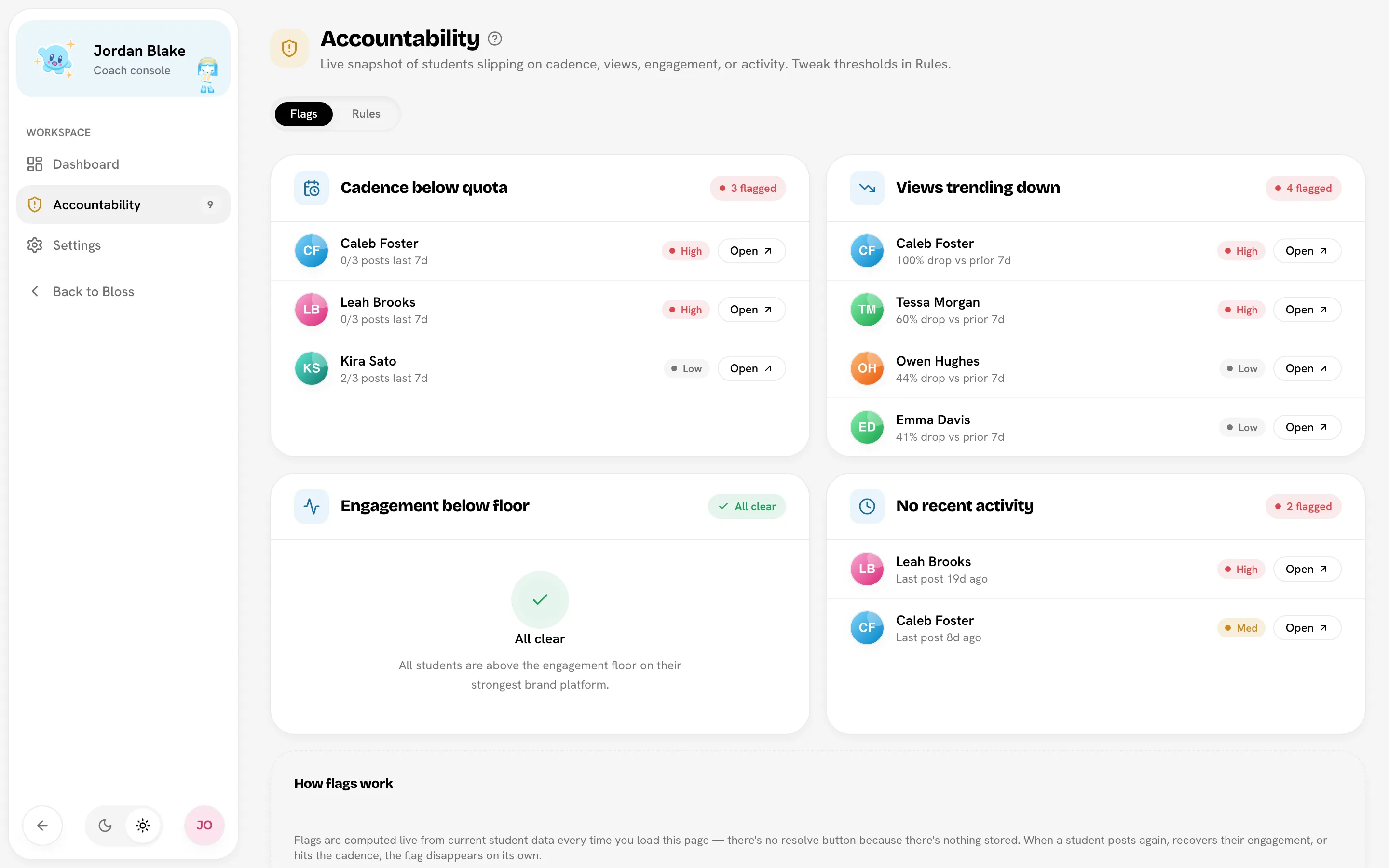
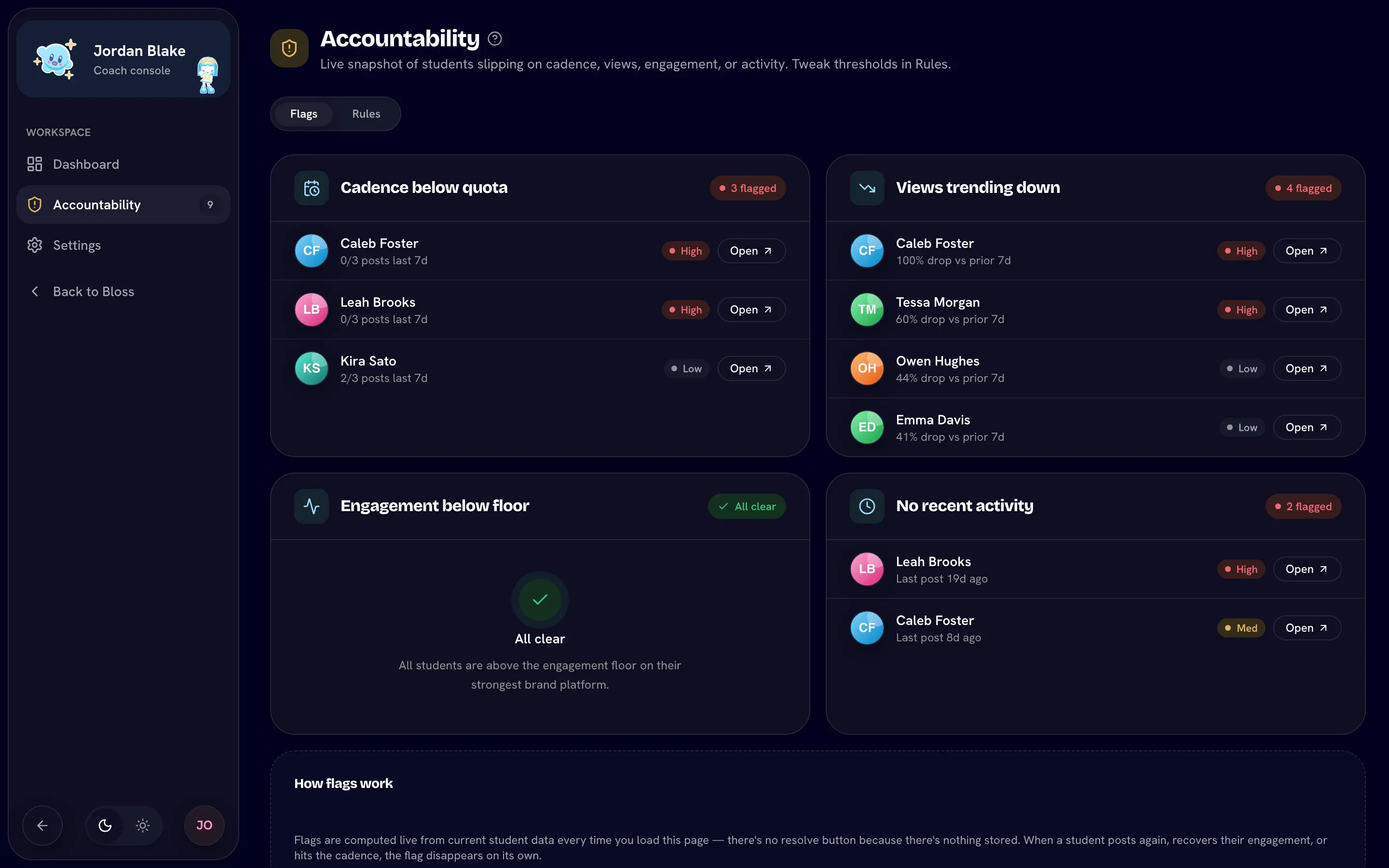
Open AccountabilityGo to Coach consoleAccountability. The page has two tabs: Flags and Rules. The Accountability link in the sidebar shows how many flags are open.
The four rules
Every rule looks only at brand posts: videos a student posts for brands they work with on Bloss, excluding videos the brand marked irrelevant. See What counts as brand work.
| Rule | Flags a student when… | Default | Allowed range |
|---|---|---|---|
| Cadence below quota | They shipped fewer than N brand posts in the last 7 days. One video posted to several platforms as a set counts once. | 5 posts per 7 days | 1–30 |
| Views trending down | Views on brand posts published in the last 7 days are at least N% lower than views on posts published in the 7 days before that. | 30% drop | 5–100, in steps of 5 |
| Engagement below floor | Their best platform's engagement rate over the last 30 days is below N%. | 3.5% | 0.1–100 |
| No recent activity | They haven't posted for any brand, on any platform, for N days or more. | 5 days | 1–60 |
All four rules are on by default.
How each rule is measured:
- Engagement rate is likes plus comments, divided by views, for each platform separately. Bloss takes the student's best platform. Posts with no views are left out.
- Views trending down only runs when the student had views in the earlier 7 days, so new students aren't flagged.
- Engagement below floor only runs once the student has brand posts with views in the last 30 days.
- A student who has never posted for a brand shows "No posts ever" under No recent activity.
The No recent activity threshold also sets the Quiet and Stalled flags and the No posts >Nd tile on your dashboard.
How severity is worked out
Each flag gets a Low, Med or High badge. Bloss works it out from how far the student is from your threshold, so it changes automatically when you change the threshold.
Cadence below quota and Engagement below floor compare what the student achieved with your threshold:
| Student's result as a share of the threshold | Severity |
|---|---|
| 60% or more | Low |
| 30% up to 60% | Med |
| Under 30% | High |
No recent activity and Views trending down compare how far past the threshold the student is:
| Student's result as a multiple of the threshold | Severity |
|---|---|
| Under 1.5× | Low |
| 1.5× up to 2× | Med |
| 2× or more | High |
With the default thresholds, that works out as:
| Rule | Low | Med | High |
|---|---|---|---|
| Cadence below quota (5 posts) | 3–4 posts | 2 posts | 0–1 posts |
| Views trending down (30%) | 30–44% drop | 45–59% drop | 60% drop or more |
| Engagement below floor (3.5%) | 2.1% up to 3.5% | 1.05% up to 2.1% | Under 1.05% |
| No recent activity (5 days) | 5–7 days | 8–9 days | 10 days or more, or never posted |
Read the Flags tab
The Flags tab has a card for each rule, in the order shown above. Each card shows one of:
- N flagged, with a row per student: their name, the measurement (for example "2/5 posts last 7d" or "37% drop vs prior 7d"), the severity badge and an Open link to their profile. The students furthest behind are listed first.
- All clear, when nobody trips the rule.
- Off and Monitoring paused, when you've turned the rule off.
There's no resolve button, because flags are worked out from current data. When a student posts again, recovers their engagement or hits their cadence, the flag disappears on its own.
The count on the sidebar link can lag by up to a minute. Opening the Accountability page always shows the current state.
Change a rule
Open the Rules tab
On the Accountability page, click Rules.
Edit the rule
On the rule's card, change the Threshold, or switch Enabled off to stop monitoring it. The unit is shown next to the threshold, for example "brand posts per 7 days".
Save
Click Save. The button reads Saved when there's nothing left to save.
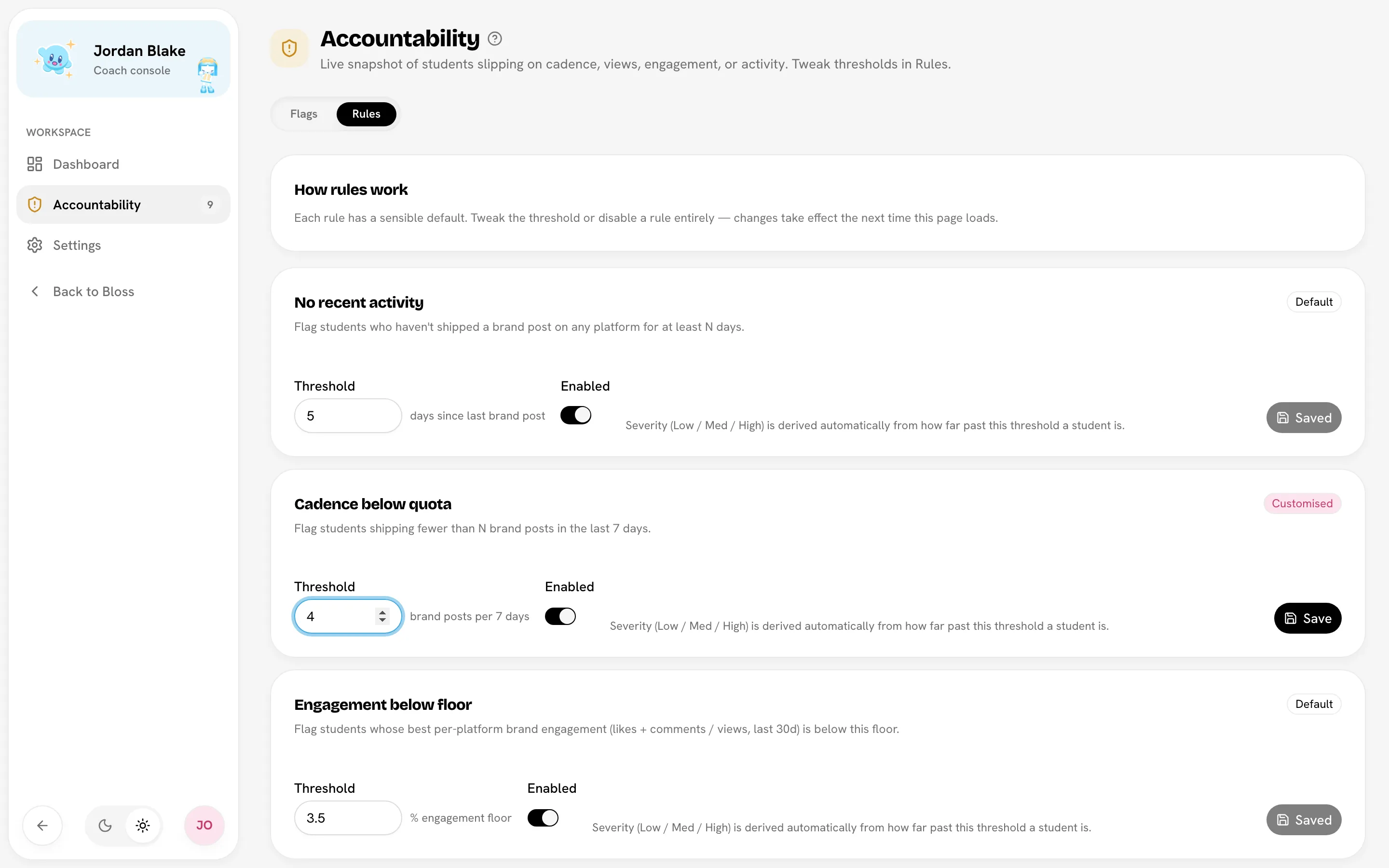
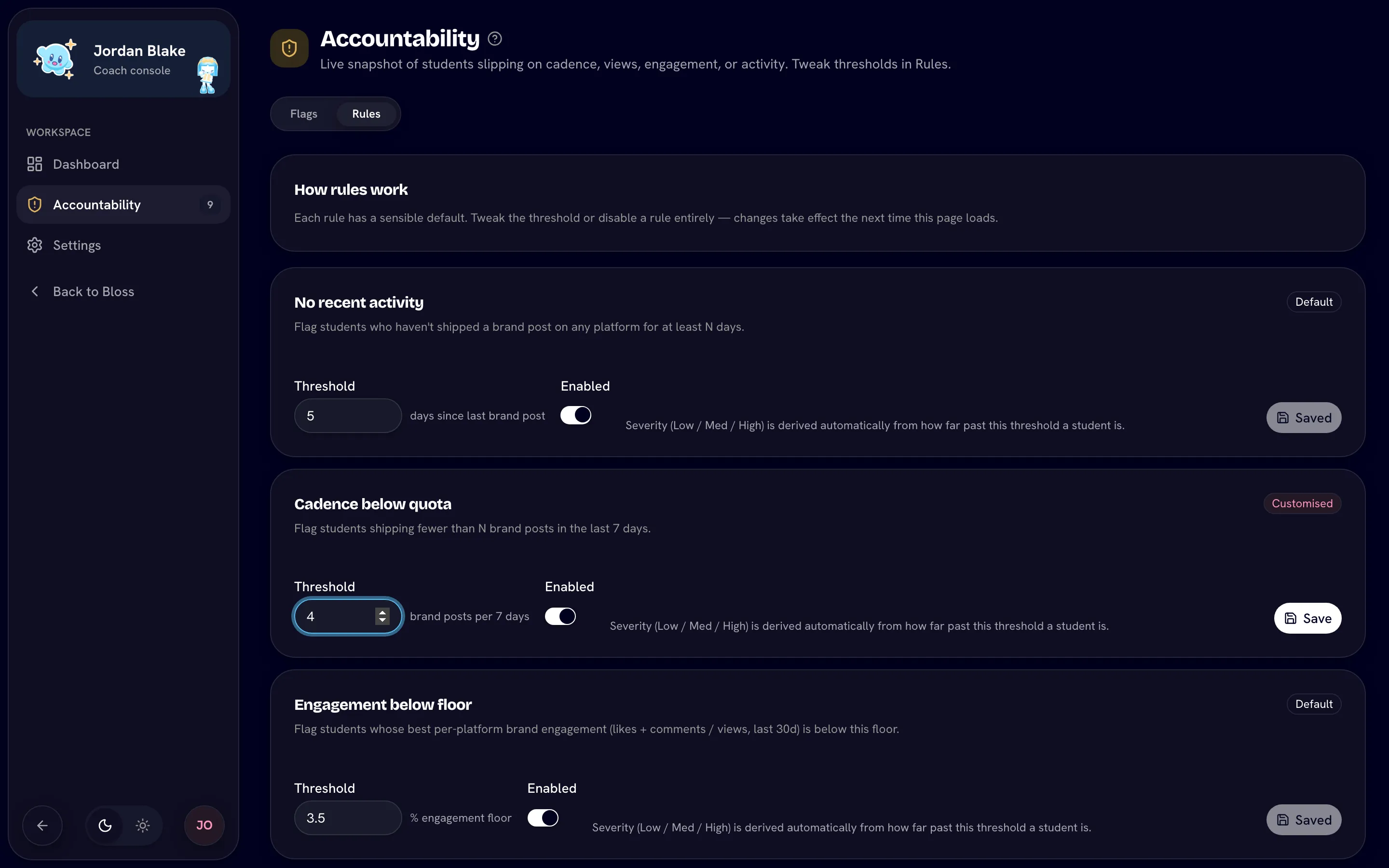
A rule you haven't changed shows a Default badge. Once you save a change it shows Customised. Rules apply to your whole camp; you can't set a different threshold for one student.
Related
Last reviewed Oct 13, 2026