
Inviting students
Add students to your camp with email invites or share links, and use your public coach page.
Students join your camp by accepting an invite. Send a personal invite by email, or create a share link to post in your Discord, community or DMs. Once a student accepts, their brand performance shows up on your dashboard.
Both options live behind the Invite student button at the top of your dashboard.
Open your dashboardWho can be a student
A student needs a Bloss creator account. Anyone who signs up from your invite is guided through creating one, and finishes setting up their creator profile before they join.
These people can't join a camp:
- you
- other coaches (with an application in review, or an active or paused account)
- brand admins
- agency admins
If you invite someone with an existing account who falls into one of these groups, Bloss tells you before the email goes out, for example "This user is a brand admin — brand admins can't be students." You also get a message if they're already in your camp.
A student can be in several coaches' camps at once. Each camp is separate: you see only your own notes, stages and flags.
What students agree to
When a student accepts, they're told you'll be able to see their brand performance across every brand they work with on Bloss — deals, posts and cash collected. They can leave your camp at any time.
Send an email invite
Open the invite dialog
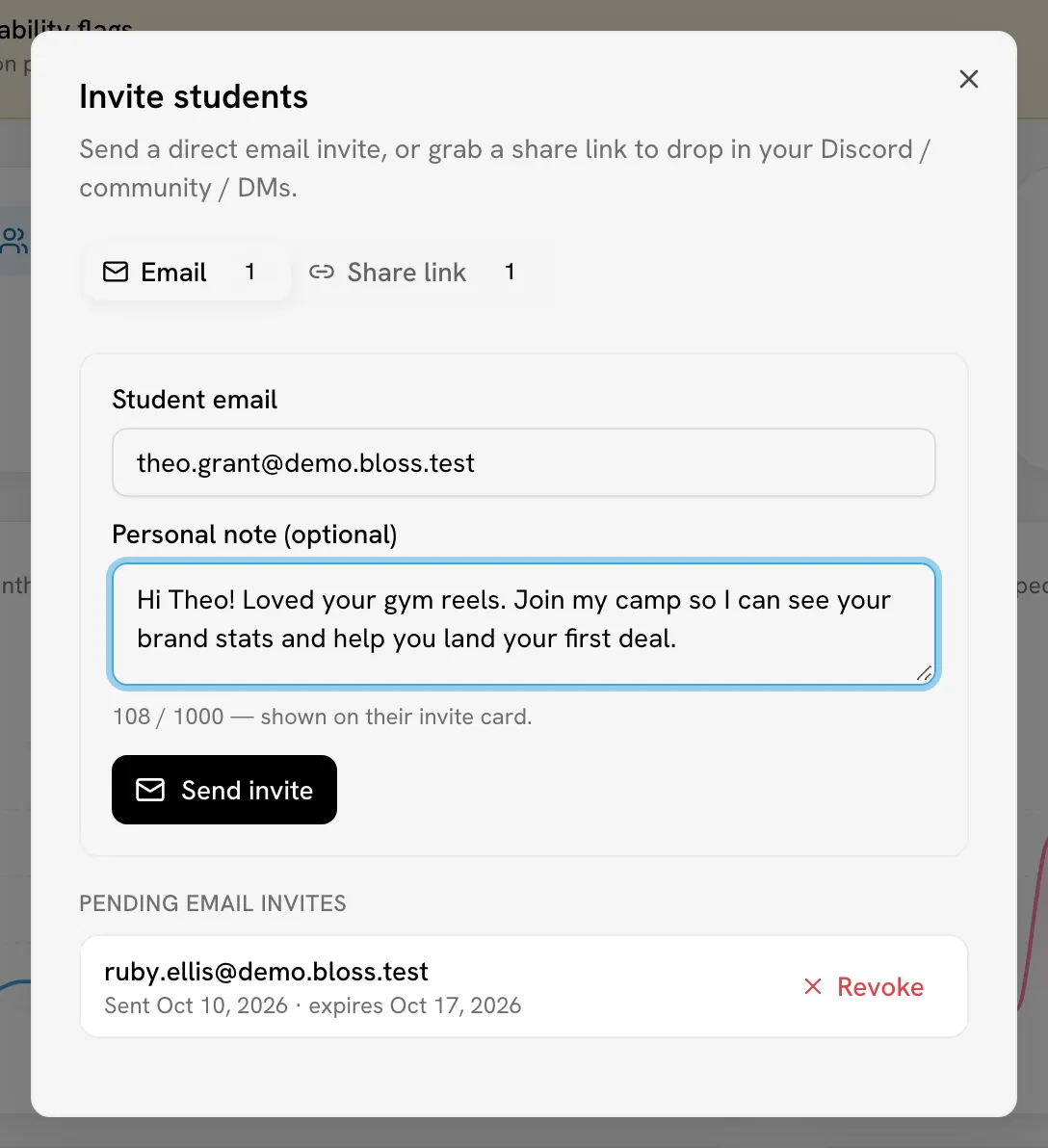
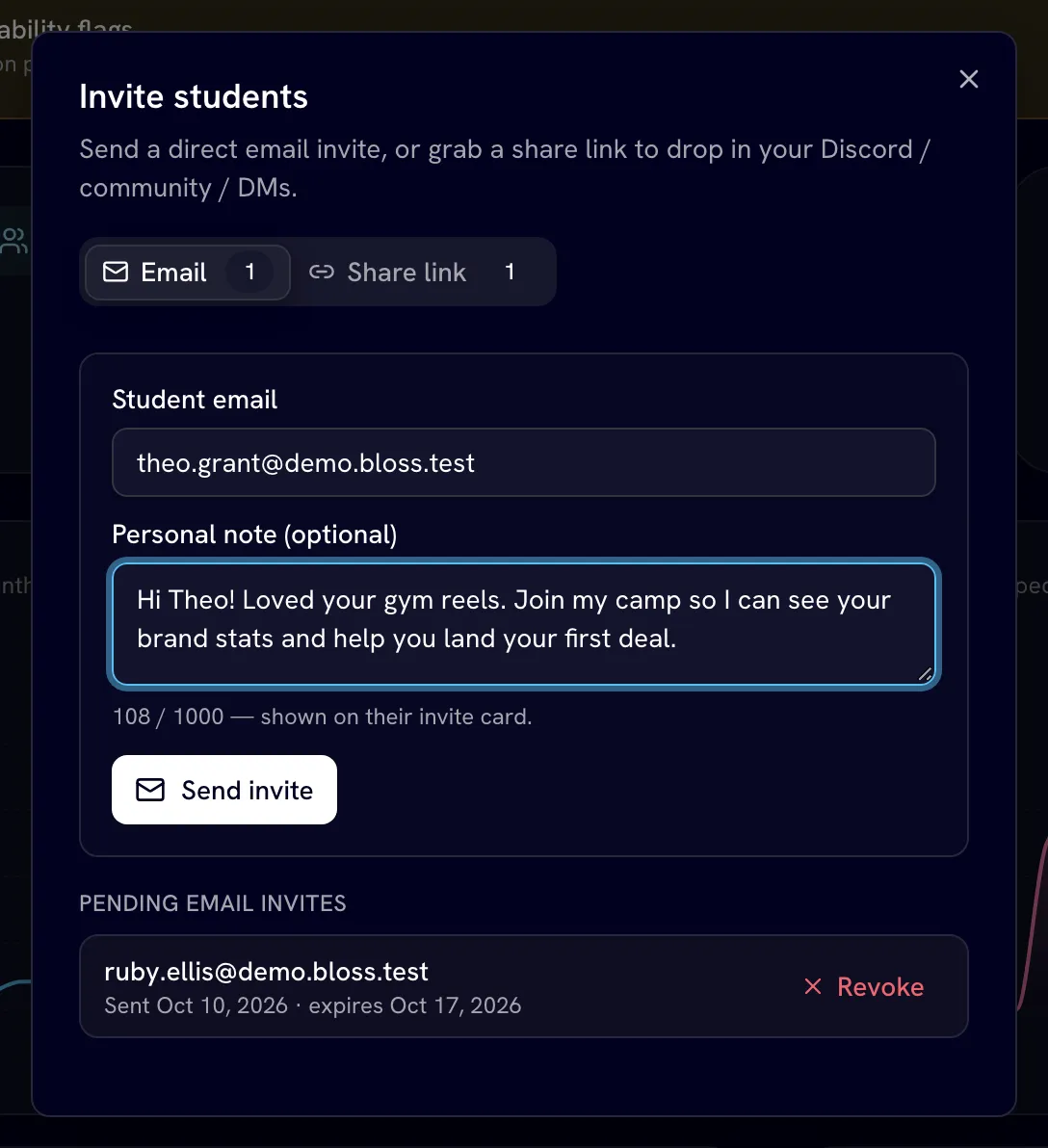
On your dashboard, click Invite student. The Email tab opens.
Enter the student's details
- Student email: the email address the student uses (or will use) on Bloss.
- Personal note (optional): up to 1,000 characters. It's shown on their invite card.
Send it
Click Send invite.
- Email invites expire after 14 days.
- The invite only works for the address you sent it to. If the student signs in with a different email, they see "This invitation is for a different email address."
- Sending to an address that already has a pending invite from you resends it instead of creating a second one. The original expiry date stays.
Manage pending email invites
Under Pending email invites, each invite shows the email, the date it was sent and when it expires. Click Revoke to cancel one. Invites leave the list once they're accepted, declined or expired.
What the student sees
The invite email links to a page where the student:
- Signs up or signs in, if they aren't already.
- Finishes setting up their creator profile, if they haven't yet. They join your camp as part of that.
- Otherwise, confirms on a Join your name's camp? card.
Students who already have an account can also accept or decline from the Coaches tab on their Invitations page. See Working with a coach.
Create a share link
Share links let anyone with the link join, without you knowing their email in advance.
Open the Share link tab
Click Invite student, then the Share link tab.
Set up the link
All fields are optional.
| Field | What it does | If you leave it blank |
|---|---|---|
| Label (optional) | A name to tell your links apart, like "Discord pinned" or "IG bio". Up to 80 characters. | The link is called "Share link". |
| Max uses | How many people can join with this link. | Unlimited |
| Expires in (days) | How many days the link works for. | Never expires |
Create and copy it
Click Create share link. In Your share links, click Copy next to the new link.
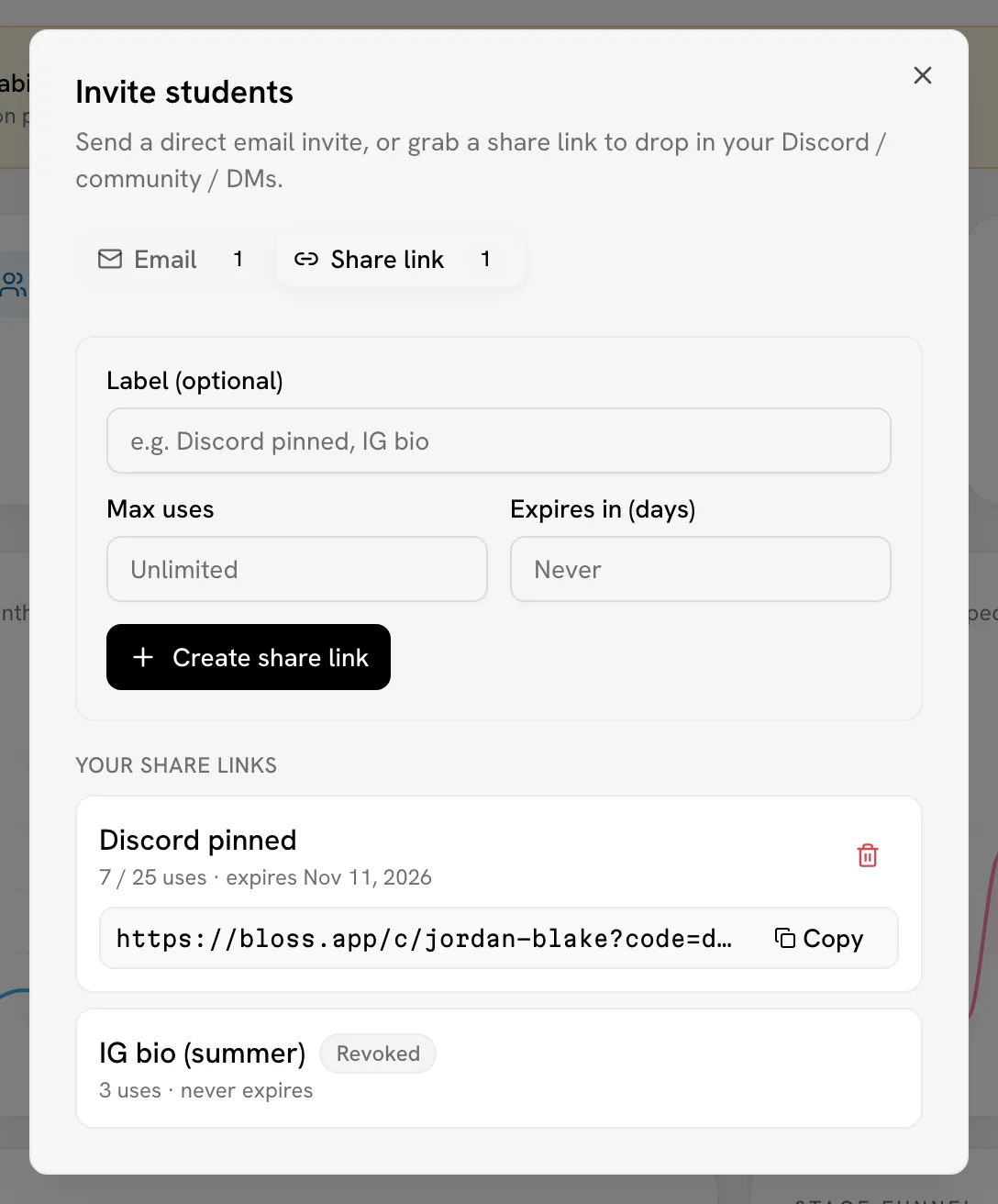
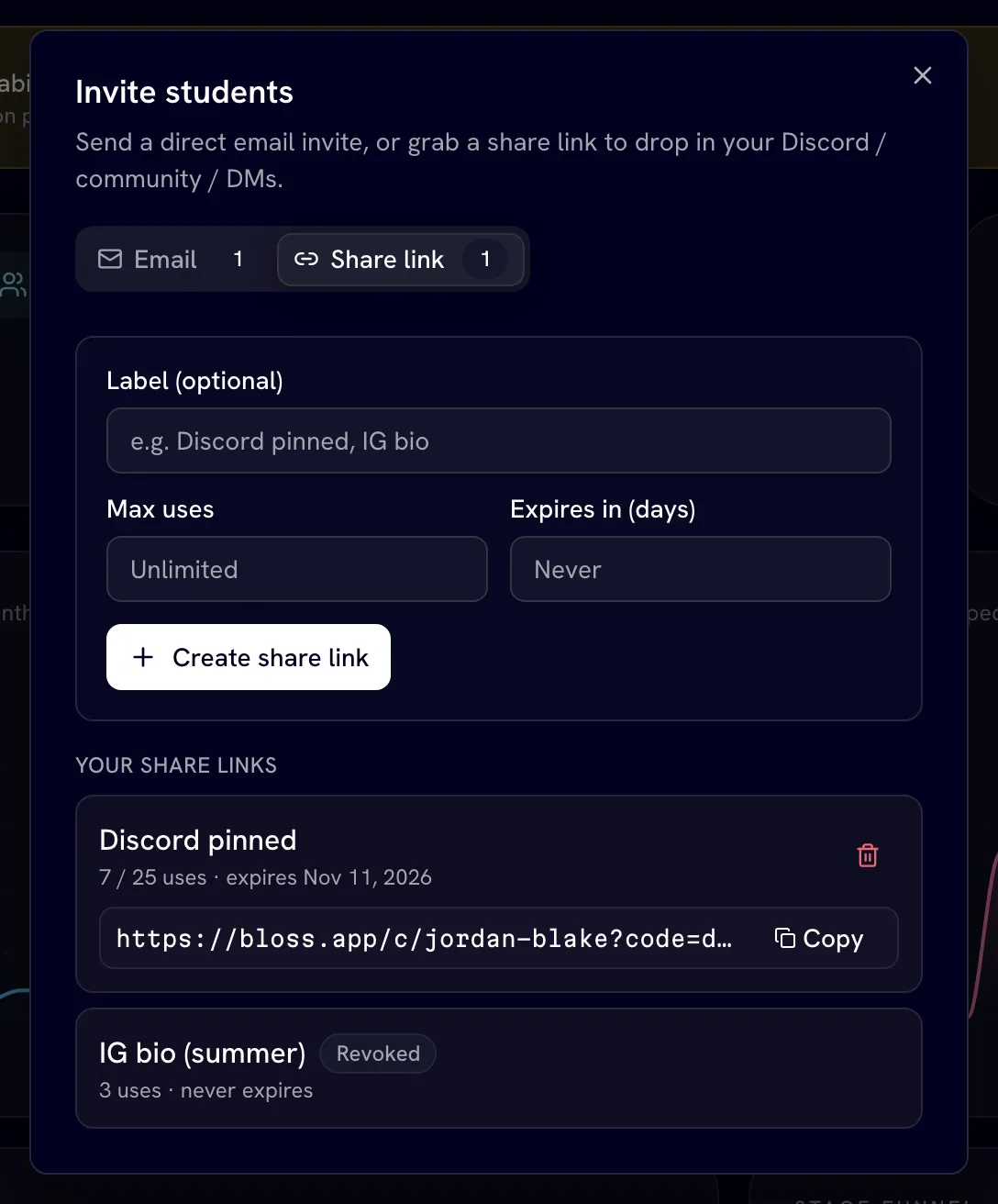
Each link in the list shows its label, how many times it's been used (for example "3 / 10 uses"), and its expiry date or "never expires". Each person can use a given link only once.
Revoke a share link
Click the trash icon (Revoke link) next to the link. It stops working straight away. Revoked links stay in the list with a Revoked badge, and can't be turned back on — create a new link instead.
Someone who opens an expired, full or revoked link sees "This invite link isn't usable" and is asked to get a fresh one from you.
Your public coach page
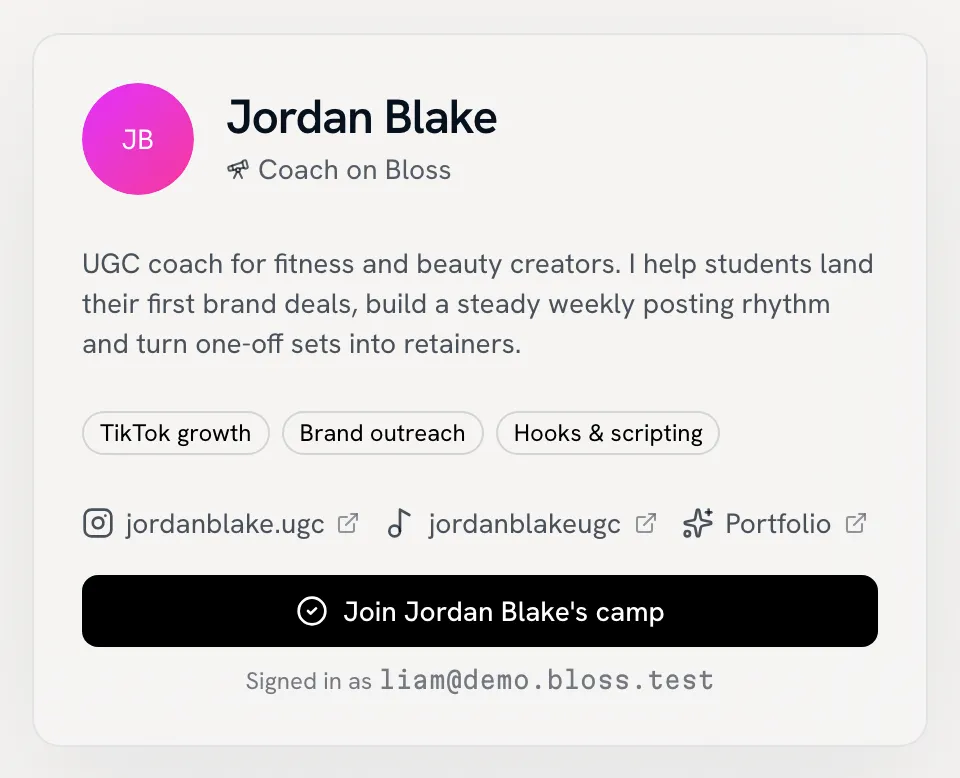
Every active coach has a public page at /c/<your-slug>. Your share links point to it with a code added on the end, so you can see your page address in any share link.
The page shows:
- your name and a Coach on Bloss label
- your bio and specialties
- links to your Instagram, TikTok and portfolio, if you've added them
You edit all of this in Settings.
What a visitor can do depends on how they arrive:
| Visitor | What they see |
|---|---|
| Opened your page without a share link | Your profile and a note that they need your invite link to join. |
| Opened a share link while signed out | Sign up and Sign in buttons. They come back to your page afterwards. |
| Signed in but hasn't finished their creator profile | Complete profile & join. They join your camp when they finish. |
| Signed in and ready | A Join your name's camp button. |
Paused accounts
While your account is paused, your public page shows "Coach not found" and nobody can accept your invites or share links.
Related
- Your coach dashboard
- Student profiles
- Working with a coach (the student's side)
Last reviewed Oct 12, 2026