
Student profiles
See one student's deals, brand posts and performance, keep private notes, set their stage or remove them from your camp.
Each student has a profile page with everything you can see about their brand work. Open it from the roster on your dashboard: click the student's name or Open. You can also click Open next to a student on the Accountability page.
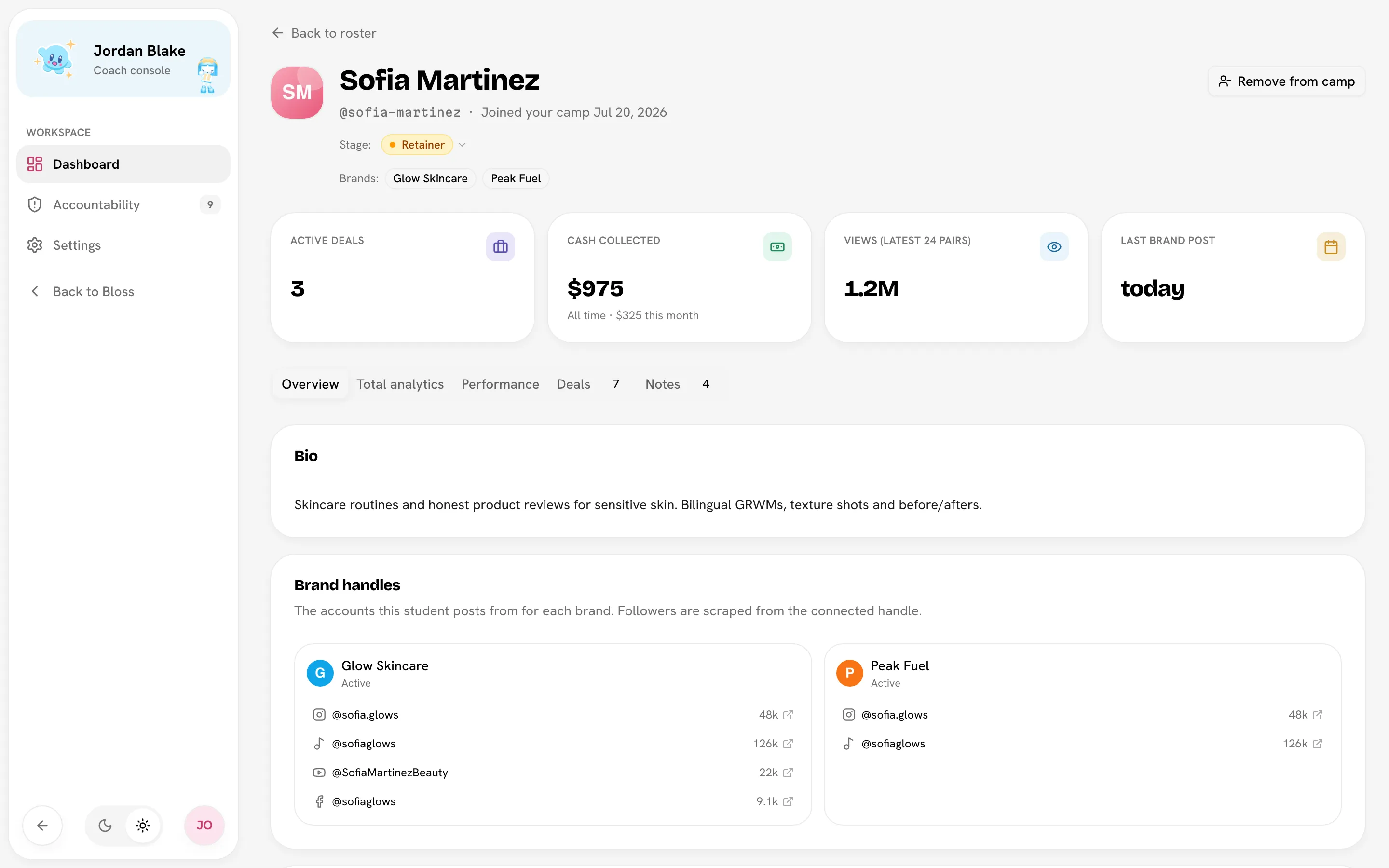
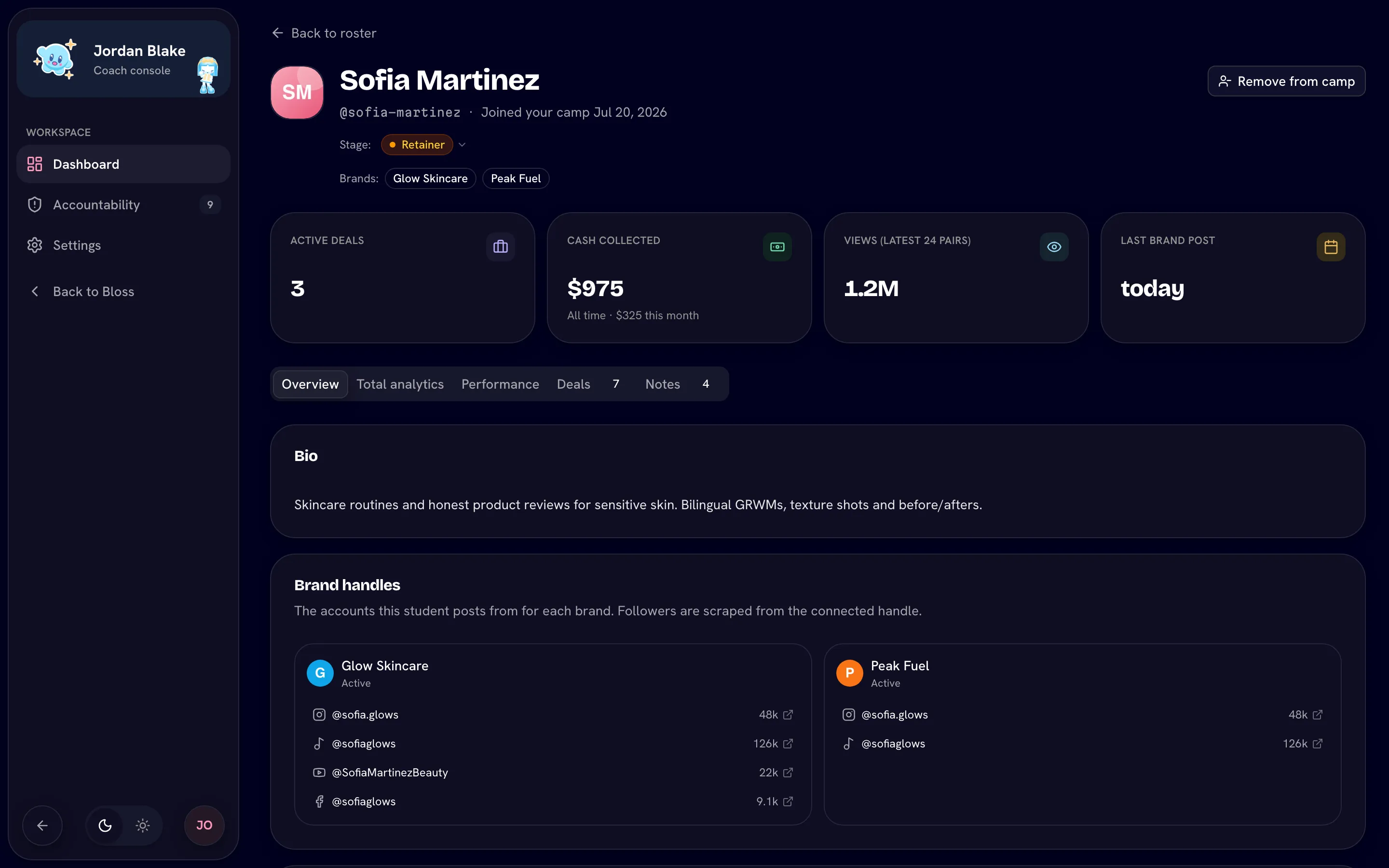
The header
The top of the page shows the student's name and handle, the date they Joined your camp, their Stage, and a badge for each brand they work with. Click Back to roster to return to the dashboard.
Four cards sit under the header:
| Card | What it shows |
|---|---|
| Active deals | Brand payout cycles the student has posted into that the brand hasn't marked as paid yet. |
| Cash collected | Money brands have paid the student, all time. The hint shows this month's total. |
| Views (latest 24 pairs) | Total views across the student's 24 most recent sets. |
| Last brand post | How long ago they last posted for a brand. |
These use the same definitions as your dashboard.
Tabs
Overview
- Bio: the student's own bio.
- Brand handles: a card per brand with the accounts the student posts from for that brand. A student can use different handles for different brands.
- Recent brand posts: the student's latest sets across all their brands, newest first. Each card is one piece of content and shows which platforms it went out on; empty platforms show a placeholder. Click Load more to go further back.
This view is read-only. Only the brand can change or remove a student's videos.
Total analytics
The student's full Bloss analytics: their personal and marketplace content as well as every brand they work with. Use the date range picker to change the period. This tab loads when you open it, so it can take a moment.
Performance
Two charts for the last 30 days:
- Brand views — last 30 days
- Brand posts shipped — last 30 days
If the student works with more than one brand, each chart is stacked by brand.
Deals
All deals lists each payout cycle the student has posted into, across all brands.
| Column | What it shows |
|---|---|
| Brand | The brand running the cycle. |
| Deal period | The cycle's start and end dates. |
| Videos | How many videos the student posted into it. |
| Status | Active (the brand hasn't paid the cycle yet), Paid (the cycle is paid), or No cycle (not assigned to a cycle yet). |
| Paid | What the student was paid. Shown only for Paid deals. |
Notes
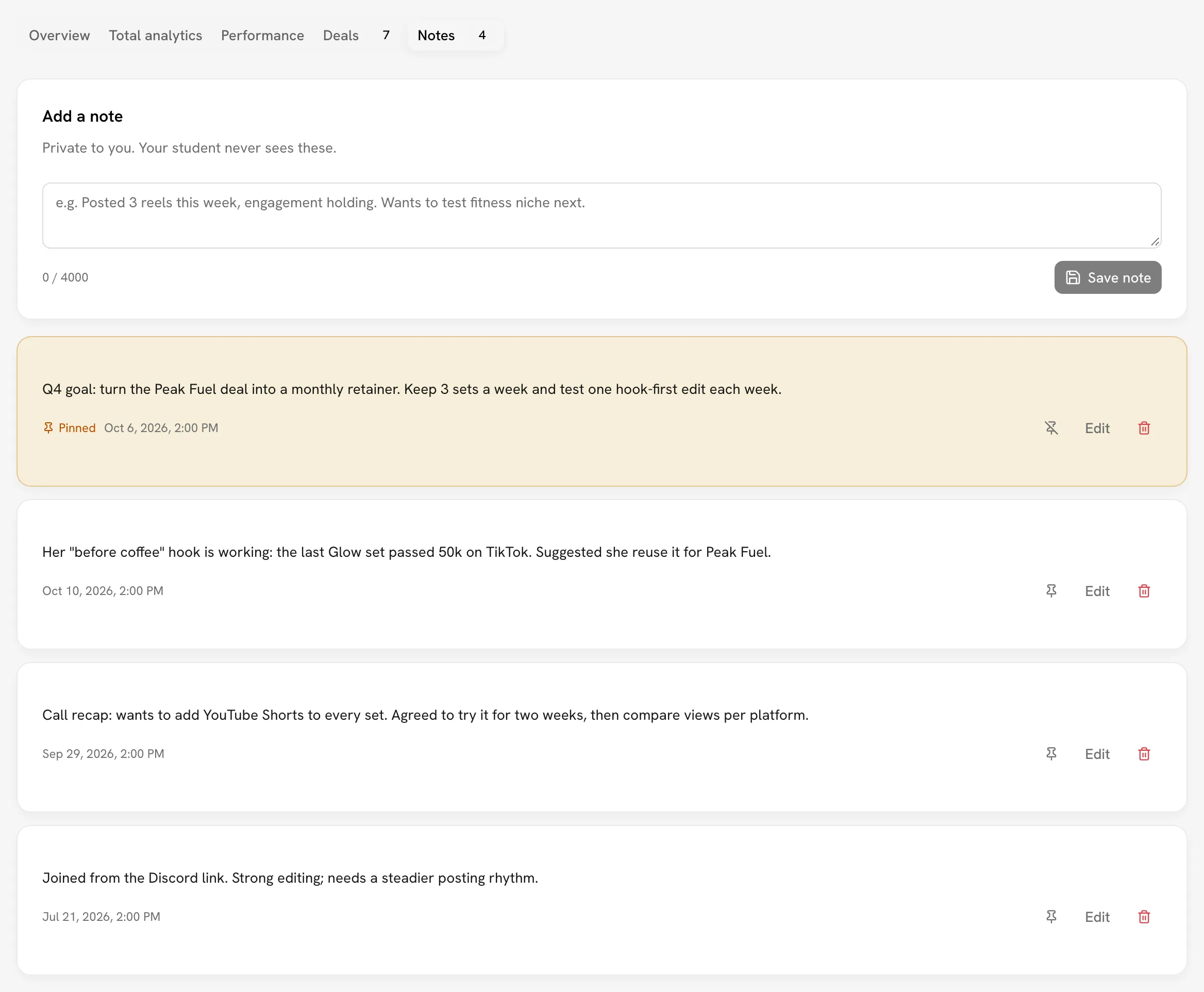
Notes are private to you. Your student never sees them, and other coaches the student works with don't see them either.
Add a note
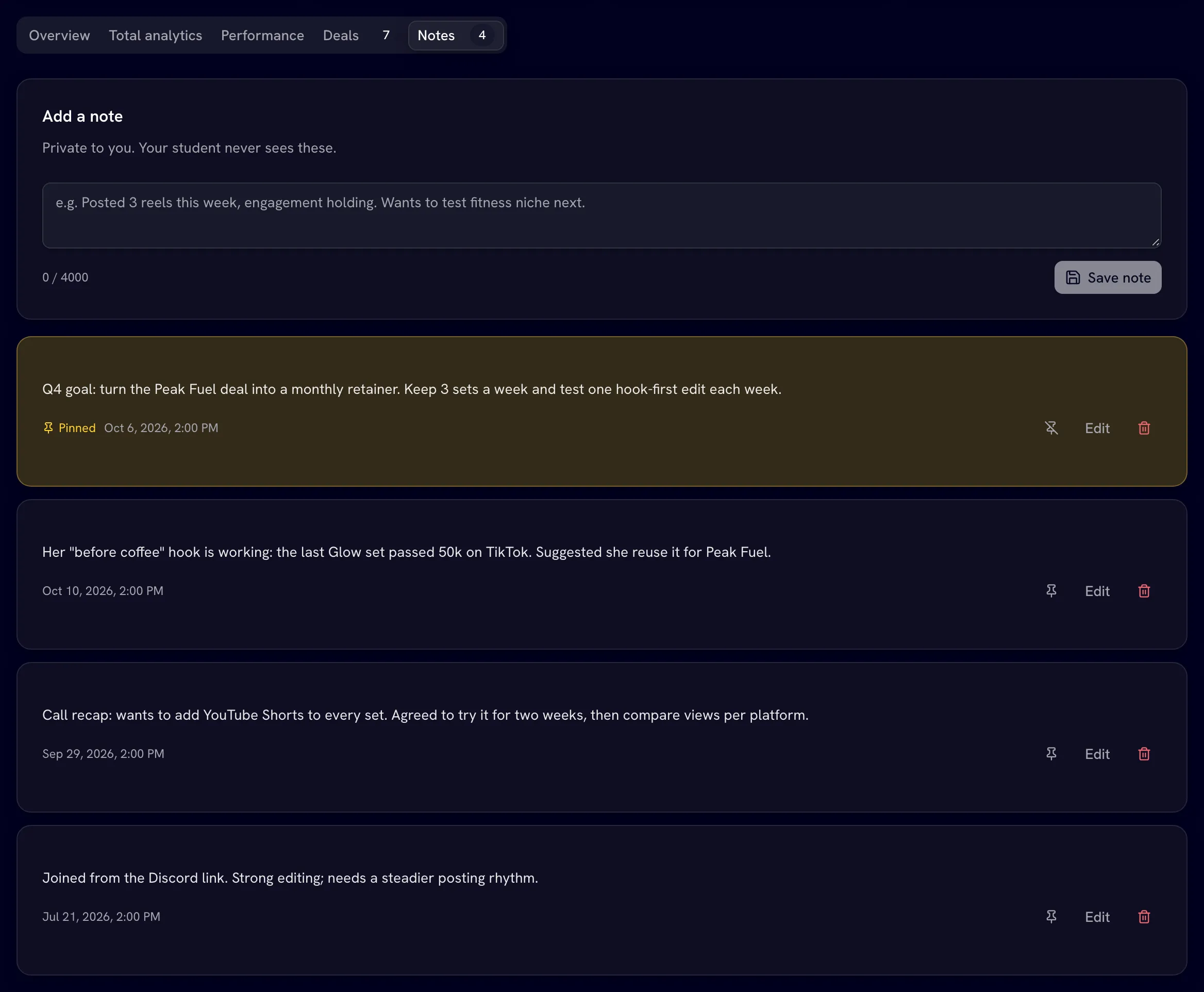
Open the Notes tab, type in Add a note (up to 4,000 characters), then click Save note.
Pin the important ones
Click the pin button on a note to pin it. Pinned notes are highlighted and always stay at the top, above the rest, which are sorted by most recently updated. Click it again to unpin.
Click Edit to change a note, then Save or Cancel. Deleting a note asks you to confirm first and can't be undone.
Change a student's stage
Stages are your own labels for grouping students, like "Onboarding" or "Tier 1". You create them in Settings.
- Click the stage next to Stage: in the profile header, or in the Stage column of the roster. Students without a stage show a dash.
- Pick a stage, or No stage to clear it.
The change shows up straight away in the roster and the stage funnel. If you haven't created any stages yet, you see Set up stages instead, which takes you to Settings.
Remove a student
Start the removal
On the student's profile, click Remove from camp.
Confirm
Click Remove in the dialog.
Your notes are deleted
You lose visibility into the student's performance immediately, and every private note you wrote about them is deleted. This can't be undone. You can re-invite them later, but your old notes won't come back.
Removing a student from your camp doesn't affect any other coach they work with.
Related
Last reviewed Oct 12, 2026