
Your coach dashboard
Read your camp's metrics, charts and stage funnel, and use the student roster and its health flags.
The dashboard is your home in the coach console. It rolls up every student's brand performance — deals, cash and posts — and lists your full roster underneath.
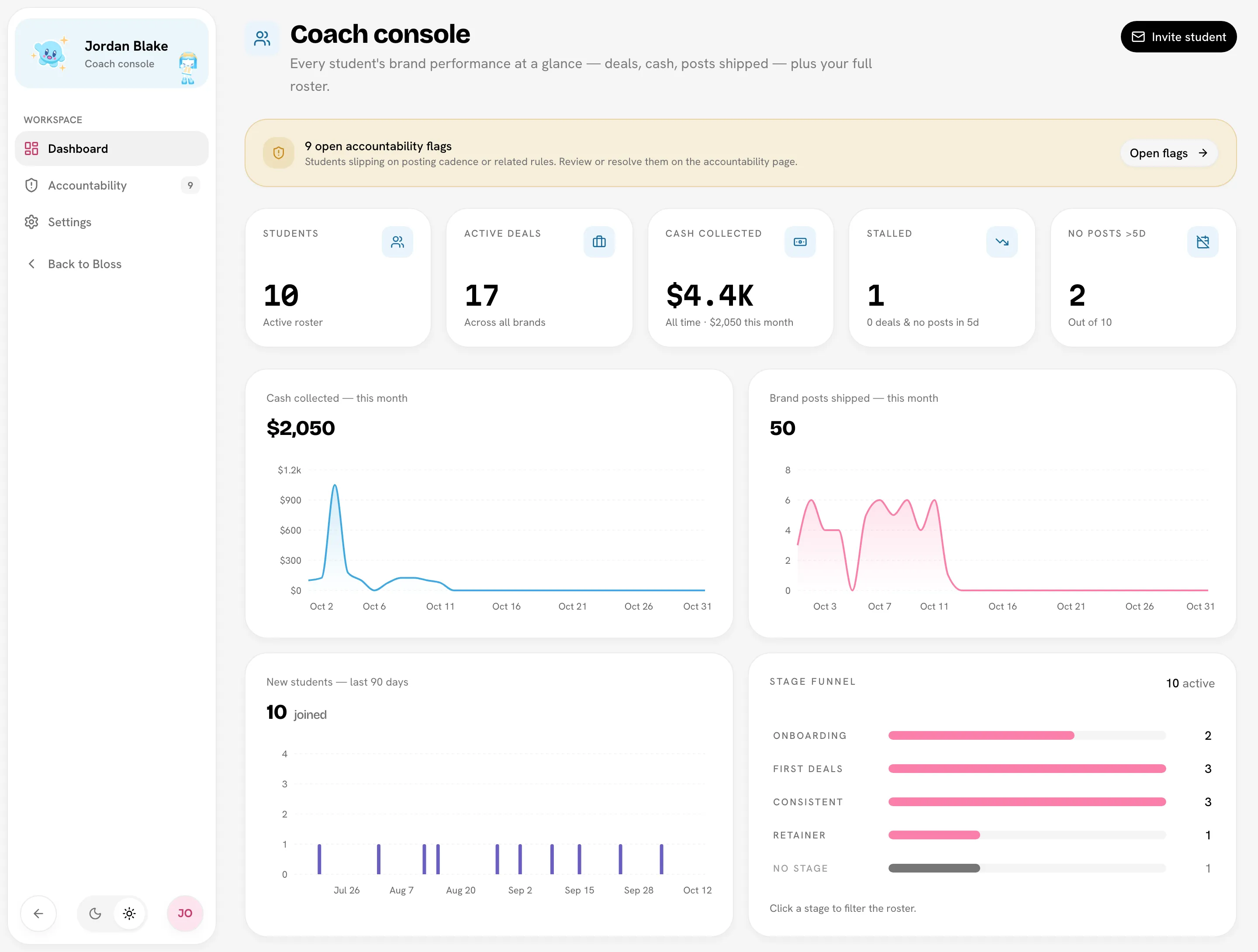
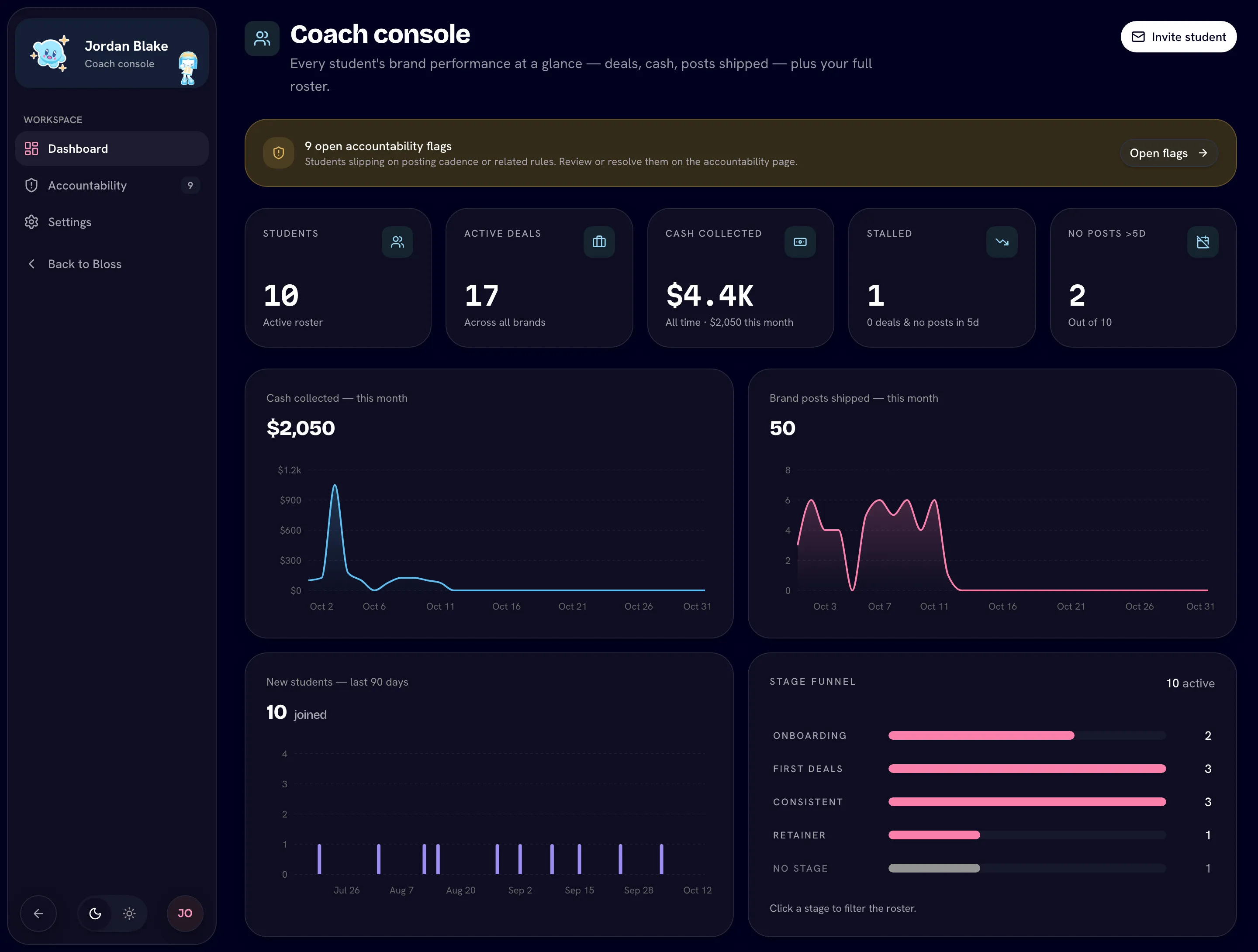
Open your dashboardGo to Coach consoleDashboard. The page is titled Coach console, and the Invite student button sits in its header (see Inviting students).
If you don't have any students yet, the dashboard shows a welcome card instead of metrics. It fills in automatically once students accept your invites.
What counts as brand work
The dashboard, roster and accountability flags only look at brand work: videos your students post for brands they work with on Bloss. A student's personal or marketplace content doesn't count here. To see that too, open the student's Total analytics tab.
A brand post counts as activity when:
- the brand hasn't marked it irrelevant, and
- it has a posting date that isn't in the future.
When one video is posted to several platforms as a single set, it counts as one post shipped.
A deal is a student's part in one brand's payout cycle: a cycle the student has posted into. A deal is active until the brand marks that cycle as paid. Two students in the same brand cycle count as two deals.
Metrics
| Tile | What it shows |
|---|---|
| Students | Students currently in your camp. |
| Active deals | Active deals across all your students and all their brands. |
| Cash collected | Money brands have paid your students, all time. The hint underneath shows this month's total. |
| Stalled | Students with no active deals and no brand post in the last N days. |
| No posts >Nd | Students with no brand post in the last N days, out of your total. |
N is the threshold of your No recent activity rule — 5 days unless you've changed it. See Accountability rules.
If any accountability flags are open, a banner above the tiles shows how many. Click Open flags to go to the Accountability page.
Charts
| Chart | What it shows |
|---|---|
| Cash collected — this month | Daily totals paid to your students this calendar month. |
| Brand posts shipped — this month | Daily count of brand posts your students shipped this month. |
| New students — last 90 days | How many current students joined your camp on each day. |
| Stage funnel | How many students are in each of your student stages. |
Days in the charts follow UTC.
Stage funnel
The funnel lists your stages in the order you set in Settings, with a bar for each one. Students without a stage appear in a No stage row. Click any row to jump to the roster filtered to that stage.
If you haven't created stages yet, the card says Bucket students by stage. Click Set up stages to create them.
The student roster
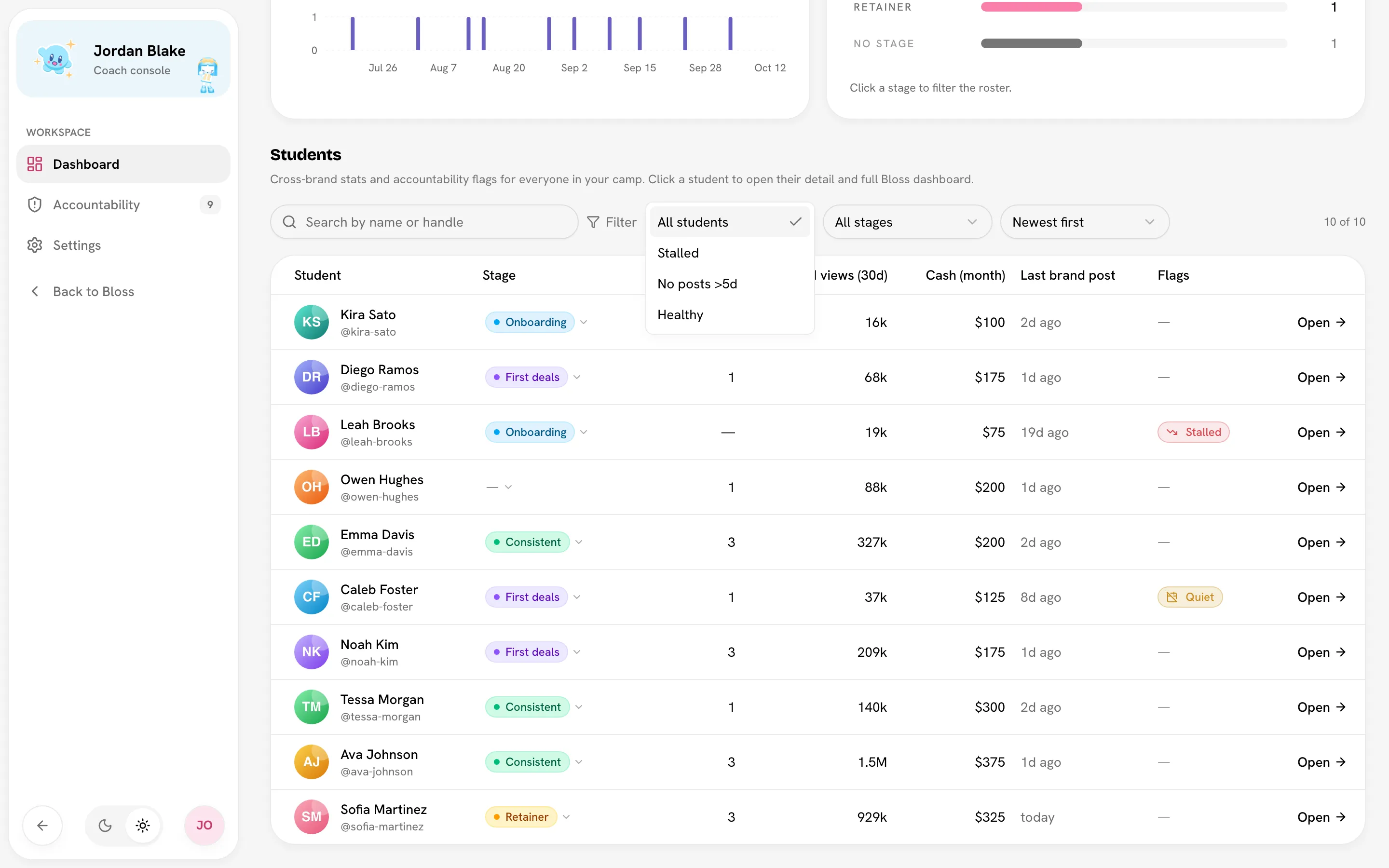
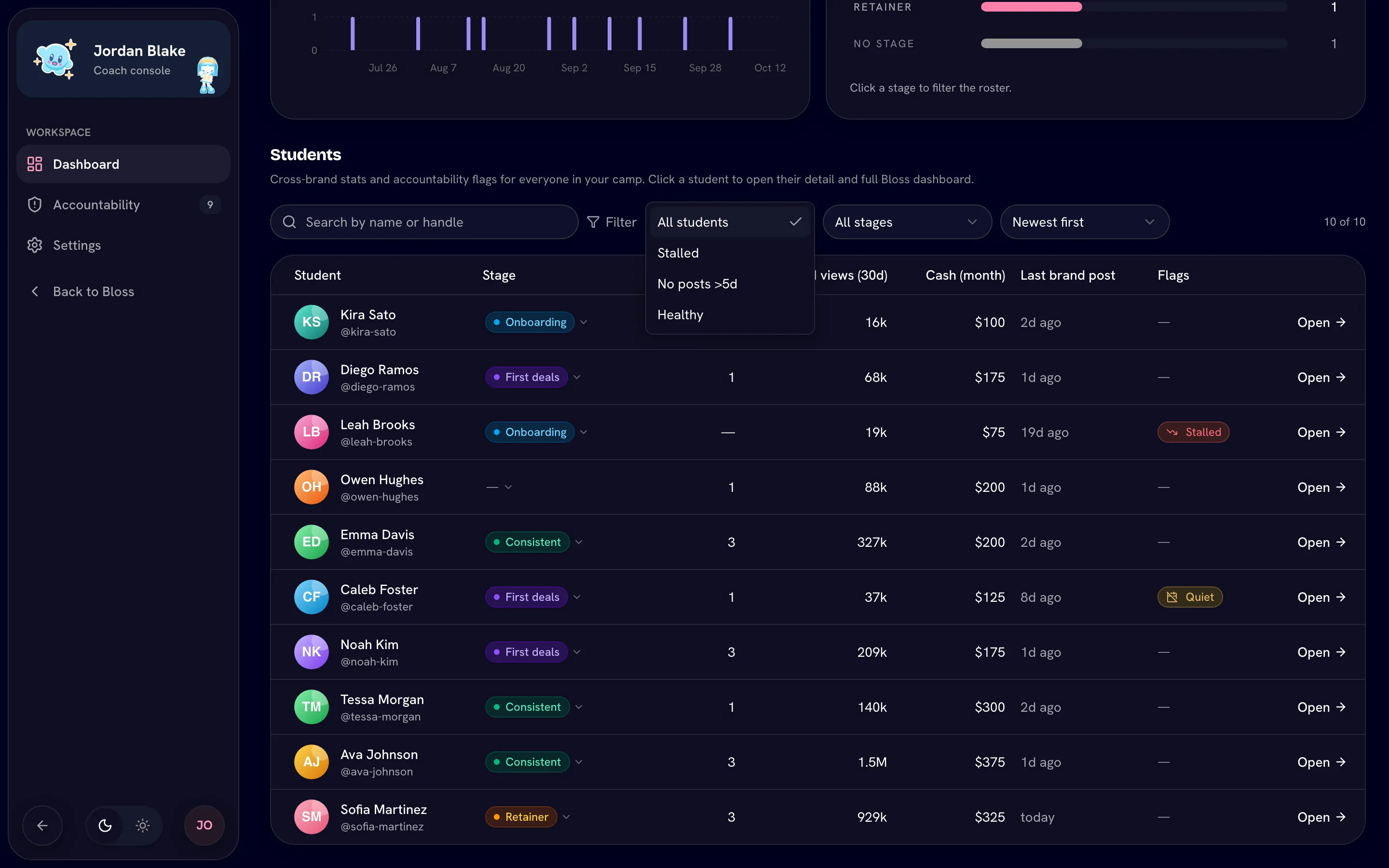
The Students section lists everyone in your camp, newest first. Click a student's name or Open to see their profile.
| Column | What it shows |
|---|---|
| Student | Name and handle. |
| Stage | The student's stage. Click it to change it (see Change a student's stage). |
| Active deals | The student's active deals. |
| Brand views (30d) | Views on brand posts published in the last 30 days. |
| Cash (month) | Money paid to the student this month. |
| Last brand post | How long ago they last posted for a brand. |
| Flags | Stalled or Quiet, if either applies. |
Search, filter and sort
- Search by name or handle narrows the list as you type.
- Filter shows All students, Stalled, No posts >Nd or Healthy.
- The stage filter (shown once you have stages) shows All stages, No stage or a single stage.
- The sort menu offers Newest first, Oldest first, Most active deals, Most views (30d) and Most recent post.
The count next to the controls shows how many students match, for example "4 of 12".
Health flags
Each student's health is worked out from their brand posts and deals. N is your No recent activity threshold (5 days by default). The roster uses this threshold even if you've turned the rule off.
| Flag | Shown as | Means |
|---|---|---|
| Stalled | Red badge in Flags | No active deals and no brand post in the last N days. |
| Quiet | Amber badge in Flags | No brand post in the last N days, but at least one active deal. |
| Healthy | Healthy filter only | Posted for a brand within the last N days and has at least one active deal. |
A student who posts regularly but has no active deals gets no badge, but they're also left out of the Healthy filter.
Flags fix themselves
Health flags are calculated each time the page loads. When a student posts again or picks up a new deal, the flag goes away on its own — there's nothing to resolve.
Related
Last reviewed Oct 12, 2026