
Coach settings
Edit your public profile, links and focus, set up custom student stages, and pause your coach account.
Settings is where you manage your student stages, the profile students see, and your account.
Open SettingsGo to Coach consoleSettings. Accountability thresholds aren't here — they're on the Accountability page.
Student stages
Stages are your own labels for where each student is, like "Free", "Tier 1" or "Onboarding". Each student can have one stage. Stages feed the Stage funnel on your dashboard and the roster's stage filter.
Add a stage
In Student stages, click Add stage.
Name it and pick a color
Enter a name (up to 40 characters) and choose a color, then click Create.
Put it in order
Use the Move up and Move down arrows. The funnel on your dashboard follows this order, so set it up top to bottom, from where students start to where they end up.
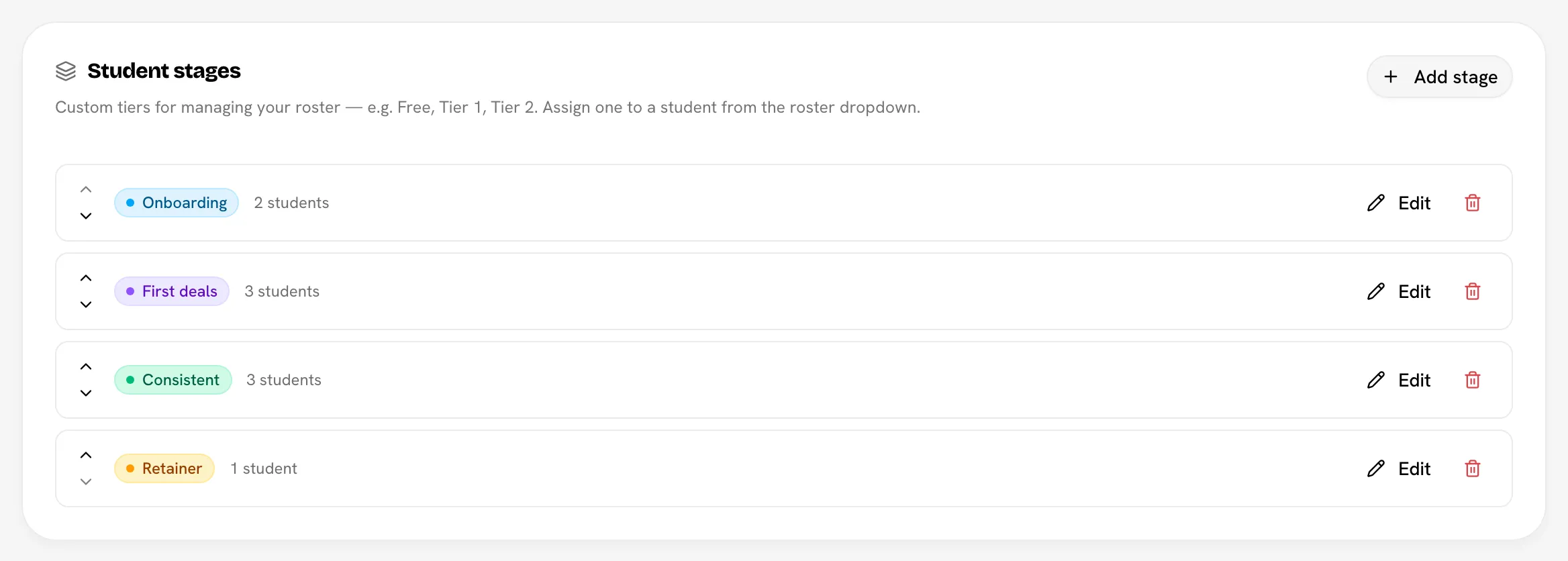
- Each stage shows how many students are in it.
- Click Edit to rename a stage or change its color, then Save.
- Stage names must be unique, and you can have up to 20 stages.
- To assign a stage to a student, see Change a student's stage.
Delete a stage
Click the delete button next to the stage, then confirm. Students in that stage stay in your camp and become unstaged. The dialog tells you how many students are affected before you confirm.
Your profile
These details appear on your public coach page and to anyone who opens your invite links. Your display name also appears on the invite cards students see.
All three sections below are saved together with one button: Save profile changes.
Public profile
| Field | Rules |
|---|---|
| Display name | 2–80 characters |
| Bio | 40–2,000 characters |
| Years coaching creators | A whole number from 0 to 60 |
Focus
| Field | Rules |
|---|---|
| Specialties | Free-form skills, like "TikTok growth". Up to 8. |
| Niches | Content categories you focus on. Up to 6. |
Your specialties appear on your public page. Niches and years of experience are part of your profile but don't show on the public page.
Links
| Field | Rules |
|---|---|
| Your handle, like @yourhandle | |
| TikTok | Your handle |
| Portfolio / website | A full URL, starting with https:// |
Each link you fill in appears on your public page. Leave a field empty to hide it.
Pause your account
The Danger zone section lets you pause your coach account.
Start the pause
Click Pause account.
Confirm
In Pause your coach account?, click Pause my account.
While your account is paused:
- You can't open the dashboard, Accountability or Settings. The coach console only shows your Application status, marked Paused.
- Your students stay in your camp.
- Your public page shows "Coach not found", and nobody can join through your invites or share links.
Only the Bloss team can reactivate your account
There's no button to undo a pause. To start coaching again, contact the Bloss team and ask them to reactivate your account.
Related
Last reviewed Oct 12, 2026
Accountability rules
The four rules that flag students who are slipping, their default thresholds, and how Low, Med and High severity is worked out.
Use your coaching data with AI agents
Connect an AI agent such as Claude to your coaching workspace and ask it about your students, their deals and brand posts, your notes, stages and rules. Free for coaches.