
Joining a brand
The ways you can join a brand on Bloss, from an email invite or invite link to an application, and what happens after you accept.
You join a brand in one of three ways: an email invitation, an invite link, or an application on the brand's recruitment page. You can do all three with the same Bloss account and work with several brands at once.
Accept an email invitation
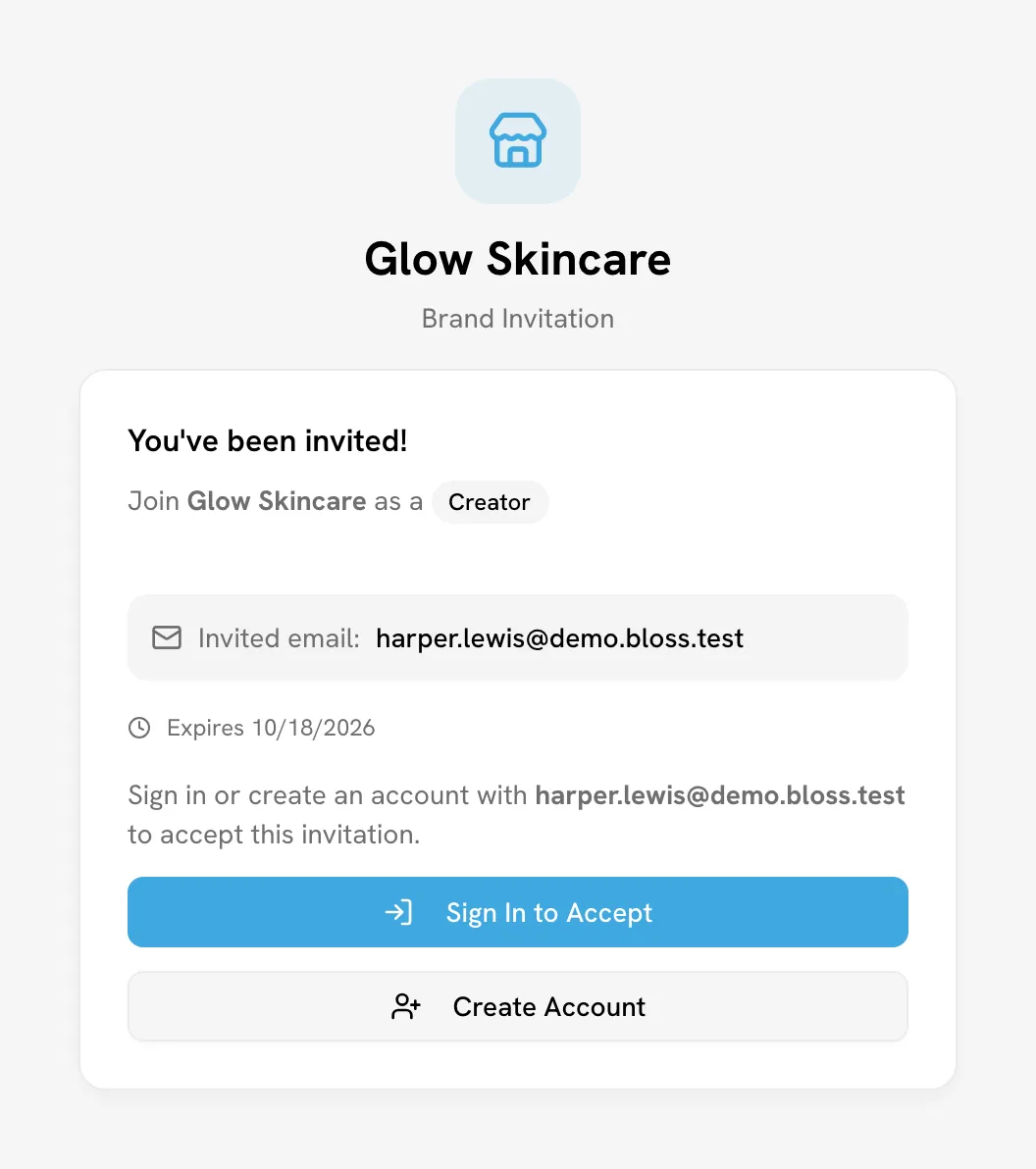
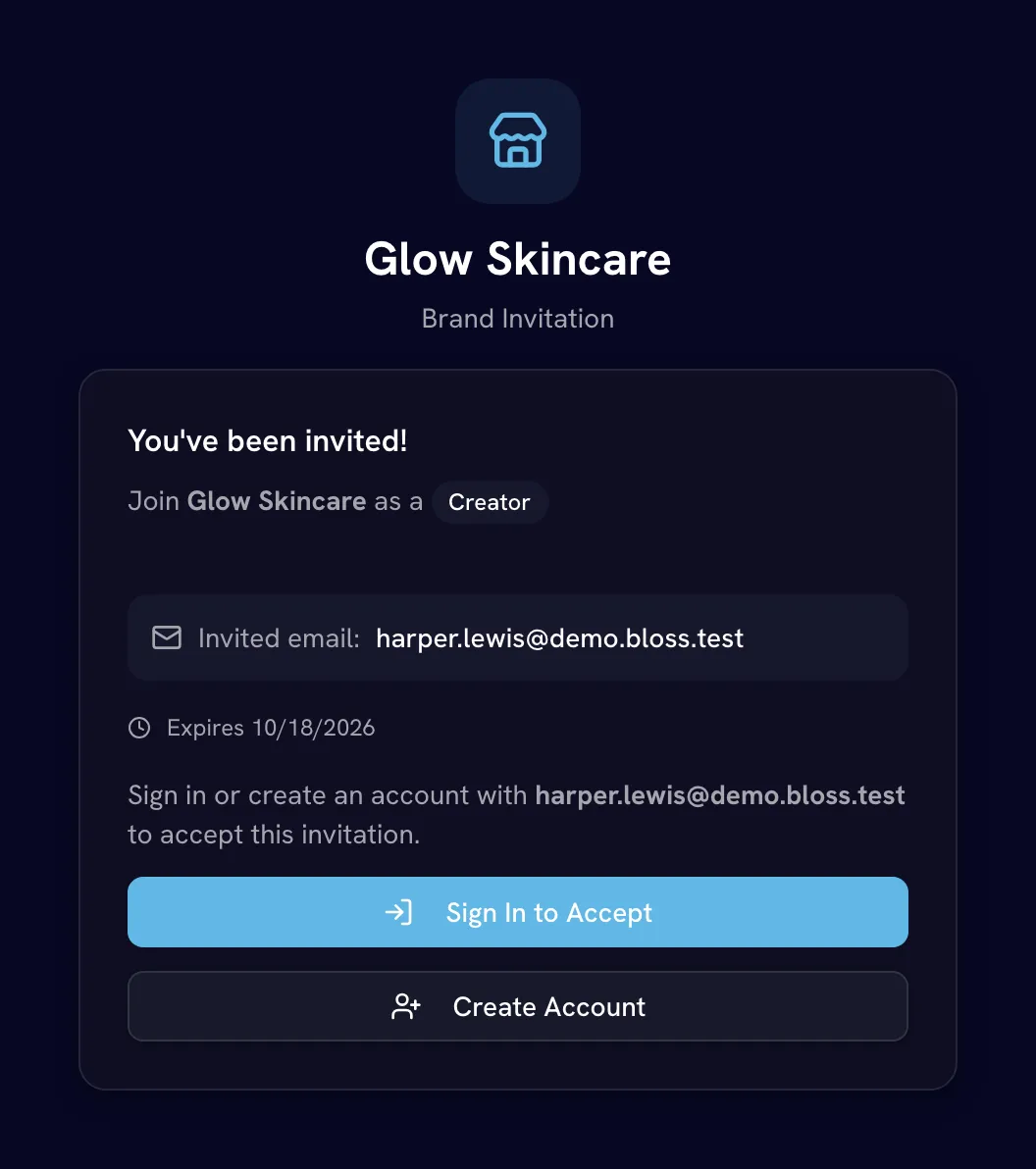
When a brand invites you by email, you get a link to the brand's invitation page. It shows the brand, the role (Creator), the invited email and the date the invite expires. Invitations last 7 days.
Open the link in the email
The page says You've been invited! and shows the email address the invite was sent to.
Sign in or create an account with that email
Click Sign In to Accept if you already use Bloss, or Create Account if you're new. Use the same email address the invitation was sent to. The sign-in form fills it in for you.
Finish onboarding
Bloss accepts the invite for you as soon as you're signed in. If it's your first time, you go through a short onboarding first. After that you land in the brand's creator portal.
Signed in with a different email?
You'll see Wrong account. The invite only works for the address it was sent to. Sign out, then sign in with the invited email. If you no longer use that address, ask the brand to send a new invite to the right one.
Join with an invite link
Brands (and sometimes other creators) share invite links that anyone can use. A brand can share one in two forms:
- An auto-join link, like
bloss.app/<brand>/join/<code>. You join as soon as you're signed in. - An application form link, like
bloss.app/recruit/<brand>/apply?ref=<code>. It opens the brand's application, and you join once the brand approves you. See Apply through a recruitment page.
To use an auto-join link:
- Open the link. The page says You're invited! and Join Brand as a creator.
- Click Sign In to Join or Create Account. Any email works.
- Once you're signed in, you join the brand automatically. New users finish onboarding first; everyone else goes straight to the creator portal.
If you're already a creator for that brand, the link takes you to your portal.
Apply through a recruitment page
Some brands run a public recruitment page at bloss.app/recruit/<brand>. Click the button on that page (it says Join unless the brand chose different wording) to open the application.
Fill in the application
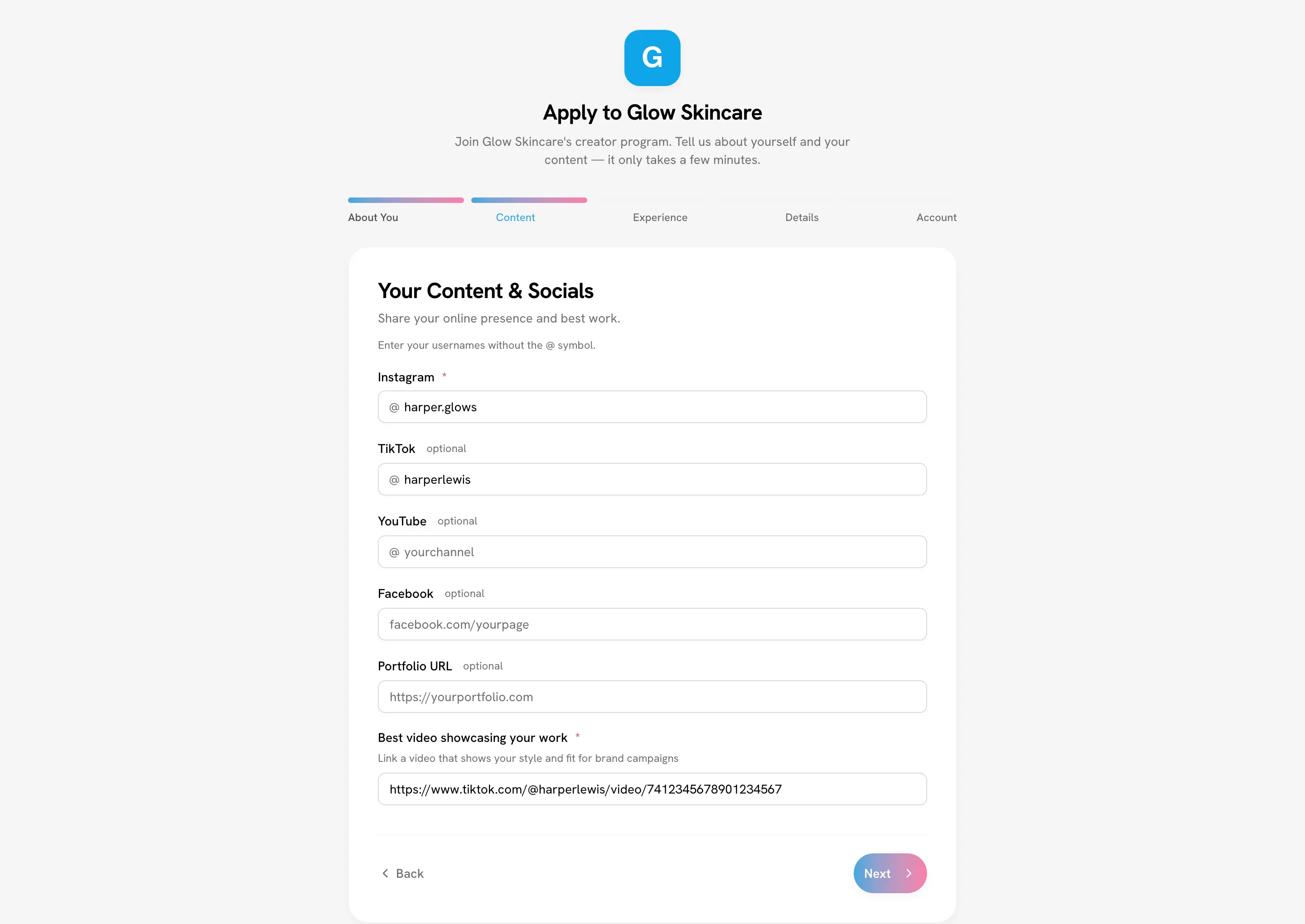
The application has four short steps:
| Step | What it asks |
|---|---|
| About You | Full Name, Email Address, Where are you based?, Languages you speak |
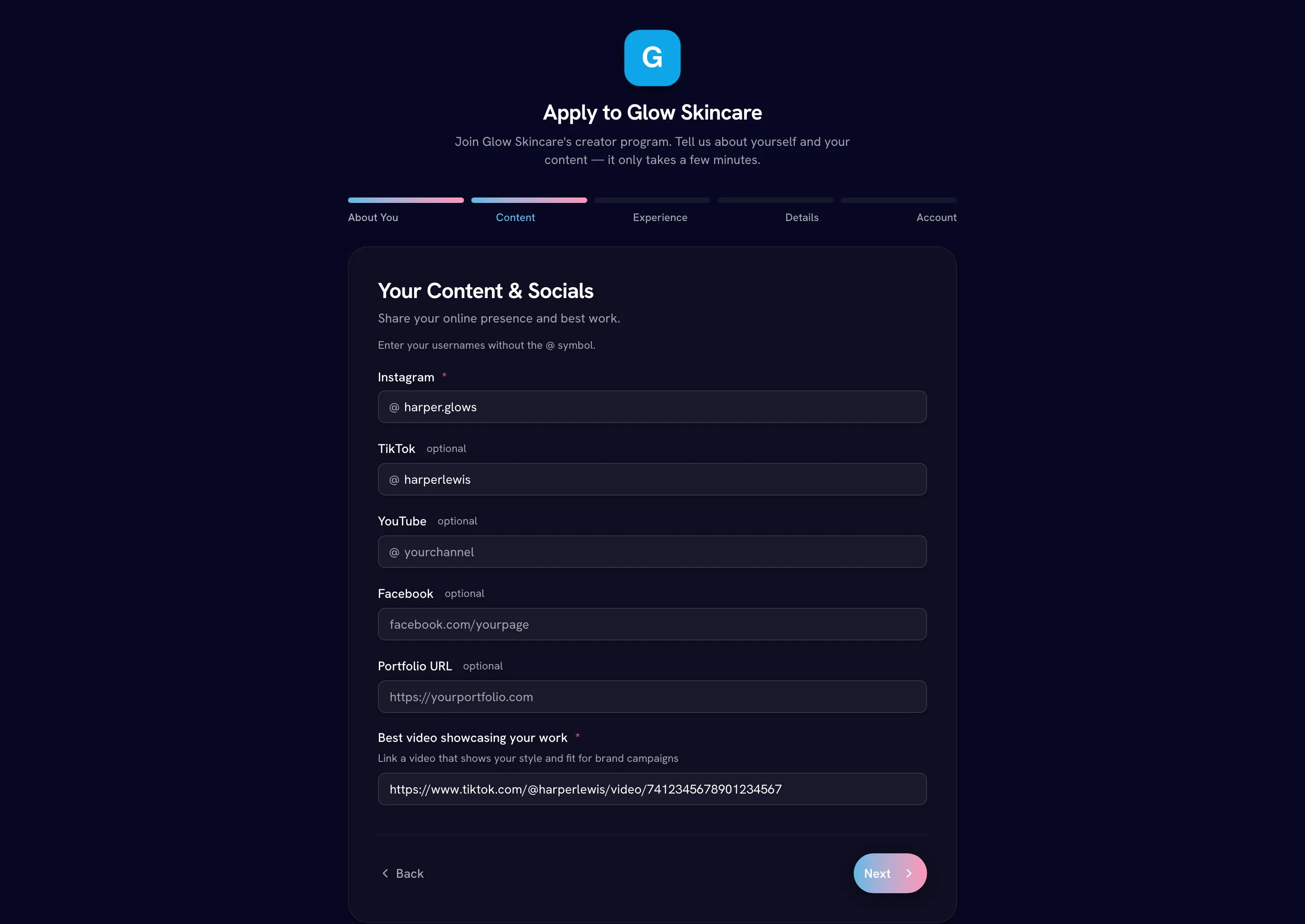
| Your Content & Socials | Your Instagram (required), TikTok, YouTube and Facebook usernames (without the @), a Portfolio URL, and Best video showcasing your work (required) |
| Experience & Fit | Where are you on your UGC journey?, Content niches (up to 5), and Why are you a good fit for brand campaigns? (optional) |
| Final Details | What's your goal with UGC?, How did you hear about us?, your Discord username, and any extra questions the brand added |
Some brands ask you to join their Discord server before you submit. Required fields are marked with *, and Next stays off until they're filled in. Your answers are saved as you go.
Create your account and submit
If you're not signed in yet, the last step creates your Bloss account: enter a name, email and password (at least 8 characters) and click Create Account & Submit Application, or use Continue with Google. If you're already signed in, click Submit Application.
Already have a Bloss creator profile? Sign in first. Bloss fills the application in from your profile and shows a summary (You're all set to apply). Click Apply to Brand, or Edit my details for this application to change something first.
Check your application status
After you submit, you'll see your status page at bloss.app/recruit/<brand>/status. The brand reviews your application, and Bloss emails you when there's an update.
What your status means
| Status page says | What it means |
|---|---|
| Application received | The brand is reviewing it. Your Bloss creator profile is already live, so you can use your dashboard while you wait. |
| You're in! | You were accepted. Click Go to dashboard to open the brand's creator portal. |
| Application not accepted | The brand isn't moving forward right now. |
| This application can be re-submitted | Your application was blocked earlier because you have a coach account. One account can hold both coaching and creator access, so click Re-submit my application. |
| We couldn't find your application | Bloss couldn't match your account to an application for this brand. Click Start an application. |
You can apply to each brand once. If you open the application again after submitting, Bloss shows your status instead. While an application is under review, your dashboard shows a banner with a View status button.
The creator signup link
Bloss also has a general creator signup link (bloss.app/creator-signup) that isn't tied to a brand. It runs the onboarding questions first and creates your account at the end, so you can set up a marketplace profile and get discovered by brands. You can skip ahead to the account step with Skip to signup.
If you're already signed in, the link sends you straight to your workspace.
Onboarding questions
The first time you join, Bloss asks a few questions to build your creator profile. Each one is a single screen, and you can go back at any time.
| Question | Notes |
|---|---|
| What should we call you? | Your display name. Required. |
| Where are you on your UGC journey? | Brand new, Some experience or Pro. Not asked when you join through a brand. |
| What niches are you into? | Pick up to 5. At least one is required. |
| What type of content do you create? | Select all that apply, at least one. |
| Write a short bio | Optional. |
| Add a profile photo | Optional. Not asked on the signup link; add one later. |
| Where are you based? | Optional. |
| What languages do you speak? | At least one. |
| Link your socials | Enter only your username (for example yourhandle), without the @ or the full profile URL. Facebook takes your page URL. When you join through a brand, at least one handle is required; otherwise it's optional. |
| What's your goal with UGC? | Not asked when you join through a brand. |
When you join through a brand, onboarding uses the brand's colors and logo, and the socials step says Link your Brand socials.
Already onboarded?
You only answer these once. If you join another brand later, you skip straight to its portal. That brand may still need your handles, so you'll see a Finish your Brand creator setup banner with an Add handles button. See Connecting your social accounts.
If something goes wrong
| You see | What to do |
|---|---|
| Invitation Expired or Invitation expired | Ask the brand for a new invitation. |
| Invitation Not Found | The link is wrong or was already used. If you already accepted it, sign in and you'll go straight to your portal. |
| Invite Link Expired, Invite link inactive or Invite Link Unavailable | The brand turned the link off or it expired. Ask for a new one. |
| Invite link full | The link reached its limit of creators. Ask for a new one. |
| You've already used this invite | You joined with this link before. If you were removed from the brand, ask them to send a new invitation. |
Related
Last reviewed Oct 13, 2026