
Brand portal tour
A tour of a brand's creator portal, the sidebar items, and what's on the portal home page.
Every brand you create for has its own creator portal. It's where you see your videos and payouts for that brand, connect your accounts, and reach the brand's programs. The portal uses the brand's logo and colors.
Open it from the main sidebar under My Brands (your role shows as Creator), or go to bloss.app/<brand>/creator. If you create for several brands, switch between them with the brand switcher at the top of the portal sidebar.
The sidebar
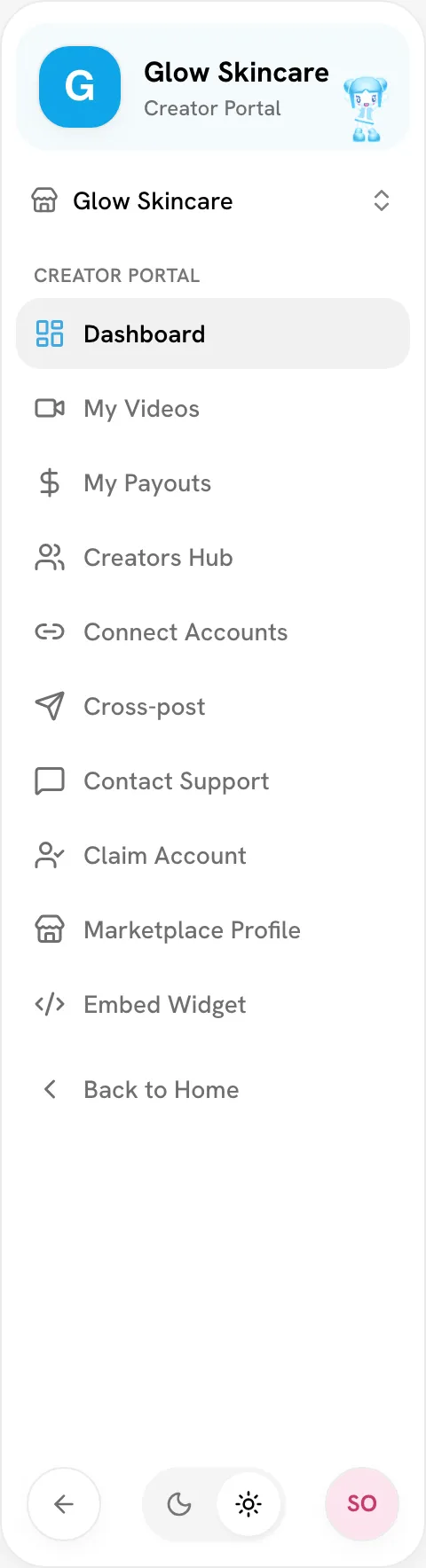
The sidebar group is called Creator Portal. Some items only appear when the brand turns them on.
| Item | What it's for |
|---|---|
| Dashboard | Your stats, status and settings for this brand (see below) |
| My Videos | Every tracked video and set. See My videos & payouts. |
| Managed Account / Managed Accounts | Only if the brand assigned you a managed account |
| My Payouts | Your earnings, payout history and where to withdraw. See Getting your money. |
| Creators Hub | The team leaderboard. Hidden if the brand keeps brand-wide stats private. See Creators Hub. |
| Bounties | Only if the brand runs bounties |
| Streak Survivor | Only if the brand runs Streak Survivor |
| Connect Accounts | Your handles for this brand. See Connecting your social accounts. |
| Cross-post | Post one video to several platforms. See Cross-posting. |
| Contact Support | Message the brand. See Support and claims. |
| Claim Account | Claim a profile the brand set up for you |
| Marketplace Profile | Your public profile, shared across all brands |
| Embed Widget | Put your profile card on your own site |
| Back to Home | Leave the portal |
The portal home
Dashboard is the first page you see in a brand's portal.
Header and sync
The header shows your name, your status for this brand, how many platforms you've connected and when your data was last synced.
Bloss syncs your videos automatically. To pull in a new video right away, click Sync Data, then Start Sync. You can sync 3 times a day per brand; the button shows how many syncs you have left. A sync also groups your new videos into sets.
Overview
Overview shows your Total Videos, Total Views, Total Audience and payouts for this brand. Switch between Current Cycle, All Time and Custom. Below it, Creator momentum charts your views, engagements and engagement rate.
Program status
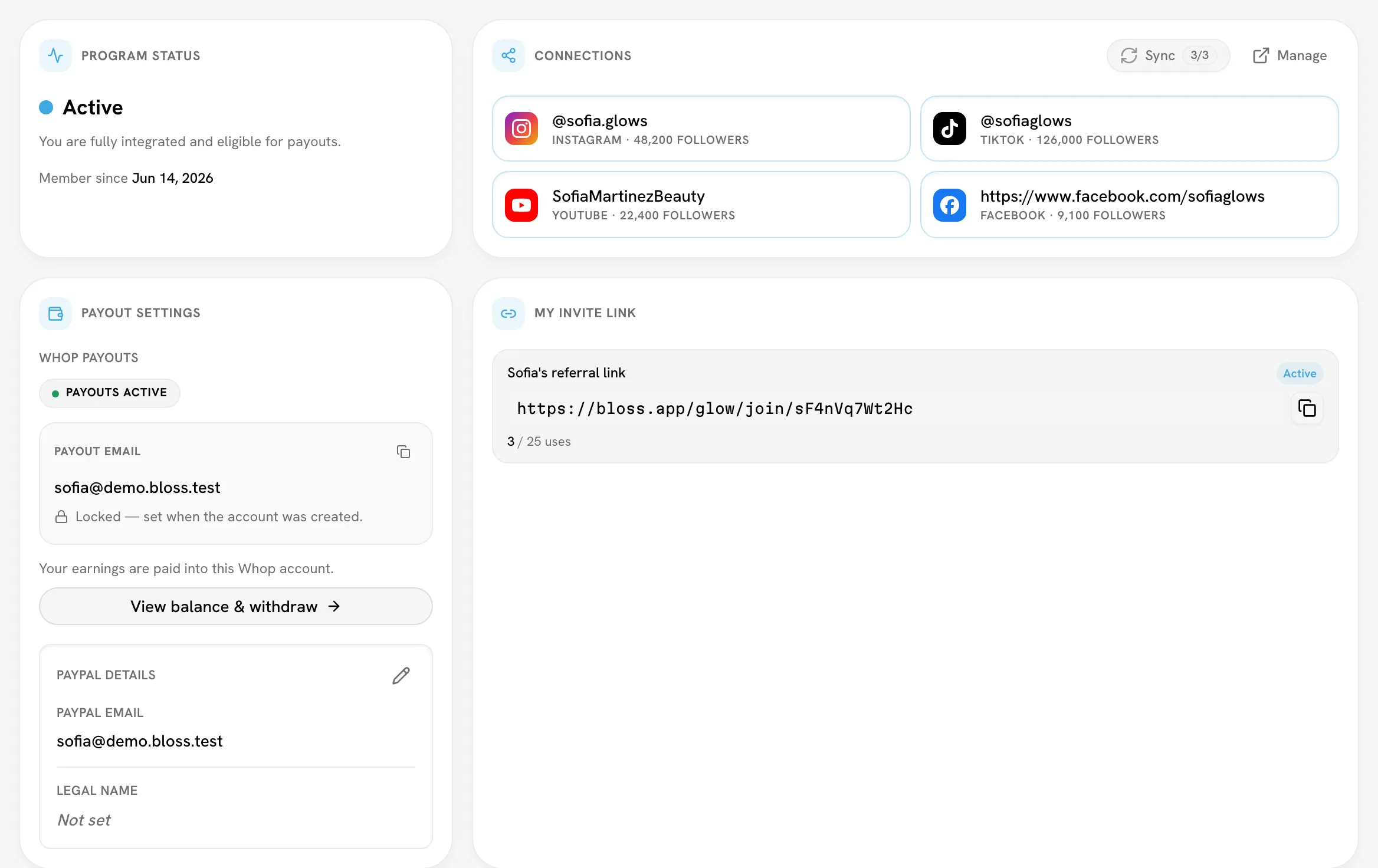
Program Status tells you where you stand with this brand:
| Status | What it means |
|---|---|
| Active | You're a full member, and your videos are synced and paid as normal. |
| Trial | You're in the brand's trial period. You're still synced and paid. Trial Progress shows how close you are to passing. |
| Paused | The brand paused you. New videos aren't synced or scored, but you'll still be paid what you already earned. |
If a brand removes you, you lose access to its portal. Your history is kept.
Other cards
- Connections: the handle on each platform (or Not connected), with a Sync button and a Manage link.
- Payout Settings: how this brand pays you and your PayPal details. See Getting your money.
- My Invite Link and Referral Earnings: see Referrals.
- Note from your brand: a message the brand wants you to see, if they've written one.
At the bottom, the Videos and Payouts tabs show your latest few. Click View full library → or View all payouts → for everything.
Haven't connected your accounts yet?
You'll see Connect your social accounts at the top of the page. Bloss can't track your videos until you add at least one handle, so click Connect Accounts first.
Related
Last reviewed Oct 12, 2026