
Connecting your social accounts
Add your Instagram, TikTok, YouTube and Facebook so a brand can track your videos, and sync them manually when you need to.
A brand can only track and pay for videos it can find. You tell it where you post by adding your handles in each brand's portal. Bloss then finds your public videos and keeps their views up to date.
Go to Creator PortalConnect Accounts in the brand's portal.
Open Connect AccountsAdd your handles
Fill in the platforms you post on
| Platform | Field | What to enter |
|---|---|---|
| Username | yourusername | |
| TikTok | Username | yourusername |
| YouTube | Handle | yourchannel |
| Page URL or handle | facebook.com/yourpage |
You don't need all four. Fill in the ones you post on for this brand.
Click Save Accounts
Bloss checks that each account exists. If one can't be found, the field turns red with We couldn't find this … account. Double-check the username. Fix it and save again.
When everything checks out, you'll see Social accounts updated! Videos will be synced automatically. Each saved platform shows a Connected badge.
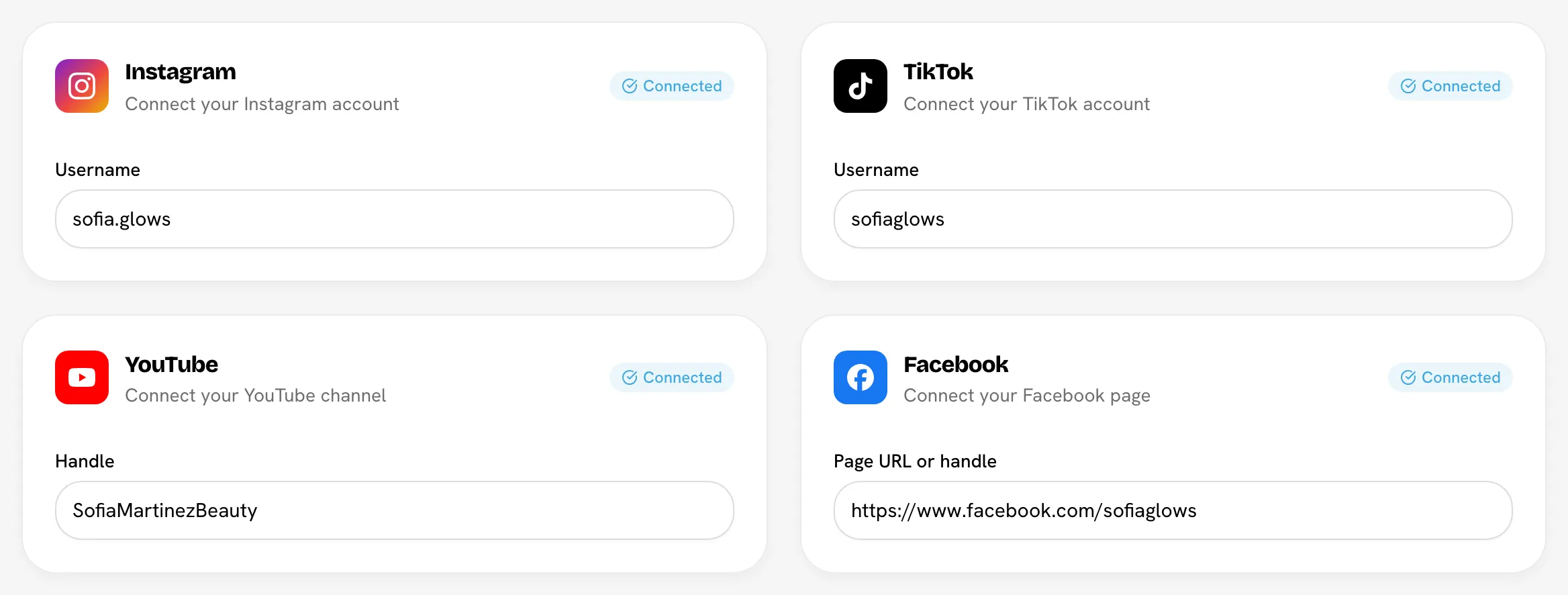
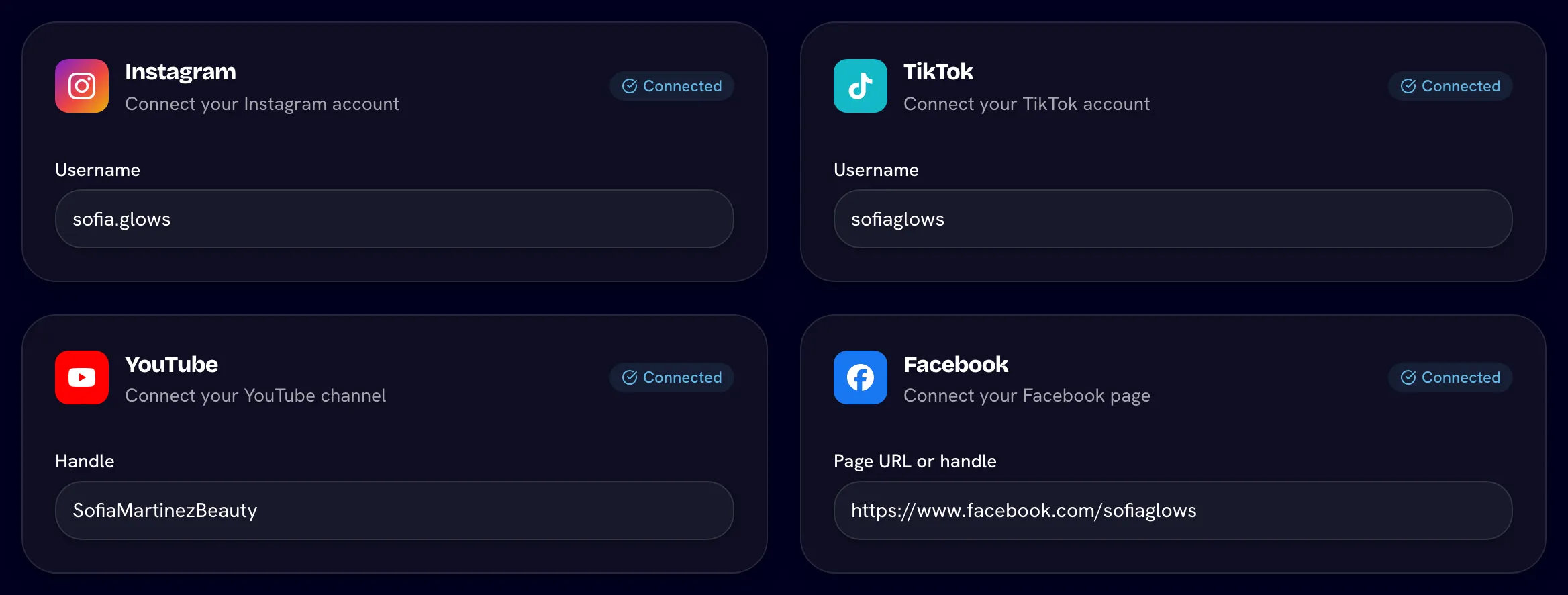
Handle formats that work
- Instagram, TikTok and YouTube: type your username, with or without the
@. You can also paste your full profile link (for exampletiktok.com/@yournameoryoutube.com/@yourchannel); Bloss trims it down to the username and shows you what it saved. YouTube also accepts/channel/…,/c/…and/user/…links. - Facebook: Bloss tracks a Facebook page, so paste the page link, for example
facebook.com/yourpage. A page name on its own (yourpage),fb.com/…links,profile.php?id=…links and/pages/Name/IDlinks also work. Bloss removes extra tracking text after a?.
Keep your accounts public
Bloss can only see public videos. If an account is private, its videos won't be tracked or paid. Facebook pages that are private or age-restricted can't be found at all.
Each brand has its own handles
Your handles are saved per brand, so you can post for different brands from different accounts. When you join a new brand, Bloss copies the handles from your marketplace profile as a starting point. If a brand has none for you, its portal shows Finish your Brand creator setup. Click Add handles to fill them in.
You can change your handles at any time. Bloss checks them again each time you save.
Changed your handle on the platform?
Update it here too. Bloss keeps looking for the old handle, so new posts may stop being tracked. If a video shows a Handle changed badge, Bloss has spotted that the post now belongs to a different handle. Tell your brand admin.
Sync your videos
Bloss syncs your videos automatically, so most of the time you don't have to do anything. To pull in a brand-new post right away:
- On the portal Dashboard, click Sync Data, then Start Sync.
- Or, on Connect Accounts, click the refresh button next to Save Accounts.
You can sync manually 3 times a day per brand. The count resets each day in the brand's time zone. Automatic syncs don't count toward the limit. When you've used all three you'll see Daily sync limit reached (3/day). Your videos still update with the next automatic sync.
A sync also groups new videos into sets and updates your pay for the current cycle.
A post didn't get picked up?
In My Videos (Paired View), click Add Videos by URL and paste one or more Instagram or TikTok post links. Added videos join your list, pair and count toward pay like any other, and they're refreshed on every sync. The button appears when you have an Instagram or TikTok username saved.
Related
Last reviewed Oct 13, 2026