
Managed accounts for brands
Run social accounts that Bloss builds and manages for your brand, set them up, and assign each one to a creator who schedules its posts.
Managed accounts are social accounts that Bloss builds, warms up and manages for your brand. Each one is assigned to a creator on your roster, who schedules its posts. The account stays with your brand.
Which brands can use them
If you see Managed Accounts in your brand's sidebar, your brand can use them, and full admins buy and set up accounts there. Support may set a limit on how many accounts a brand runs. When you reach it, you'll see "You've reached the account limit on your account. Contact support to raise it."
If the page shows Managed accounts come with Scale, your brand needs the Scale plan. See plans opens the agency's Billing page, where only the agency owner can change a brand's plan. See Plans and features and Change a brand's plan.
If your brand moves to a lower plan, accounts already running keep running and keep their plans. Contact support before you set up another.
Who can do what
| Task | Any brand admin | Full admins only |
|---|---|---|
| See the accounts, analytics and Posts & balance | Yes | Yes |
| Assign, change or unassign a creator | Yes | Yes |
| Buy accounts on the Pricing tab | No | Yes |
| Set up accounts | No | Yes |
| Buy, top up or move posts and balance | No | Yes |
| Change an account's plan, pause or resume it | No | Yes |
A limited admin sees a short note, such as "Only a full admin can set up accounts.", where an action is reserved.
Each account runs on its own monthly plan. A paused account closes for good 28 days after its paid period ends, unless a full admin resumes it first. Brand accounts don't send emails about this: the account's banner and its Billing tab show the dates. See Plan & account states.
The four tabs
Open Managed Accounts in the sidebar.
| Tab | What's there |
|---|---|
| Accounts | Your roster of seats and accounts. |
| Posts & balance | One row per account, with its posts and balance. Full admins buy, top up or move posts and balance here. |
| Analytics | Performance across every managed account. |
| Pricing | What accounts and extras cost, and where full admins buy them. |
Accounts
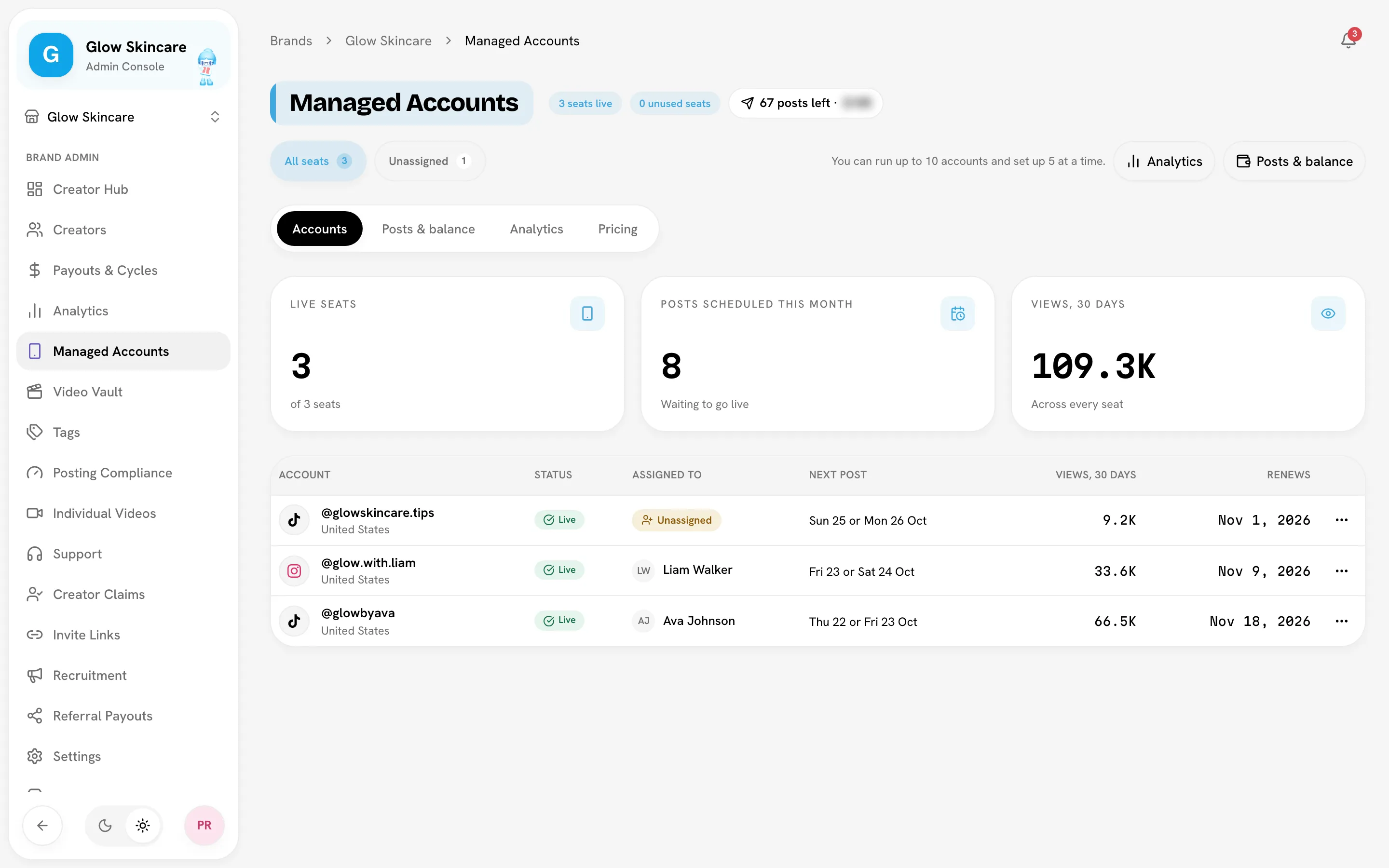
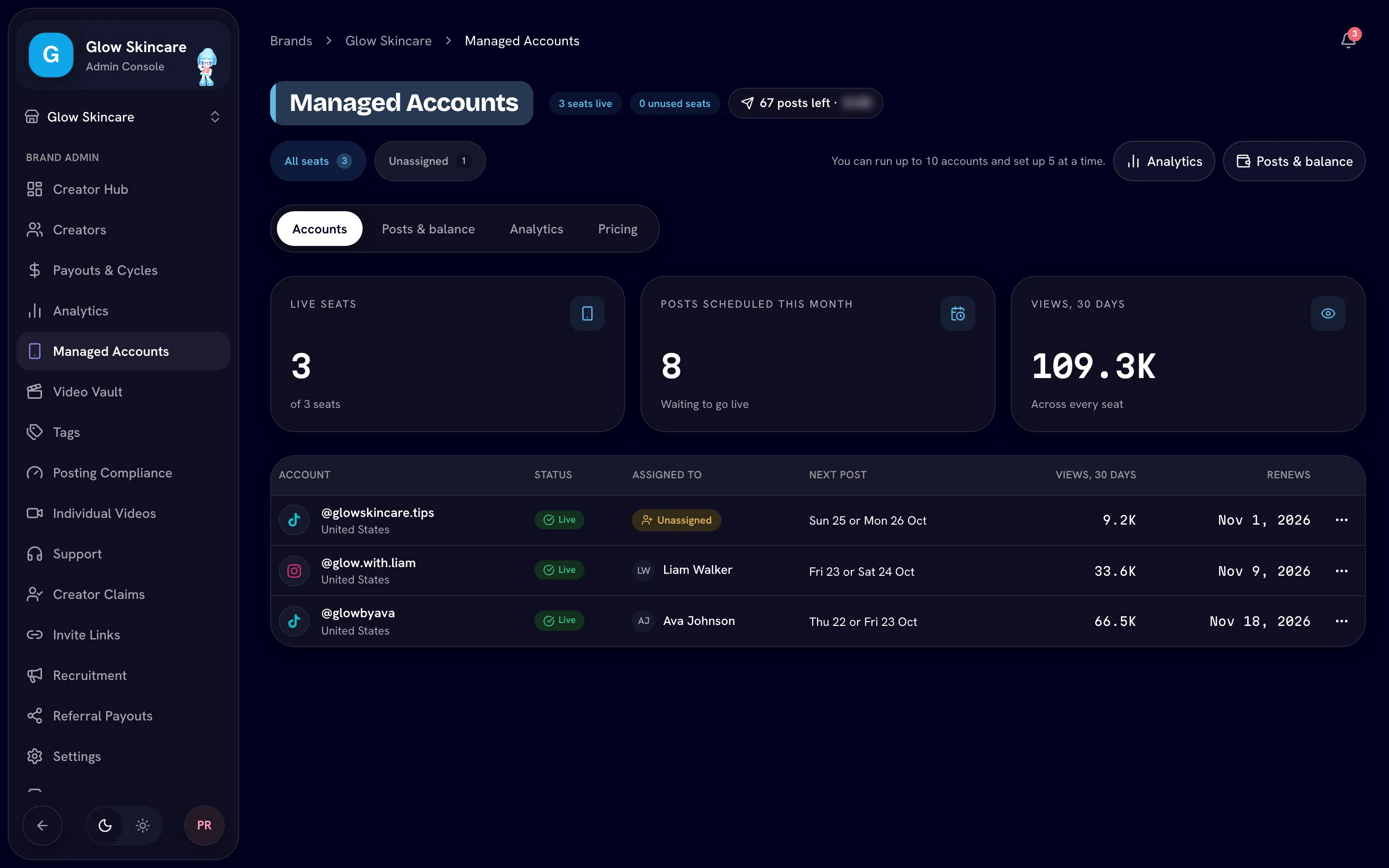
The top of the roster shows Live seats, Posts scheduled this month and Views, 30 days, plus how many seats are live or unused. When your brand has no seats to count, the header shows Included with Scale, or how many more accounts you can run if support has set a limit.
Each row shows the Account, its Status, who it's Assigned to, the Next post, Views, 30 days and when it Renews. Use All seats or Unassigned to filter. From a row's menu you can Open the account, or Assign, Change or Unassign its creator.
Accounts you've bought but not set up appear as New account with "Bought, not set up yet".
Set up accounts
Full admins onlyBuy accounts
On the Pricing tab, buy the accounts you need. Checkout lists the content rules and asks you to tick that you've read them: an account that breaks them can be banned and won't be rebuilt for free. Each one you buy waits on the roster until you set it up.
Start setup
On Accounts, click Set up. The Set up accounts page walks through each waiting account in turn (Account 1 of 3, and so on).
Configure each account
Choose the account's details, such as its handle, name, market, warming topics and first post. To save time, turn on Use the same settings as the last account. Handles and names must be different on each account.
Assign a creator
Pick the creator who will schedule posts, or choose Assign later. Only creators who have a Bloss login are listed.
Check and submit
Review the summary under Check and set up and confirm. If your roster counts seats, each account you submit uses one. Click Done for now to stop early; the rest stay on the roster.
Each account takes time to build, so there's no fixed ready date, and accounts set up together won't all be ready on the same day. Each one shows on the roster while it's being built. There's a limit to how many accounts you can set up at a time, and there may be one on how many your brand can run. The page tells you when you reach it.
Check a new account
When an account is built and warmed, every brand admin gets a notification: "@handle is ready for a check". Open the account, look it over, and approve it to make it go live, or ask for corrections. The assigned creator can do this check too. See Reviewing delivery.
Assign creators
Click Assign (or Change) on a row and pick a creator.
- They can schedule posts and see this account's analytics.
- They cannot buy extras, pause the account, change who it belongs to, or see your other accounts.
If a creator leaves your brand or is unassigned, the account stays with your brand and you get a notification: "@handle has no one assigned". It opens the roster filtered to Unassigned.
Managed accounts and payouts
Posts on managed accounts aren't part of your creator payouts or posting quotas. Their numbers live on the Analytics tab, not in your brand's Analytics.
Analytics
The Analytics tab (Managed Accounts analytics) shows Views, Likes, Comments, Followers gained and Posts published across your accounts, with Views over time. The default range is Last 30 days. Click Export CSV to download it.
Notifications
| Notification | Meaning |
|---|---|
| @handle is ready for a check | The account is built and warmed. Approve it and it goes live. |
| @handle has no one assigned | Its creator left the brand or was taken off it. |
| We're looking into a problem with @handle | The Bloss team is working on an issue. The account page shows the latest. |
These appear under the Creators tab of the notifications panel.
Related
Last reviewed Oct 22, 2026