
Notifications
What the notifications bell in the admin console tells you, every notification type, and how to filter and clear them.
The bell at the top of the brand admin console collects things that need your attention: posting flags, new support tickets and creator activity. A badge shows how many you haven't read.
Notifications appear inside Bloss only. For Discord or HTTP alerts about views, dead links and inactive creators, set up webhooks.
Who gets them
Every brand admin gets their own copy, and so do the owners and admins of the brand's agency. Read state is personal: when you read a notification, it stays unread for the other admins.
Notification types
| Notification | When it's sent | Opens | Filter tab |
|---|---|---|---|
| Creator went over the daily post cap | A creator posted more on one platform in a day than your cadence allows. Says how many posts, on which day and what the cap is. | The creator's compliance record | Violations |
| Creator missed the weekly minimum | A creator finished a week below your weekly minimum. Says how many posts they made and what the minimum is. | The creator's compliance record | Violations |
| N new cadence flags for creator | A creator had more than three new flags at once. Sent at most once per creator per day. | The creator's compliance record | Violations |
| Creator opened a support ticket | A creator opened a ticket. Shows the subject. Urgent and high-priority tickets are shown in red. | The Support inbox | Support |
| Creator joined the brand | A creator joined through an invite link or accepted an email invitation. | The creator's profile | Creators |
| Person requested a creator profile | Someone submitted a claim for a creator profile, or reopened one you rejected. | Creator Claims | Creators |
| Applicant applied to your brand | A new recruitment application is waiting for review. | Recruitment | Creators |
Cadence notifications cover flags from the last 14 days; at most three are sent individually per creator, and the rest are rolled into one. See Posting compliance.
Read and filter notifications
Open the bell
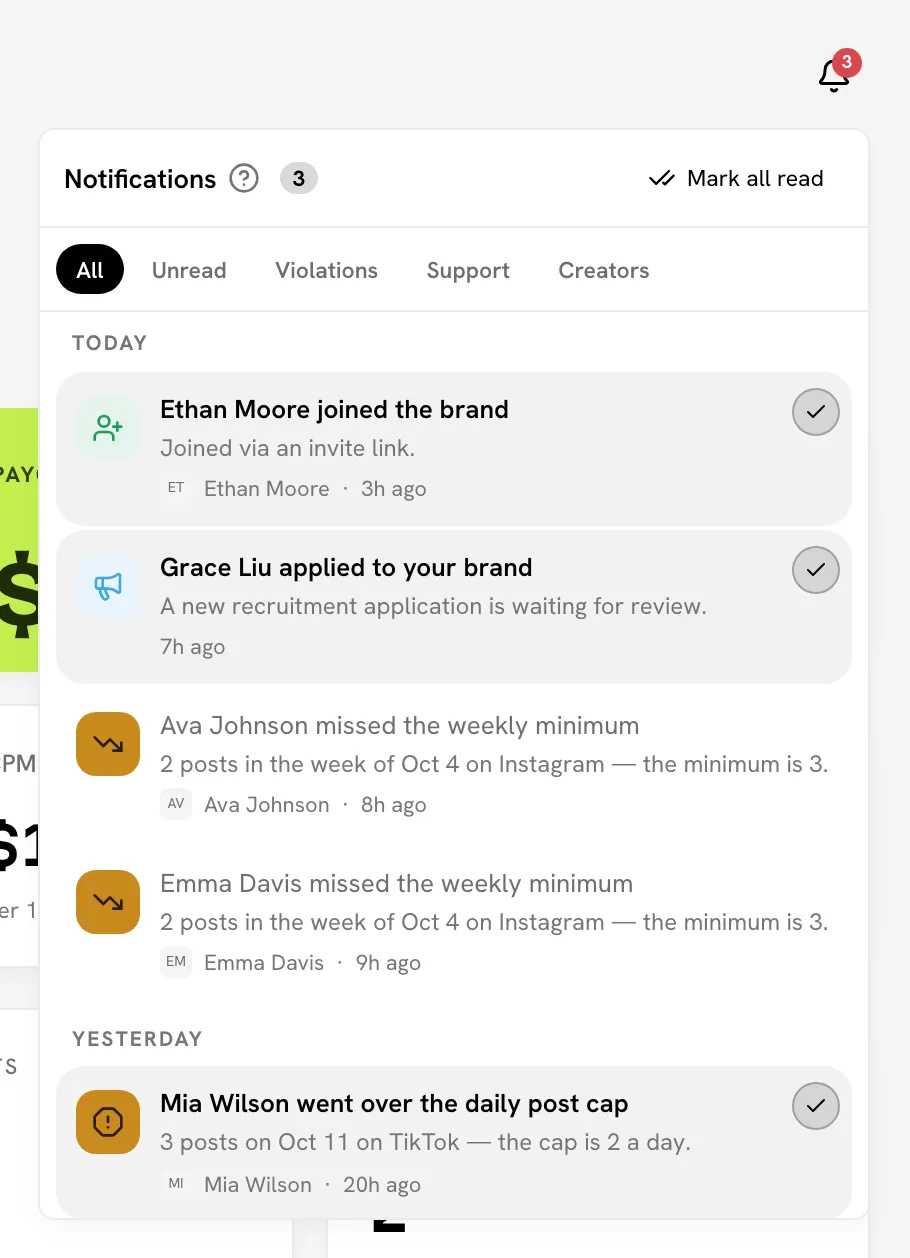
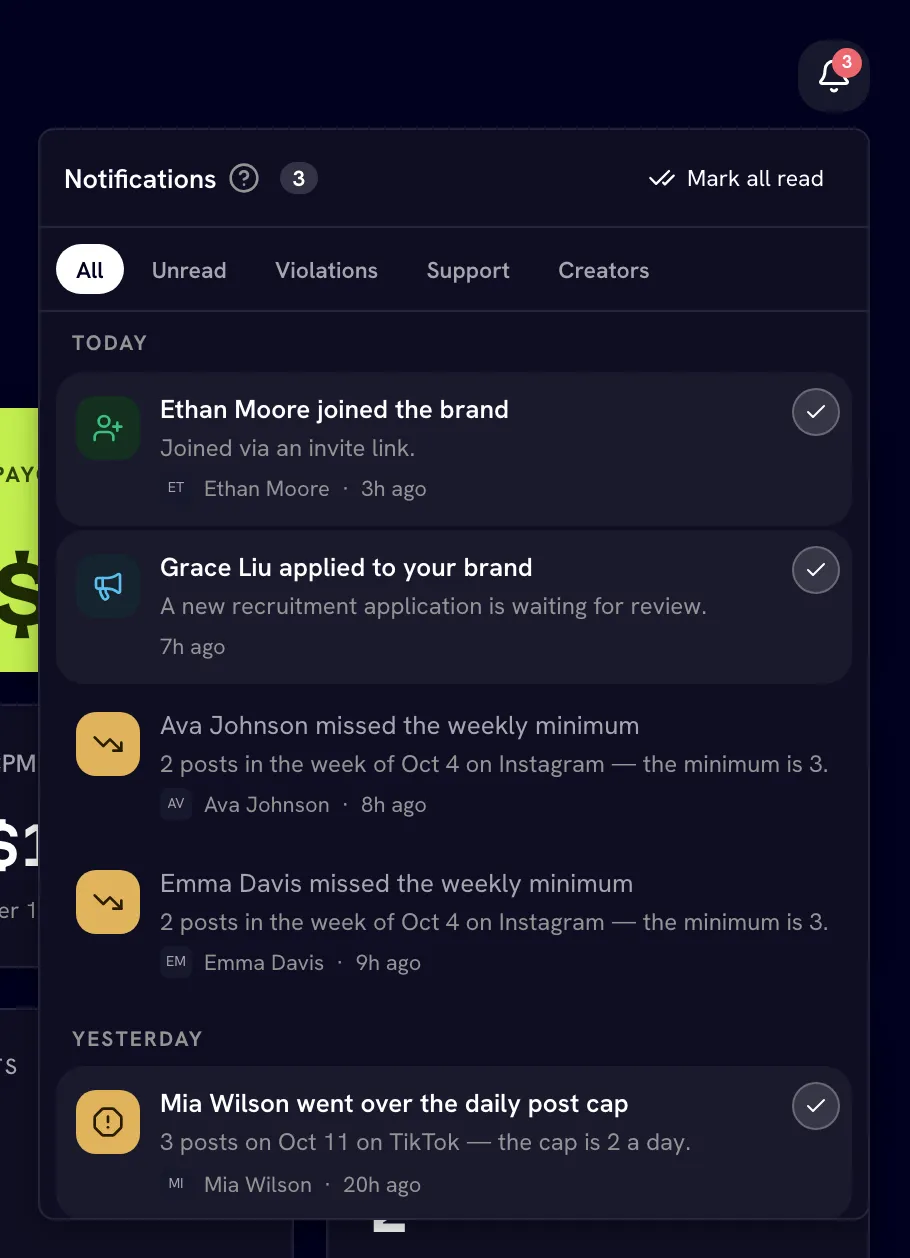
Click the bell in the top bar. Notifications are grouped into Today, Yesterday and Earlier.
Filter
Pick a tab: All, Unread, Violations, Support or Creators.
Act on one
Click a notification to open the page it's about. It's marked read at the same time. To clear one without leaving the list, use its Mark as read button.
Click Mark all read to clear the badge. Use Load more at the bottom for older items.
Notifications are deleted after 90 days, read or not. The things they point to, such as tickets, claims and applications, stay on their own pages.
Related
Last reviewed Oct 13, 2026