
Full vs limited admins
The two kinds of brand admin, what a limited admin can't do, and how to set someone's access level.
Every brand admin is either a Full admin or a Limited admin. Use limited admins for people who run your creators day to day but shouldn't send money, change what creators are paid, or change who has admin access.
| Access level | In the app's words |
|---|---|
| Full admin | Everything, including payments, pay rules and the Base pay and Bonus pay queues. |
| Limited admin | Everything except payments, pay rules and admin access. |
What a limited admin can't do
A limited admin works like a full admin everywhere else — creators, videos, sets, cycles, analytics, compliance, support, settings — with these exceptions:
- No Base pay or Bonus pay tabs. On Payouts & Cycles, a limited admin only sees the Cycles tab. The other two tabs don't appear, and a link straight to them opens Cycles instead. See Instant base pay and Bonus pay board.
- No paying or marking paid. A limited admin can't pay a cycle through your payout provider, mark a cycle or a payout as paid or unpaid, delete a payout, or mark a referral payout as paid. In the cycle menu they see Only full admins can pay or mark payouts paid instead.
- No changes to what creators are paid. That covers a creator's base pay and bonus overrides, Custom pay on a set, excluding a set from pay, and the pay rules on SettingsRules: base pay, the minimum views threshold, the payout model, the bonus model, rates and tiers, referral bonuses and instant base pay. The other rules, such as the time zone, trials, bounties, streaks and video tracking, stay open to them.
- No "Don't pay bonus". Skipping a set's bonus happens on the Bonus pay board, so it's full admins only. See Custom pay and unpaid sets.
- No payout setup or funds. Connecting or disconnecting the brand's payout account, setting up creators' payout accounts and PayPal details, switching payout providers and adding funds are full admins only. See Payout providers.
- No API keys. A limited admin can see the brand's API keys but can't create or revoke them.
- No pay data through the API or AI agents. With the Brand API or an AI agent, a limited admin reads the brand like everywhere else, but not its pay rules, payouts, spend or funds: those answer
forbidden, whatever the token's permissions. - No changes to admin access. A limited admin can't invite an admin, give or take away anyone's admin access, change anyone's access level, or remove an admin from the brand. On SettingsTeam the Invite admin button is hidden for them.
A limited admin can still manage the creator side of the team: add or remove someone's creator profile, and everything on the Creators pages apart from pay.
Limited admins can still run cycles
Creating cycles, editing their dates, generating and recalculating payouts all stay on the Cycles tab for limited admins. Paying a cycle and marking it paid need a full admin.
Who is always a full admin
Anyone who is an owner or admin of the brand's agency is a full admin of every brand in it, even if someone also gave them a limited admin role inside one brand. The higher access always wins.
Give someone an access level
Invite a new admin
Go to SettingsTeam and click Invite admin. Enter their Email address, an optional Admin name, and pick an Access level: Full admin or Limited admin. Click Send invitation.
Bloss shows a join link you can copy and share. The link expires in 7 days. Pending invitations for limited admins show a Limited admin pill.
Change an existing member
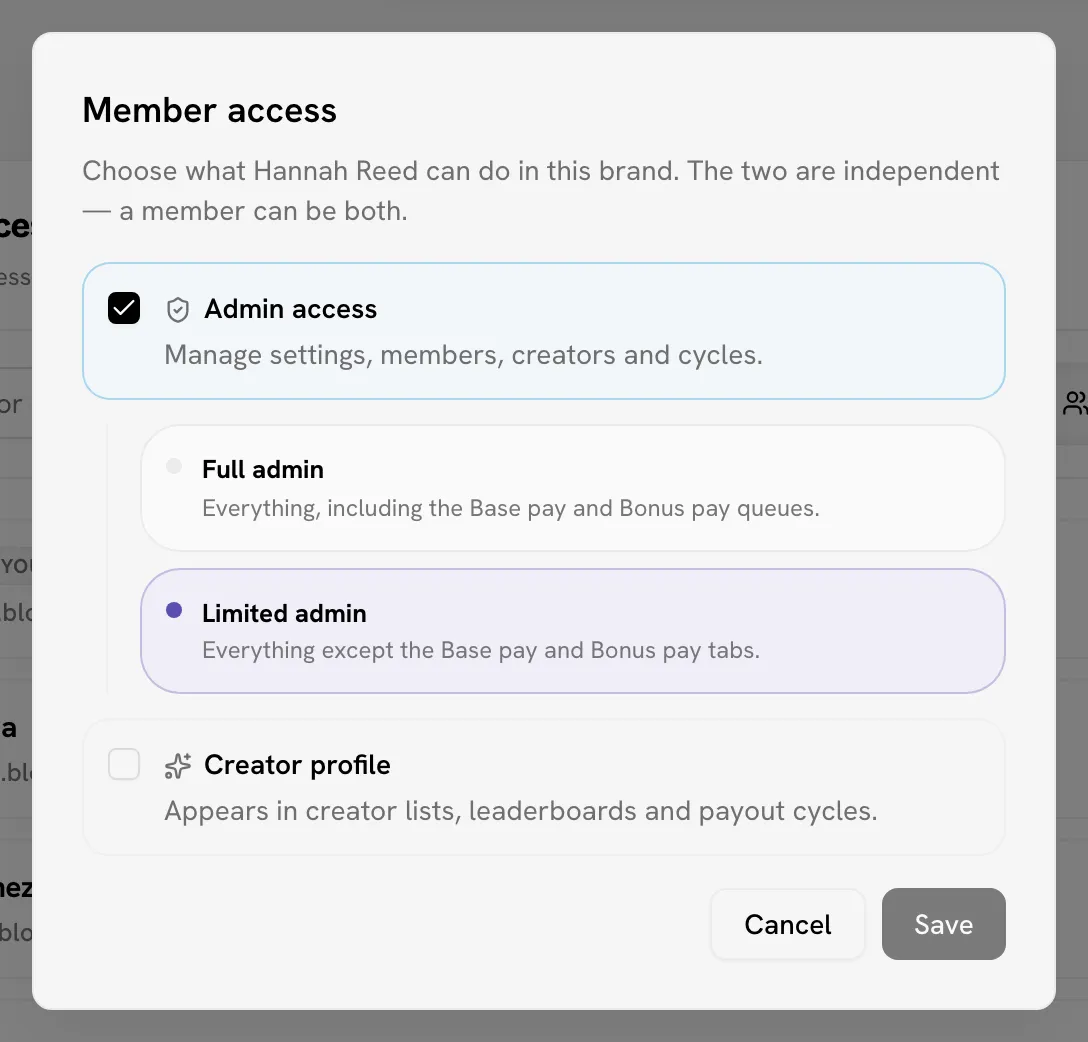
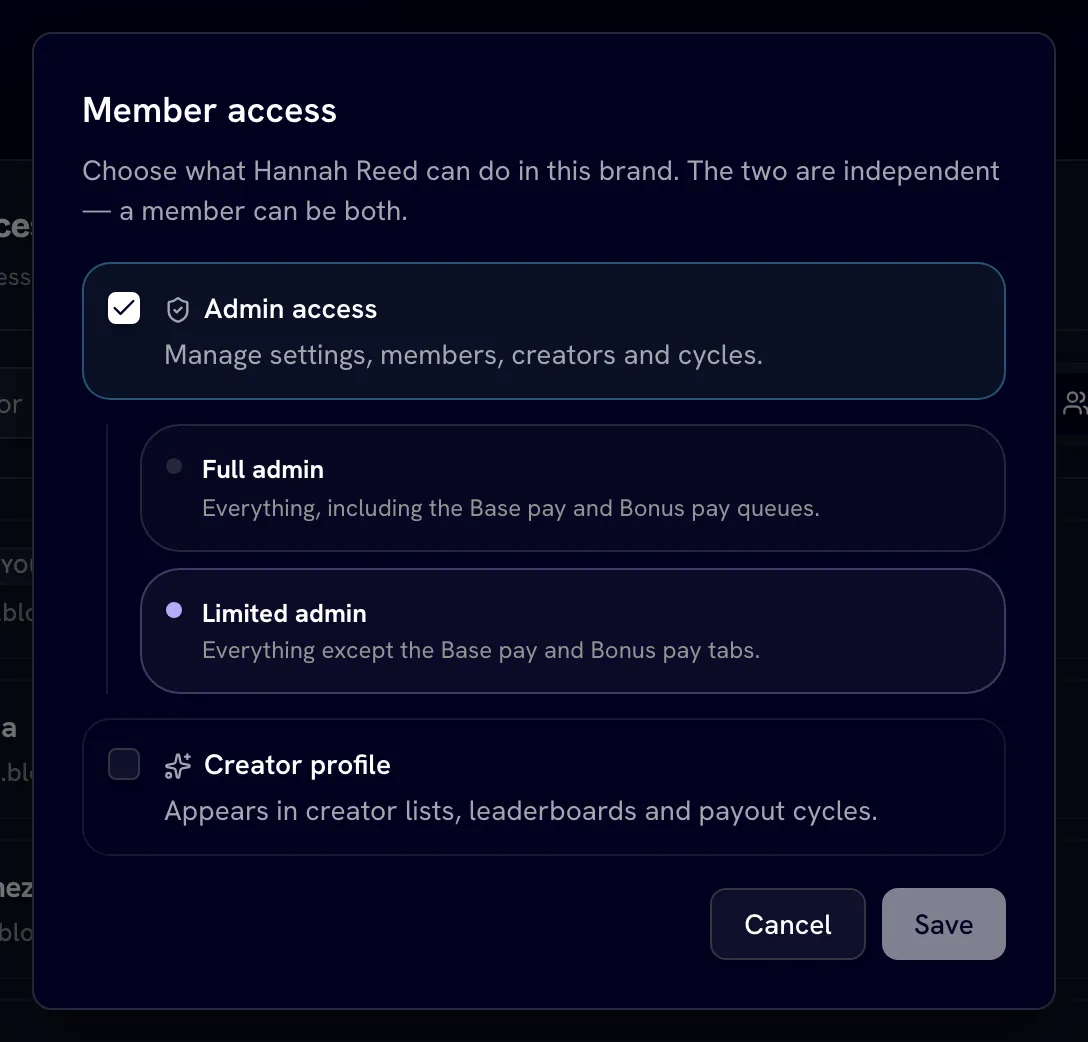
On SettingsTeam, click Manage access next to the person. With Admin access ticked, choose Full admin or Limited admin, then save.
Admin access and Creator profile are independent — one person can have both. See Team & access.
Safeguards
- The last full admin is protected. You can't demote or remove the brand's last full admin. Promote someone else to full admin first. This keeps at least one person who can manage admin access.
- Only full admins remove admins. If you're limited, the remove button explains why it's unavailable: ask a full admin, or an owner or admin of the agency.
Related
Last reviewed Oct 22, 2026
Admin console tour
Find your way around a brand's admin console — the sidebar, the hub and brand switchers, the notifications bell and what an inactive brand looks like.
Inviting creators
Bring creators into your brand by email invitation, shareable invite link, or by adding them yourself one at a time or from a CSV.