
Custom pay and unpaid sets
Override what one set pays, stop paying for a set without touching it, or drop only its bonus.
Your rules price every set the same way. Three tools let you make exceptions for a single set:
| Tool | Use it when | Who |
|---|---|---|
| Custom pay | You agreed on a different amount for this set | Full admins |
| Mark unpaid | This set shouldn't be paid at all, but should still count in stats | Full admins |
| Don't pay bonus | Pay the base, but not the bonus | Full admins |
To change pay for every set of one creator, use their profile's Custom Pay card instead. See Creator profile.
Set custom pay
Open the set
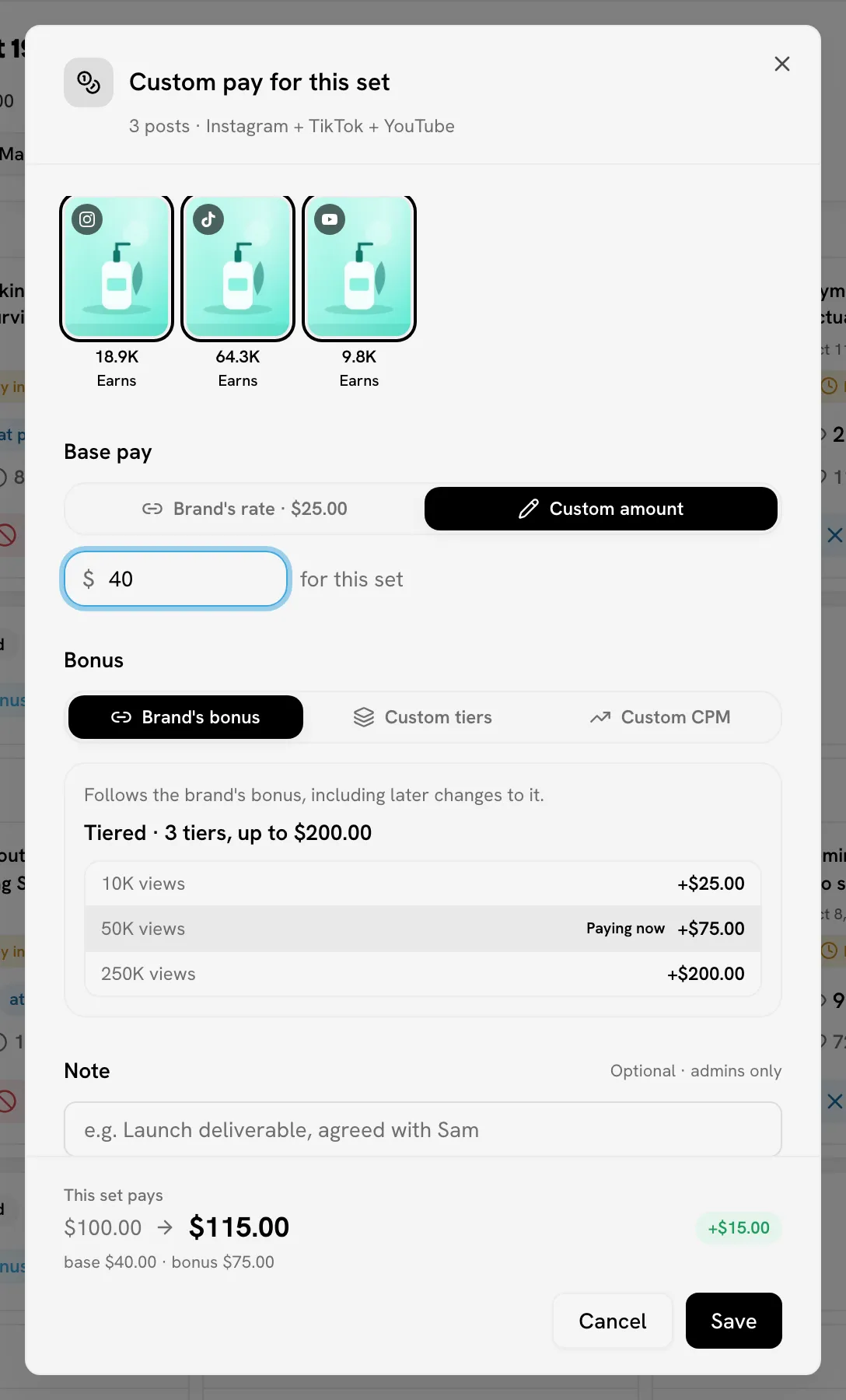
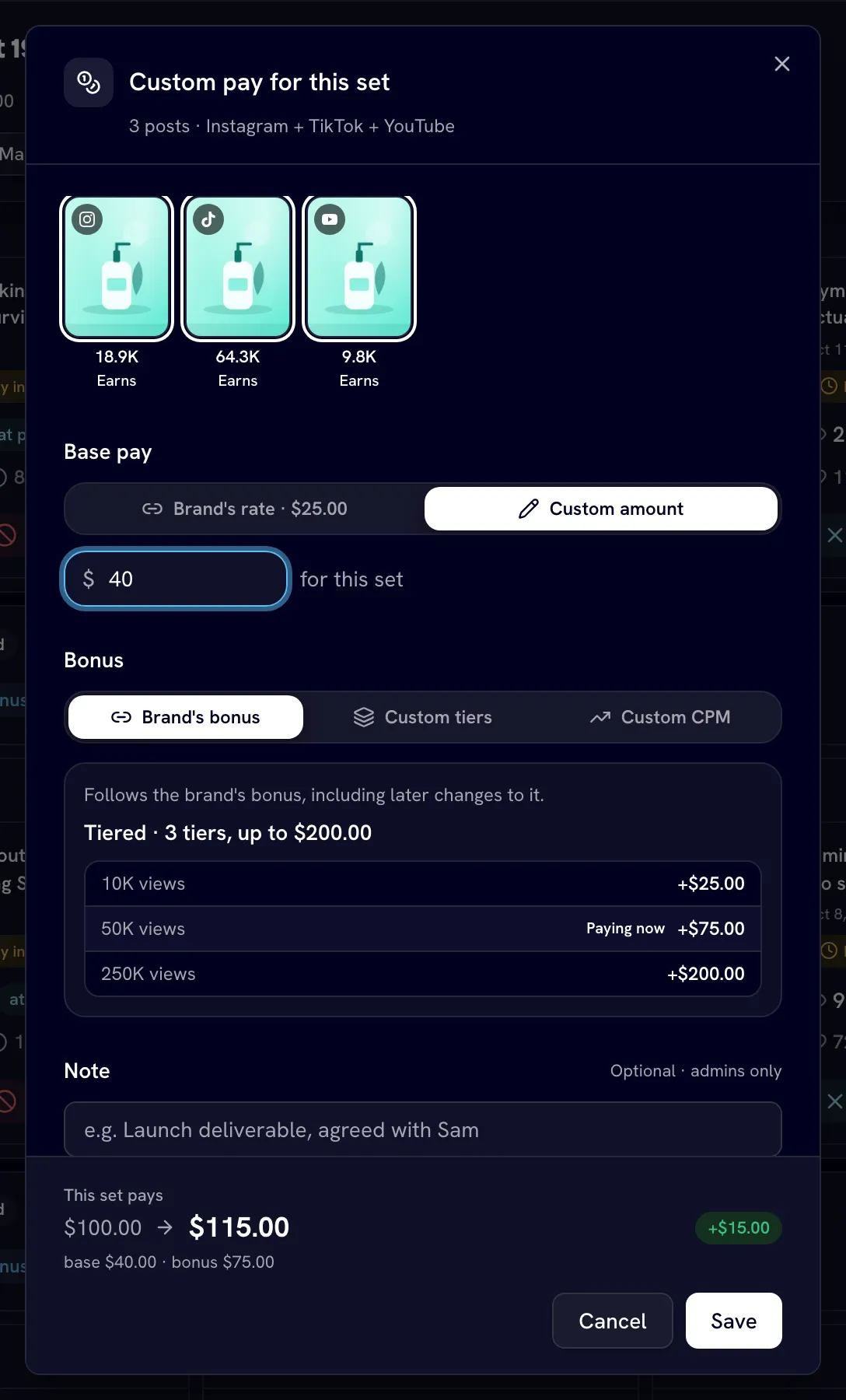
On the creator's Videos tab, find the set and click Custom pay. The Custom pay for this set dialog opens, showing which posts earn and which aren't paid for.
Choose the base
Under Base pay, keep the rule's rate (labeled with whose rate it is — the brand's, or the creator's own — and the amount), or pick Custom amount and enter one. If you type an amount far above the usual rate, Bloss asks you to double-check it.
Choose the bonus
Under Bonus, keep the inherited bonus, or choose Custom tiers or Custom CPM for this set. The dialog shows what the set would pay on its current views.
Add a note and save
Optionally add a Note explaining the deal, then click Save.
What to know:
- The set still has to qualify. Custom pay replaces the price, not the rules. A set that doesn't qualify pays $0, and your custom amounts apply as soon as it does. See How sets work.
- The rule's rate keeps following your settings. If you leave the base or the bonus on the rule, later changes to your rules still apply to it.
- Creators see it. On the creator's side the set is marked "Your brand set this set's pay manually."
- Find hand-priced sets in the Video Vault with the Custom pay filter (or Standard pay for the rest). In the Sets view a coin marks them. On the Videos tab, sort by Custom pay first.
- Remove it with Remove custom pay. The set goes back to the rule's rates, and the dialog shows what it will pay.
- Taking the set apart deletes its custom pay. Unpairing the set or marking a post irrelevant removes the custom amount for good; Bloss warns you first.
When custom pay is locked
The dialog explains why if you can't change a set's pay:
- The creator has been removed.
- The set is marked unpaid — restore it to payout first.
- Bonus is skipped on this set.
- The cycle has already been paid out.
- The creator's payout for the cycle is already paid — unmark it first.
- You're lowering the base or bonus below what's already been paid. Raising it is allowed. To stop paying, use Mark unpaid instead.
Brands on the ledger payout model have their own limits. See Cycle vs ledger.
Mark a set unpaid
Use Mark unpaid when a set shouldn't be paid — a duplicate, a post that broke your brief — but you still want its views in your stats.
Mark it
On the creator's Videos tab, click Mark unpaid on the set.
Confirm
The Mark pair as unpaid? dialog shows the amount. Confirm with Mark unpaid.
The set's pay is excluded from the cycle's payout and from the creator's earnings, and the set shows Excluded from payout. Its posts still count toward analytics. Click Restore to payout at any time to undo it.
Unlike marking posts irrelevant, this leaves the set and its posts exactly as they are — so it also works on a set whose base pay was already sent, as long as its cycle isn't paid. Mark unpaid, Restore to payout and Custom pay are disabled on paid cycles.
Don't pay bonus
Full admins onlyOn the Bonus pay board, expand a creator to see their sets and click Don't pay bonus on one. Confirm in Don't pay bonus for this set?.
The set stops earning bonus: that amount leaves the creator's balance and they see no bonus on it. Base pay is unchanged, and so is whether the set qualifies. Click Restore bonus to undo it while the payout is still unpaid.
See Bonus pay board.
Related
Last reviewed Oct 22, 2026
Irrelevant videos
Exclude posts that aren't part of your campaign — one at a time, in bulk, by date range or with a cutoff — and understand what that does to pay, stats and sets.
Video Vault
Browse every video and set in your campaign, filter down to exactly what you need, play videos in the theater view, read per-video analytics and tag content.