
Video Vault
Browse every video and set in your campaign, filter down to exactly what you need, play videos in the theater view, read per-video analytics and tag content.
The Video Vault is the library of every post your creators have made for your brand. Use it to find content, check what qualifies for pay, watch videos and tag them.
Open the Video Vault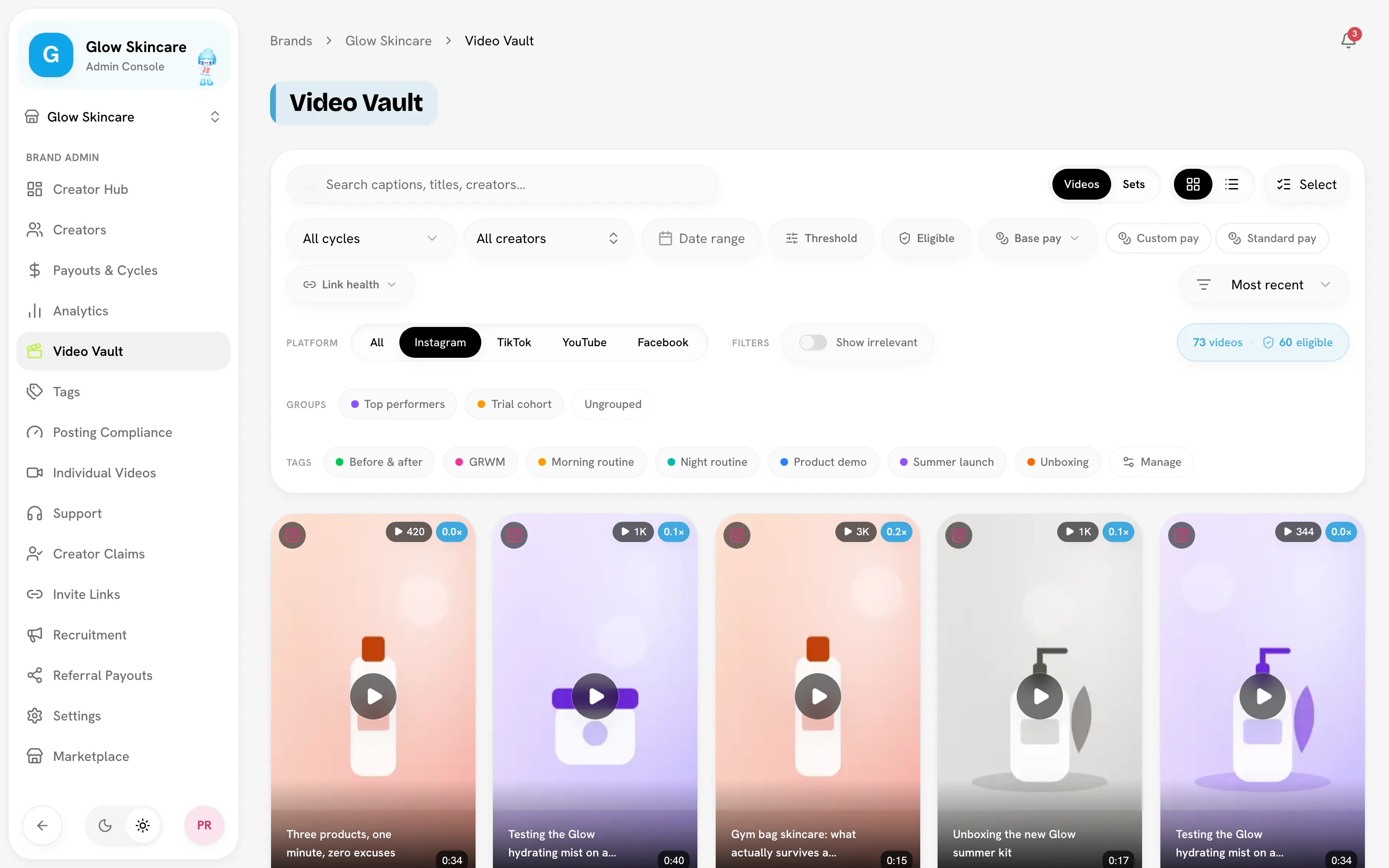
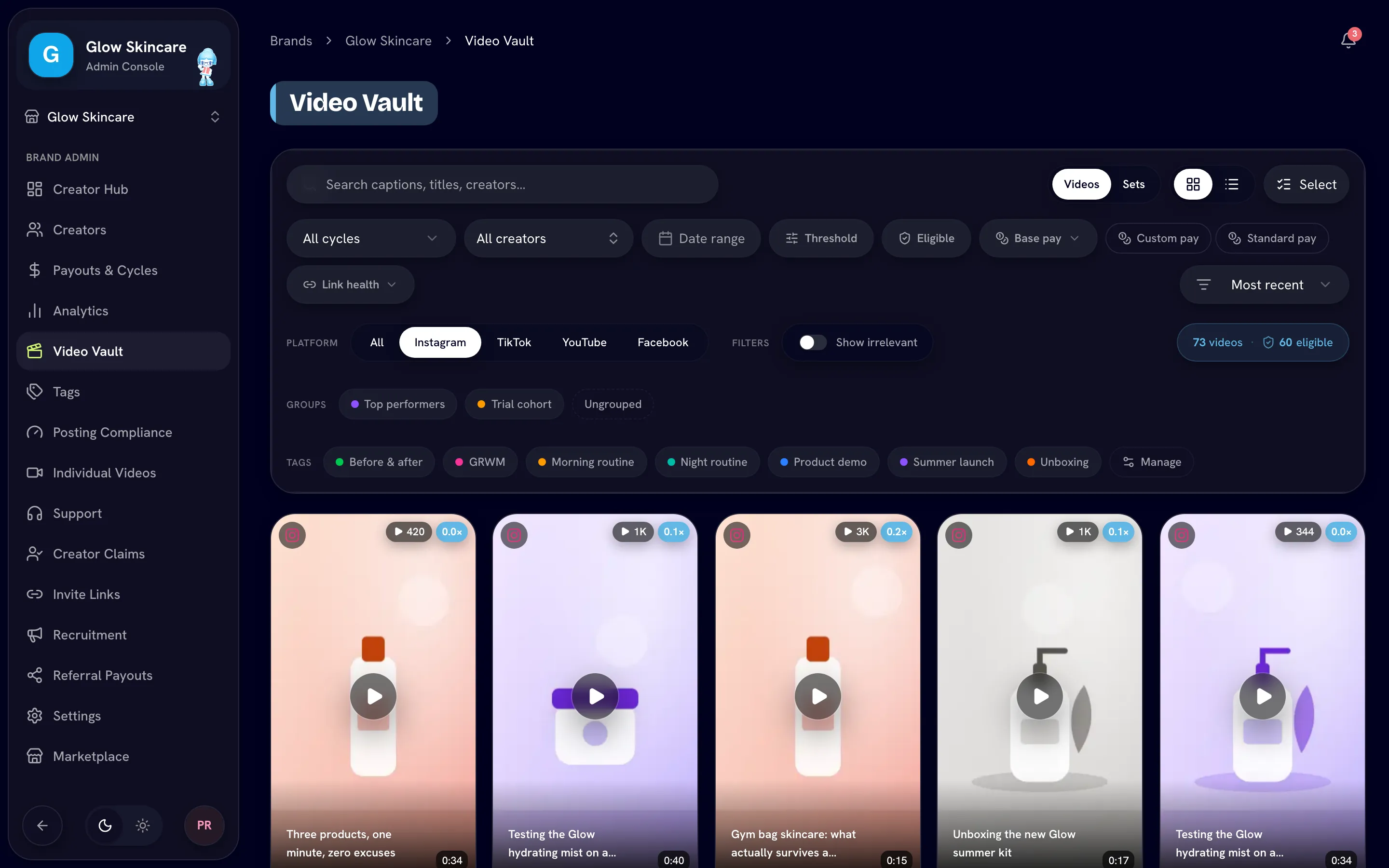
Videos or Sets
The toggle at the top switches what each card or row is:
- Videos — one card per post. Starts filtered to Instagram; pick All to see every platform.
- Sets — one row per set, showing every platform's post side by side, the set's tags, and whether it qualifies. Starts on all platforms; picking a platform here means "sets that include a post on it" (the label reads Includes).
Switch between a grid and a list with the grid and list buttons. The count at the right shows how many videos or sets match, and how many are eligible.
Search and filter
| Control | What it does |
|---|---|
| Search captions, titles, creators… | Free-text search. |
| Cycle | All cycles or one payout cycle. |
| All creators | One creator. |
| Date range | Posted between two days. |
| Threshold | Only content above a metric, for example 1K+ views. Uses the same counts the cards show. |
| Eligible | Only content that qualifies for pay under your rules. Hover it to read the rule. Shown only when your brand has a rule to check. |
| Base pay | Filter by where base pay stands for the set. |
| Custom pay / Standard pay | Sets with or without custom pay. |
| Link health | Has a dead link or No dead links. See Link health. |
| Platform | Instagram, TikTok, YouTube, Facebook or all. |
| Groups | Creators in any selected group, or Ungrouped. |
| Tags | Content carrying any selected tag. |
| Show irrelevant | Include posts you've marked irrelevant. Off by default. |
Sort with Most recent (the default), Most viewed, Most liked or Top engagement.
Filters live in the page address, so you can bookmark or share a filtered view with your team.
Admin-only filters
Eligible, Base pay, Custom pay and Show irrelevant only exist in your admin console. A shared Video Vault never shows pay or irrelevant posts. See Sharing your Creator Hub.
Read a set
In the Sets view, each row shows:
- a shield for an Eligible set, or a question mark for one that's Not evaluated yet,
- what a failing set needs, for example needs TikTok,
- a coin if the set has custom pay,
- each platform's views, highlighted when that post clears your minimum, and a dead-link marker where a post is gone,
- the set's tags.
See How sets work.
Watch videos
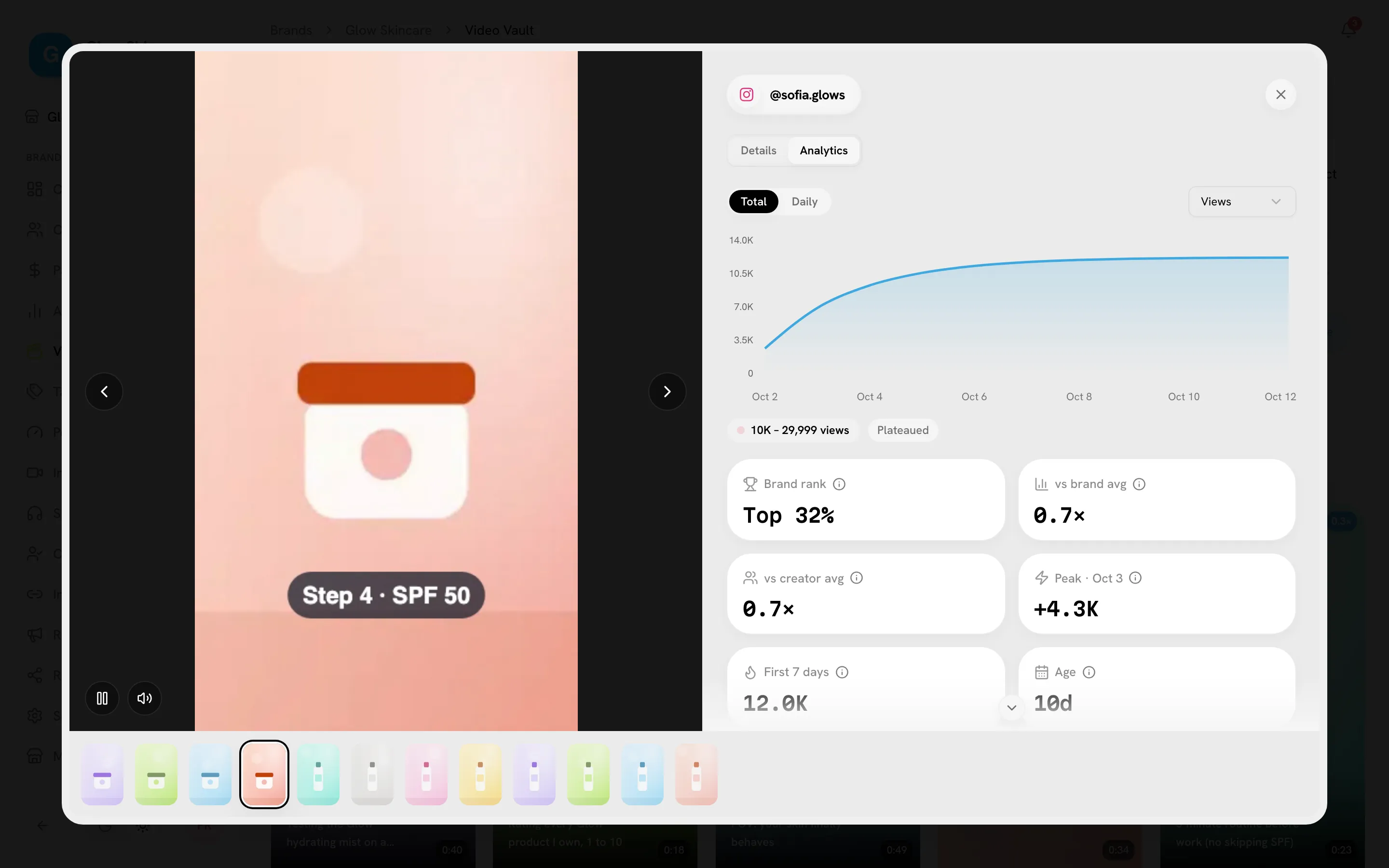
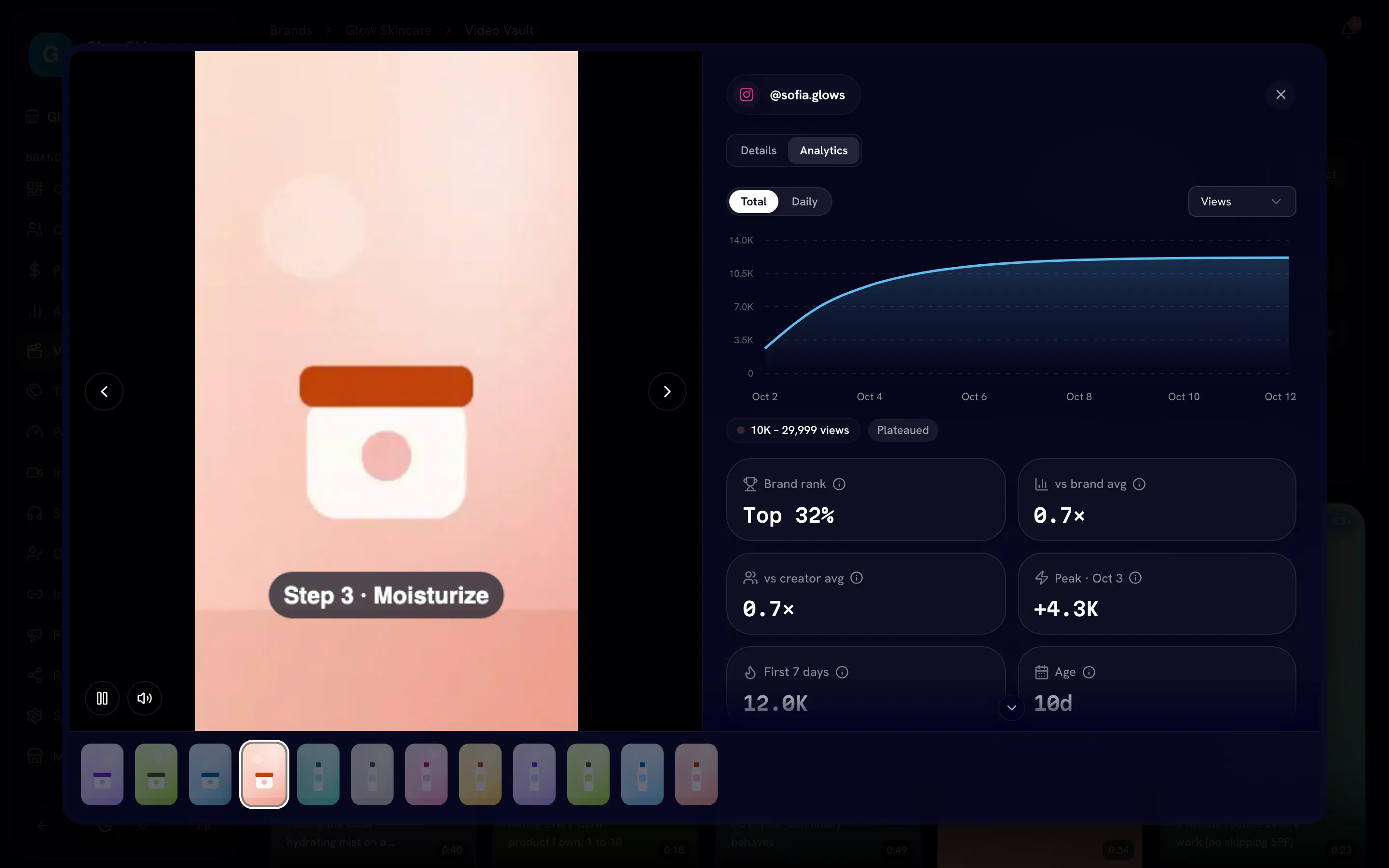
Click a video to open the theater view. Use the arrow buttons, or your keyboard, to step through the other videos in your current results without closing it. Esc closes it, and Open On takes you to the post on its platform.
The side panel has two tabs:
- Details — Views, Likes, Comments, Shares, Engagement and the engagement rate, plus the post's tags.
- Analytics — the post's views over time (Total or Daily), its views tier, and how it compares: Brand rank, vs brand avg, vs creator avg, its peak day, First 7 days and Age. A Plateaued marker means views have stopped growing.
Audience demographics
The Audience section shows age, gender, country, city and traffic source — whatever the platform reports — for posts linked to a creator's connected account. Demographics usually appear a few days after posting, once the platform has enough viewers. If a post isn't linked yet, use the refresh button on the creator's Social Analytics card (on their profile), which imports their recent posts.
Tag content
Click a card's tag button to add or remove tags, or create a new one on the spot. Tagging a set tags every post in it. Manage (next to the tag chips) opens Manage tags, where you rename, recolor or delete tags. See Tags.
Act on many videos
Click Select, tick videos (or Select all), and choose Mark irrelevant, Restore or Delete. See Irrelevant videos.
Related
Last reviewed Oct 12, 2026
Custom pay and unpaid sets
Override what one set pays, stop paying for a set without touching it, or drop only its bonus.
Tags and tag analytics
Label videos and sets with tags — hooks, products, formats — and use Tag analytics to see which ones perform, how the score and tiers work, and which tags win together.