
Irrelevant videos
Exclude posts that aren't part of your campaign — one at a time, in bulk, by date range or with a cutoff — and understand what that does to pay, stats and sets.
Bloss syncs everything a creator posts, including posts that have nothing to do with your brand. Mark those irrelevant so they don't count.
What marking a post irrelevant does
- Pay: the post earns nothing. If it was in a set, the whole set is broken apart (see below).
- Stats: it drops out of analytics, the Creator Hub and leaderboards.
- Posting compliance: it no longer counts toward the creator's cadence.
- Trials: it doesn't count toward a trial goal.
- Pairing: automatic pairing skips it.
- Video Vault: it's hidden unless you turn on Show irrelevant. Shared views never show it.
Marking one post breaks its whole set apart
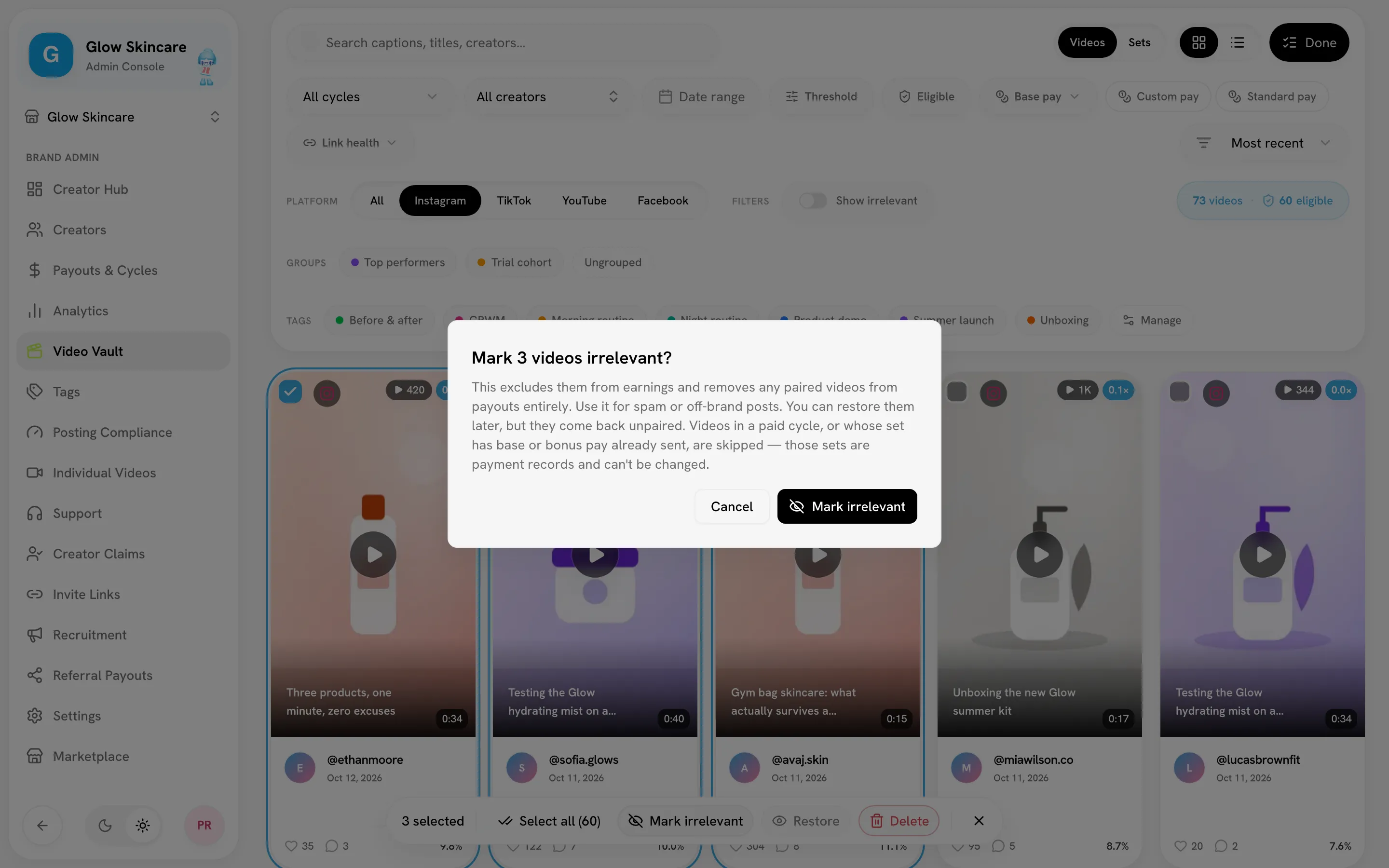
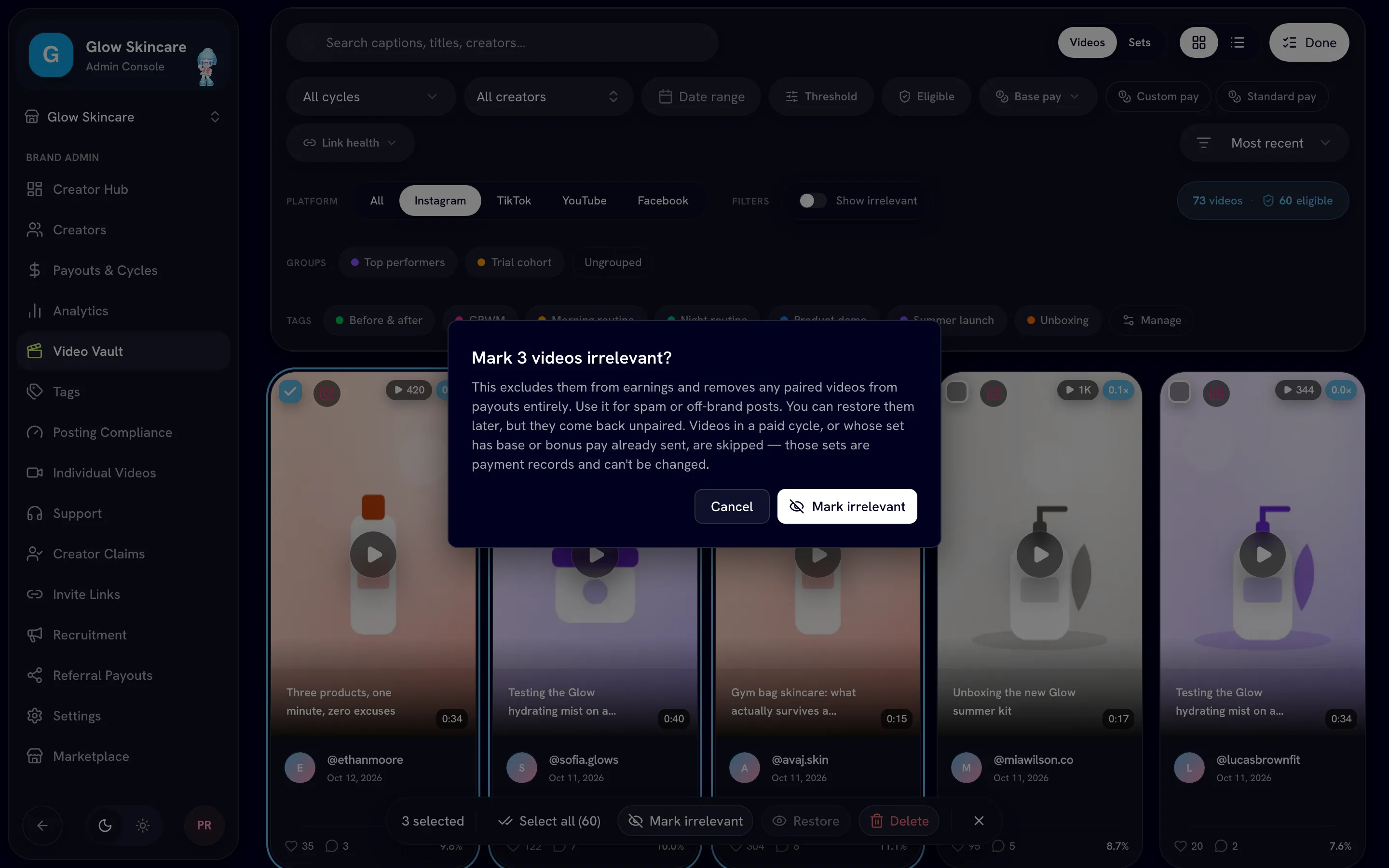
When you mark a post that's in a set, every post in that set is marked irrelevant and taken out of the set — even the ones you didn't select. Bloss tells you how many extra posts this affects before you confirm. Restoring them later brings them back unpaired, so pair them again for the set to earn.
Prefer Mark unpaid if you only want to stop paying for a set but keep it counting in your stats. See Custom pay and unpaid sets.
Mark one post
- On a creator's Videos tab, click Mark irrelevant on the post. Click Make relevant to undo.
- In the Video Vault, use the mark-irrelevant button in the corner of a video's thumbnail.
Mark many posts
In the Video Vault or on a creator's Videos tab, click Select, tick the posts (or Select all), then:
- Mark irrelevant — excludes them from earnings and takes any paired posts out of payouts entirely. Use it for spam or off-brand posts.
- Restore — makes irrelevant posts relevant again. Sets that were broken apart aren't rebuilt.
- Delete — removes the posts permanently, along with their daily stats. A later sync may add them back if they're still on the creator's profile.
Mark by date
On a creator's Videos tab, click Relevance by date to open Video relevance by date. It has two tabs.
Date range
Pick the first and last posted day, then choose:
- Mark irrelevant — exclude every relevant post from that range.
- Mark relevant — restore every irrelevant post from that range.
Bloss counts the posts first and warns you if sets will be broken apart, including posts outside the range that share a set with posts inside it.
Cutoff
Pick a day and click Apply cutoff. Everything the creator posted before that day is marked irrelevant — now, and on every later sync, so older posts that turn up later arrive already excluded. Use it when a creator joins with a back catalog you don't want to count.
Once a cutoff is set, the button on the Videos tab reads Relevant from with the date. Change it with Update cutoff, or remove it with Clear cutoff.
Clearing a cutoff doesn't restore anything
Clearing or moving the cutoff only affects posts synced from then on. To bring back posts it already excluded, use Date range › Mark relevant.
Posts that are skipped
Some sets can't be changed, so their posts are skipped and reported:
- sets in a paid cycle,
- sets whose base pay or bonus has already been sent, or that have other settled payouts,
- when marking by date, sets with custom pay. To exclude them anyway, mark their posts by hand; doing so deletes the custom amount.
A set that's only queued for instant base pay can still be marked; its queued request is withdrawn.
Related
Last reviewed Oct 13, 2026