
Admin console tour
Find your way around a brand's admin console — the sidebar, the hub and brand switchers, the notifications bell and what an inactive brand looks like.
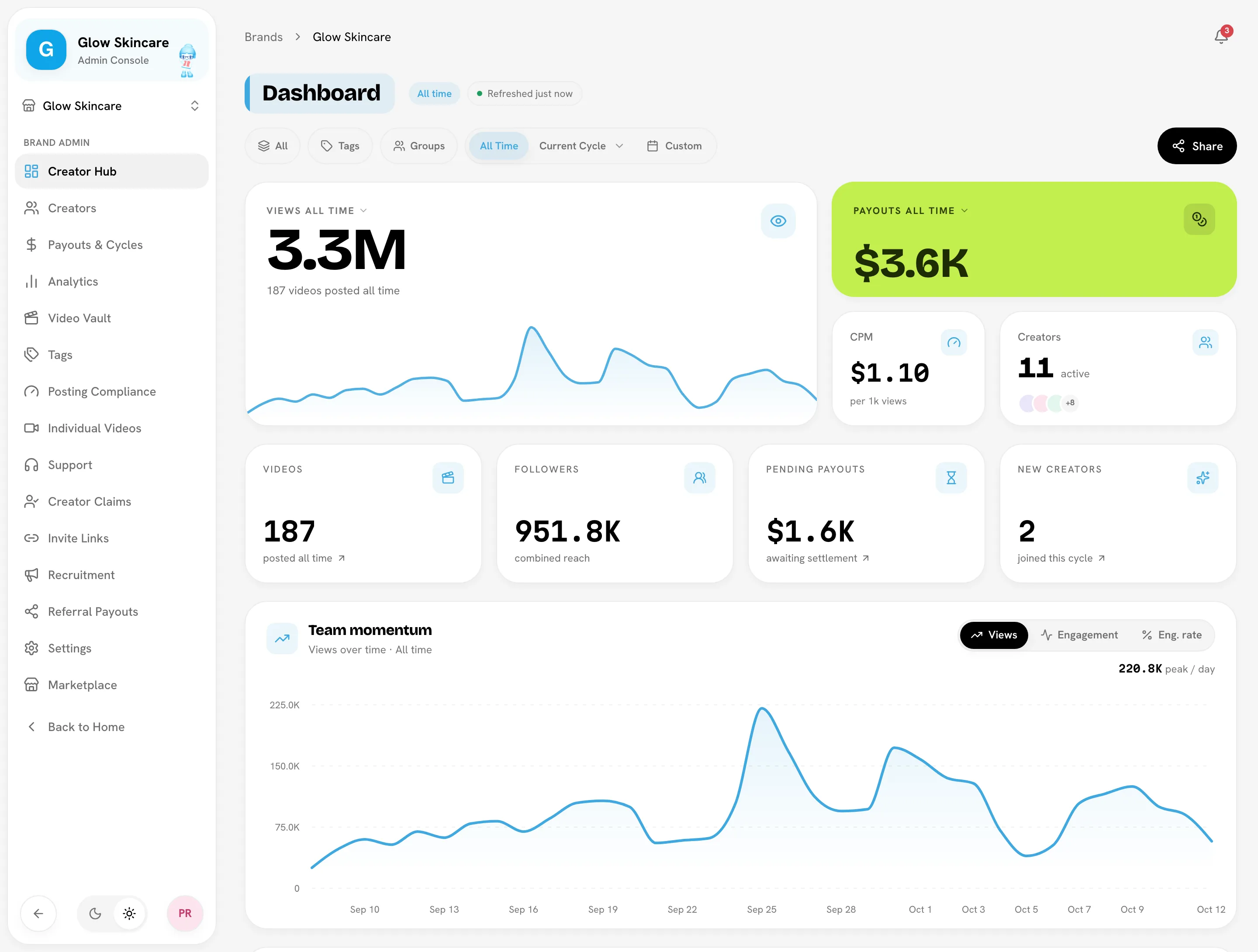
The admin console is where you run one brand: its creators, videos, payouts and settings. Open it from your home page, or go straight to /<your-brand>/admin. The sidebar header shows the brand's logo and name with Admin Console underneath.
The sidebar
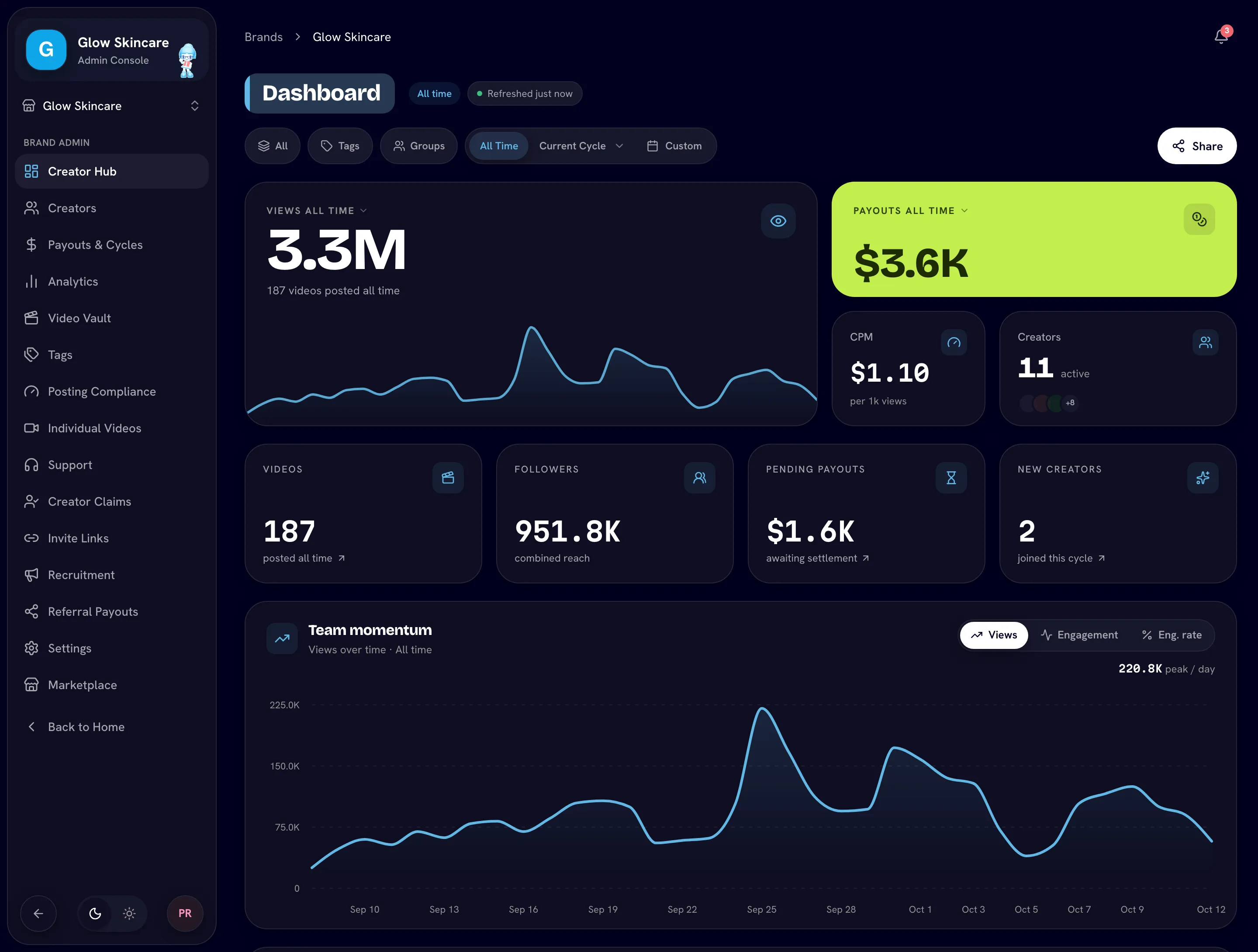
Items appear in this order. Items marked Turn on in Settings only show when the matching feature is switched on in SettingsRulesFeatures.
| Item | What it's for |
|---|---|
| Creator Hub | The brand's home: KPIs, momentum, posts calendar, leaderboards and recent wins. See Creator Hub. |
| Creators | Your roster: invite, add, filter, group and open creator profiles. See Managing your roster. |
| Payouts & Cycles | Payout cycles, plus the Base pay and Bonus pay tabs for full admins. See Payout cycles. |
| Bounties | Turn on in Settings (Bounties). |
| Streak Survivor | Turn on in Settings (Streak Survivors). |
| Analytics | Reach, engagement and spend over any range. See Analytics. |
| Video Vault | Every video and set in your campaign. See Video Vault. |
| Tags | Tag analytics: which hooks, products and formats perform. See Tags. |
| Posting Compliance | Each creator's posting against your cadence rules. See Posting compliance. |
| Individual Videos | Turn on in Settings (Video Tracking). See Tracking individual videos. |
| Support | Tickets your creators open. See Support inbox. |
| Creator Claims | Requests to take over a profile you created. See Creator claims. |
| Invite Links | Shareable join links. See Inviting creators. |
| Recruitment | Your public application page and the applications it receives. See Recruitment. |
| Referral Payouts | Turn on in Settings (Referral Bonus). See Referral payouts. |
| Settings | Rules, team, customization and integrations. See Base pay rules. |
| Marketplace | Bloss's public creator directory. See Finding creators. |
Below the list, Back to Home takes you to your home page, where you can open your other brands and workspaces.
Turning a feature off
Switching a feature off hides its sidebar item and its page. For example, with Video Tracking off, the Individual Videos page isn't reachable even by URL.
Switching hubs and brands
Under the brand name, the sidebar can show two switchers:
- Admin / Creator. If you have both admin access and a creator profile in this brand, a two-button switch lets you jump between the admin console and the brand's creator portal. You only see it if you have both. See Team & access.
- Switch brand. If you're an admin of more than one brand, a brand menu lets you jump to another brand's admin console. It lists only the brands where you have admin access.
When the sidebar is collapsed to icons, the hub switch becomes a single button that takes you to the other hub.
The notifications bell
The bell at the top right of every admin page collects posting flags, new support tickets and creator activity, and its badge shows how many you haven't read. Click it to open the Notifications panel, where you can filter notifications, open them and mark them read. See Notifications for every notification type, who gets them and how to get alerts outside Bloss.
The brand clock
The brand runs on its own timezone: cycle boundaries, the compliance week and displayed dates all follow it. A small clock at the bottom of the console shows the current time in the brand's timezone, and you can expand it for detail. See Timezone.
When a brand is inactive
A brand needs an active subscription, or complimentary access, to open. Without either, every page of the brand — admin console and creator portal alike — is replaced by a This brand is inactive screen:
This brand doesn't have an active subscription right now.
The screen has a Go to agency billing button that opens your agency. An agency owner or admin reactivates the brand by clicking Subscribe on it in the agency's Brands tab. Only the agency owner can open the Billing tab to change plans or fix a failed payment. See Billing.
Nothing is deleted while a brand is inactive. Creators can't open the brand's portal until it's active again.
If you can't open the console
If you're signed in but aren't an admin of the brand, you see You're not authorized to view this page with links back home and to the brand's creator dashboard. Ask a full admin of the brand, or an owner or admin of its agency, to give you admin access. See Full vs limited admins.
Related
In this section
- Full vs limited adminsThe two kinds of brand admin, what a limited admin can't do, and how to set someone's access level.
- CreatorsInviting creators, Managing your roster, Creator profile and more7 guides
- Videos & setsHow sets work, Syncing, Pairing videos and more9 guides
- PayoutsHow payouts work, Payout cycles, Running a cycle and more8 guides
- Rules & settingsTimezone, Base pay rules, Bonus rules and more9 guides
- InsightsCreator Hub, Sharing your Creator Hub, Analytics and more6 guides
- ProgramsRecruitment and Support inbox2 guides
- MarketplaceFinding and inviting creators and Rating creators2 guides
- TroubleshootingFixes for the most common brand admin problems, from videos that don't sync to payouts that look wrong and a brand that shows as inactive.
Last reviewed Oct 13, 2026