
Analytics
Dig into views, engagement, pay and creator rankings for any period, filter down to the content you care about, and compare periods side by side.
Analytics is where you go deeper than the Creator Hub: full KPIs, trends, creator rankings, per-creator distributions and per-platform contribution. Compare mode puts up to three periods side by side.
Open it from Analytics in the sidebar. Any brand admin can use it.
Open Analytics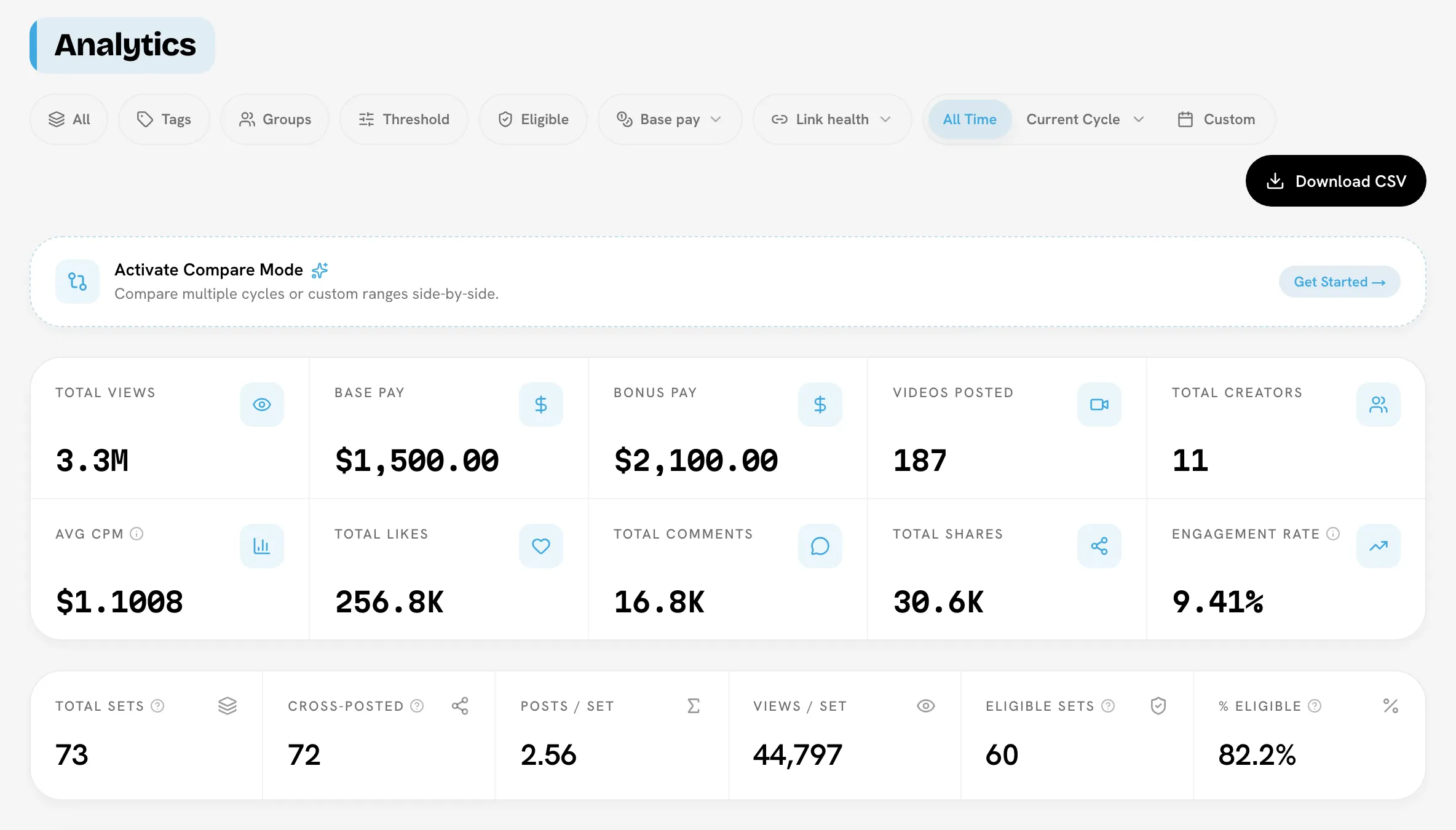
Choose a period
Use the period control at the end of the filter row:
- All Time: everything since your program started.
- Current Cycle: the running cycle. Open its dropdown to pick any past cycle instead. If no cycle is running, it shows the current month and the header says No current cycle · showing this month.
- Custom: any date range, or a preset such as Today, Yesterday, Last 7 Days, Last 14 Days or Last 30 Days.
Dates follow your brand's timezone.
Filter what's counted
Every filter applies to the whole page, and to exports unless you turn that off.
| Filter | Narrows the page to |
|---|---|
| Platform | One platform: Instagram, TikTok, YouTube or Facebook. |
| Tags | Videos with the selected tags. |
| Groups | Creators in the selected creator groups, or Ungrouped. |
| Threshold | Videos above a minimum for a metric such as views. Applied per video on its latest figures in the period; the Sets strip applies it to each set's combined totals. |
| Eligible | Only sets that clear your base pay rules. Hover it to see the rule. Shown only when your brand has a rule. |
| Base pay | Sets by instant base pay state, for example outstanding base pay. |
| Link health | Has a dead link (sets with at least one post that no longer opens) or No dead links (hides sets with a post confirmed dead; sets that were never checked stay in). See dead links. |
What's on the page
KPI grid
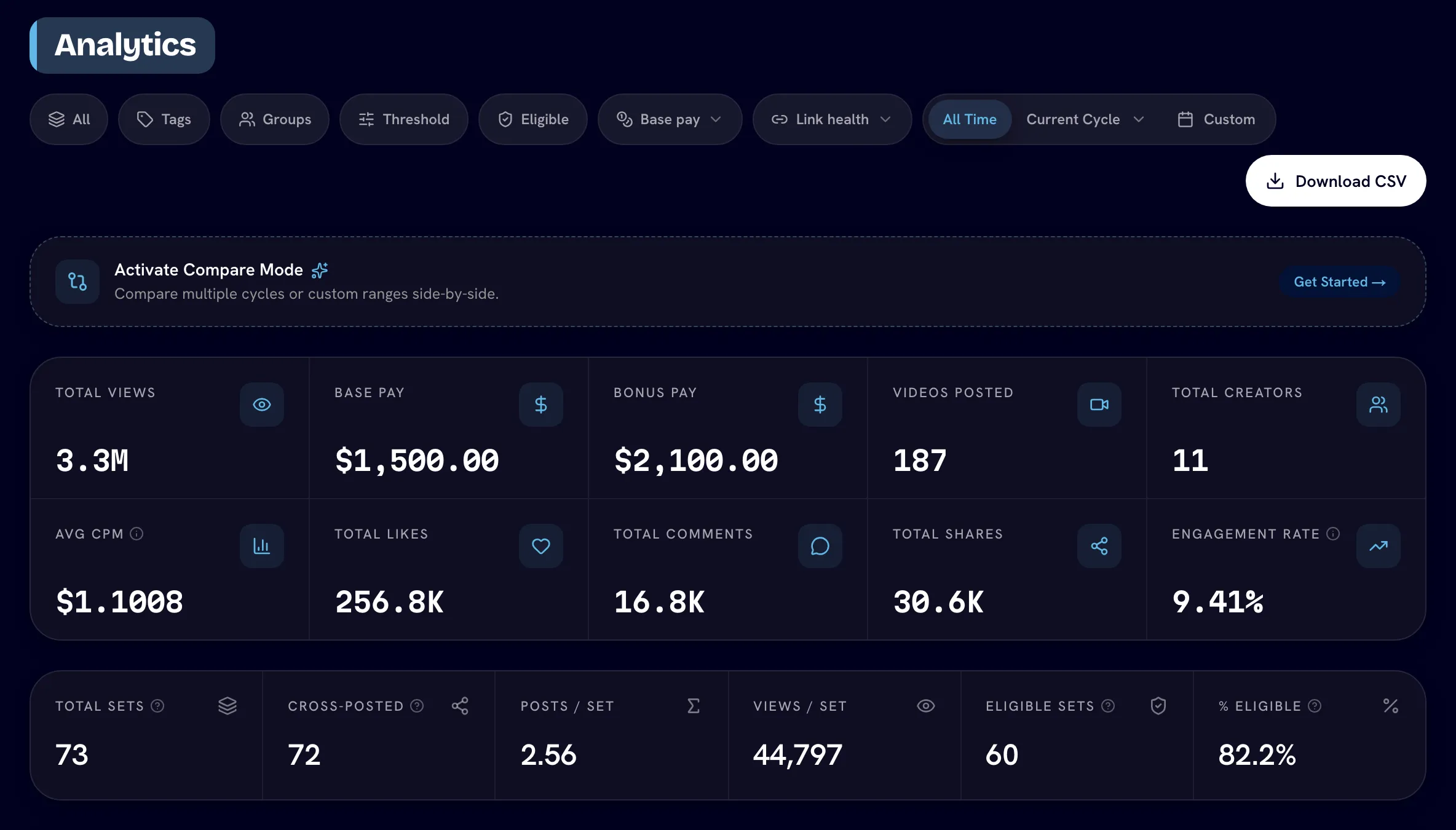
Total Views, Videos Posted, Total Likes, Total Comments, Total Shares, Engagement Rate, and New Creators (or Total Creators on All Time). With all platforms selected, you also see Base Pay, Bonus Pay and Avg CPM.
- Engagement Rate = (likes + comments + shares) ÷ views × 100, averaged across creators in the period.
- Avg CPM = total payouts ÷ total views × 1,000 for the selected period.
Sets strip
How your sets performed: Total Sets, Eligible Sets, % Eligible, Cross-posted (sets with posts on two or more platforms), Posts / Set and Views / Set. A video that was never cross-posted is a set of one. Eligibility is checked against each cycle's own frozen rules.
Charts
- Performance trend: daily views and engagement. Click a day to see the videos behind it.
- Cumulative Trend: how views built up over the period.
- Content and creator tiers: how videos, sets and creators spread across performance tiers, with the previous period for comparison when there is one.
Per-Creator Distribution
Typical values per creator, so one viral creator doesn't skew the picture: views, likes, comments, shares, engagement rate, videos posted, and base and bonus pay.
Creator Rankings
Top and bottom performers for Posting, Views, Likes, Comments, Shares and Engagement, plus Earnings and CPM when all platforms are selected.
Platform Contribution
Who drives each platform: the top creators plus the long tail. Hidden when you filter by one platform.
Compare periods
Compare mode shows KPIs and charts for two or three periods side by side.
Turn on Compare mode
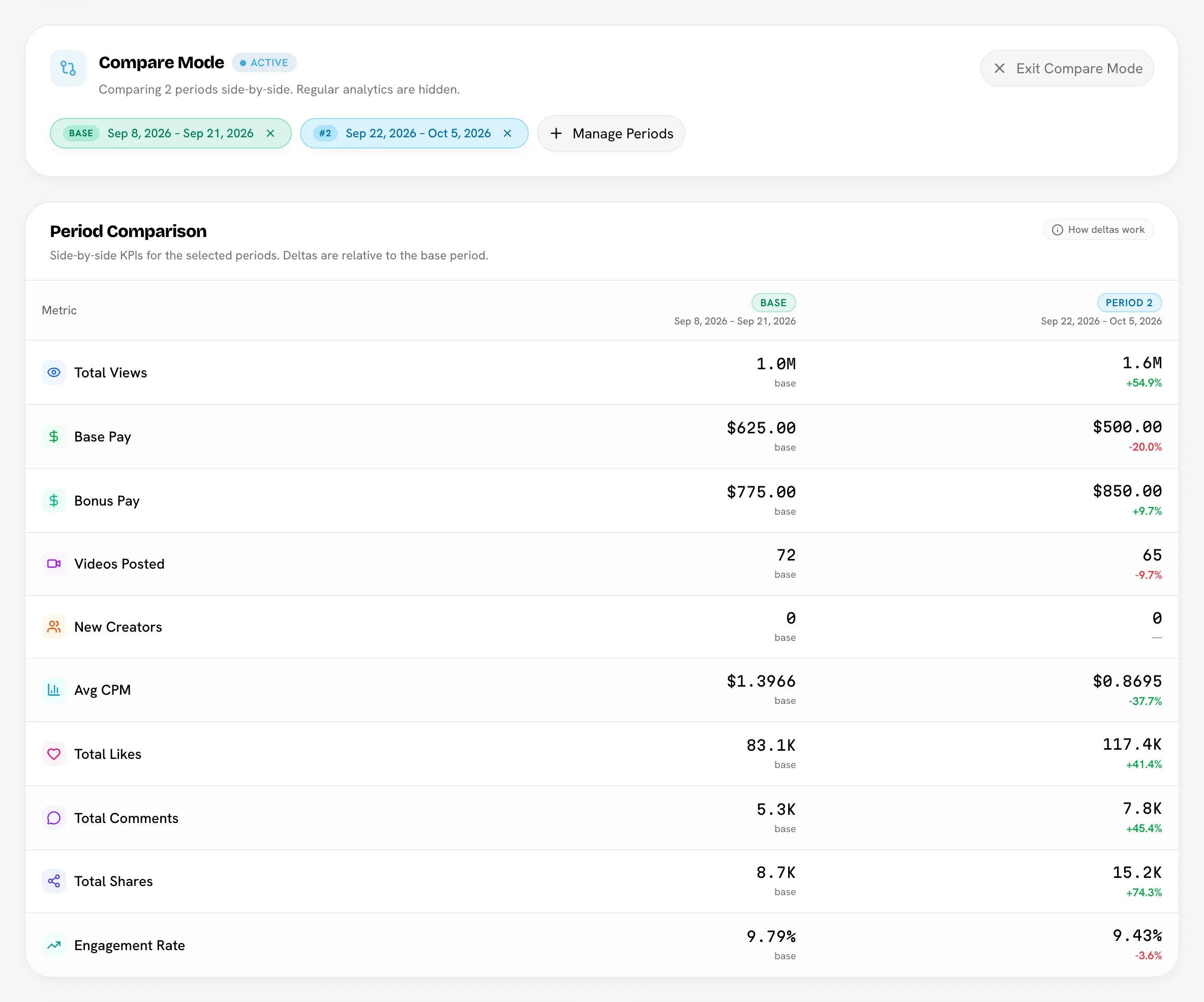
Click Activate Compare Mode (Get Started →) near the top of the page. The regular analytics are hidden while it's on, and the header shows a Compare mode chip.
Pick periods
Click Pick Periods and select up to three: any cycle, All Time, or a custom range (Add custom range…). Click Apply. You need at least two to start comparing.
Read the comparison
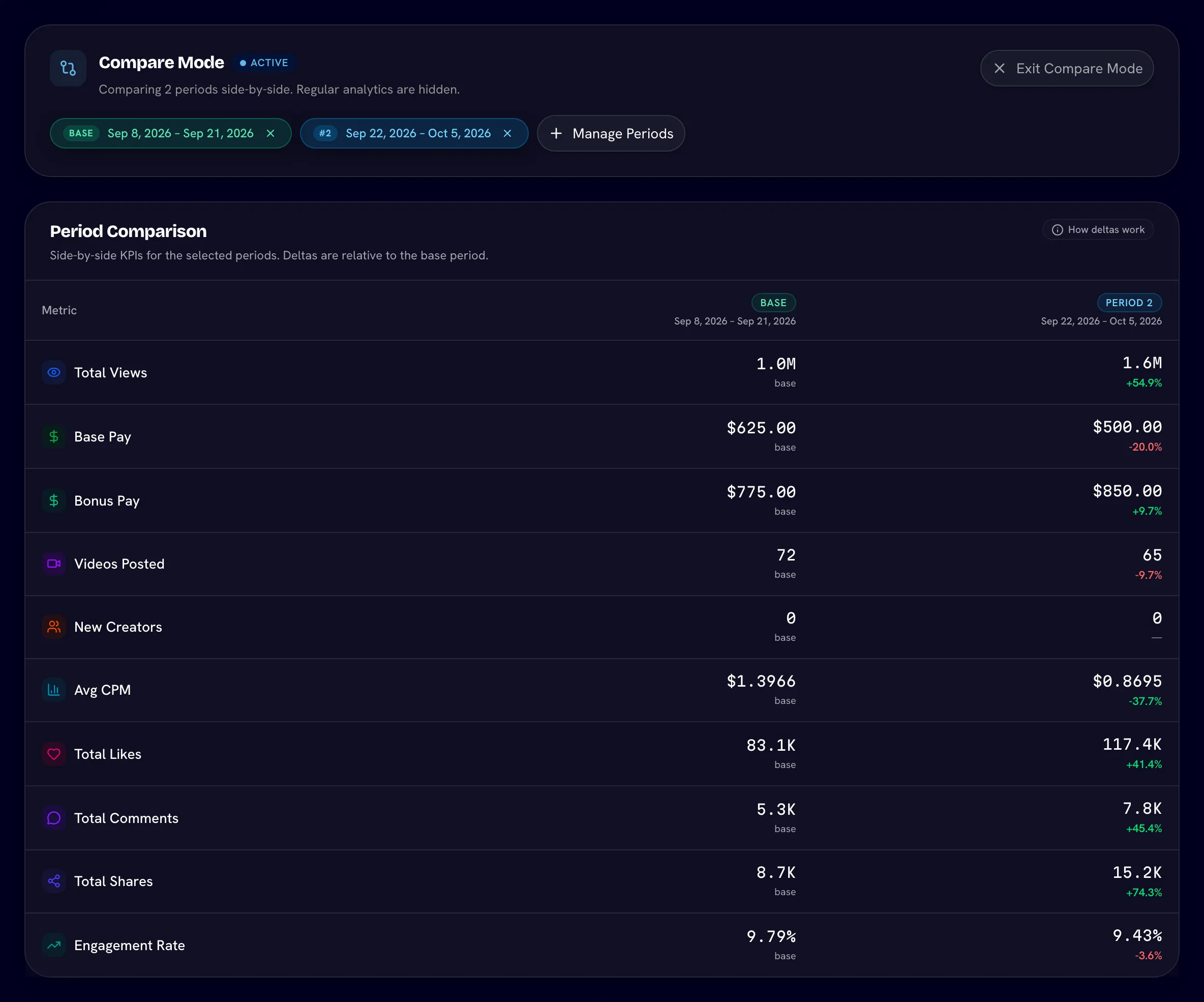
The first period is the Base; the others are Period 2 and Period 3. The Period Comparison table shows each KPI with its change from the base. Overlay charts follow for Views, Likes, Engagement Rate and Videos Posted.
Use Manage Periods to add or remove periods, and Exit Compare Mode to go back. Filters and Download CSV aren't available while Compare mode is on.
Export
Click Download CSV to export what you're looking at. See Exports for every report and its columns.
Related
Last reviewed Oct 12, 2026