
Exports
Every CSV you can download from the brand admin console, where to find it, and what each column means.
Bloss exports reports as CSV files you can open in Excel, Google Sheets or Numbers. This page lists every export, where it lives and its columns.
| Export | Where | Who |
|---|---|---|
| Creator Payouts by Set | AnalyticsDownload CSV | Any brand admin |
| All-Time, Combined Per Creator | AnalyticsDownload CSV | Any brand admin |
| Custom Date Range | AnalyticsDownload CSV | Any brand admin |
| All Cycles and single cycles | AnalyticsDownload CSV | Any brand admin |
| Tag analytics | TagsDownload CSV | Any brand admin |
| Instant base payouts | Payouts & CyclesBase pay | Full admins only |
| Bonus payouts | Payouts & CyclesBonus pay | Full admins only |
| Recruitment applications | RecruitmentSubmissionsExport CSV | Any brand admin |
How exports are laid out
- Every file starts with a short header block: the report name and brand, Generated At, Timezone (your brand's timezone, which every date in the file uses), Scope, any filters that were applied, and notes that explain how the numbers were counted. The table starts below it.
- Platforms are abbreviated IG (Instagram), TT (TikTok), YT (YouTube) and FB (Facebook) in per-creator reports.
- Amounts are plain numbers with two decimals and no currency sign, so spreadsheets can add them up.
- Files are UTF-8, so names with accents or emoji display correctly in Excel.
Analytics exports
On Analytics, click Download CSV to open Export Analytics CSV. Each row in the dialog is a different report; click Export next to the one you want.
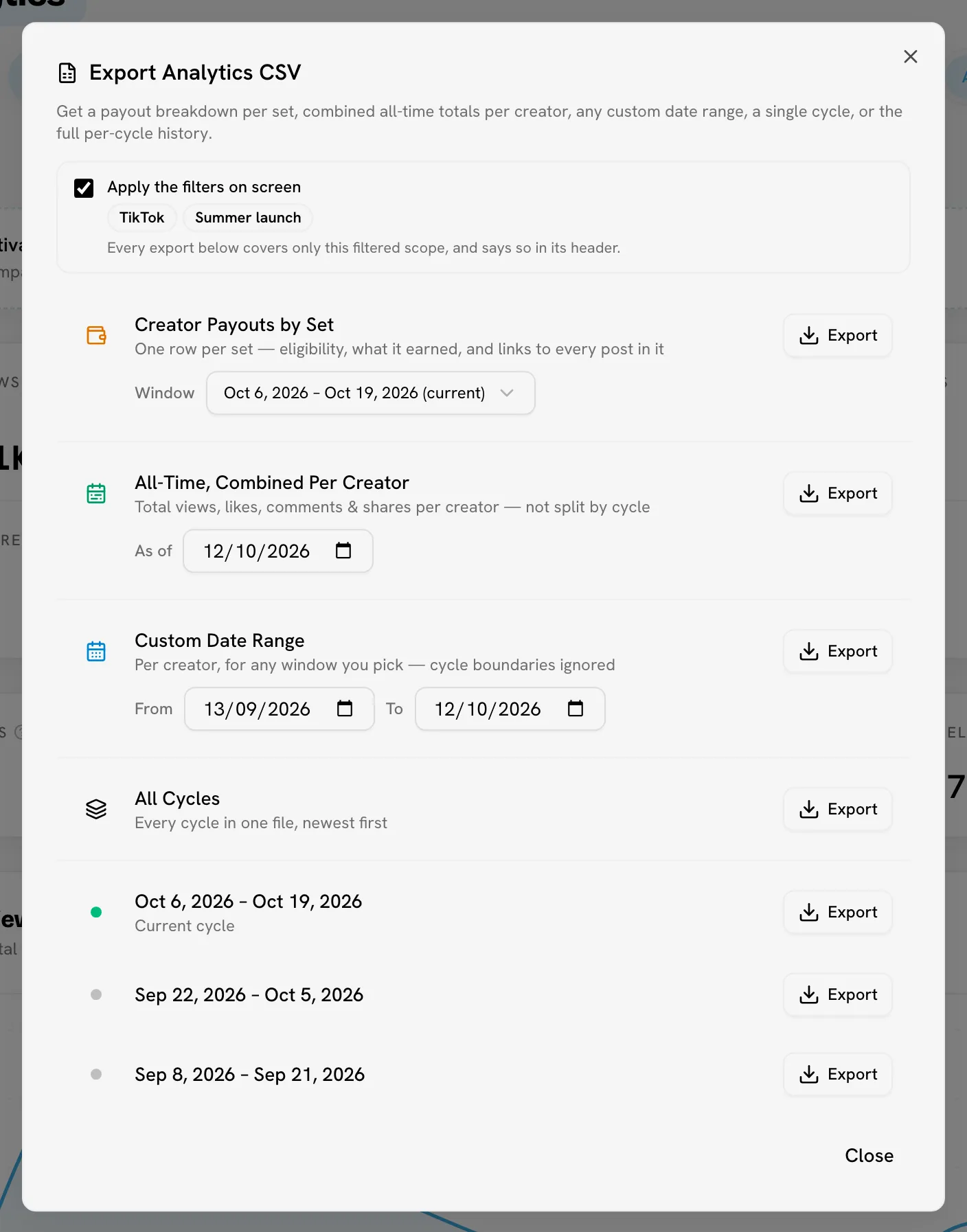
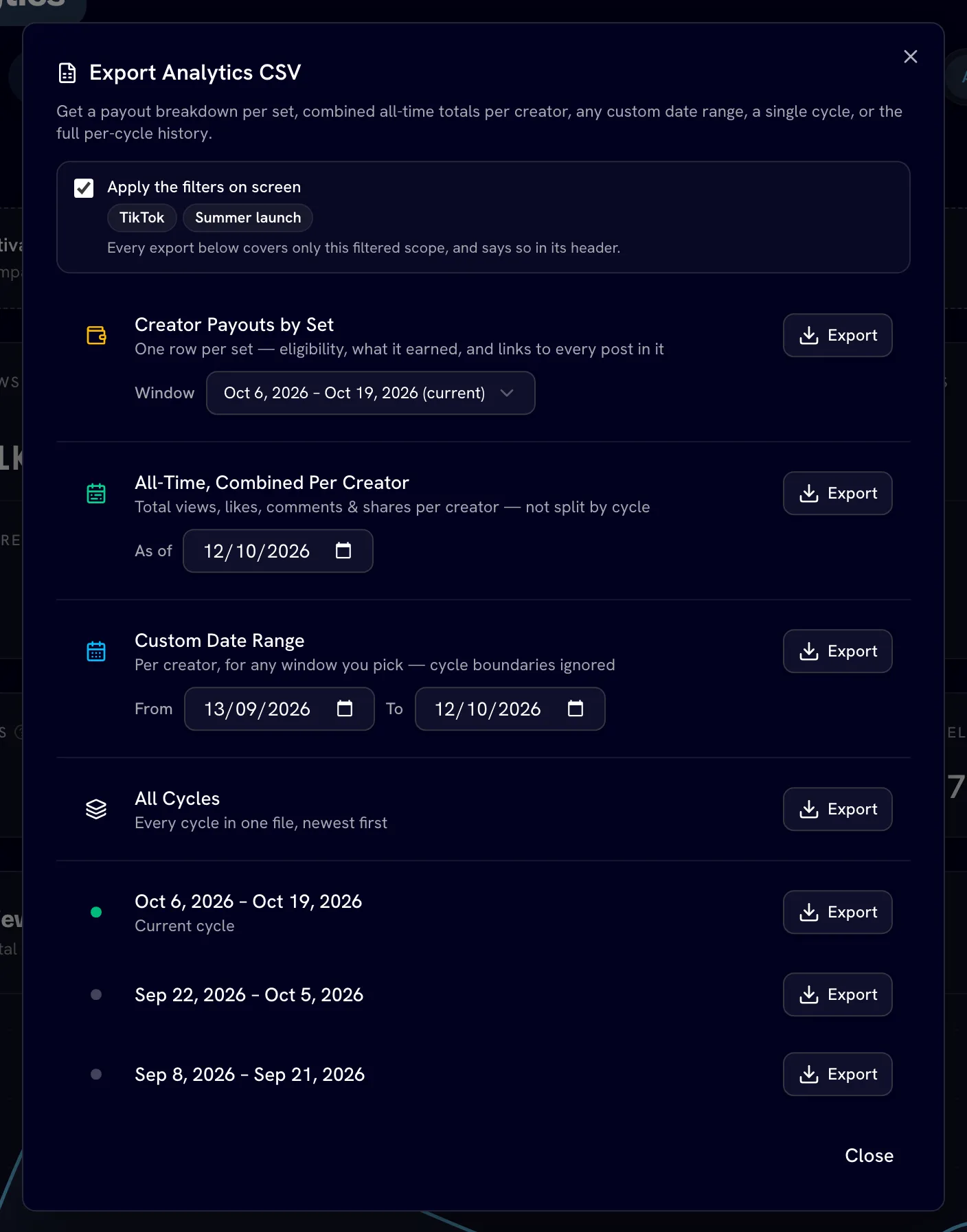
Apply the filters on screen
If the page is filtered (platform, tags, groups, threshold, Eligible, base pay or link health), the dialog shows Apply the filters on screen with the active filters listed. It's on by default:
- On: every export covers only the filtered scope and lists each filter in its header (Filter · Platform, Filter · Tags and so on).
- Off: every export covers the whole brand.
Turn it off when you need the full cycle for a payout run.
Creator Payouts by Set
One row per set: whether it's eligible, what it earned, and links to every post in it. Use Window to pick Selected range (only when the page is on a custom range), All cycles, or one cycle. If the page shows a custom range and you pick something else, the dialog warns you that the file won't match the screen.
Each cycle (or range) gets a summary first: Eligible Sets, Not Eligible, Not Evaluated Yet, Sets Marked Unpaid (not listed), Sets with custom pay, Posts with Dead Links, Total Earned, Already Paid and Still Owed. Rows are grouped by creator with a SUBTOTAL row each, and a CYCLE TOTAL (or RANGE TOTAL) at the end.
| Column | Meaning |
|---|---|
| Creator Name, Email | The creator. |
| Creator Account Alerts | Blank unless the creator has an open account alert, for example their handle stopped working. New posts may not be arriving; figures already in the file aren't affected. |
| Set ID | The set's ID. |
| Posted Date | When the set was posted. |
| Videos in Set | Number of posts in the set. |
| Dead Links, Link Health | How many posts in the set no longer open, and a summary. See Link health. |
| Tags | The set's tags. |
| Eligible | Yes, No or Not evaluated. |
| Why Not Eligible | The reason a set didn't qualify. |
| Paid For (platforms) | Which platforms' posts the pay covers. |
| Custom Pay, Custom Pay Stale | Whether the set's pay was set by hand, and whether the set has changed since. See Custom pay and unpaid sets. |
| Instagram / TikTok / YouTube / Facebook blocks | For each platform: Link, Link Health, Views, Likes, Comments, Shares, Saves. Blank when the set has no post there. |
| Total Views … Total Saves | The set's combined totals. |
| Base Pay, Bonus Pay, Set Total | What the set earned. |
| Already Paid, Amount Due | What's been paid and what's still owed. |
| Payment Status | Paid, Partially Paid or Unpaid. |
Not evaluated sets
A set is Not evaluated when Bloss hasn't priced it yet, usually because its posts were published in the last day or two. Run a sync before paying from the file. For a past range, widen the end date to a day the posts were measured on.
Sets you marked unpaid are left out and only counted in the summary.
Per-creator reports
Two reports give one combined row per creator, not split by cycle. Each video is counted once, at its latest figures in the window.
- All-Time, Combined Per Creator: everything posted up to the As of date (today by default).
- Custom Date Range: only videos posted between From and To. If the page is on a custom range, the dialog fills it in and shows Matches the page.
| Columns | Meaning |
|---|---|
| Creator Name, Email | The creator. |
| Instagram, TikTok, YouTube, Facebook | The creator's profile on each platform. |
| IG / TT / YT / FB Videos, Total Videos | Videos posted, per platform and in total. |
| The same five columns for Views, Likes, Comments and Shares | Per platform and in total. |
A TOTAL (all creators) row closes the table. The header also shows Program Data Since, the earliest data your brand has.
Cycle reports
All Cycles puts every cycle in one file, newest first. Below it, one row per cycle exports only that cycle (the running one is marked Current cycle).
Each cycle section has three tables:
- Cycle Summary: Total Videos, Total Views, Total Likes, Total Comments, Total Shares, Total Base Pay, Total Bonus Pay, Total Pay, Avg CPM, Avg Engagement Rate % and New Creators.
- Daily Program Stats: one row per day with Date, Videos Tracked, Views, Likes, Comments, Shares and Engagement Rate %.
- Creator Performance: the per-creator columns above, plus Base Pay, Bonus Pay, Total Pay and CPM, and a TOTAL (all creators) row.
Tag analytics
On Tags, click Download CSV. The file follows the window, platform and link-health filter on screen.
- TAG SUMMARY: one row per tag with Rank, Tag, Tier, Score, Videos, Sets, Views, Likes, Comments, Shares, Avg Views, Median Views, Eng. Rate %, Growth %, Share of Reach %, Base Pay, Bonus Pay, Total Pay and CPM.
- Per tag: every post behind the tag with Set ID, Creator, Creator Email, Posted Date, Platforms in Set, Posts in Set, Eligible, Platform, Video URL, Link Health, Title, the post's Views to Saves and Eng. Rate %, then the set's views, likes, comments, shares, pay and Set CPM.
A video with several tags counts under each, so per-tag totals can add up to more than the campaign total. Pay belongs to the set, so every post in a set repeats the set's amount. Growth is blank on an all-time window. See Tags and tag analytics.
Instant base payouts
Full admins onlyIn Payouts & CyclesBase pay, scroll to Base payout history and click Export all paid, or select rows and click Export N selected. One row per set paid early, before its cycle closed. Bonuses aren't included.
Columns: Creator Name, Email, Creator Account Alerts, Payout Email, Payout ID, Status, Set ID, Videos in Set, Dead Links, Link Health, Posted Date, Detected, Deadline Status, Paid At, Approved By, Cycle, Paid For (platforms), Custom Pay, the four platform blocks and totals as in Creator Payouts by Set, then Amount Paid, Transfer ID and Failure Reason.
Metrics are the figures recorded when the base pay was sent. Rejected or failed payouts are listed if you select them, but count zero toward every total. See Instant base pay.
Bonus payouts
Full admins onlyIn Payouts & CyclesBonus pay, scroll to Bonus payout history and click Export all paid or Export N selected. One row per bonus payment.
Columns: Creator, Creator Email, Status, Method, Cycle, Paid At, Paid By, Bonus Amount, Transfer Total, Base In Transfer, Eligible Views, Sets, Set Details, Transfer ID, Failure Reason and Record Source.
Transfer Total is what moved; Bonus Amount is the bonus inside it and Base In Transfer any base pay settled in the same transfer. Set Details lists, per set, the tier reached (or linear rate), the views it was priced on, its bonus and its platforms. See Bonus pay board.
Recruitment applications
In RecruitmentSubmissions, click Export CSV. One row per application, whatever its status.
Columns: Name, Email, Status, Applied (UTC), Discord confirmed, Has account, Source (the invite link label, if any), Location, Languages, Instagram, TikTok, YouTube, Facebook, Portfolio, Best video, Experience, Niches, Bio, UGC goal, Heard about us, Discord username, then one column per custom question. See Recruitment.
Related
Last reviewed Oct 12, 2026