
Recruitment
Build a public recruitment page with its own application form, then review, approve or reject the creators who apply.
Recruitment gives your brand a public page that pitches your program and an application form creators fill in. You review each application and approve the creators you want; approved creators join your brand automatically.
Open it from Recruitment in the sidebar. It has two tabs: Editor and Submissions. Any brand admin can use both.
Open RecruitmentBuild your recruitment page
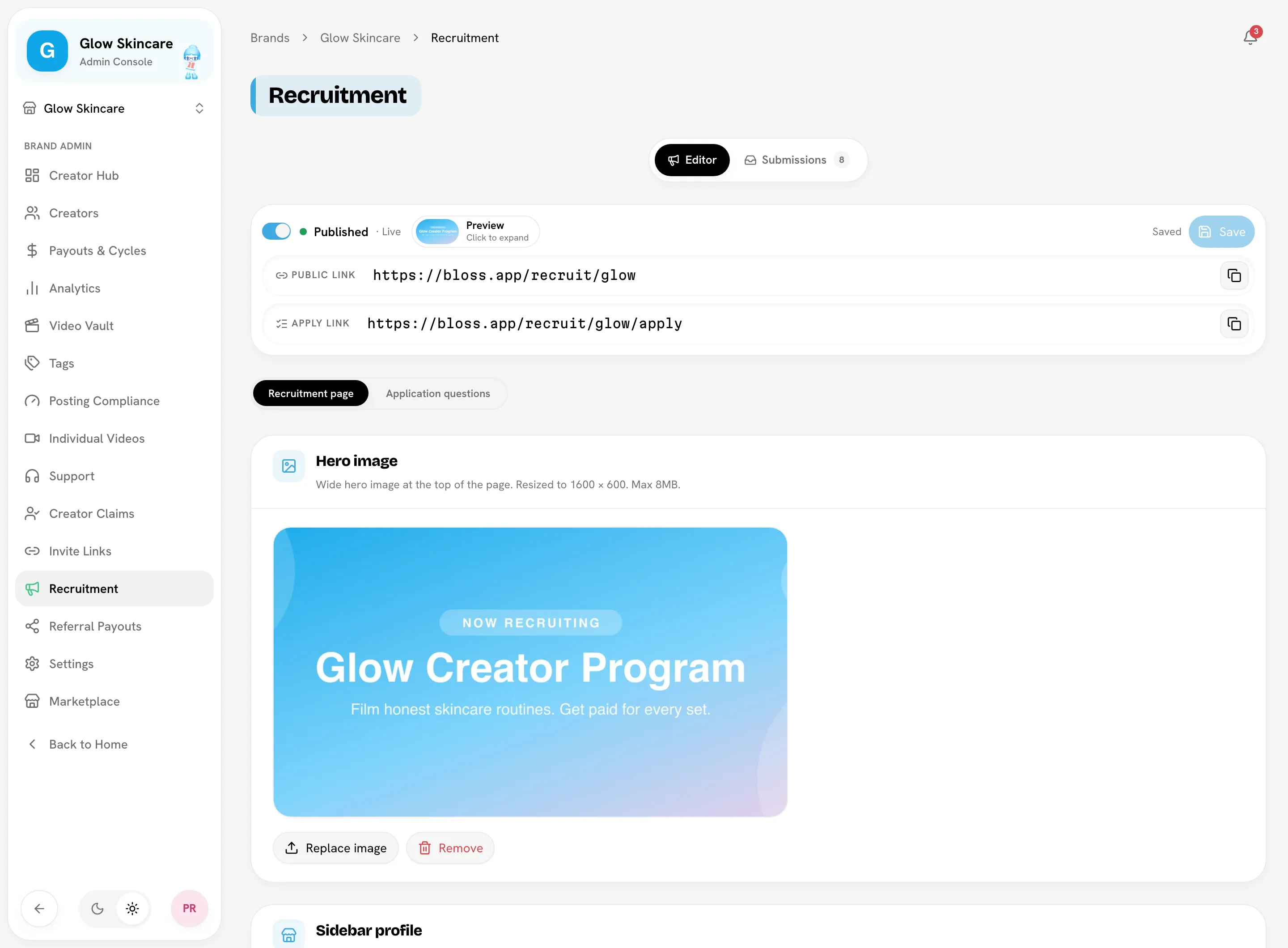
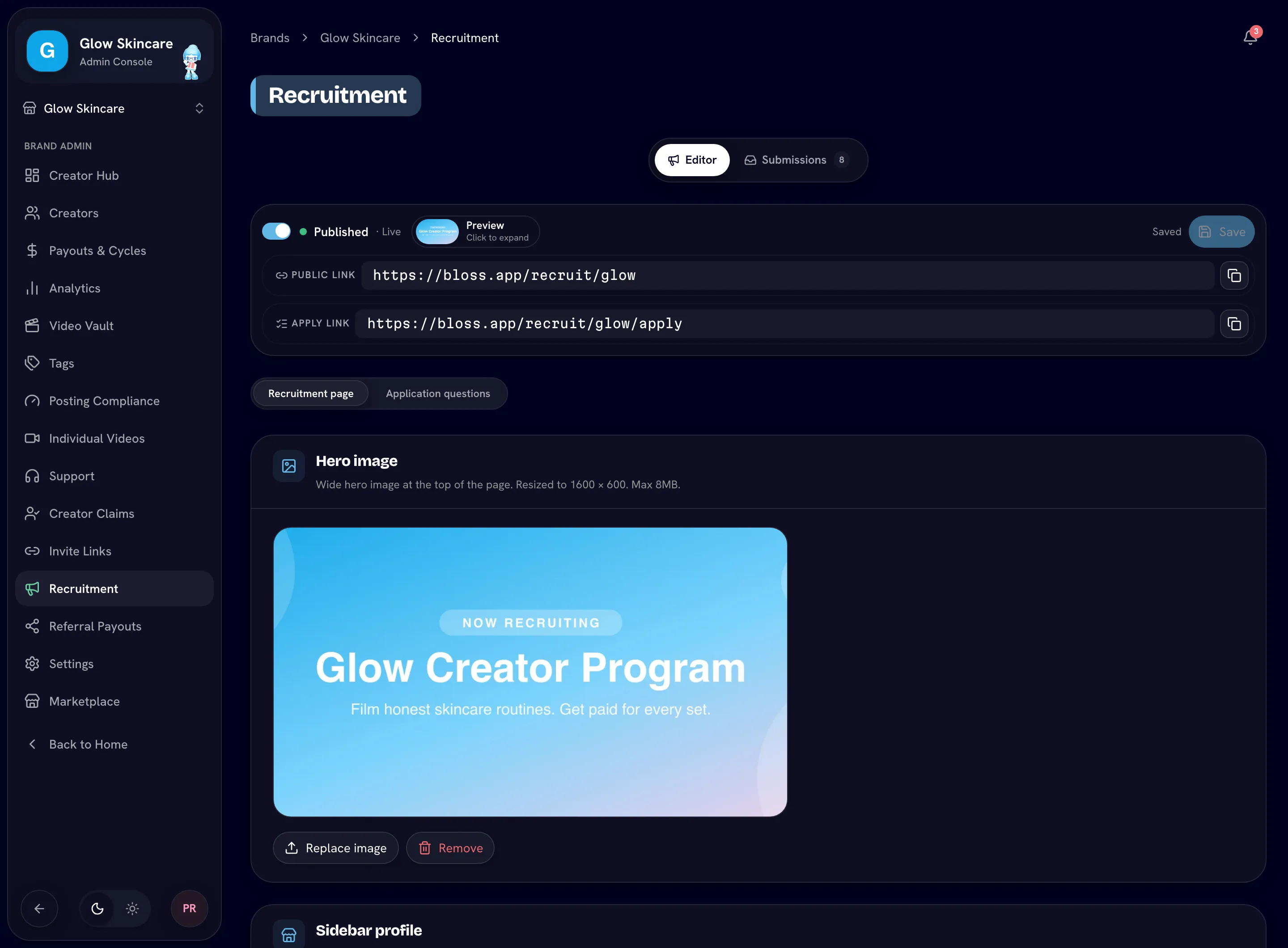
The Editor tab has two sections, Recruitment page and Application questions. A preview button at the top shows the live page as you edit. Click Save when you're done; the bar shows Unsaved until you do.
Recruitment page
| Card | Fields |
|---|---|
| Hero image | A wide image at the top of the page. Resized to 1600 × 600; max 8 MB. Upload image, Replace image or Remove. |
| Sidebar profile | Website URL and Brand pitch (one or two sentences under your brand name). |
| Campaign details | Campaign title, Start date, End date, Target audience (for example "US women 25-34") and Platforms (TikTok, Instagram, YouTube). |
| Body | The main content, written in Markdown: overview, perks, requirements, example videos, anything else. Also CTA button label, the text on the apply button (default "Join"). |
| How it works | Up to 12 short steps shown in the sidebar. Add step, reorder or remove them, or click Use defaults. |
| Earnings & payouts | Max payout headline (for example "Up to $1300/video") and Earnings by views, a table of view milestones and amounts. Click Add tier for each row. |
Application questions
Every applicant answers a fixed set of standard questions: name, location, languages, social accounts, niches, experience and goal.
You can add up to 5 custom questions of your own:
| Type | Notes |
|---|---|
| Short text | A free-text answer. |
| Dropdown | Pick one option. Add up to 10 options with Add option. Needs at least one. |
| Yes / no | A simple yes or no. |
Turn on Required to make a question mandatory. Reorder questions with the arrows.
Discord is optional. Paste a Discord invite link and applicants see a "Join your brand Discord" button on the form and tick a box to confirm. Bloss doesn't check that they actually joined.
Publish and share
Use the switch at the top of the editor:
- Published · Live: anyone with the link can see the page and apply.
- Draft · Hidden: visitors see a "not found" page.
Copy the links from the top of the editor:
- Public link: the recruitment page, at
/recruit/your-brand. - Apply link: goes straight to the application form, at
/recruit/your-brand/apply.
Applicants sign up for a Bloss account as part of applying. Every brand admin gets a notification for each new application. See Notifications.
Review applications
Open the Submissions tab.
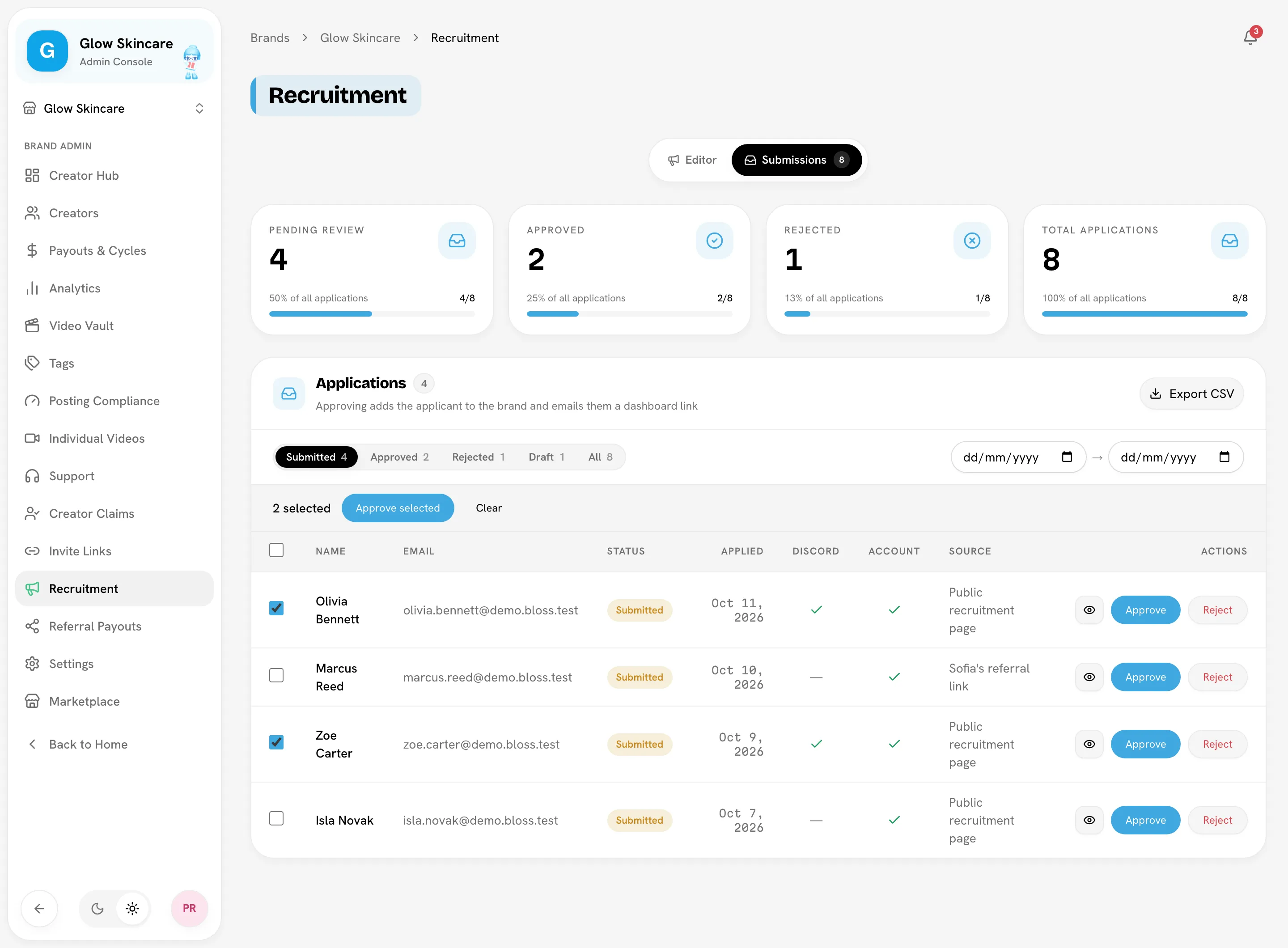
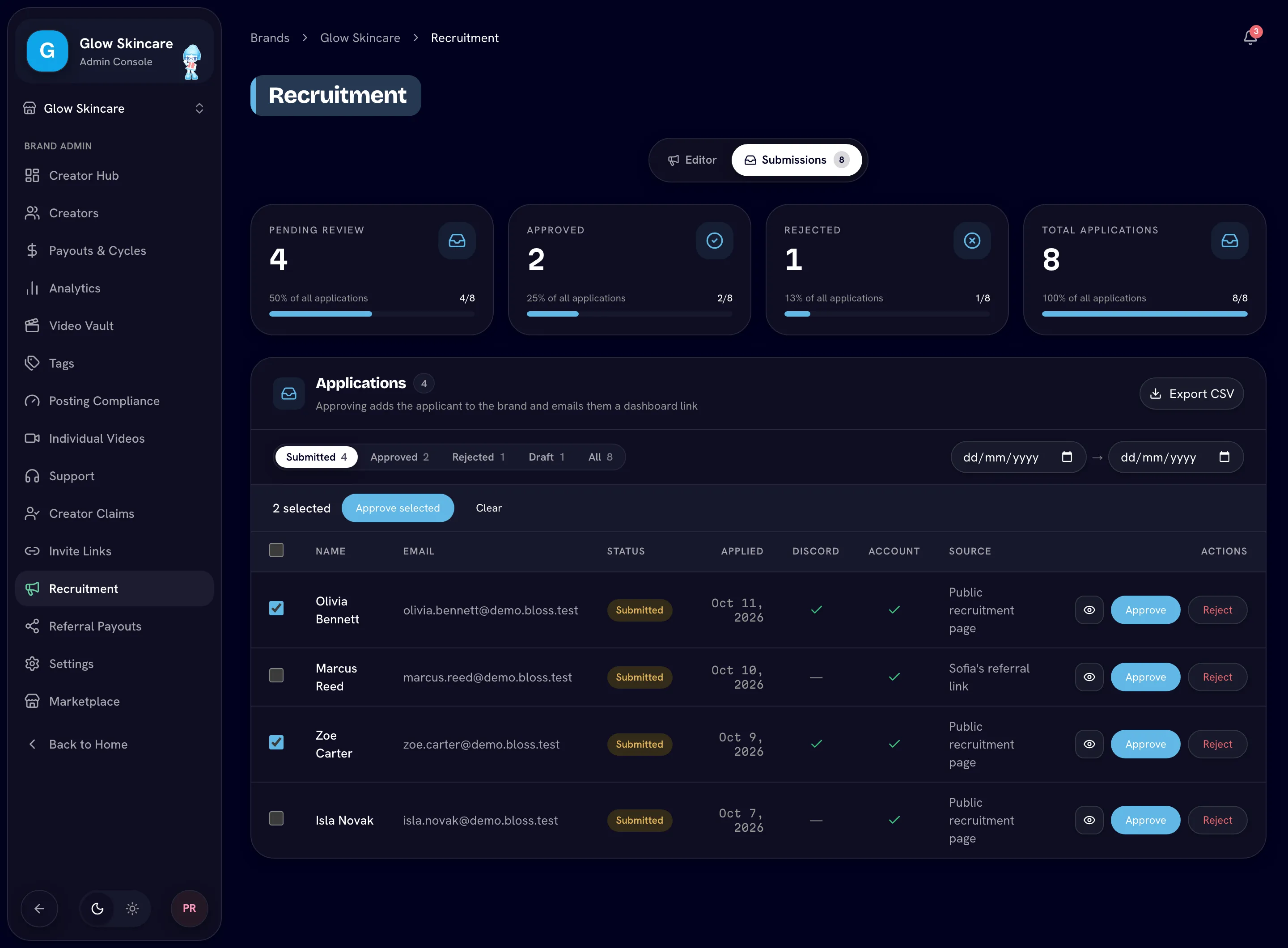
The tiles count Pending review, Approved, Rejected and Total applications. Filter the list by status (submitted, approved, rejected, draft or all) and by date. Drafts are applications someone started but hasn't sent.
Read an application
Click an application to see every answer, including your custom questions. Once the applicant has finished signing up, you also see their social stats: followers, views, views in the last 7 days, engagement and recent videos.
Approve
Click Approve, then Approve & add to brand. The applicant is added to your brand as a creator and emailed a link to their dashboard. Their application counts as their creator onboarding. Open an approved application to find View creator profile.
Or reject
Click Reject. Add an optional Reason; it's included in the email the applicant receives. Click Reject application.
To approve several at once, tick the submitted applications you want, click Approve selected, then Approve all.
To remove an application, open it and click Delete. This permanently deletes the application and its answers. It doesn't remove the creator from your brand if you already approved them.
Click Export CSV to download every application. See Exports.
Related
Last reviewed Oct 13, 2026