
Inviting creators
Bring creators into your brand by email invitation, shareable invite link, or by adding them yourself one at a time or from a CSV.
There are four ways to get a creator onto your roster. Pick the one that fits how you found them.
| Method | Best for | Creator needs a Bloss account? |
|---|---|---|
| Email invitation | One creator you know by email | Yes — they create one from the link |
| Invite link | Sharing in a bio, story, group chat or ad | Yes — they sign in or sign up from the link |
| Application form | Creators who should be approved first | Yes |
| Add creators (one or CSV) | Tracking creators who aren't on Bloss yet | No |
New creators start as Trial if your brand has trials turned on, otherwise as Active. See Trials.
Email invitation
Open the invite dialog
Go to Creators and click Invite Creator.
Enter their details
Fill in Email address and, optionally, Creator name — it pre-fills their creator profile name. Click Send Invitation.
Share the link if you want to
Bloss emails the invitation and also shows the join link, copied to your clipboard. You can send the link yourself as well. Click Invite Another to keep going, or Done.
- The invitation expires after 7 days.
- You can't invite an email that's already a member of the brand, or one that already has a pending invitation.
- When the creator accepts, you get a joined the brand notification.
Invite links
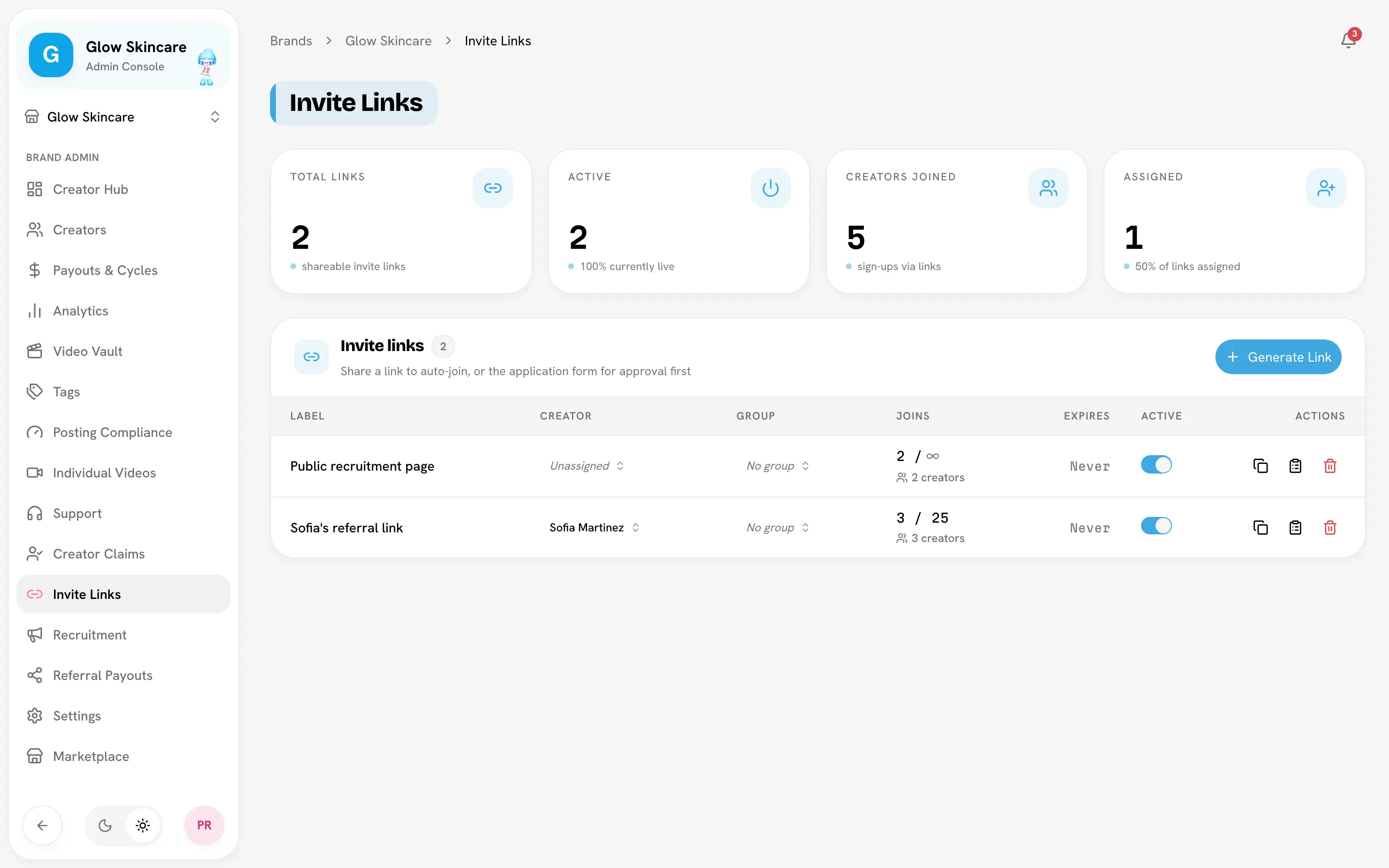
An invite link is a reusable URL anyone can use to join as a creator. Manage them on Invite Links.
Create a link
Generate it
On Invite Links, click Generate Link.
Set the options
All fields are optional:
| Field | What it does |
|---|---|
| Label | A name to remember where you shared it, for example "TikTok bio". |
| Assign to creator | Attributes everyone who joins through the link to that creator — use it for referral links. |
| Add to group | Adds everyone who joins to a creator group. Only shown once your brand has groups. |
| Max uses | How many people can join with it. Blank means unlimited. |
| Expiry date | The last day it works. Blank means it never expires. |
Share it
Click Create Link. The link is copied to your clipboard. Use Generate Another to make more.
Auto-join or application form
Each link in the table has two copy buttons:
- Copy auto-join link — whoever opens it signs in (or creates an account) and joins your brand straight away.
- Copy application form link (with approval) — opens your recruitment application form instead. Applicants wait for you to approve them, and the application stays attributed to this link. See Recruitment.
Manage links
The table shows each link's Label, assigned Creator, Group (if you use groups), Joins, Expires and an Active switch.
- Active switch: turn a link off without deleting it. Turn it back on any time.
- Expired or Exhausted pills appear when the expiry date has passed or the link has used up its Max uses. Someone opening such a link is told it's unavailable and to ask for a new one.
- Click the creator count under Joins to see who joined through the link, with their status. From there, Create group turns everyone who joined into a creator group.
- You can change a link's assigned creator or group from the table. A group change only affects people who join from then on.
- Delete link stops the link working for good. Creators who already joined aren't affected. This can't be undone.
The tiles at the top show Total links, Active, Creators joined and Assigned.
Referral links
When a link is assigned to a creator, people who join through it show that creator under Referred By on their profile. If your brand pays referral bonuses, that's how the referrer is credited. See Referral payouts.
Add creators yourself
Use Add creators to put creators on your roster without inviting them — for example, to start tracking creators who aren't on Bloss yet. They don't need an account, and they aren't emailed (unless they already have a Bloss account, in which case Bloss tells them they've been added).
Bloss checks that every social handle you enter belongs to a real account before adding anyone. Creators whose handles can't be found are skipped.
Later, the creator can sign up and claim the profile you made. See Creator claims.
One creator
Open the dialog
On Creators, click Add creators, then the Single Creator tab.
Fill it in
Enter Creator Name (required), an optional Email, and at least one of Instagram, TikTok, YouTube (username or channel) or Facebook (page URL). Click Add Creator.
Many creators from a CSV
On Creators, click Add creators and stay on the CSV Upload tab. Paste your rows into CSV Data and click Import Creators.
Columns, in this order:
Name, Email (optional), Instagram, TikTok, YouTube, Facebook
John Doe, john@example.com, johndoe, johndoe, johndoevlogs, https://facebook.com/johndoe
Jane Smith, , janesmith, jane_smith, ,- A header row is optional.
- Email can be left empty. If the second column doesn't look like an email, Bloss reads it as the Instagram handle and shifts the rest left.
- Every row needs a name and at least one social handle.
- Handles can be bare usernames or pasted profile URLs; Bloss strips them down to the username. Facebook takes a page URL.
- Values can't contain commas — the importer doesn't support quoted fields.
- The same email can't appear twice in one import.
When it finishes, Bloss shows how many creators were added and skipped, with a reason for each skipped row (for example, no social profiles, a handle that doesn't exist, or a creator who already exists with that email). If a handle couldn't be checked right then, the row is skipped — import only those rows again.
Re-adding someone you removed
If a row matches a creator you previously removed, Bloss restores their old profile — with their history — instead of creating a duplicate.
Related
Last reviewed Oct 13, 2026