
Creator groups
Organize your roster into named, colored groups — squads, tiers, cohorts — and filter the roster, Video Vault and analytics by them.
A creator group is a named, colored label you give to some of your creators, for example "Tier 1", "Q3 cohort" or a partner agency. Use groups to filter and compare parts of your roster.
Groups never change pay
Groups don't affect payouts or posting compliance. Adding, removing or deleting a group changes nothing about what a creator earns.
Where groups show up
Once your brand has at least one group, you can filter by group on:
- Creators (with Group by sections)
- Video Vault
- Creator Hub
- Analytics
- Posting Compliance
- The API: the Brand API and the Campaign API.
Until you create a group, none of these controls appear. Creators never see which groups they're in.
Create a group
Open the dialog
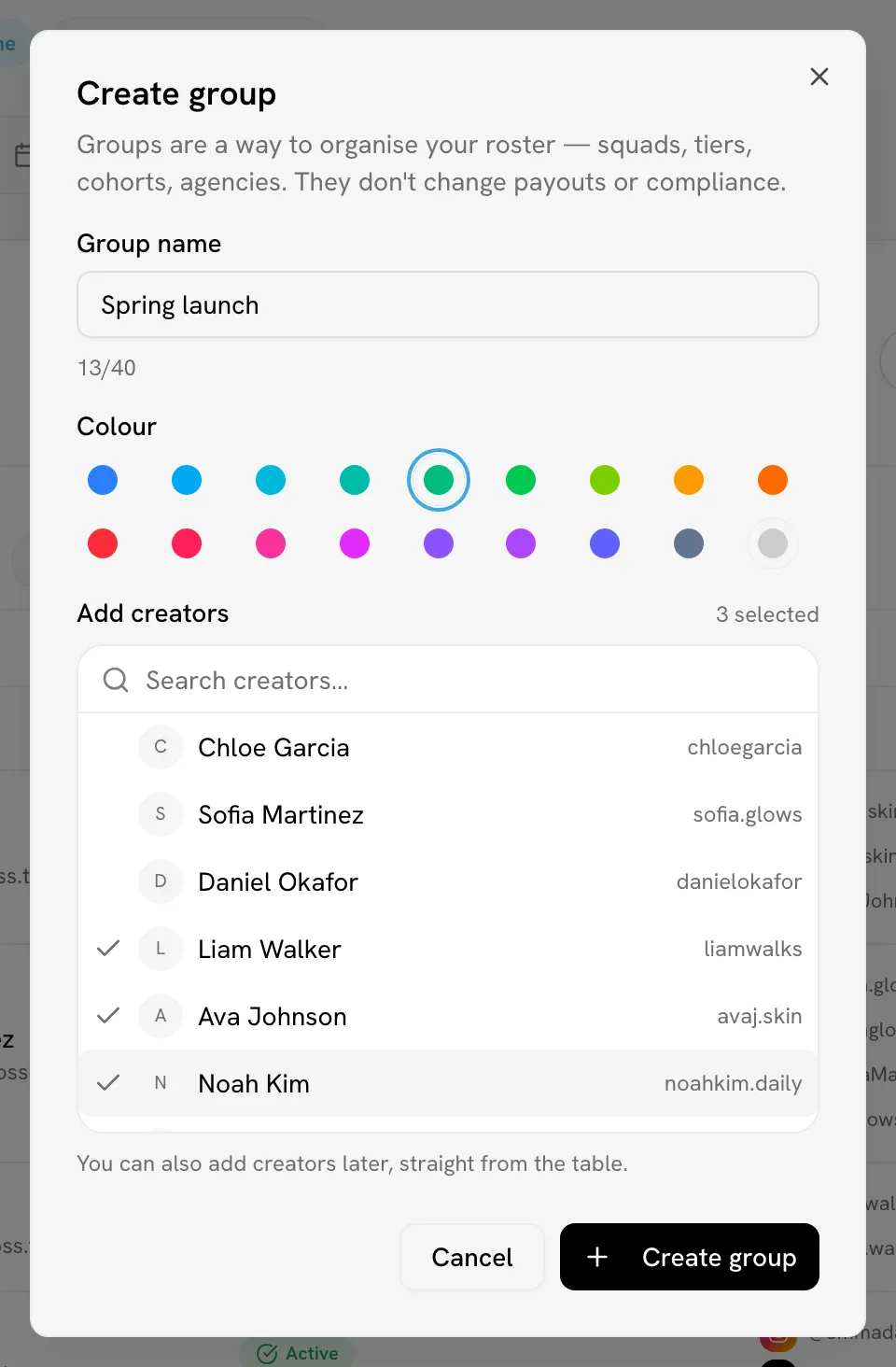
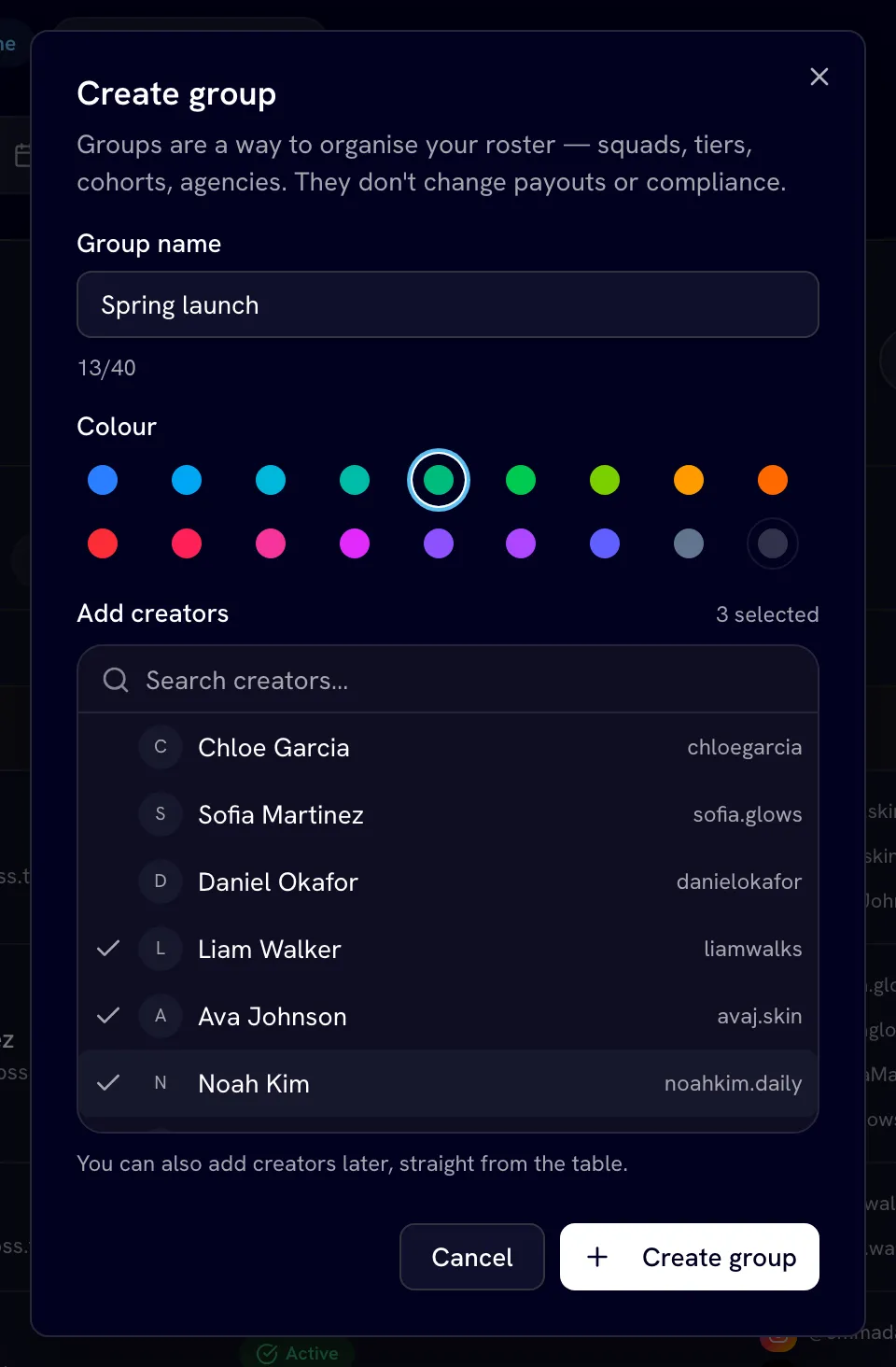
On Creators, click Create group.
Name it and pick a color
Enter a Group name (up to 40 characters, unique within the brand) and choose a Colour.
Add creators now or later
Pick creators under Add creators, or skip this — you can add them later from the table. Click Create group.
A brand can have up to 25 groups.
Other ways to fill a group
- From the table: tick creators, click Add to group in the selection bar, and pick one or more groups. You can create a new group from the same menu.
- From an invite link: set Add to group on an invite link and everyone who joins through it is added automatically. See Invite links.
- From an existing link's joiners: on Invite Links, open a link's joined creators and click Create group to turn them into a group.
A creator can be in several groups at once.
Filter by group
Click a group pill to show its creators. Select several to show creators in any of them. Ungrouped shows creators in no group (it appears once at least one creator is in a group). Clear removes the filter.
On Creators, with two or more groups, Group by splits the table into a section per group, with subtotals. A creator in two groups appears in both sections, so section subtotals don't add up to the page total.
Manage groups
Click Manage next to the group pills to:
- rename a group,
- change its color,
- move it up or down (the order is used everywhere groups are listed),
- delete it.
Deleting a group only removes the group. Its creators become ungrouped, stay on your roster, and nothing else about them changes.
Related
Last reviewed Oct 22, 2026
Creator profile
Everything on a creator's profile page — stats, status, connections, payout details, custom pay, admin notes, referral, sync and the Videos, Compliance and Payout History tabs.
Trials
How the optional creator trial works — the view goal, video count and trial length — and how creators pass, skip or go back to trial.