
Managing your roster
Read the Creators table — its columns, scopes, filters and sort — and what each creator status means for syncing and pay.
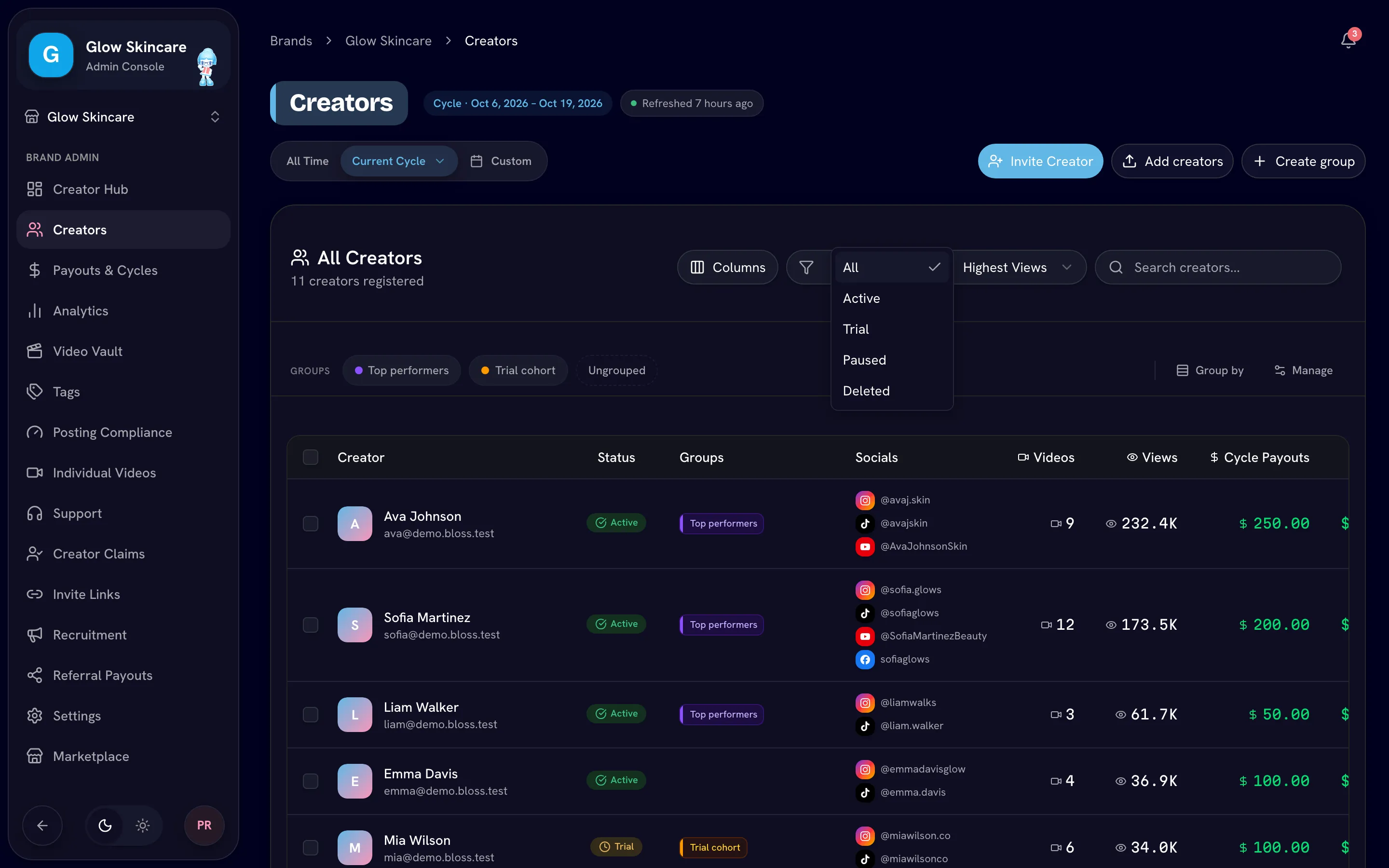
Creators lists everyone on your brand's roster with their status, socials, videos, views and pay. Open any row for the full creator profile.
Open Creators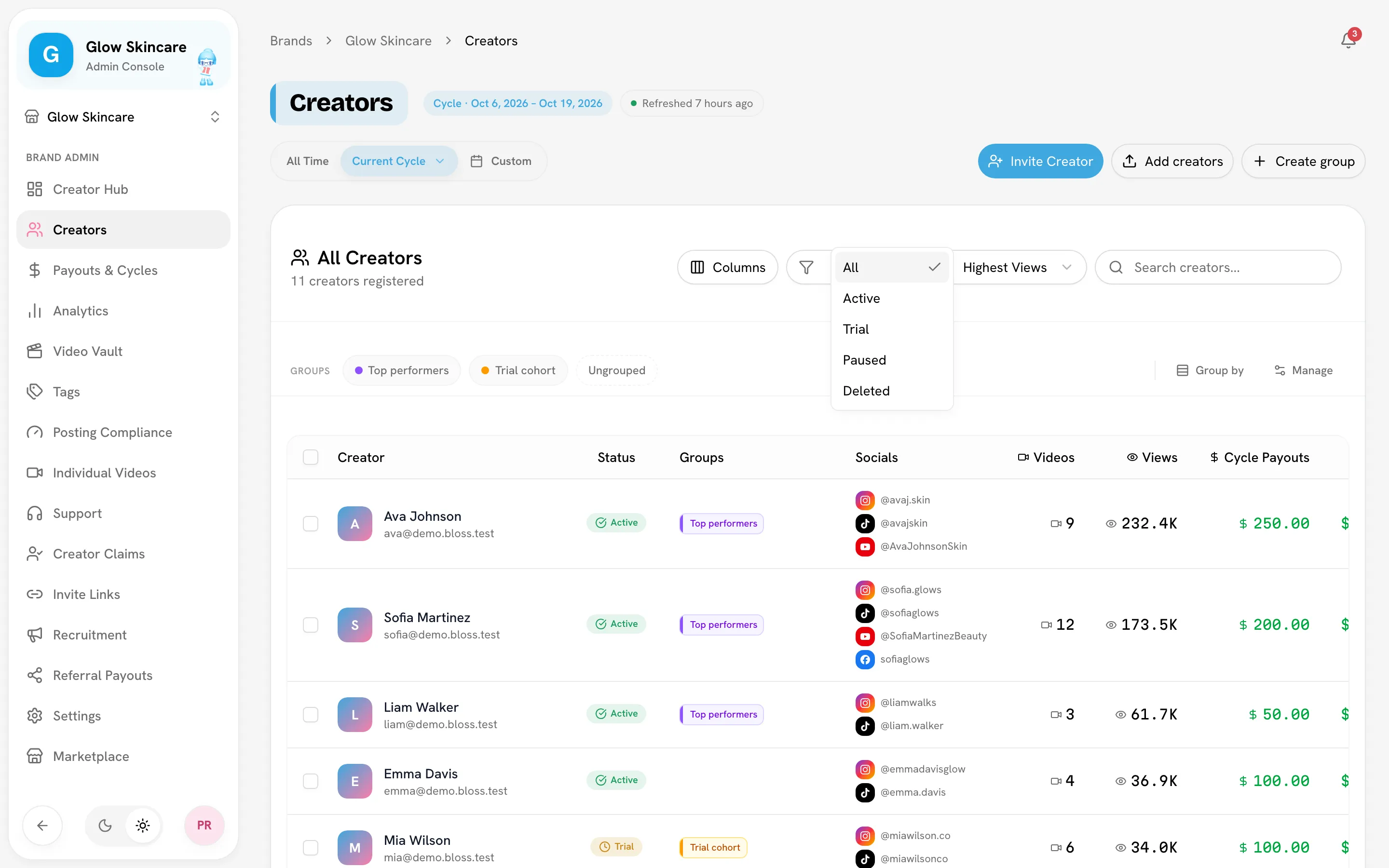
Choose the time window
The scope switch at the top sets the window for the numbers in the table:
- Current Cycle — the active payout cycle. Use its menu to pick a past cycle instead. If there's no active cycle, Bloss shows the current month and says No active cycle · showing this month.
- All Time — the creator's whole history with your brand.
- Custom — any date range, or a preset such as Last 7 Days.
The column headers follow the scope. For example, the pay column reads Cycle Payouts, Range Payouts or Payouts, and in All Time the video and view columns read Eligible and Eligible Views. The header also shows when data was last Refreshed.
Columns
| Column | Shows |
|---|---|
| Creator | Name and email. A Custom bonus pill means the creator has their own bonus deal. |
| Status | Active, Trial, Paused or Deleted. See Statuses. |
| Groups | The creator's groups. Only appears once your brand has groups. |
| Socials | Connected handles. An "i" marker means Bloss can't reach that account or thinks the handle changed. See Link health. |
| Videos | Videos in the window. |
| Views | Views in the window. |
| Payouts | Pay in the window. |
| CPM | Pay per 1,000 views in the window. |
Hide or show columns with Columns.
Filter, sort and search
- Status filter: All, Active, Trial, Paused or Deleted. All leaves out deleted creators.
- Sort by: Newest, Name A–Z, Highest Paid or Highest Views.
- Search creators... matches names, emails and social handles.
- Groups: click one or more group pills to filter (a creator in any selected group is shown), or Ungrouped for creators in no group. With two or more groups, Group by splits the table into a section per group. See Creator groups.
Statuses
Every creator has one status. It decides whether Bloss syncs their videos and whether they can be paid.
| Status | Meaning | Synced? | Paid? |
|---|---|---|---|
| Active | Synced, scored and paid as normal. | Yes | Yes |
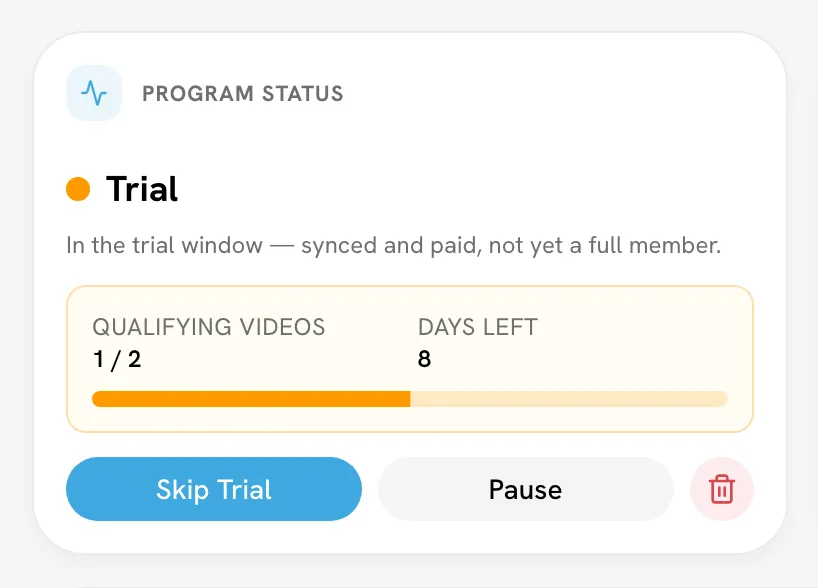
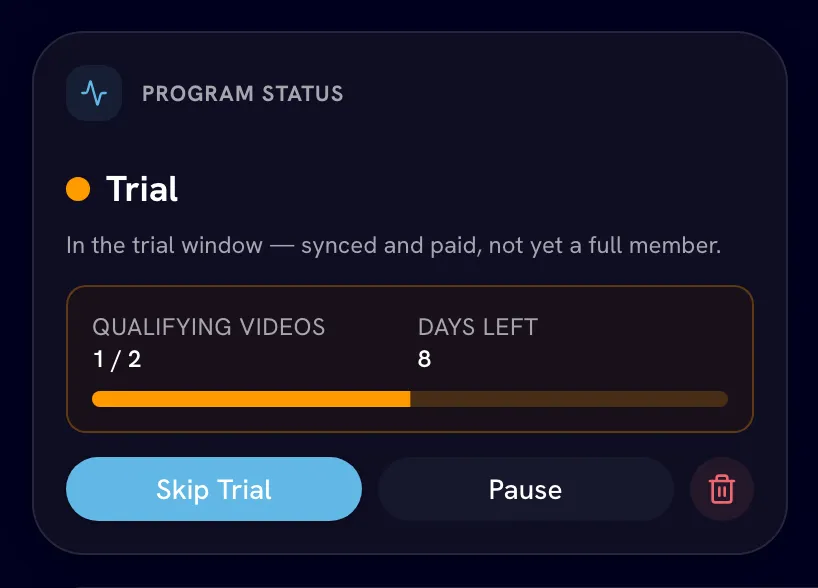
| Trial | In the trial window — synced and paid, not yet a full member. | Yes | Yes |
| Paused | Paused by the brand — not synced or scored, but still paid what they've already earned. | No | Already-earned pay only |
| Deleted | Removed from the program — kept for history; can't be paid. | No | No |
What each status means in practice:
- Trial creators move to Active on their own once they pass the trial. See Trials.
- Paused creators keep their history. Their new posts aren't pulled in while paused, and their sets aren't created or re-scored. Use it for a creator taking a break.
- Deleted creators are archived: hidden from the roster, leaderboards and payout cycles, but their videos and payout history are kept. You can revive them. See Removing creators.
Change a creator's status
Open the creator's profile. The Program Status card shows the current status, who changed it last, and the buttons that apply:
- Pause / Resume — for active, trial or paused creators.
- Skip Trial — moves a trial creator to Active now.
- Demote to Trial — puts an active or paused creator back on trial and restarts their trial window.
- The trash icon deletes (archives) the creator; Revive Creator brings a deleted one back as Active.
Bulk actions
Tick the boxes next to creators to open the selection bar:
- Add to group — add every selected creator to one or more groups.
- Delete — archives the selected creators. In the deleted view this becomes Delete permanently. Both show the count, for example Delete 3. See Removing creators.
- Clear — deselect all.
Page actions
The buttons at the top of Creators are Invite Creator, Add creators and Create group. See Inviting creators.
Related
Last reviewed Oct 12, 2026
Inviting creators
Bring creators into your brand by email invitation, shareable invite link, or by adding them yourself one at a time or from a CSV.
Creator profile
Everything on a creator's profile page — stats, status, connections, payout details, custom pay, admin notes, referral, sync and the Videos, Compliance and Payout History tabs.