
Creator profile
Everything on a creator's profile page — stats, status, connections, payout details, custom pay, admin notes, referral, sync and the Videos, Compliance and Payout History tabs.
Open a creator from Creators to see their profile. It's the one place to check how they're doing, fix their details, set their pay and review their videos.
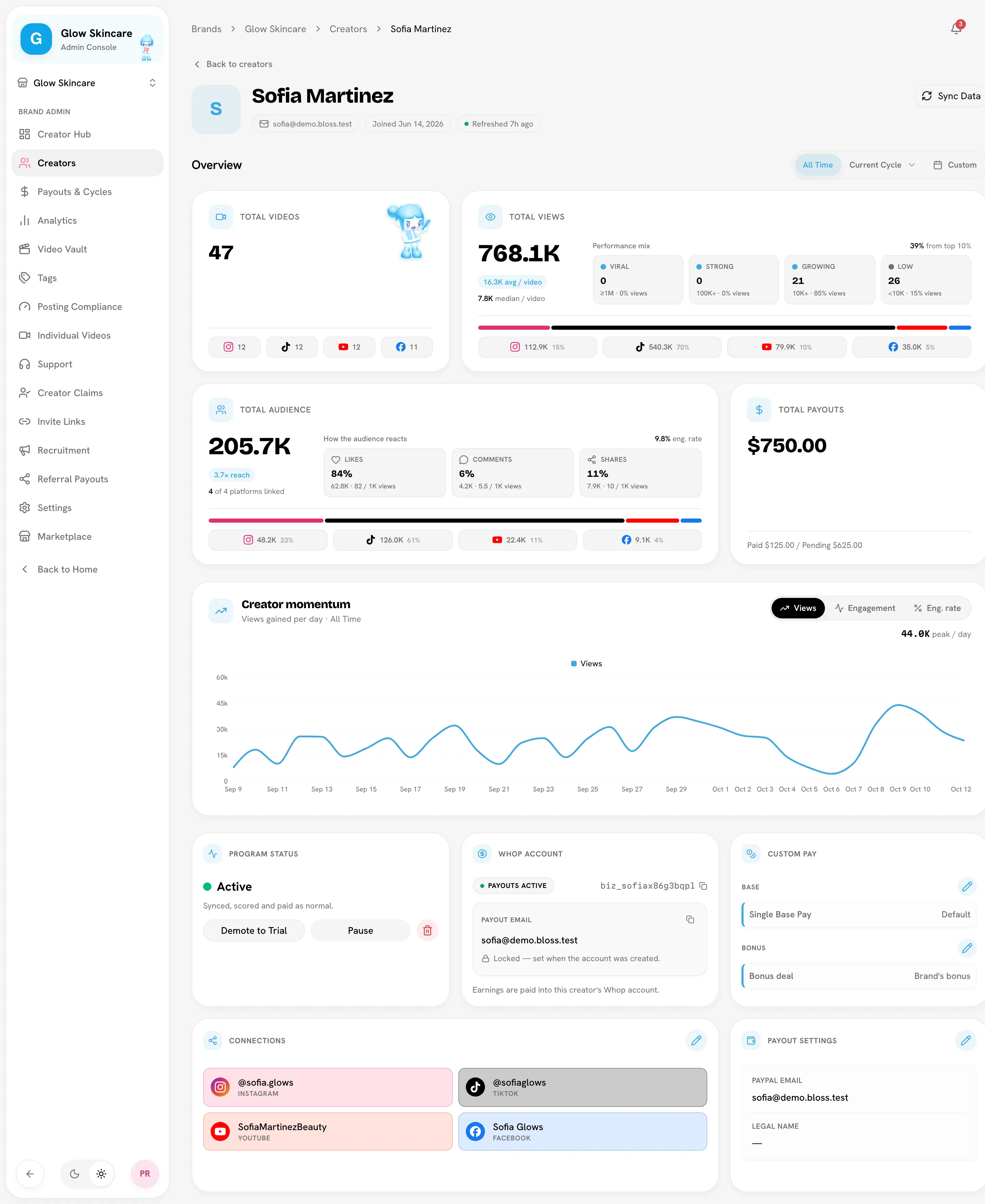
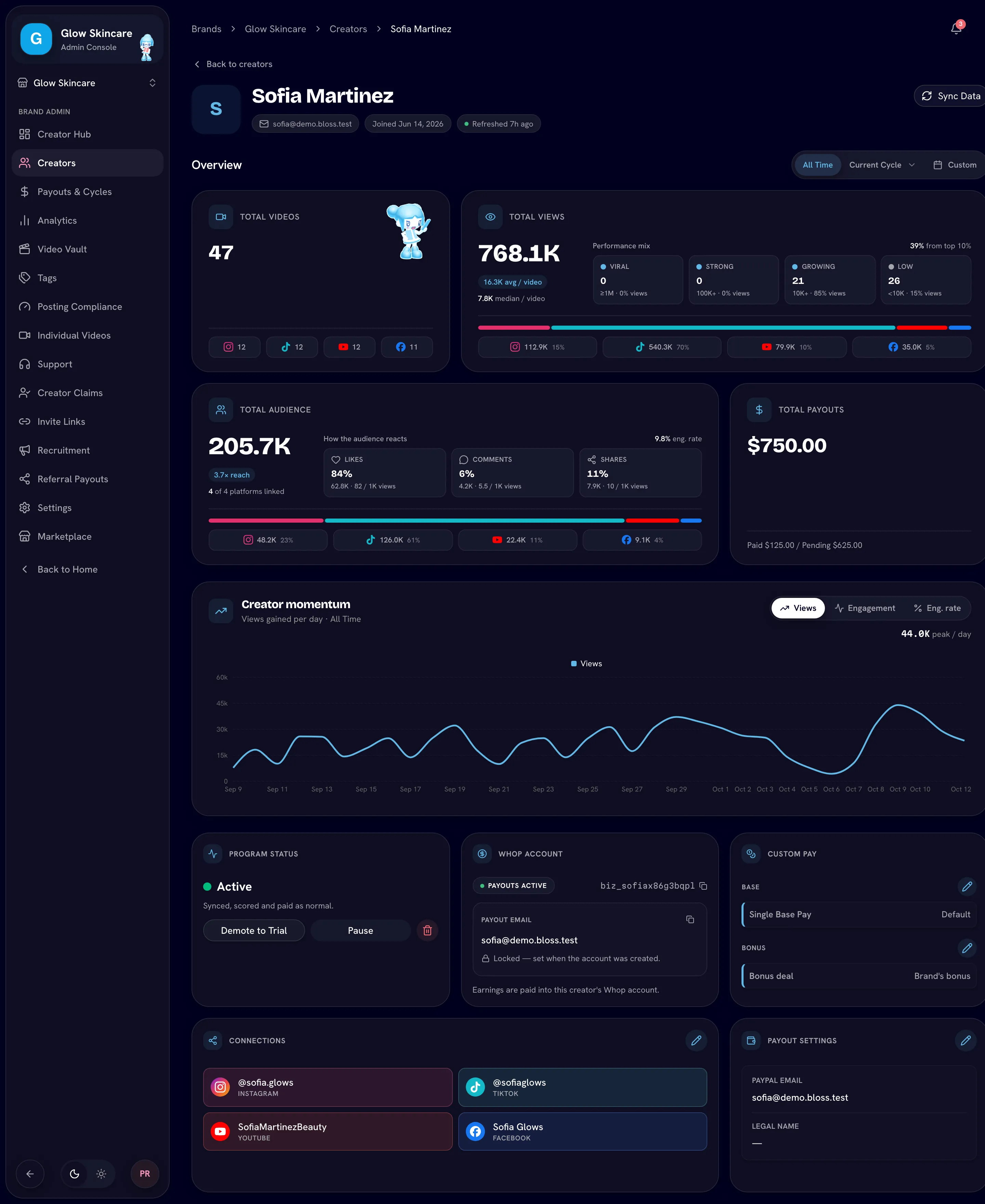
Header
The header shows the creator's name, email, the date they Joined, and when their data was last Refreshed. Deleted creators carry a Deleted pill.
Sync one creator
Click Sync Data, then Start Sync, to refresh this creator's latest videos and follower stats across their connected platforms now, instead of waiting for the nightly sync. Bloss reports what it updated when it's done.
Syncing one creator pulls in videos but doesn't group them into sets. That happens on the next nightly sync, or when you run Auto-Pair All Videos. See Syncing.
Overview and momentum
- The overview card totals the creator's videos, views and audience, with a Performance mix that buckets their videos into Viral (1M+ views), Strong (100K+), Growing (10K+) and Low (under 10K).
- Creator momentum charts Views, Engagement or Eng. rate over time.
- Social Analytics shows account-level stats from the creator's connected social accounts, when they've connected them.
Program Status
Shows the creator's status and who last changed it, with the matching actions: Pause / Resume, Skip Trial, Demote to Trial, delete, or Revive Creator. For a creator on trial, it also shows Qualifying Videos against the goal and Days Left.
Payout account
The card is named after your brand's payout provider (for example Whop Account). It shows whether the creator has set up a payout account there. See Payout providers.
Connections
The creator's Instagram, TikTok, YouTube and Facebook accounts. Click the edit button to open Edit Social Accounts and change Instagram Username, TikTok Username, YouTube Username / Channel or Facebook Page URL.
- An "i" marker beside a handle means Bloss can't reach that account, or the creator seems to have changed their username. See Account alerts.
- If the creator connected an account themselves, its handle is locked. Bloss names the locked account and asks you to have the creator reconnect or disconnect it first.
Payout Settings
Shows the creator's PayPal Email and Legal Name. Full admins can edit them under Edit Payment Details. A Creator Locked marker means the creator has locked their payment details.
Custom pay
The Custom Pay card overrides the brand's rules for this one creator. Only full admins can change it; limited admins see the values and the note Only full admins can change this creator's pay.
Base
Click the edit button to open Custom Base Pay Override:
- Single Base Pay ($) — the creator's rate when your brand pays one rate per set.
- Instagram Rate ($), TikTok Rate ($), YouTube Rate ($), Facebook Rate ($) — shown when your brand pays a rate per platform.
Leave a field blank to use the brand's default. Each field shows the default as a hint. Saving reprices the creator's sets in unpaid cycles.
Bonus deal
Click the edit button to open Bonus deal and choose Custom tiers or Custom CPM to give the creator their own bonus instead of the brand's. It applies to their sets in unpaid cycles. Sets with their own custom bonus keep it. The dialog previews What changes, set by set, before you save. Choose Brand's bonus and save to go back to the brand's bonus.
Creators with a bonus deal show a Custom bonus pill on the roster. See Bonus rules.
Per-set pay
To change the pay of a single set rather than every set, use Custom pay on the set itself. See Custom pay and unpaid sets.
Admin Notes
Write notes about the creator — performance, communication, anything your team should know. Each note is either Private (only your team can see it) or Visible (the creator can read it). Switch with the toggle next to the note.
Referred By
Shows the creator who referred them, when they joined through an invite link assigned to that creator. See Invite links.
Tabs
| Tab | What's in it |
|---|---|
| Videos | Every video, grouped by cycle and set, with pay per set. Pair, unpair, mark irrelevant, set custom pay, mark unpaid and tag here. See Pairing videos. |
| Compliance | The creator's posting record against your cadence rules, with a count of open flags. See Posting compliance. |
| Payout History | Every payout to this creator. |
Related
Last reviewed Oct 22, 2026