
Payout providers
Send creator payouts through Whop or SideShift — connecting Whop, funding a SideShift balance, switching providers, and opening creator accounts.
A payout provider is where your creators' money leaves from. Every payout Bloss sends — cycle pay, per-set bonuses and instant base pay — goes through the provider you choose. Set it up in SettingsIntegrations.
If you don't connect a provider, you pay creators yourself and record it with Mark as Paid. See Running a cycle.
Open Integrations
Whop or SideShift
| Whop | SideShift | |
|---|---|---|
| Where money comes from | Your own Whop company | A Bloss balance you top up by card |
| What you connect | Your Whop Company ID and API key | Nothing — add funds |
| Creator accounts | You open a Whop account per creator from their payout email | Creators get a SideShift wallet automatically |
| How creators withdraw | On Whop | From their payouts page in Bloss |
Connect Whop
Full admins onlyGet your keys
In your Whop dashboard, open Developer settings and copy your Company ID (starts biz_) and an API key (starts apik_).
Enter them in Bloss
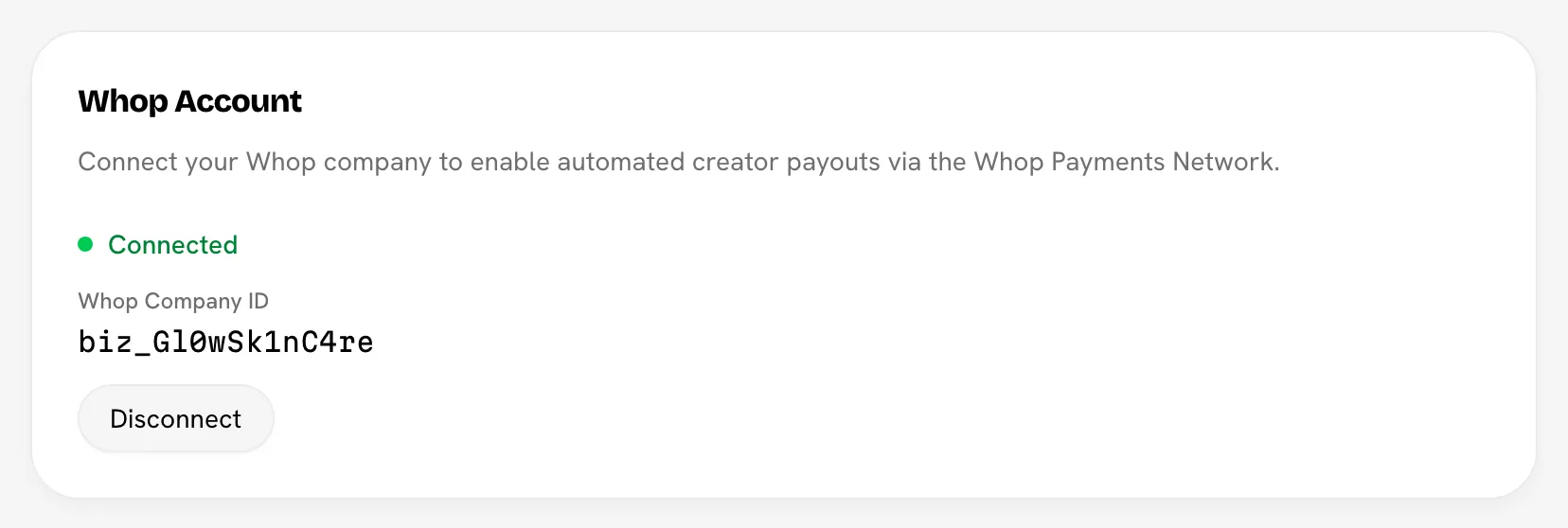
In the Whop Account card, enter the Whop Company ID and the Whop API Key, then click Connect Whop Account.
Check the card
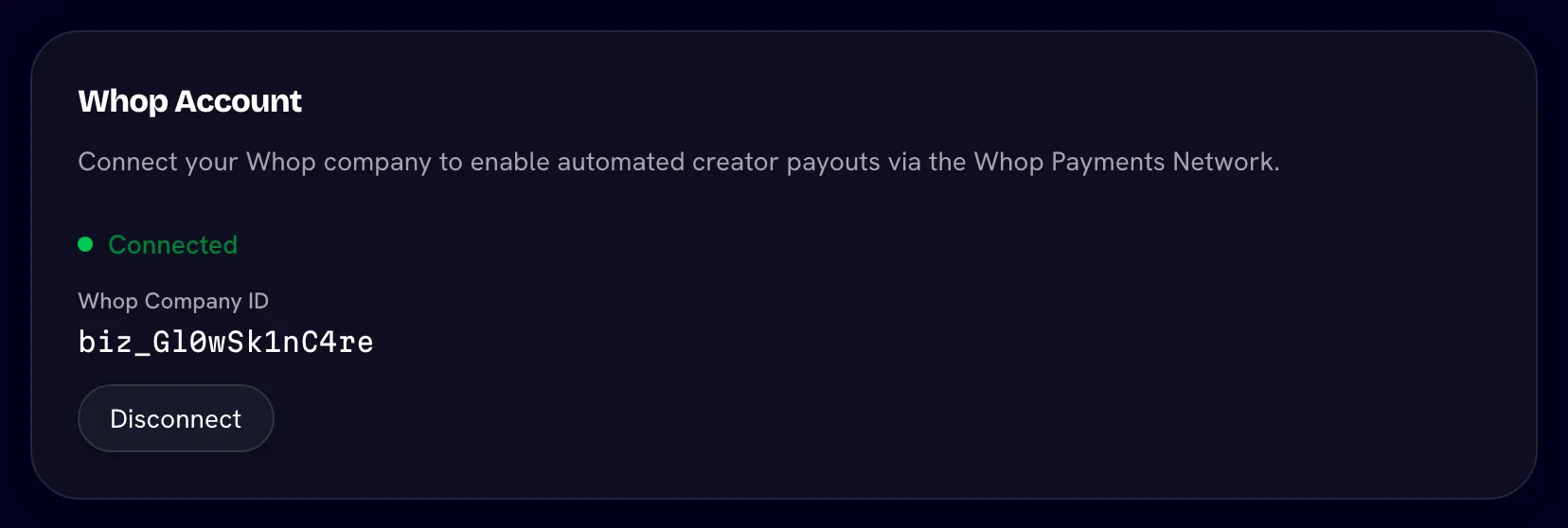
It now says Connected and shows your Company ID.
Disconnect removes the key. You can't pay through Whop until you connect again.
Fund your SideShift balance
Full admins onlyWith SideShift, payouts are taken from your brand's Payout balance in Bloss. There's no account to connect.
Open Add funds
In the Payout balance card, click Add funds. A secure payment form opens in the card.
Pay by card
Enter the amount and your card. The processing fee is added on top: your balance is credited the amount you enter.
Wait for it to confirm
The card says Payment submitted and updates Available for payouts automatically once the payment confirms. If it takes longer, click Refresh later to check.
Recent activity lists Funds added, Creator payout, Payout returned and Adjustment entries.
Keep enough in the balance
A payout that's larger than your balance fails with a message saying how much is needed. Add funds, then retry the payout.
Choose or switch provider
Full admins onlyThe Payout provider card at the top of Integrations shows Whop and SideShift, with · current on the one in use.
Click the provider
Whop must be connected before you can pick it. SideShift needs no connection.
Confirm
In Pay creators through …?, click Switch provider. Every future payout leaves from the new provider. Payments already sent are unaffected.
Switching is blocked while any payment is still in progress — a cycle transfer, a per-set bonus payment, or base pay awaiting a decision in the queue. The card says how many. A payment started on one provider must be completed there, so finish or resolve them first.
Creators need an account on the new provider
Creators without an account on the new provider are skipped until they have one. Moving to SideShift opens creator wallets automatically; moving to Whop means opening Whop accounts for creators.
Both providers' cards stay visible, so you can still manage the one you're leaving.
Creator payout accounts
Full admins onlyA creator can only be paid through your provider once they have an account on it. Payouts & Cycles shows a banner when creators are waiting, with a Create accounts link.
The Creator Whop Accounts card has two tabs:
| Tab | Who's there | What to do |
|---|---|---|
| Ready to open | Creators who saved a Whop payout email but have no Whop account yet | Select them and click Create all N (or Create N accounts), then Create accounts. |
| Missing payout email | Creators with no payout email and no account | Only they can add the email. Use Copy all emails to contact them. |
Payout emails lock
The account is opened under your brand using the email the creator saved. That email is locked once the account exists and can't be changed afterwards.
Related
Last reviewed Oct 22, 2026