
Team & access
Invite brand admins, choose full or limited admin access, give someone a creator profile as well, and revoke access.
SettingsTeam lists everyone with access to this brand. Each person can have two independent kinds of access:
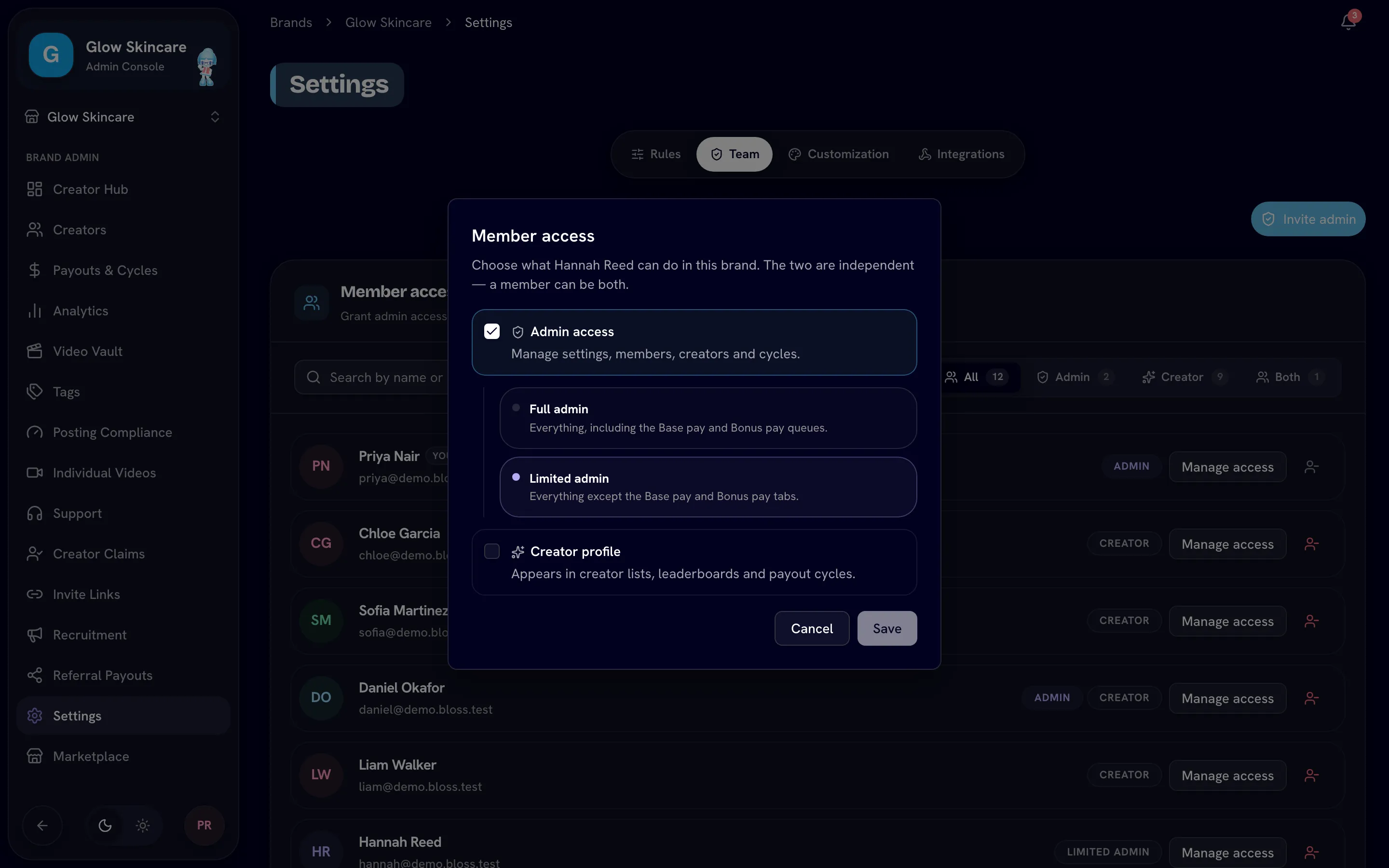
- Admin access: manage settings, members, creators and cycles. An admin is either a Full admin or a Limited admin.
- Creator profile: appear in creator lists, leaderboards and payout cycles, and get paid.
A member can have both. Agency owners and admins also reach the brand through the agency; see Members & brand access.
Open Settings › Team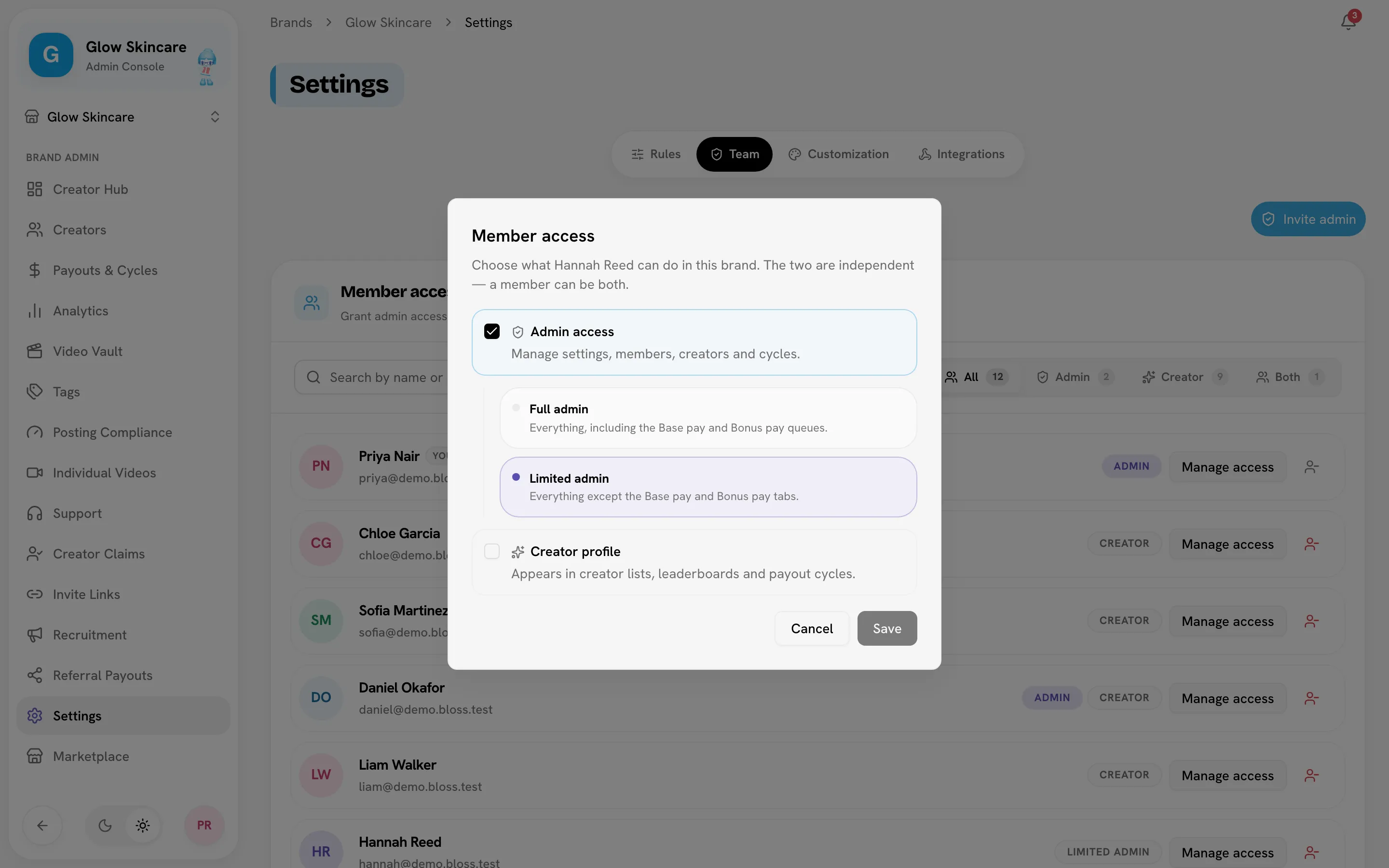
Full vs limited admins
| Level | Can do |
|---|---|
| Full admin | Everything, including payments, pay rules and the Base pay and Bonus pay queues. |
| Limited admin | Everything except payments, pay rules and admin access. |
Only full admins can change admin access: invite admins, change someone's level, or remove an admin. Paying creators, marking payouts paid, changing pay rules, payout setup, adding funds and API keys also need a full admin. Limited admins can still manage creators and creator profiles. For the full comparison, see Full vs limited admins.
Invite an admin
Full admins onlyOpen the invite
Click Invite admin.
Fill in the details
Enter the Email address, an optional Admin name (shown to them on their join screen) and the Access level: Full admin or Limited admin.
Send
Click Send invitation. Bloss emails the invitation and shows the join link so you can share it yourself. The link expires in 7 days.
Unaccepted invitations appear under Pending invitations with their expiry date. Use the revoke button to cancel one: the link stops working.
To add creators, use Inviting creators instead.
Change someone's access
Open Manage access
Find the member in Member access. Search by name or email, or filter by All, Admin, Creator or Both. Click Manage access.
Choose their access
Tick Admin access (then pick Full admin or Limited admin) and/or Creator profile. A member needs at least one.
Save
The dialog explains what your change will do before you save.
What the dialog warns about:
| Warning | Meaning |
|---|---|
| They'll be able to approve their own payouts | The member will be both an admin and a creator here. They can mark their own payouts paid and promote themselves out of trial. Each of those actions is recorded against their name. |
| Their creator profile will be archived | Removing their creator profile takes them out of creator lists, leaderboards and payout cycles, and stops earnings this cycle. Their videos and payout history are kept; turning it back on restores the profile. |
| This member is the last admin | Promote someone else to admin before removing their admin access. |
| This member is the last full admin | Promote someone else to full admin first. A brand with only limited admins has nobody who can change admin access. |
You can't remove your own admin access. Ask an owner or admin of the agency.
Remove a member
Click the remove button on their row and confirm. They lose access to this brand. If they had a creator profile, they're also taken out of creator lists. The same last-admin rules apply, and only a full admin can remove another admin.
Related
Last reviewed Oct 22, 2026
Changing rules mid-cycle
What happens to running cycles when you change pay rules, and how to apply new rules to a cycle with Update cycle rules.
Customization
Give your brand's workspace its own logo and colors — upload a logo, start from one of 12 theme presets, and fine-tune the identity and chart colors.