
Members and access
Invite people to your agency, choose their role, give them access to specific brands, and transfer ownership.
Your agency's Members tab is where you invite your team, set each person's agency role and decide which brands they can reach. Owners and admins manage members. Members can see the team list and leave the agency.
Agency roles and brand access
Two separate things decide what someone can do:
- Agency role (Owner, Admin or Member) controls what they can do in the agency itself.
- Brand access controls which brands they can open, and whether they're an Admin, a Creator or both in each one.
Owners and admins automatically have full admin access to every brand in the agency. Their row shows All brands. Members only reach the brands you give them. Their row shows how many, or No brands yet.
| Agency role | Can do |
|---|---|
| Owner | Everything, including billing and transferring ownership. There's always exactly one owner. |
| Admin | Invite people, manage members and their brand access, create brands, change agency settings, and act as a full admin on every brand. |
| Member | See the agency, its brands and the team, and open the brands they've been given. |
Invite someone to the agency
Open the Members tab
Go to your agency's Members tab, or click Invite member at the top of any agency tab.
Open MembersFill in Invite a member
Enter their Email address, choose Member or Admin, and click Send invitation.
They accept
Bloss emails them a link. They sign in (or create an account) with that email and accept the invitation. See Invitations.
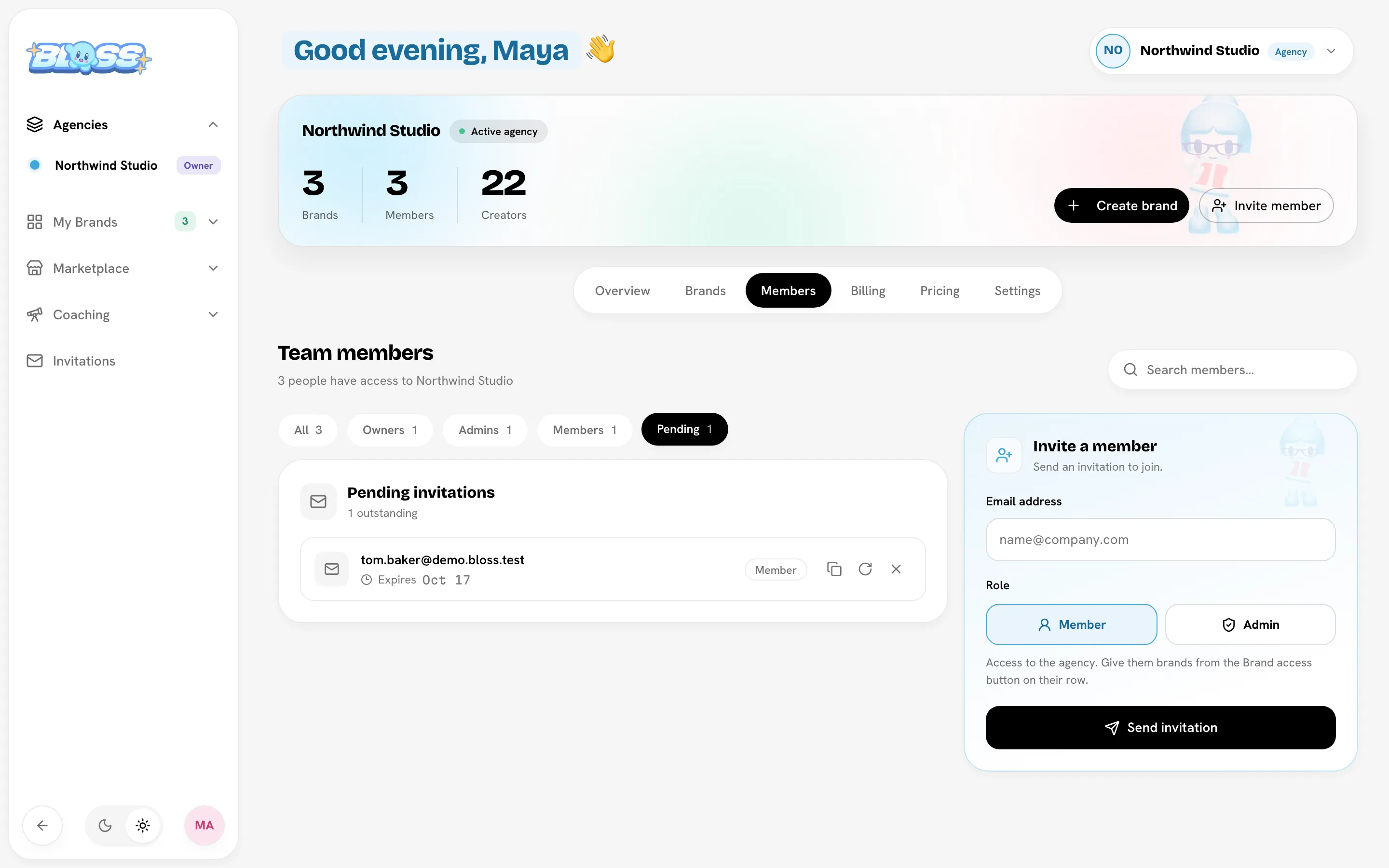
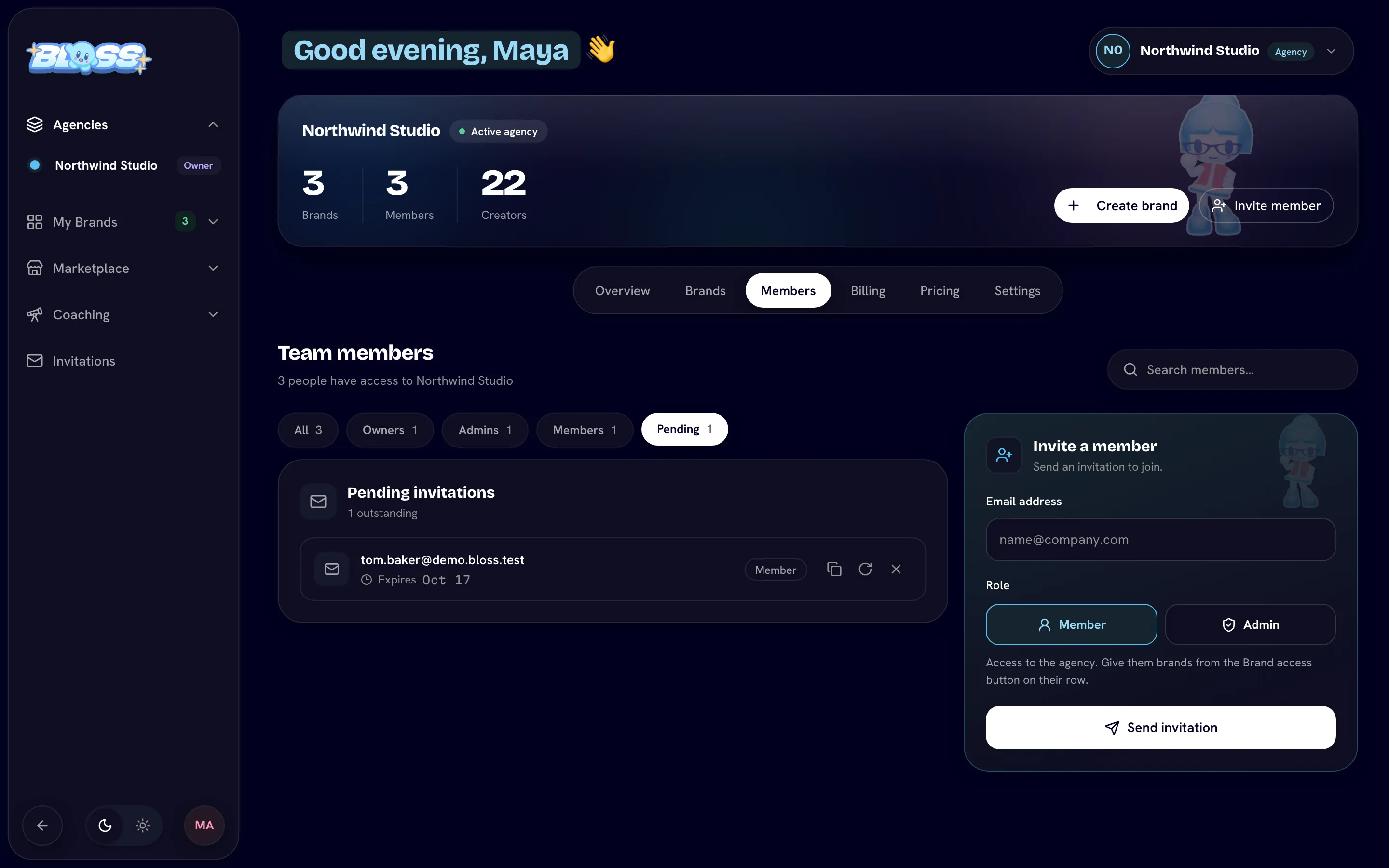
Agency invitations expire after 48 hours. Pending invitations are listed under Pending invitations (and under the Pending filter), each with an expiry date and three actions:
- Copy invite link to send the link yourself.
- Resend invitation to email it again. This also reopens an expired invitation.
- Cancel invitation to withdraw it.
If someone is already in the agency or already has a pending invitation, the form tells you before you send.
Give someone access to brands
For members, you choose brand access one brand at a time.
- On the Members tab, click the brand access chip on their row (for example No brands yet or 2 brands).
- In Brand access, turn on Admin, Creator or both for each brand.
- For admins, choose Full admin or Limited admin. A limited admin can do everything except pay creators, mark payouts paid, change pay rules, open the Base pay and Bonus pay tabs, and change who has admin access.
- The footer shows how many brands will change. Click Save access.
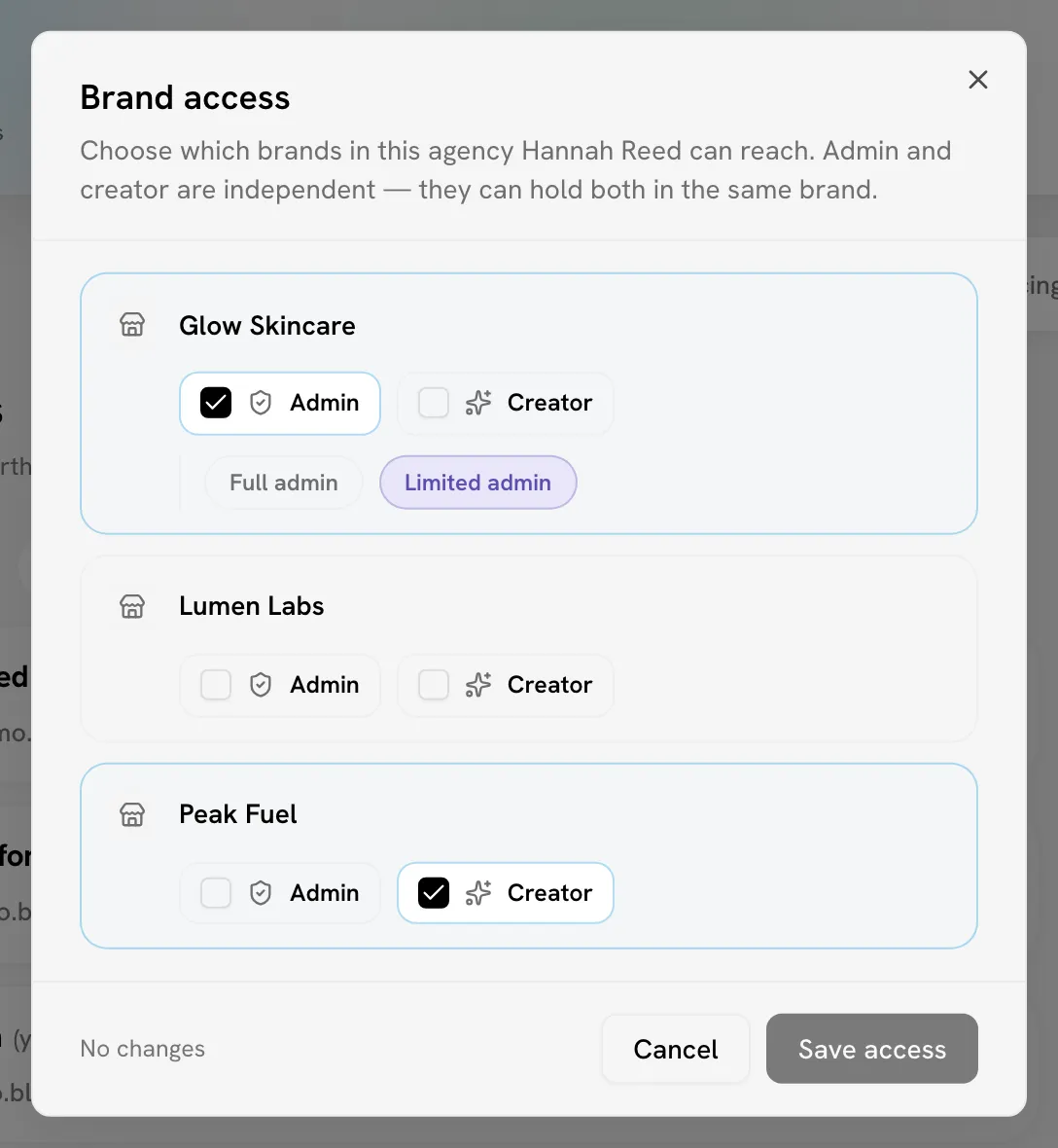
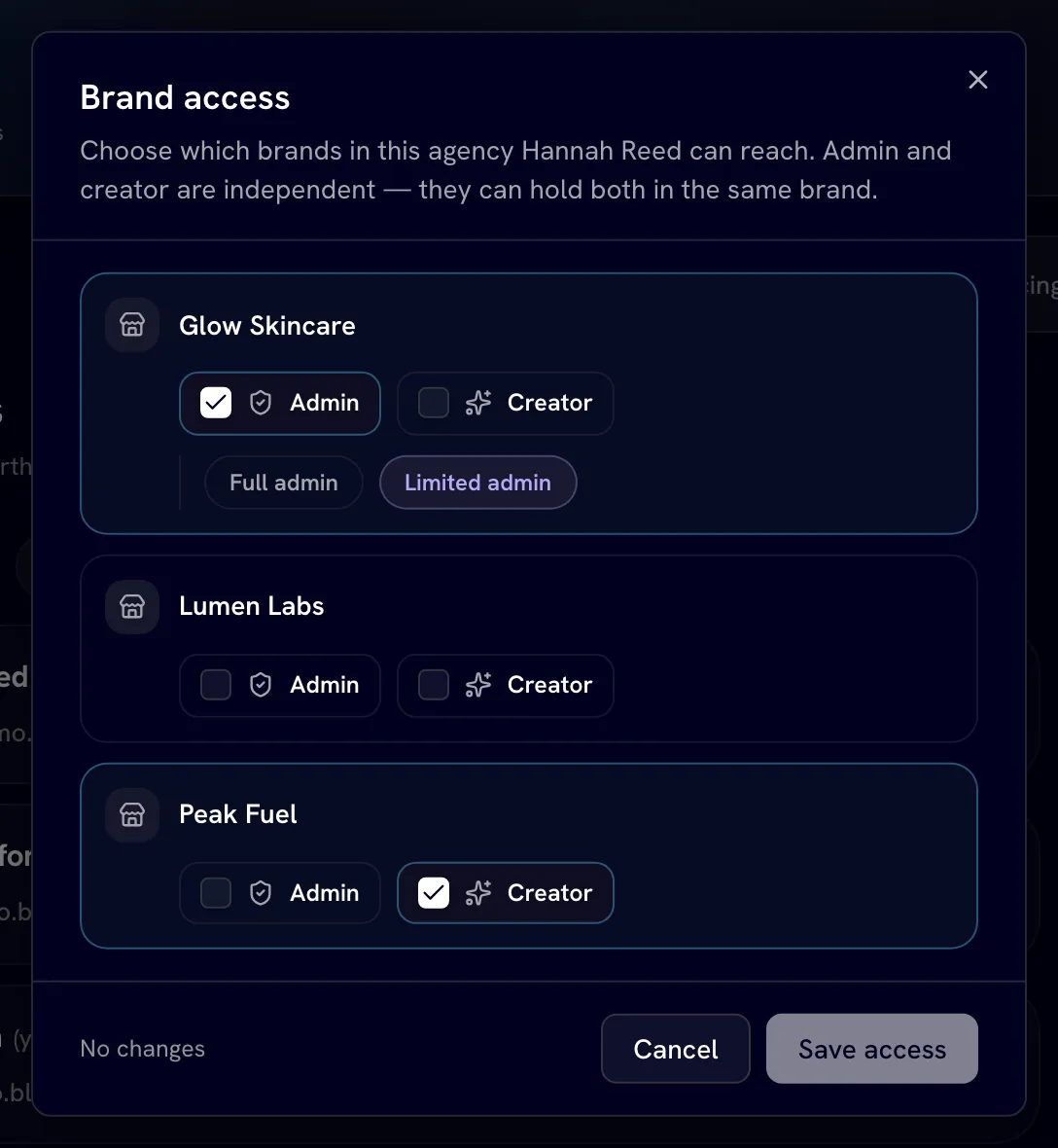
Turning Creator off archives their creator profile in that brand. Their videos and payout history are kept. See Full vs limited admins and Team and access.
You can't edit brand access for owners and admins: they already reach every brand.
Change someone's agency role
Owners and admins can open the role menu on any member's row (except the owner's) and choose Member or Admin under Agency role.
Remove someone, or leave the agency
- To remove someone, click the remove button on their row and confirm with Remove.
- To leave an agency yourself, click Leave on your own row (members) or the same remove button (admins) and confirm.
Leaving or being removed from the agency doesn't remove brand access on its own: brand memberships are separate. The confirmation lists the brands the person would keep. Tick Also remove them from those brands to remove that access too. Their past videos, payouts and bounties are kept, and Bloss skips any brand where they're the only admin and tells you which.
The owner can't be removed and can't leave. Transfer ownership first.
Transfer ownership
Only the owner can do this.
- Go to SettingsTransfer ownership, choose the New owner and click Transfer ownership. You can also choose Make owner from someone's role menu on the Members tab.
- Confirm.
The new owner takes over billing and ownership, and you become an admin.
You can't undo this yourself
There's only ever one owner. Once you transfer ownership, only the new owner can transfer it back to you.
Related
Last reviewed Oct 22, 2026