
Managing a brand
See each brand's plan and billing state, rename or delete a brand, manage who can reach it, and jump into its hubs.
Your agency's Brands tab lists every brand in the agency. From there you can subscribe a brand, add people to it, or open its page to rename it, delete it or manage its members.
The Brands tab
Each brand card shows the brand's plan, its number of creators and its niche.
| On the card | Meaning |
|---|---|
| A plan badge (Starter, Growth or Scale) | The brand is subscribed, or has complimentary access at that plan. |
| No subscription (amber border) | The brand has neither a subscription nor complimentary access. It's locked until someone subscribes it. |
| Free until a date | The brand has complimentary access until that date. The pill turns amber in the last 3 days. |
| Plan billing starts a date | The brand has complimentary access and is already subscribed. Billing starts when the complimentary access ends. |
Owners and admins also see an action on each card: Subscribe for a brand without a subscription, or Add member for an active one. Click Open to see the brand's page.
Open your agency's Brands tab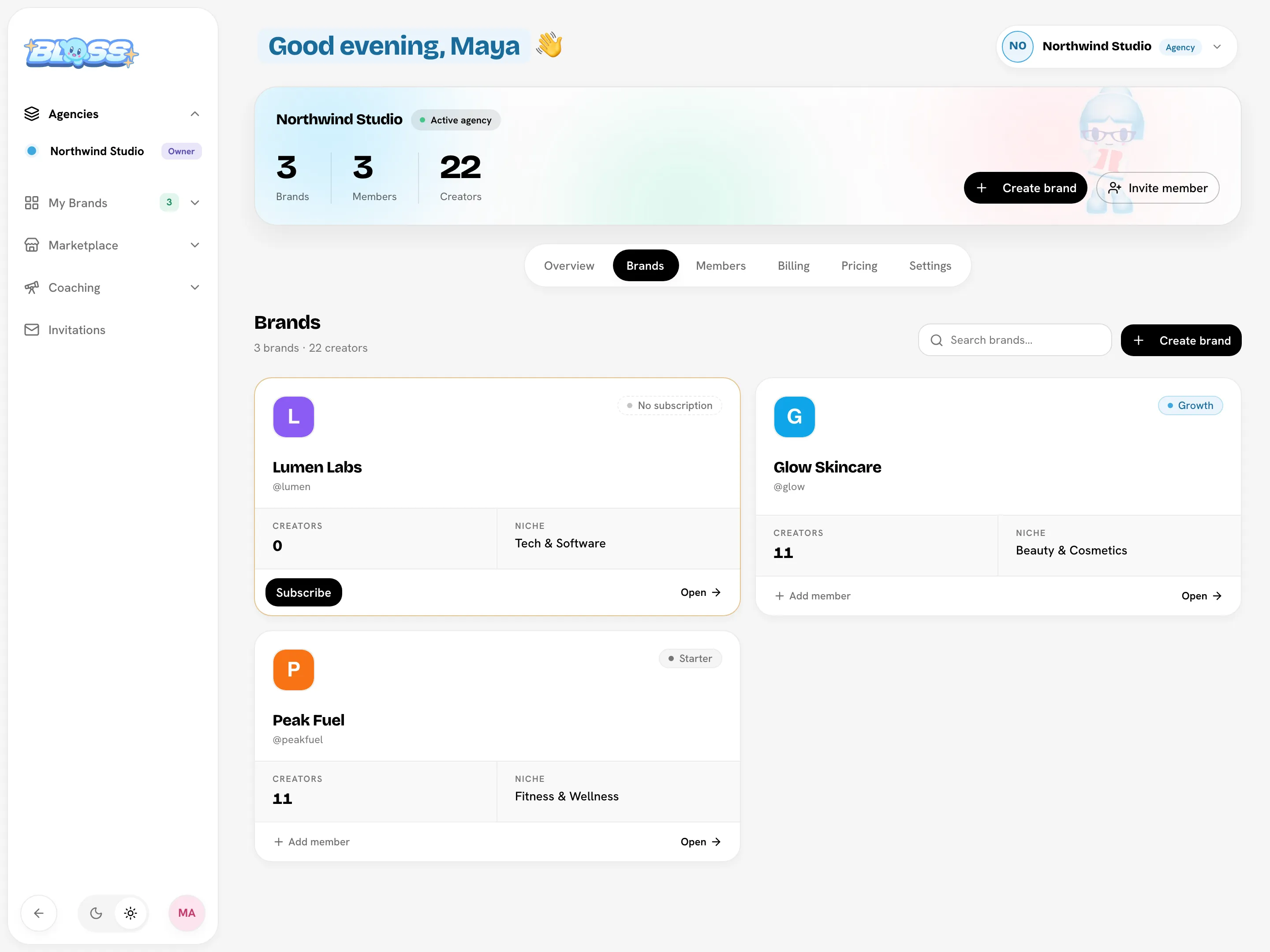
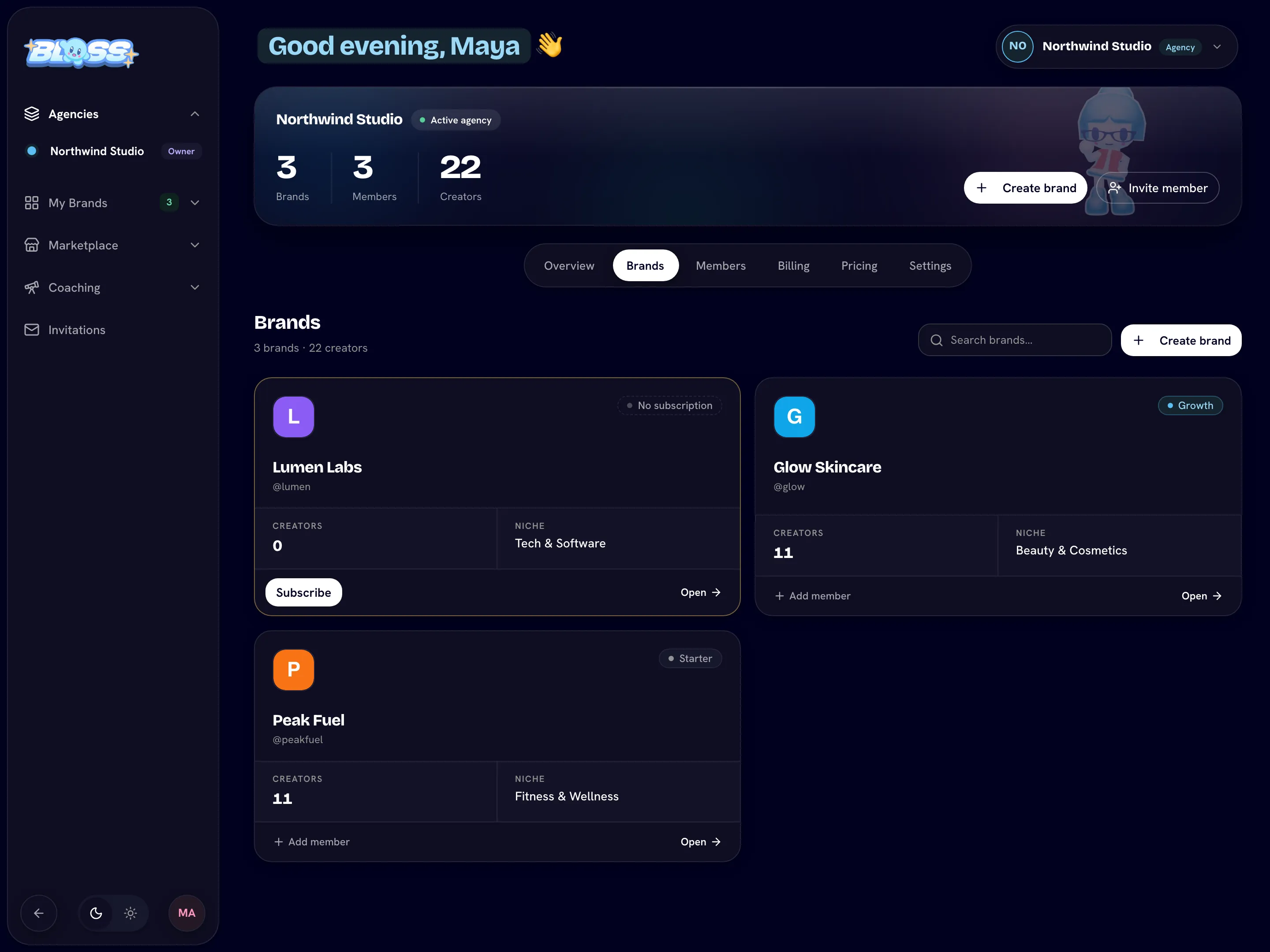
The brand page
The brand page in your agency shows:
- The brand's name, address (
@slug), creation date and your access to it, for example Admin access or Admin · Creator access. - Admin Dashboard to open the brand's admin console, and Creator Dashboard if you're also a creator there.
- Counts of the brand's Members, Admins and Creators.
- Plan & billing: the brand's Plan, Status, when complimentary access ends (if it has it) and the monthly price. The owner also sees Manage billing.
- Parent agency, linking back to the agency.
The Status is one of:
| Status | Meaning |
|---|---|
| Active | The brand has a paid subscription in good standing. |
| Complimentary access | The brand uses its plan free of charge until a set date. |
| Payment past due | The latest payment failed. The brand keeps working while the owner updates the card. See Billing. |
| No subscription | The brand is locked. Everyone who opens it sees "This brand is inactive" until it's subscribed. |
Brand admins see two tabs on this page: Settings and Members. Everyone else sees the members list only, read-only.
Rename a brand
- Open the brand page and go to the Settings tab.
- Change Brand Name and click Save Changes.
The slug, and so the brand's address, can't be changed after the brand is created. This keeps links and bookmarks working.
Delete a brand
- Open the brand page and go to the Settings tab.
- Under Danger Zone, click Delete Brand, then Delete to confirm.
Deleting a brand can't be undone
Deleting a brand permanently removes its workspace, its data and everyone's access to it. If the brand has a subscription, Bloss cancels it first, so you're not charged again.
To stop paying for a brand without deleting it, cancel its subscription instead. See Billing.
Manage who can reach the brand
On the brand page, the Members tab lists everyone with access, plus any pending invitations.
To add someone, click Add member:
- From agency: pick someone who's already in your agency.
- Invite by email: enter an Email address and click Send invitation. The invitation is valid for 7 days.
Both options add the person as a creator. To make them an admin, or to change what anyone can do in the brand, use the access controls in the members list, or Brand access on the agency's Members tab. See Members and access and Team and access.
Related
Last reviewed Oct 13, 2026