
Agreement templates
Write a creator agreement template with merge fields or upload a PDF, use it in a flow, and see how creators sign it and where the signed PDF goes.
An agreement is a document creators read and sign during onboarding, as an Agreement task in a flow. Signing happens inside Bloss: the creator types or draws their signature, and Bloss makes a signed PDF.
Each agreement is a template: write or pick one right in a flow's agreement task, or manage them all on OnboardingAgreement templates. Templates are shared: several flows can use the same one. A template saves as you type and has no Publish of its own, so a flow can use it as soon as it exists.
Open Agreement templatesCheck the wording with your own adviser
Bloss records the signature and the details of how it was given, but it doesn't write or review your agreement. Make sure the text, and electronic signing, suit your creators and where they live.
Write an agreement
Create it
On the Agreement templates tab, click New template. Inside a flow's agreement task, New template opens a dialog: name it, then write it (with Insert field and a Preview) or upload a PDF, and click Create template. It's saved and picked for the task; Cancel saves nothing. It opens in the editor with the name Creator agreement. Click the name at the top to change it.
Write the text
Write in markdown on the left. On the right, the preview shows it as a page, the way creators read it, ending where they sign.
Add merge fields
Click one of the basics above the text (Creator's legal name, Brand name or Signing date), or Insert field for an answer from a form, to put it at the cursor. Bloss fills it in when the creator signs.
| Field | Filled with |
|---|---|
| Creator's legal name | The name the creator signs with. |
| Brand name | Your brand's name. |
| Signing date | The date they sign. |
| A form field | The creator's answer to that field, from a published form. |
A form field is filled with the creator's answer, so put that form before the agreement in the flow.
Answers go in as plain text: line breaks become spaces, and characters like #, * or [ show as typed, so an answer can't add a heading, a list, a link or bold text to your agreement. Each merged answer is cut off after 500 characters. Answers to questions the creator's choices hid are left blank.
Use it in a flow
It saves as you type (Saved at the top). The Preview fills merge fields with stand-ins, like [Creator's name] and today's date, so you can read it the way a creator will. Pick it in a flow's agreement task, and it goes to creators when the flow goes live. A flow can't go live until the agreement has at least 20 characters; while it's shorter, the editor shows how many it has so far.
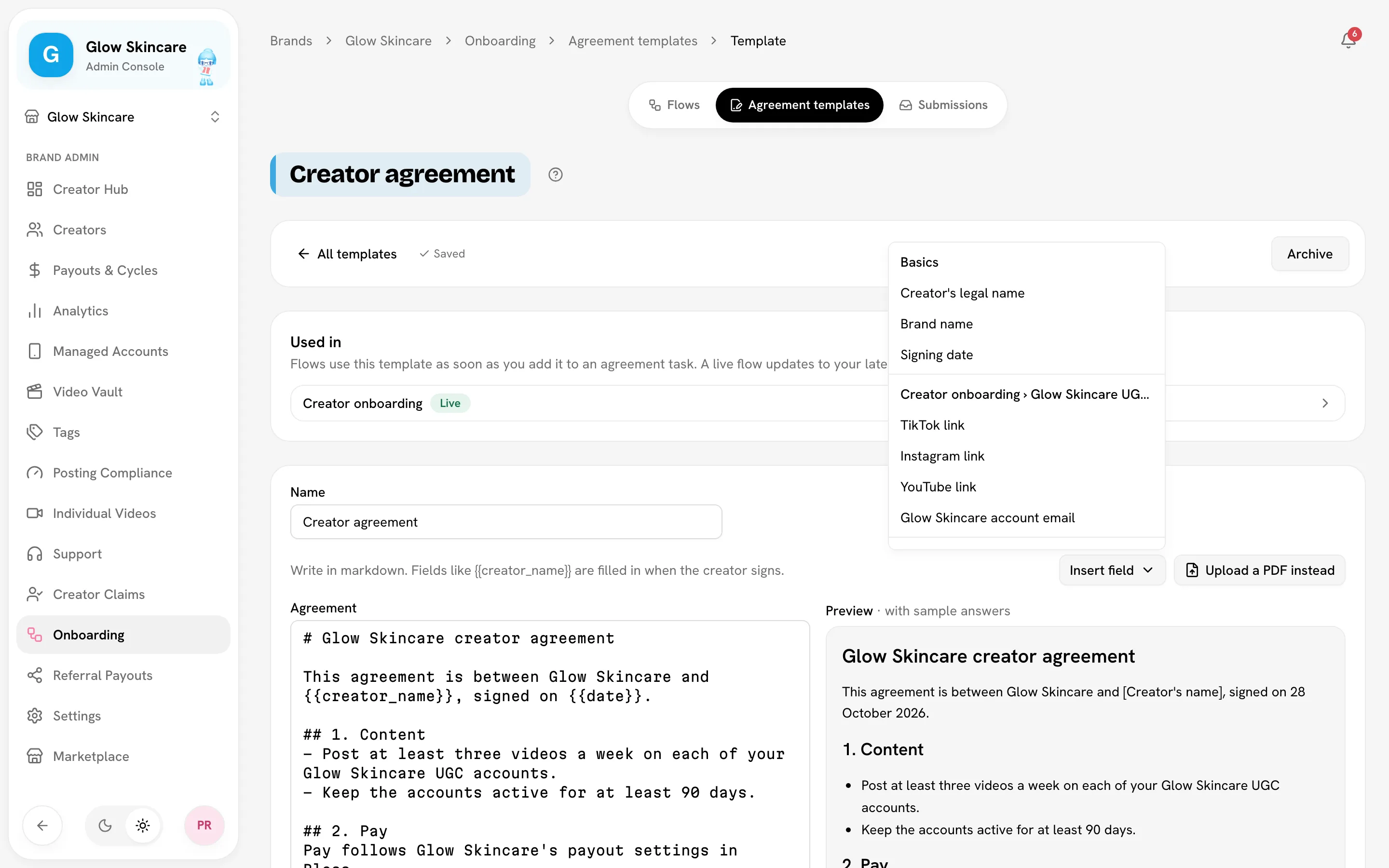
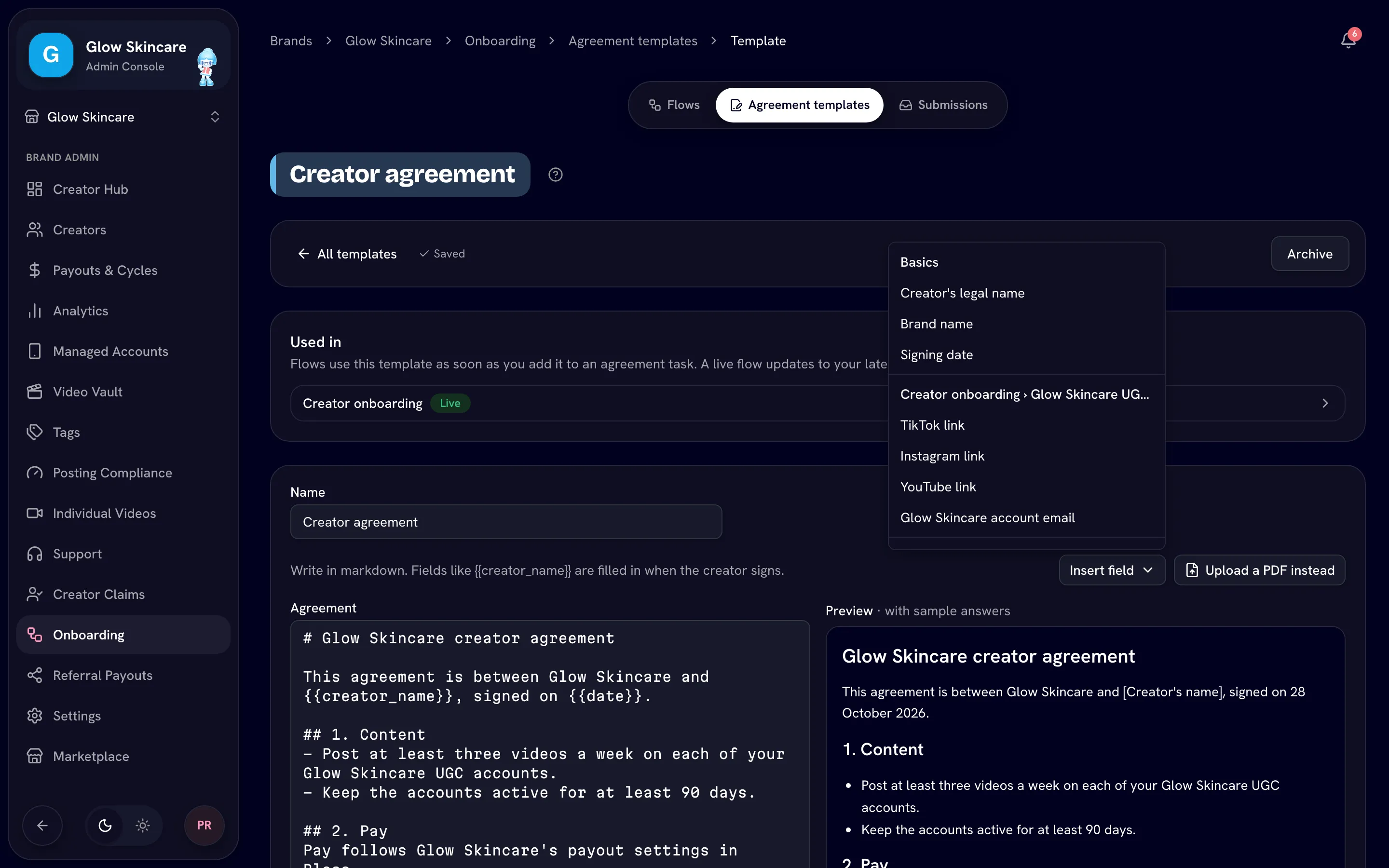
Upload a PDF instead
Click Upload a PDF instead and pick a PDF of 4 MB at most. Creators read the PDF and sign it. Merge fields don't work in PDFs.
Bloss checks that it can open the PDF, when you upload it and again when a flow using it goes live. A password-protected PDF, a damaged one or one with no pages is refused. Save or export it again without a password, then upload it.
With a PDF uploaded, you can View PDF, Replace PDF or Remove PDF. Removing it goes back to the written agreement.
Edit a template a live flow uses
Live flows keep the text they went live with until you publish them again, so a half-finished edit never reaches creators. After you edit a template that a live flow uses, that flow shows Publish changes. Publishing the flow updates the template for new creators of every flow that uses it.
On a template's page, Used in at the top (for example Used in 2 flows) lists the flows that use it, with their status. When a live flow still uses an earlier version, the page says so under the top bar: open the flow and click Publish changes.
Versions
Each time a flow using the template goes live or publishes changes, Bloss saves the template as a new version. Versions at the top lists them, each with its date. The one creators get now is marked In use. If nothing changed, no new version is made.
Creators who haven't signed yet get the new version when you publish. An agreement a creator already signed stays exactly as they signed it.
The flow template's Creator agreement starts empty, so write it before the flow goes live.
Archive, in the ⋯ menu at the top of a template's page, hides a template you no longer use. Unarchive brings it back.
Delete a template
Delete is in the ⋯ menu at the top of the template's page, and in its ⋯ menu on the Agreement templates tab. It removes the template and its versions for good.
You can only delete a template nothing depends on:
- A flow uses it (live, paused, draft or archived): the dialog lists those flows. Open each one and pick another template for its agreement task, or remove the task, then delete.
- Creators have signed it, or are signing it: deleting would remove what they signed, so archive it instead. The dialog offers Archive instead.
How creators sign
On the agreement task, the creator:
- Reads the agreement, with merge fields filled in. A PDF agreement shows in the page, with Open the agreement (PDF) to open it full size.
- Enters Your legal name. Bloss fills it in from their form answers when it can.
- Signs: Draw with a finger or mouse, or Type to use their name, shown in a handwriting font. An empty drawing is refused.
- Ticks the box to agree to sign electronically and to the agreement.
- Clicks Sign.
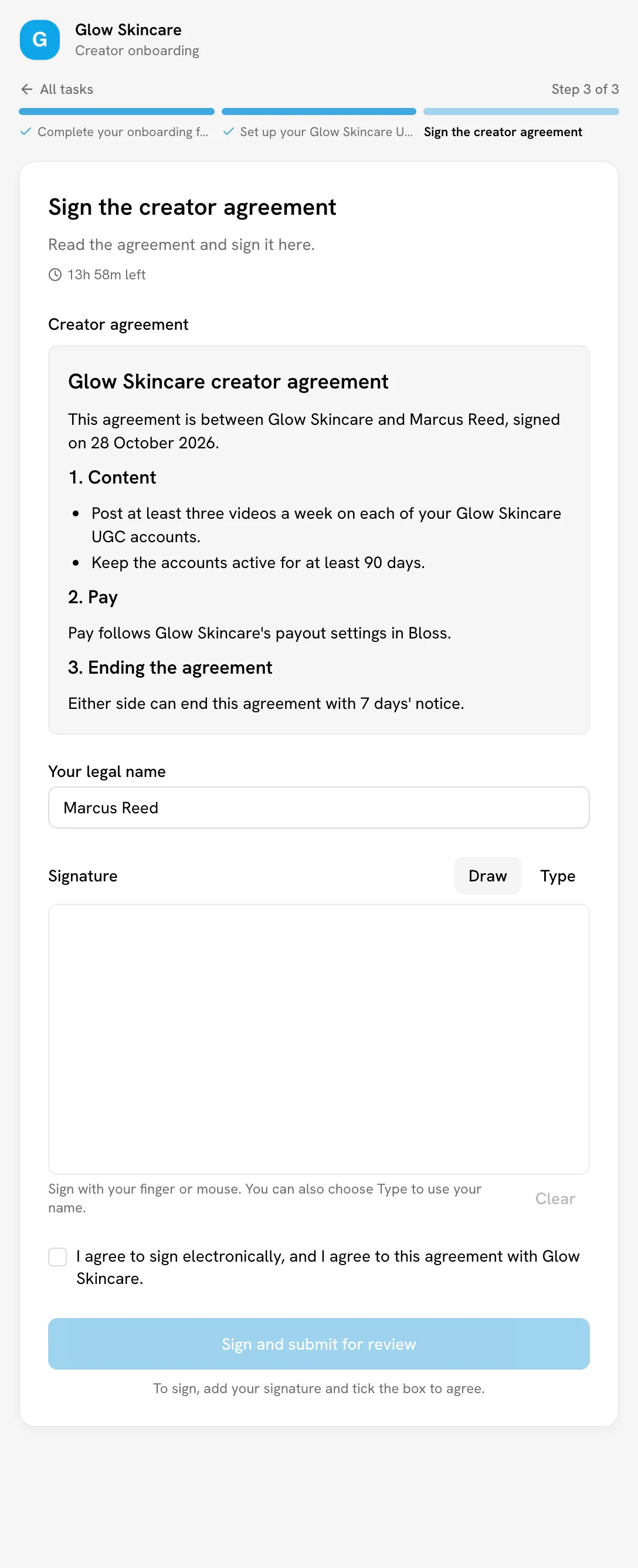
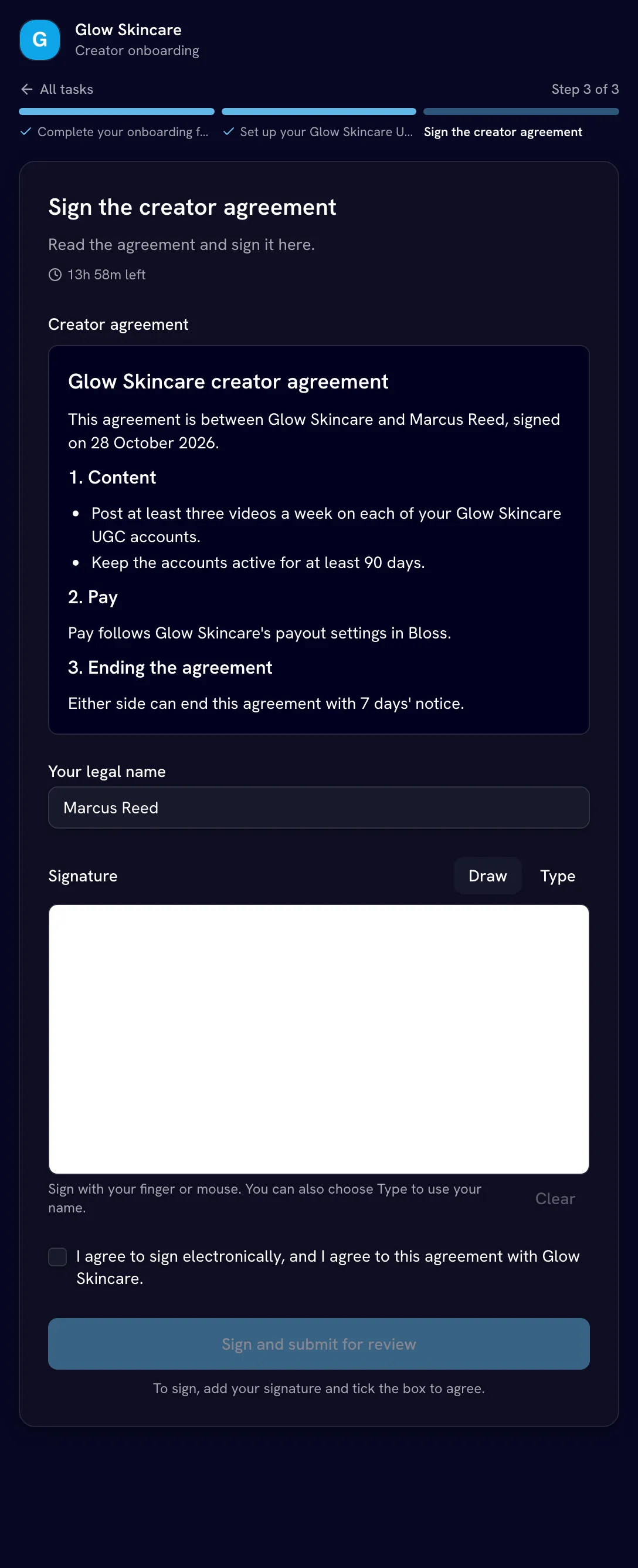
The signed PDF
When a creator signs, Bloss makes a PDF with:
- the agreement as they saw it, with their answers merged in (or the pages of your PDF);
- a Signature page with their signature (a typed one in the same handwriting font) and when they signed;
- a Certificate of signature page: your brand, the onboarding, the agreement name, the signer's name and email, when they signed (in UTC and your brand's time zone), whether the signature was drawn or typed, their consent, their IP address and device, a SHA-256 fingerprint of the document, and the submission ID.
Who can download it
- The creator gets the signed PDF by email as soon as they sign. Their trail map and the page they see when they finish also link to it, under Your signed agreement.
- Brand admins click Signed PDF on the agreement task in the submission's detail panel. See Submissions.
Related
Last reviewed Nov 7, 2026
Form builder
Build the forms creators fill in during onboarding right inside a flow's form tasks, with sections, pages, conditions, profile fields and social account checks.
Submissions
Follow every creator going through your onboarding flows, act on overdue or finished ones, and export everything to CSV.