
Form builder
Build the forms creators fill in during onboarding right inside a flow's form tasks, with sections, pages, conditions, profile fields and social account checks.
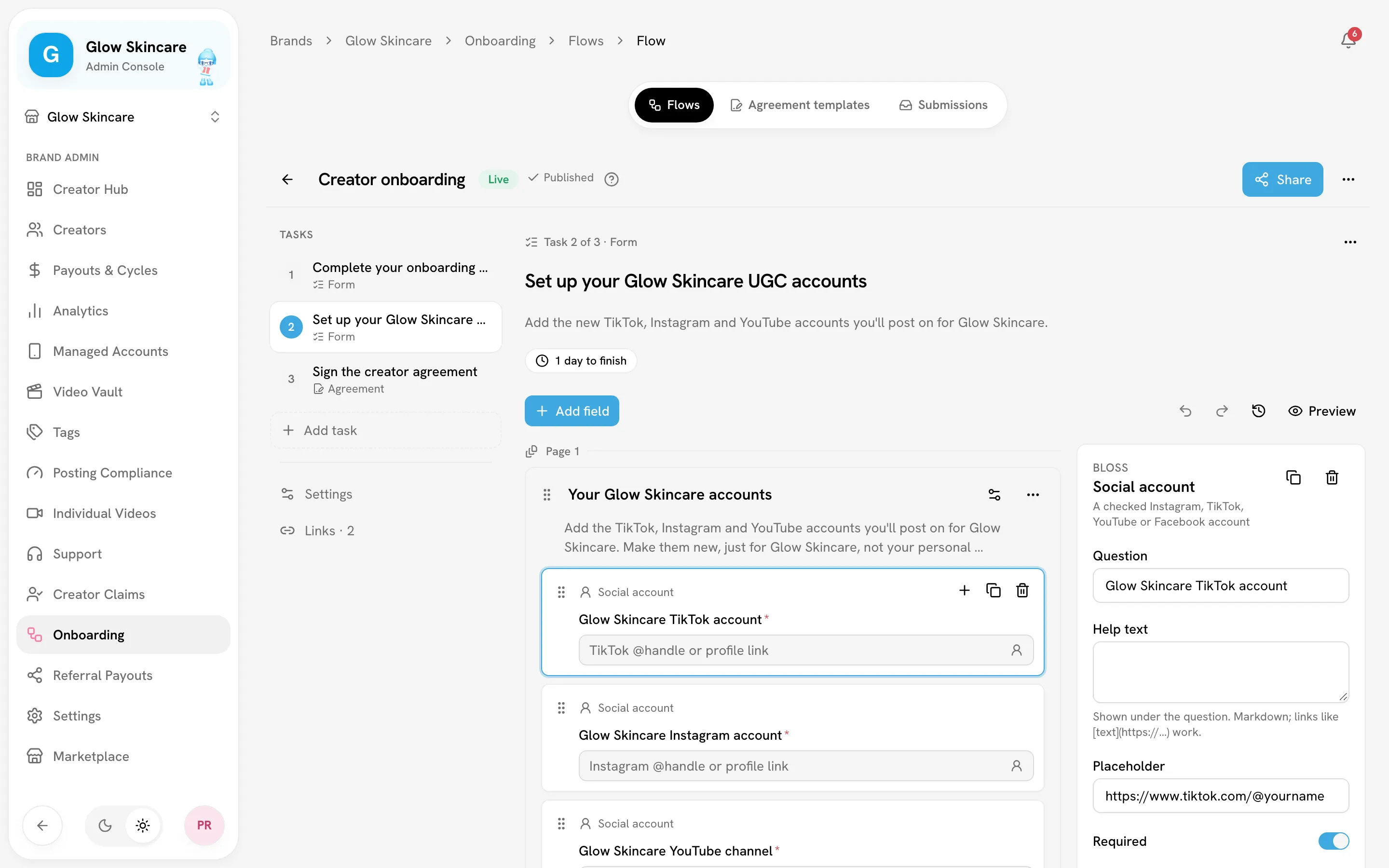
Forms are the questions creators answer during onboarding. Each Form task of a flow has its own form, and you build it right in the task: open the flow, then click the task. Publishing the flow publishes its forms.
Open FlowsAdd a form
On the flow's board, drag Form from Tasks to where you want it, or click it to add it at the end. The task opens with an empty form. Click its title to rename it: creators see that name on their trail. A new flow already has one form task, Your details.
Under the task's details, the builder has three parts:
- Questions: your sections, and a line for each field, with questions numbered as creators see them. Click a line to select it. Drag it to move it, within its section or into another one; drag a section by the handle beside its name.
- The card: the selected field as creators see it, one question per screen. Type the question and its help text right on the card, and try answering it (nothing is saved). Back and Next step through the form. Above the card, its type and a Required switch.
- Settings: everything else about the selected field or section. The Settings tab on the card's edge opens and closes them.
Settings open beside the card when there's room, and over it when there isn't. On a phone, the list is on its own: tap a field to edit all of it, question included.
To add a field, click Add field at the bottom of a section, the + on a field to add one below it, or Add beside Questions to add one after the selected field. Search for the type you want, or pick it from the list.
Text with a dashed outline, like the task's title and description or a question and its help text, can be edited right where it is: click it and type.
Changes save automatically. Creators see them only after you publish the flow. Undo and redo work for every change.
Field types
| Group | Field | What the creator gives |
|---|---|---|
| Basic | Text | One line of text. |
| Long text | A paragraph. | |
| An email address. | ||
| Number | A number, with an optional range. With both a minimum and a maximum, creators pick it on a slider. | |
| Phone | A phone number. | |
| URL | A web link. You can limit it to certain domains. | |
| Date | A calendar date. | |
| File upload | Images, videos or PDFs. You choose which, and the largest file size, up to 200 MB. See File uploads. | |
| Choice | Dropdown | One option from a list. |
| Choice | One option, shown as buttons. | |
| Checkboxes | Any number of options. | |
| Yes / No | A yes or no answer. | |
| Rating | A score on a 1–5 or 1–10 scale. | |
| Consent | A checkbox they must tick. | |
| Bloss | Location | City and country. |
| Languages | The languages they speak. | |
| Social account | An Instagram, TikTok, YouTube or Facebook account. See Social account fields. | |
| Discord | A Connect Discord button. See Discord fields. | |
| Display | Heading | Nothing: a title inside a section. |
| Text block | Nothing: instructions, in markdown, with links. | |
| Media | Nothing: an image, or a YouTube, Vimeo or direct video link. |
Field settings
Select a field to change it. What you see depends on the type:
- The question and its Help text (markdown; links work), on the card. Then Placeholder.
- Required. Hidden fields are never required (see Conditions).
- Options for Dropdown, Choice and Checkboxes. Press Enter in an option to add one below it.
- Limits: Min characters and Max characters, Minimum and Maximum for numbers, a Pattern (regular expression) with its own error message, and Allowed domains for URLs.
- Copy to creator profile: see Profile fields.
Use Duplicate field and Delete field at the top of the settings. A deleted field can be brought back with Undo.
Profile fields
Copy to creator profile fills the creator's profile with their answer when they join. It only fills a value their profile doesn't have yet, and only from these field types:
| Profile value | Field types you can use |
|---|---|
| Name | Text |
| Location | Location, Text |
| Languages | Languages |
| Bio | Long text, Text |
The option only appears on these types. A form with a profile field on any other type can't be published. If two fields fill the same value, the first one answered wins.
Social account fields
Pick the Platform. Creators paste a profile link or a handle. When they submit the task, Bloss checks the account exists:
- If it can't find the account, the creator sees "We couldn't find that account. Check the link."
- If the check can't run right then, they're asked to try again in a minute.
When the creator joins, the account they gave for each platform becomes their handle for that platform in your brand.
Add one question per platform you want, and set Required on each one separately: for example Instagram required and TikTok optional, Instagram only, or all four. Each platform can be asked for once per form, so a platform that's already used shows as "(already asked)" in the Platform list, and a form with two questions for the same platform can't be published.
File uploads
Creators see the upload's progress and can cancel it. Once a file is uploaded, they can open it, Replace file or remove it.
Each submission takes at most 50 files and 1 GB in all, across every form in the flow. Files a creator replaces or removes still count.
Discord fields
A Discord field has no text box. The creator clicks Connect Discord and signs in to Discord, and the field then shows Connected as @name. Creators who signed in to Bloss with Discord are already connected. A required Discord field can't be submitted until it's connected.
A form can have only one Discord field. Creators can also connect or disconnect Discord from AccountConnected accounts. See Your account.
Sections and pages
Fields live in sections. Click Add section under the last section, or Add section below in a section's menu.
Select a section to write its title and intro on the card. Creators see the title on each of the section's questions, and the intro with its first question. Turn on Starts a new page to put it on a new page: creators click Next to reach it. The first section always starts the first page.
Each section's menu (Section actions) has:
| Action | What it does |
|---|---|
| Add section below | Adds an empty section. |
| Duplicate | Copies the section into this form. |
| Copy to form… | Copies the section into a form of another flow, as its last section. |
| Save to library | Saves the section so you can insert it into any form. |
| Delete | Removes the section and its fields. Undo brings it back. |
Saved sections
Sections you save to the library appear under Saved sections in the Add field menu above the form, in any flow, and beside the list on the Flows tab, where you can delete them. Inserting one adds a copy: later changes to the saved section don't change forms that already use it.
When you copy a section to another form, or insert a saved one, conditions that point at a field outside the section are dropped, because that field doesn't exist in the other form.
Show a field only when…
A field or a section can depend on an earlier answer. Select it, then set Show only when… (for a section, Show section only when…): pick an earlier question and a rule.
| Rule | Shows the field when the answer… |
|---|---|
| is | Matches a value. |
| is not | Doesn't match a value. |
| contains | Contains a value. |
| is answered | Has any answer. |
| is empty | Has no answer. |
A field can only depend on a question above it, and a section only on a question in an earlier section. Hidden fields are never required.
When the creator submits the form, answers to questions that are hidden at that moment are dropped: they aren't kept with the finished task, and they never fill the creator's profile or an agreement.
Preview
Click Preview to see the form in your brand's colors, at desktop or phone width. Conditions and pages work as they will for creators. Submit (preview) checks your answers against the form's rules; nothing is saved. Start over clears the answers.
Check and publish
While a form has problems, N to fix shows above it. Click it to see the list, for example a question with no label, a choice field with no options, a social account field with no platform, or a condition that points at a question below it. The flow can't be published until the list is empty.
There's no separate publish for a form: the flow's Go live or Publish changes publishes every form in it. Each publish that changes a form makes a new version of it; a form that didn't change keeps its version.
Version history
Click Version history (the clock icon above the form) to see every published version. View opens a read-only copy you can preview, and Restore copies that version into your draft. Nothing changes for creators until you publish again, and Undo brings your previous draft back.
What happens to creators already in progress
When you publish, creators partway through the flow get the new version on the tasks they haven't finished. Their saved answers stay, so making a question optional, rewording it or adding one takes effect the next time they open the task. A task a creator already finished keeps the answers they sent, on the version they answered. In the Submissions CSV, a relabelled field stays in one column, under its newest label.
Reuse a form
A form belongs to its flow, so editing it never changes another flow. To reuse one:
- Duplicate flow copies the whole flow, with copies of its forms.
- Save to library in a section's menu, then insert that section in another form.
- Copy to form… in a section's menu copies a section into a form of another flow.
Related
Last reviewed Nov 7, 2026
Onboarding flows
Build the tasks a creator finishes before joining your brand, share a link or email an invite, and choose whether they join on their own or after your approval.
Agreement templates
Write a creator agreement template with merge fields or upload a PDF, use it in a flow, and see how creators sign it and where the signed PDF goes.