
Your account
Sign up and sign in, reset or change your password, and move between agencies, brands and the Admin and Creator hubs.
One Bloss account covers everything you do: the agencies you belong to, every brand where you're an admin or a creator, and coaching. This page covers signing in, passwords, where Bloss takes you after you sign in, and how to switch between workspaces.
Create an account
- Go to the sign-up page. If you're joining from an invitation, use the link in the email: the page then shows the brand you're joining and fills in your email.
- Either click Continue with Google, or enter your Name, Email and a Password of at least 8 characters and click Create account.
Use the email address your invitation was sent to. Invitations are tied to that address.
Already added by a brand?
If a brand added you as a creator before you had an account, sign up with the same email address. Bloss links you to that brand automatically.
Sign in
On the sign-in page, click Continue with Google, or enter your Email and Password and click Sign in.
Where you land after signing in
Bloss sends you to the most useful place for your account:
| If you… | You land on |
|---|---|
| Haven't finished your creator profile setup | The setup wizard |
| Belong to an agency | Your agency workspace |
| Are an admin of at least one brand | My Brands, your list of brand workspaces |
| Are a creator only | Your creator dashboard |
| Are a coach and nothing else | Your coach dashboard, or your coach application while it's under review |
| Have no workspace yet | Invitations, so you can accept an invite |
Back to Home at the bottom of a brand's sidebar takes you back here.
Reset a forgotten password
- On the sign-in page, click Forgot password?
- Enter your email and click Send reset link. For security, you see the same Check your email message whether or not the email has an account.
- Open the link in the email, enter a new password of at least 8 characters, confirm it, and click Save new password.
- Click Sign in and sign in with your new password.
Reset links are short-lived and work only once. If yours has expired, click Send a new link on the page it opens.
Change your password
- Open your profile menu at the bottom of the sidebar and click Account.
- In Change Password, enter your Current password, a New password (at least 8 characters, different from the current one) and Confirm new password.
- Click Update password.
Changing your password signs you out on your other devices.
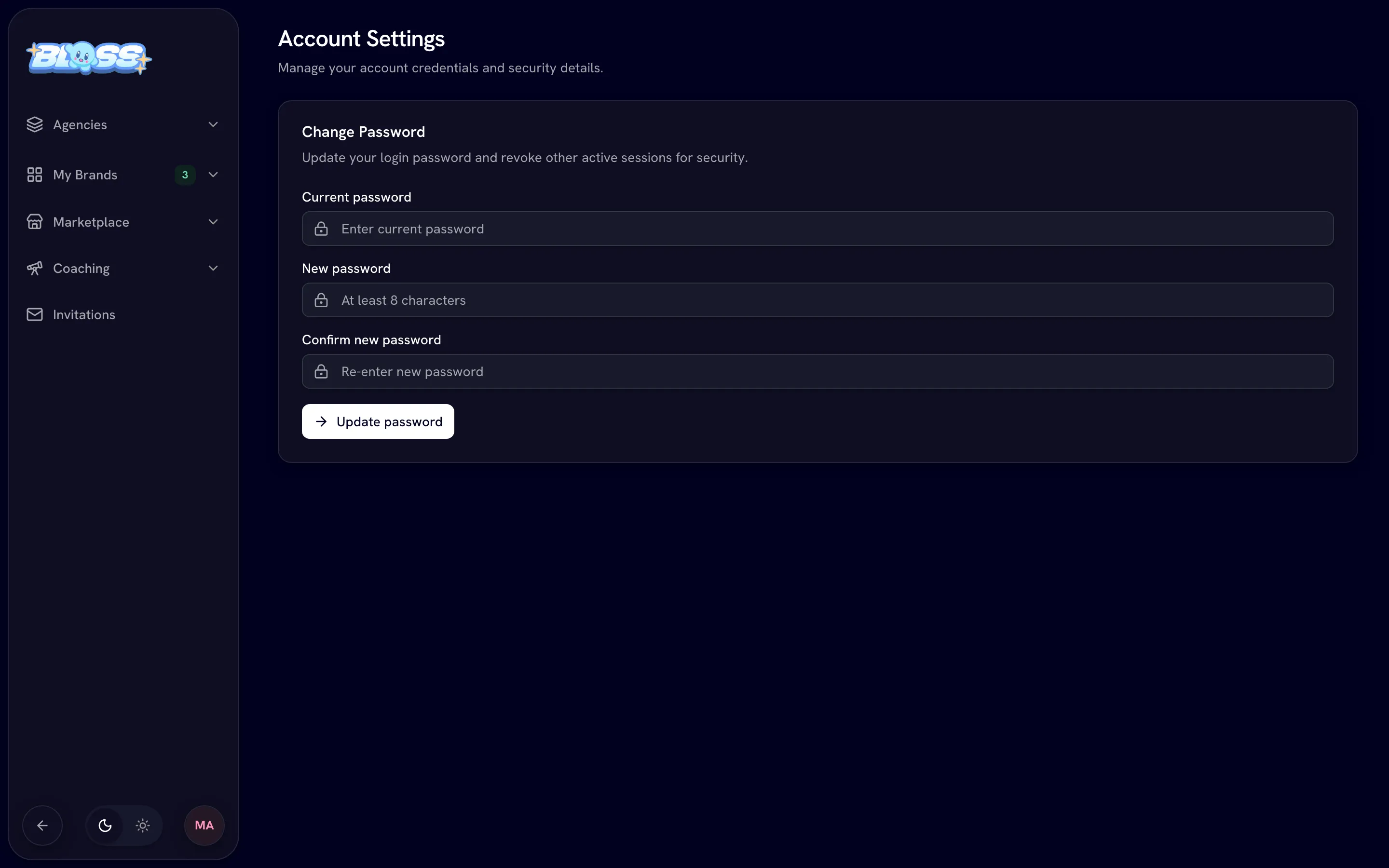
Open Account Settings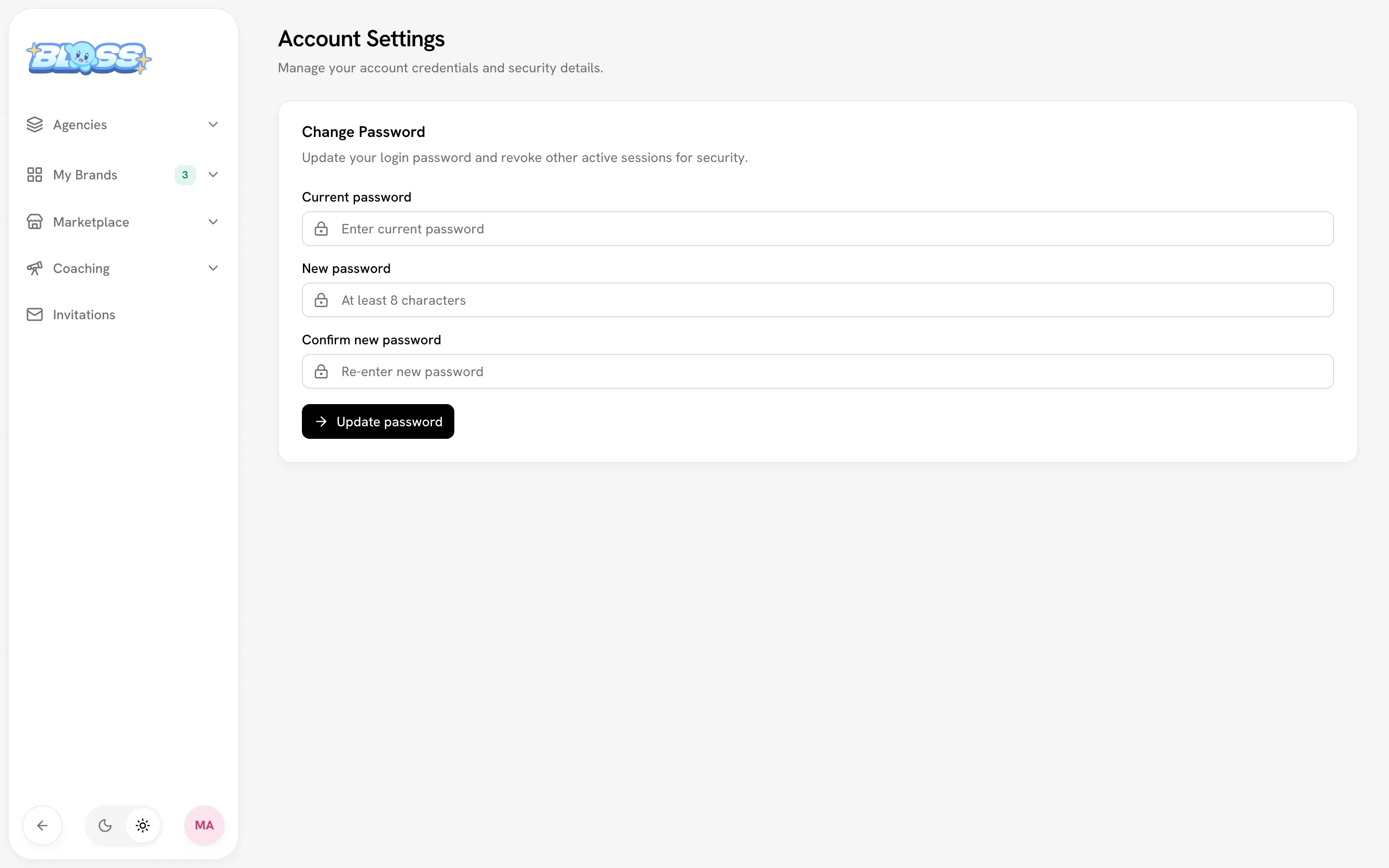
If you work with a coach, the Account page also lists Your coaches. See Working with a coach.
API tokens and connected apps
The Account page also has two cards for reading your Bloss data from outside the app:
- API tokens: personal tokens for your own scripts and AI agents. See API tokens.
- Connected apps: apps you allowed to read your data with Sign in with Bloss, such as an AI assistant. Click Disconnect to cut one off at once. See AI agents (MCP).
Both are read-only: nothing in Bloss can be changed through them.
Both cards list active tokens and apps. Once one has been revoked, disconnected or has expired, a filter appears above the list: pick Revoked & expired or All to see those too.
Switch between workspaces
The main sidebar lists everything you can reach:
| Sidebar section | What's in it |
|---|---|
| Agencies | Each agency you belong to, with an Owner or Admin badge if that's your role. |
| My Brands | Each brand you belong to, with a badge for your access: Admin, Creator or Admin · Creator. Clicking a brand opens its admin console if you're an admin there, otherwise its creator portal. |
| Marketplace | The creator marketplace and, for creators, your dashboard and profile. |
| Coaching | Your coach dashboard or application, or Apply to be a Coach. |
| Invitations | Agency, brand and coach invitations waiting for you. |
The My Brands page lists every brand with Open admin and Open creator buttons, plus counts of the brands where you have admin and creator access.
Inside a brand
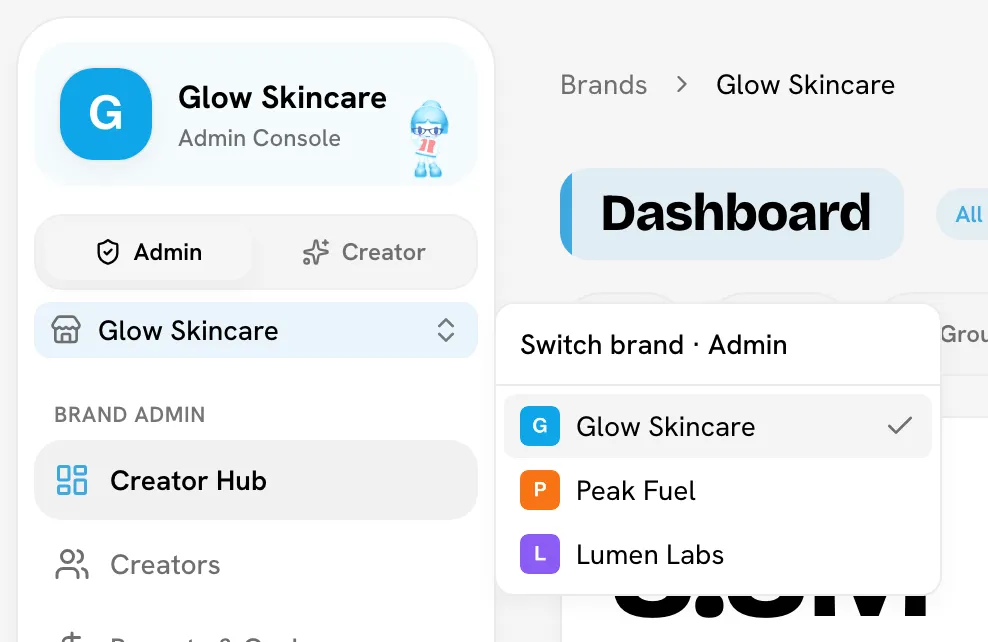
At the top of a brand's sidebar:
- The Admin / Creator switch moves between the brand's admin console and your creator portal. It only appears if you have both kinds of access in that brand.
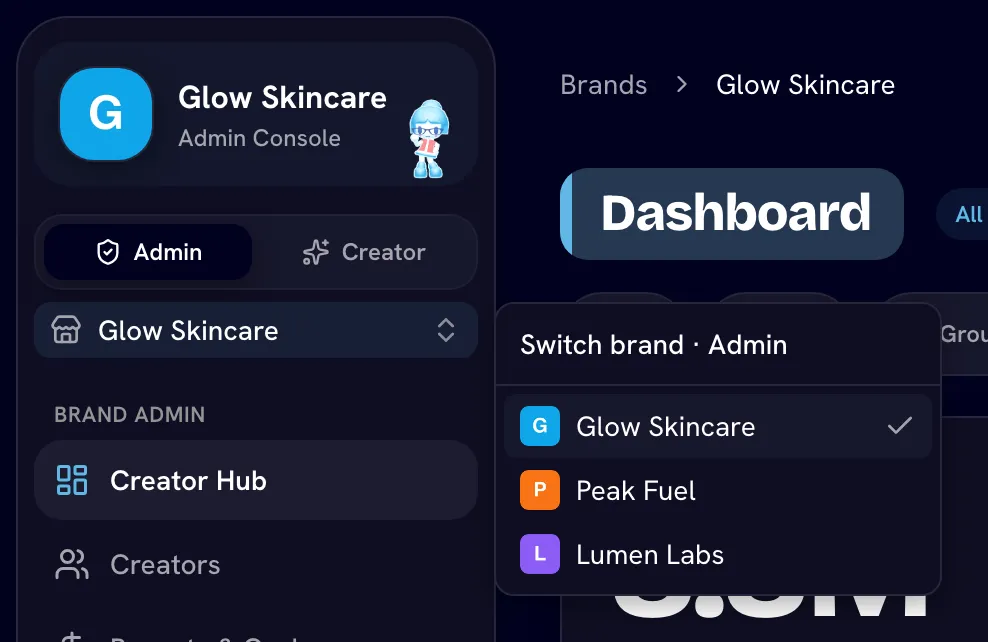
- The brand switcher (Switch brand · Admin or Switch brand · Creator) jumps to another brand in the same hub.
Being an admin and a creator at once
Admin access and creator access are independent. You can be an admin in one brand and a creator in another, or both in the same brand. When you're both, your creator profile appears in the brand's creator lists, leaderboards and payout cycles like anyone else's. See Team and access.
Log out
Open your profile menu at the bottom of the sidebar and click Log out.
Related
Last reviewed Oct 23, 2026