
Quickstart for brands
Go from a new brand to your first paid payout cycle — pay rules, creators, cycles and payouts.
This guide takes a new brand from setup to its first paid payout cycle. Each step links to a page with the full detail.
Get a subscribed brand
Brands live inside an agency. An agency owner or admin creates the brand and subscribes it to a plan. A brand without an active subscription is locked, so make sure billing is set up first.
If someone else created the brand, they invite you as a brand admin. Accept the invite from your email or from Invitations (see Invitations).
Open the admin console
In the main sidebar, open My Brands and click your brand. If you belong to the agency, you can also open the brand from the agency's Brands tab and click Admin Dashboard.
The admin console opens on Creator Hub. A tour of the admin console explains each sidebar item.
Open your admin consoleSet your timezone and pay rules
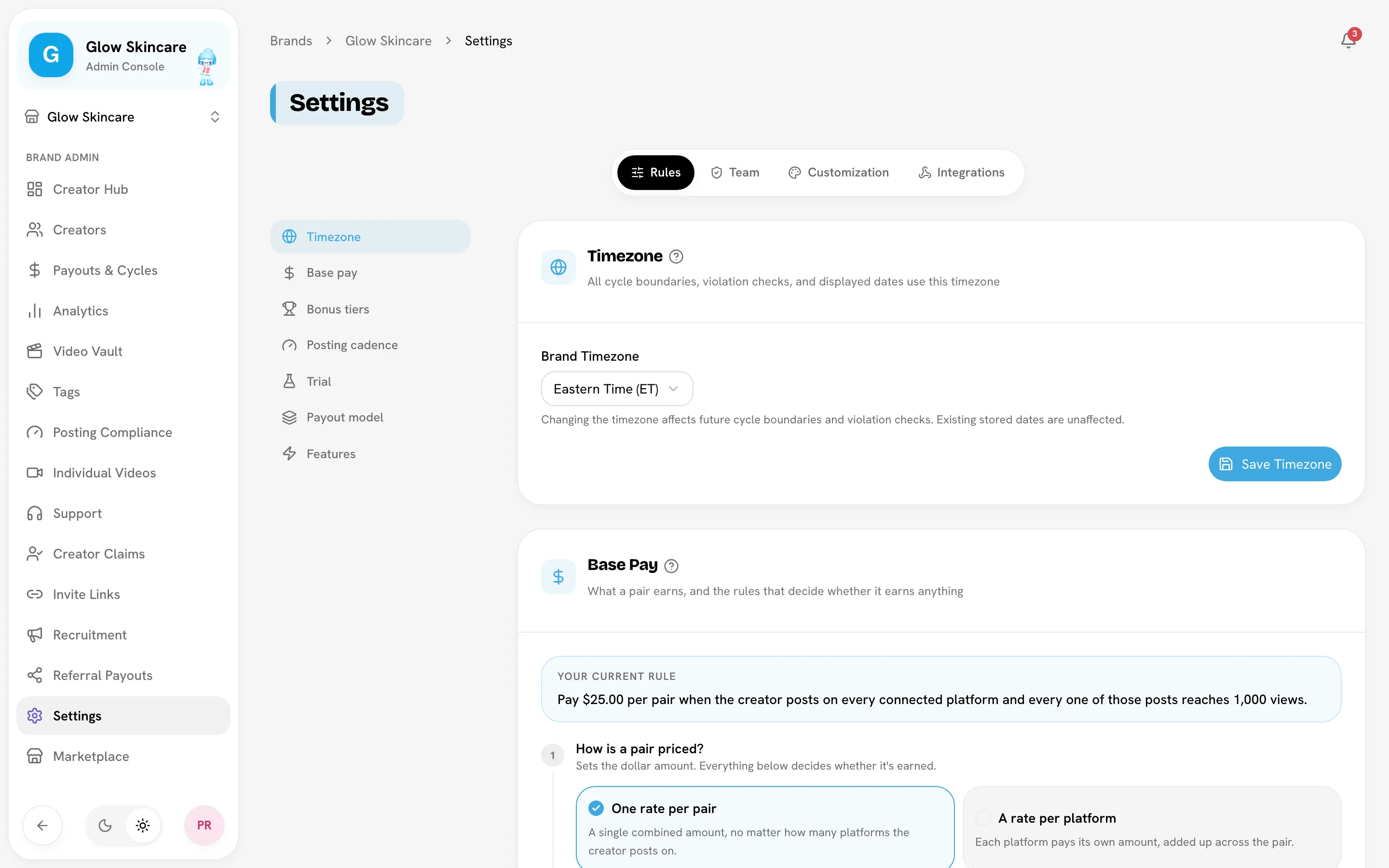
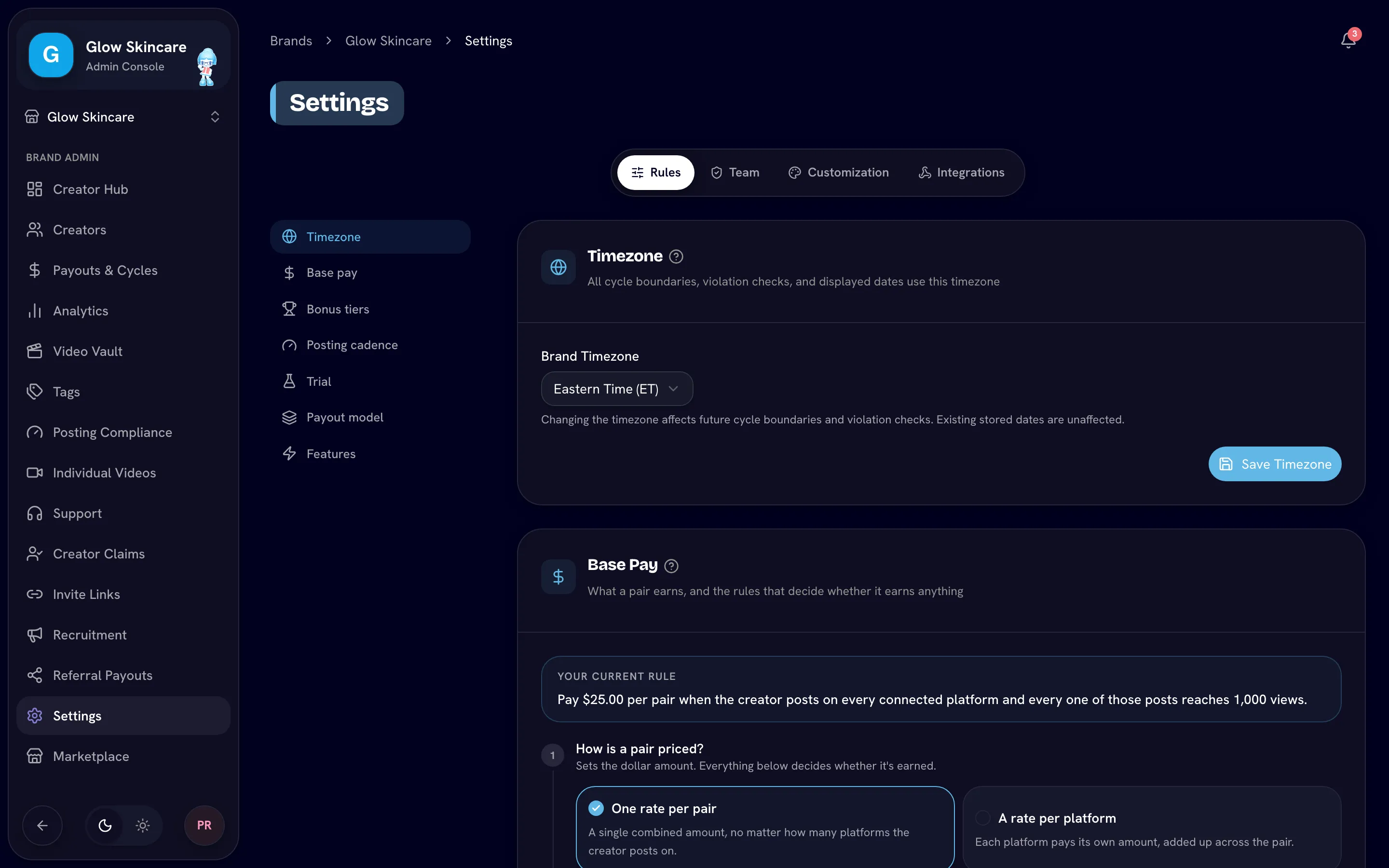
Go to SettingsRules and work through the cards from the top:
- Timezone sets where your days and cycles start and end. See Timezone.
- Base Pay sets what a creator earns for each qualifying set. See Base pay rules.
- Bonus Tiers add pay for views on top of base pay. See Bonus rules.
- Trial Settings decide whether new creators start on a trial. See Trials.
Choose how you'll pay creators
In SettingsIntegrations, pick a payout provider: Whop or SideShift. You can also pay creators directly outside Bloss and mark payouts as paid. See Payout providers.
Invite creators
Open Creators in the sidebar. You can:
- Click Invite Creator to email someone an invitation.
- Use Invite Links in the sidebar to share a link that people can join from.
- Click Add Creators to add people one by one or from a CSV file.
See Inviting creators.
Let creators connect their accounts and post
Creators connect their Instagram, TikTok, YouTube and Facebook accounts from their creator portal. Bloss then syncs their posts and groups the same video posted on several platforms into one set. See How sets work and Syncing.
Create your first payout cycle
Go to Payouts & CyclesCycles, click New Cycle, pick the dates and click Create Cycle. The cycle saves a copy of your current pay rules, so changing a rule later doesn't change this cycle. See Payout cycles.
Open Payouts & CyclesReview and pay
Make sure your creators' videos are paired into sets first, or their views won't count. Then, from the cycle's ⋯ menu, click Generate Payouts to create a row for each creator. After the cycle ends, click Recalculate Payouts so the figures freeze at the end date, and review what each creator earned. Then pay them: Pay via your provider, or Mark as Paid if you paid them yourself. See Running a cycle.
What's next
Last reviewed Oct 12, 2026