
Submissions
Follow every creator going through your onboarding flows, act on overdue or finished ones, and export everything to CSV.
A submission is one creator going through one onboarding flow, from the moment they click Start until they join, are rejected or are closed. Creators in progress aren't on your roster yet, so this is where you follow them.
Open OnboardingSubmissions.
Open Submissions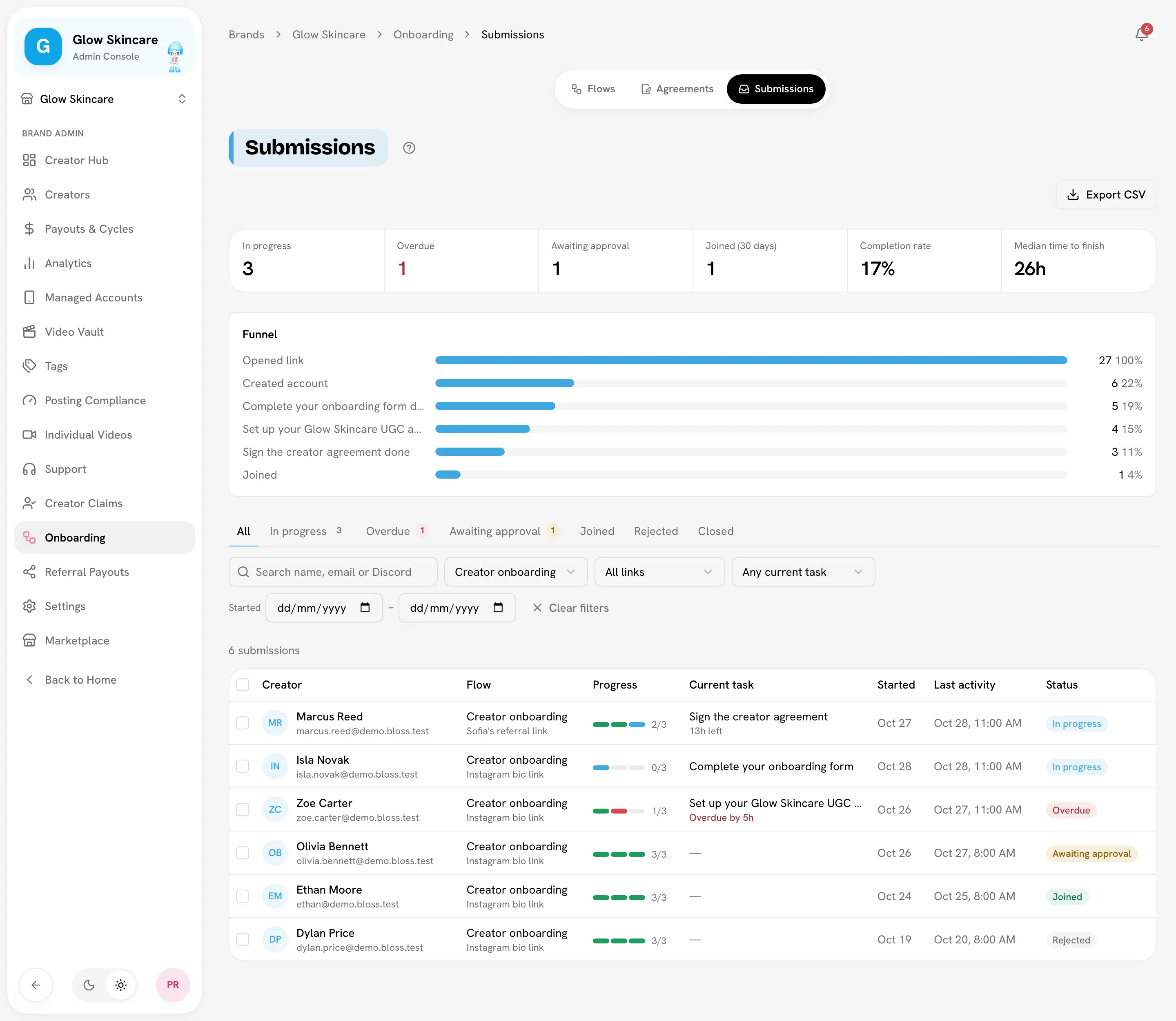
Statuses
| Status | What it means |
|---|---|
| In progress | The creator is working through the tasks. |
| Overdue | In progress, with an open task past its deadline. The creator can still finish it. |
| Awaiting approval | The creator finished every task of a flow set to Wait for your approval. |
| Joining | For a few seconds while Bloss adds the creator to your brand. It then changes to Joined. |
| Joined | The creator joined your brand. |
| Rejected | An admin rejected them. |
| Closed | An admin closed it, or the creator was already on your roster when they finished. |
Nothing becomes overdue, rejected or closed on its own because of a deadline. See Deadlines and reminders.
Filter the list
The tabs above the table filter by status: All, In progress, Overdue, Awaiting approval, Joined, Rejected and Closed. In progress, Overdue and Awaiting approval show how many there are.
Under the tabs:
| Filter | What it does |
|---|---|
| Search | Name, email or Discord username. Press Enter, or click away, to search. |
| All flows | One flow, or every flow. Archived flows are listed last, tagged Archived. |
| All links | One of the flow's links. Shown once you pick a flow. |
| Any current task | Creators on one task. Shown once you pick a flow. |
| Started | The days the creators started, from and to, in your brand's time zone. |
Clear filters resets everything but the status tab. Filters are part of the page address, so you can bookmark or share a filtered view with another admin.
Tiles
The tiles cover the chosen flow, or every flow:
| Tile | What it counts |
|---|---|
| In progress | Creators working through the tasks. |
| Overdue | Creators with a task past its deadline. |
| Awaiting approval | Creators waiting for you. |
| Joined (30 days) | Creators who joined in the last 30 days. |
| Completion rate | The share of creators who started and went on to join. |
| Median time to finish | For creators who joined, the median time from starting to finishing the last task. |
Click In progress, Overdue or Awaiting approval to filter the list to those creators.
Funnel
When you pick a flow, a funnel shows how far creators get: Opened link, Created account, each task done, and Joined, with counts and the share of everyone who opened the link. Pick a Link to see one link's funnel. Each link's numbers are also in the flow editor; see Share a link.
The table
Each row is one submission: Creator, Flow (with the link they came from, and an Archived tag if the flow has been archived since), Progress (a bar with a segment per task, and how many are done; hover a segment to see its task and state), Current task (with the time left, in red once overdue), Started, Last activity and Status. The list shows 50 submissions per page.
The detail panel
Click a row to open its detail panel. It shows:
- the creator's name and email, the flow, where they came from, their Discord username, when they started and were last active, and a progress bar;
- what to do next. A submission waiting for you says Ready for your review with Approve and Reject. One in progress shows the current task and its time left, with Remind and Extend deadline. Joined, rejected and closed ones say so;
- each task with its status, and the answers labelled as the creator saw them. A task the creator has started but not finished says Some answers saved. A finished task keeps only the answers to questions the creator could see when they submitted it;
- for an agreement, who signed and when, with Signed PDF. See Agreements;
- a Timeline of everything that happened, newest first: started, tasks finished, reminders, deadline changes, change requests and decisions.
Act on a submission
| Action | Where | What happens |
|---|---|---|
| Remind | In progress submissions | The creator gets a reminder email now. One reminder per creator every 12 hours. |
| Extend deadline | An in-progress submission | Add +24 hours or +48 hours, or pick a Date and Time in your brand's time zone, and click Set deadline. Reminders start again for the new deadline. |
| Request changes | A finished form or agreement task | Write what to change and click Send. The task reopens with a fresh deadline, the creator gets an email with your note, and the submission goes back to In progress. If the flow needs approval, you're notified again when they finish. |
| Approve | Awaiting approval submissions | The creator joins your brand. If they came through a link that's now full, they don't join and the submission stays Awaiting approval: raise the link's max uses, then approve again. See When a link is full. |
| Reject | Any open submission (in progress: the ⋯ menu) | Add a reason if you want the creator to see one. The creator gets an email. |
| Close submission | Any open submission, in the ⋯ menu | Ends it without a decision and without an email. An optional note is for your team. The creator can start again from a link. |
Act on several at once
Tick the rows you want, then click Remind, Approve or Reject above the table. Submissions an action doesn't apply to are skipped, and Bloss tells you why.
Export CSV
Click Export CSV to download every submission that matches your filters, finished or not. The file is named after the flow and today's date, and opens in Excel, Google Sheets or Numbers. An export can hold up to 20,000 submissions; above that, narrow the filters.
One row per submission. The columns are:
| Columns | What's in them |
|---|---|
| Submission ID, Status, Overdue | Overdue is Yes or No. |
| Flow, Link | Link is the link's label, or Email invite. |
| Creator name, Account email, Discord username | The creator's Bloss account and connected Discord. |
| Started, Last activity, Completed, Joined | Dates and times in your brand's time zone, which the Started header names. |
| Current task | The task they're on. |
| Task · Field | One column per question in each form task, including autosaved answers on unfinished tasks. |
| Task · Signed name, Task · Signed at | For each agreement task. |
How answers are written:
- Checkboxes and Languages: the choices, separated by
;. - Yes / No and Consent: Yes or No.
- File upload: the file name.
- Social account: what the creator entered.
If you relabel a field and publish a new form version, its answers stay in one column under the newest label. An export across several flows has every flow's questions, in flow order.
Related
Last reviewed Oct 28, 2026
Agreement templates
Write a creator agreement template with merge fields or upload a PDF, use it in a flow, and see how creators sign it and where the signed PDF goes.
How sets work
A set is one piece of content posted to up to four platforms. Learn how Bloss builds sets automatically, when you pair by hand, and the three reasons a set doesn't qualify for pay.