
Onboarding flows
Build the tasks a creator finishes before joining your brand, share a link or email an invite, and choose whether they join on their own or after your approval.
An onboarding flow is the list of tasks a creator finishes before they join your brand: forms you design, an agreement to sign, and pages to read. You build all of it in one place, the flow editor. Every way into your brand runs a flow: invite links, email invitations and marketplace invites. A creator joins only after finishing every task, or after you approve them if the flow asks for approval.
Open it from Onboarding in the admin sidebar. It has three tabs: Flows, Agreement templates and Submissions. Any brand admin can use them, limited admins included, and onboarding is on every plan.
Open Onboarding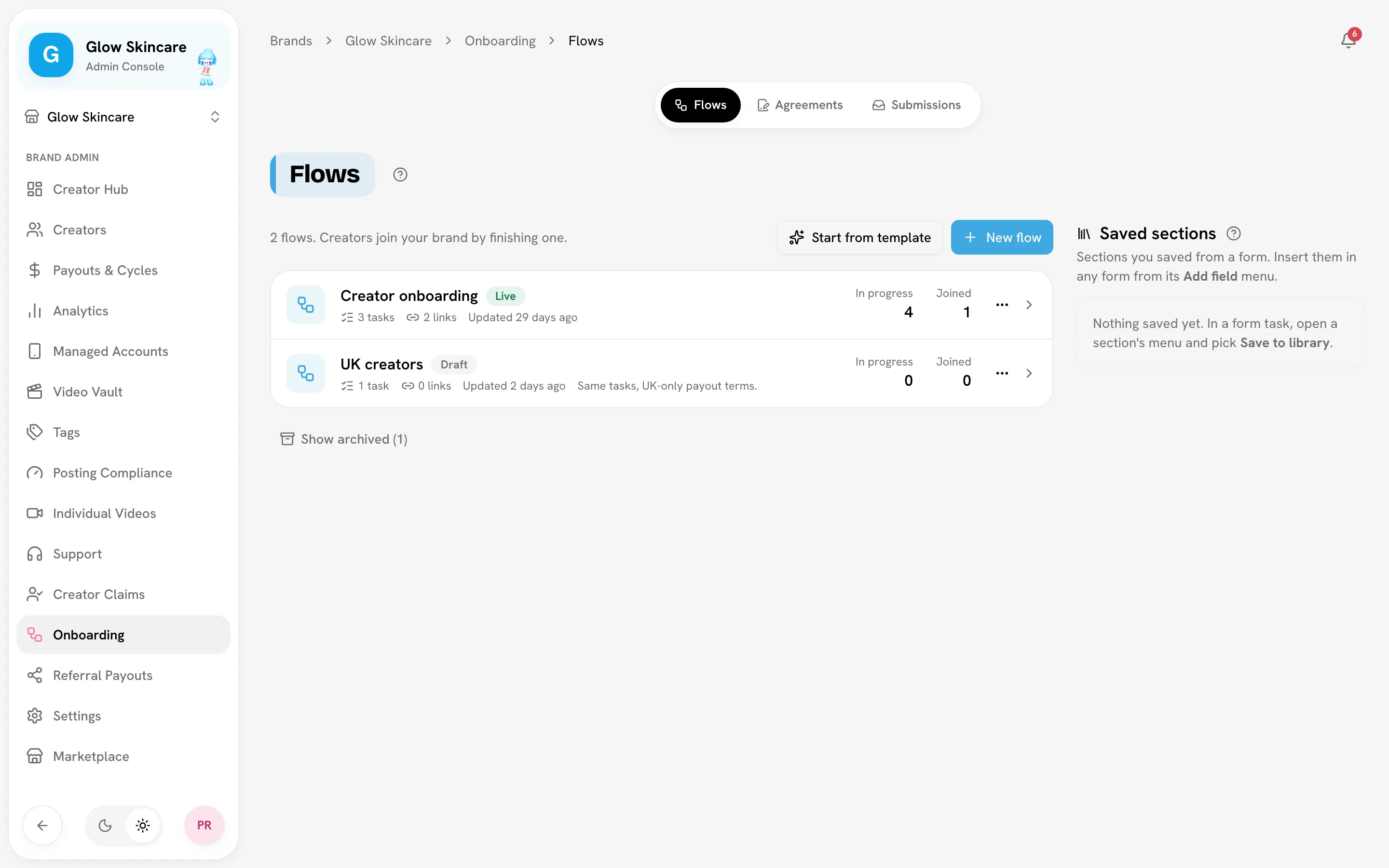
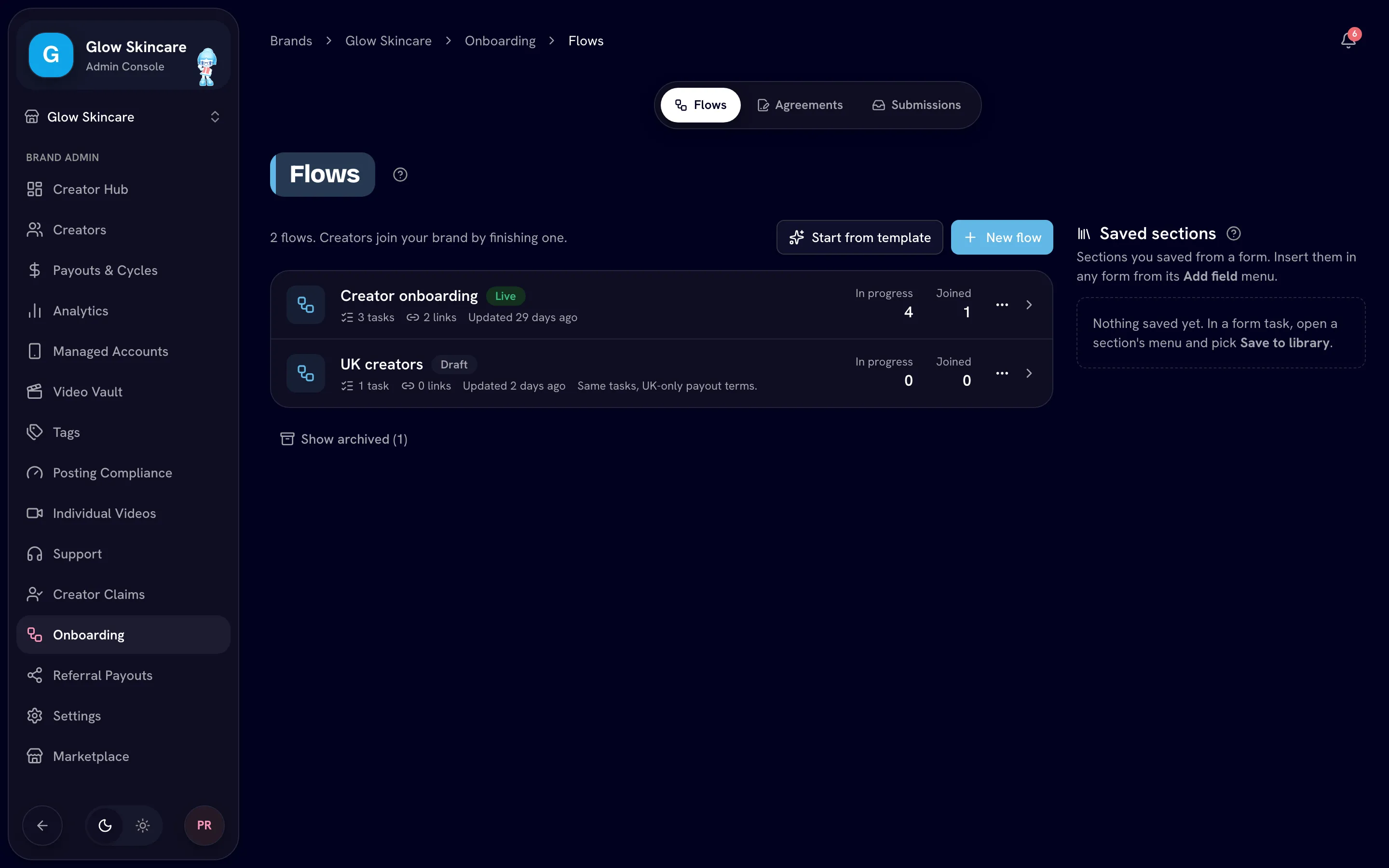
How a creator joins
They open your link or invitation
The page shows your brand, the flow's name, each task in order and any deadlines.
They sign in or create an account
They can continue with Discord, Google or email. When they come back from signing in, their onboarding starts on its own. Creators who were already signed in click Start.
Onboarding only opens for a verified email address. Creators who sign up with email and password click the link Bloss emails them before they're signed in, and it brings them back to the onboarding.
They finish the tasks in order
Each task opens when the one before it is done. Form answers save as they type, so they can leave and come back.
They join
When the last task is done, the creator joins your brand, or waits for your approval if the flow asks for it. See When a creator finishes.
Until they join, creators aren't on your roster. You follow them on the Submissions tab instead. See Submissions.
Create a flow
On the Flows tab, click Start from template or New flow. Both open the flow editor.
The 3-task template
Start from template creates a flow called 3-task onboarding, with everything it needs as drafts:
| Task | What it is | Deadline |
|---|---|---|
| Complete your onboarding form | A form called Onboarding form: creator name, age, gender, location, Discord and a portfolio link. | None |
| Set up your Brand UGC accounts | A form called Brand UGC accounts: TikTok, Instagram and YouTube profile links, plus the email the creator uses with your brand. | 24 hours |
| Sign the creator agreement | An empty agreement called Creator agreement. | 24 hours |
The flow is set to join creators automatically. Its Finish message (under Settings) gives creators next steps: warming up their accounts and starting to film. It has two placeholders, (add your warm-up guide link) and (add your scripts link): replace them with your own links. Write the agreement in its task, then click Go live. You can change any of it.
Build your own
New flow creates a flow called New flow with one empty form task, Your details, so you can start adding questions straight away.
Edit a flow
A flow opens on its board: Start (where creators come in, with the flow's links), a node for each task and Finish (the flow's settings), joined in the order creators walk them. Click a node to open it beside the board, which folds into a strip of dots down the left (across the top on a phone): Start, a numbered dot for each task and Finish. Click a dot to switch, or hover it to see its name. The arrows at the top step to the node before or after; ×, Esc or the grid button above the dots brings the whole board back.
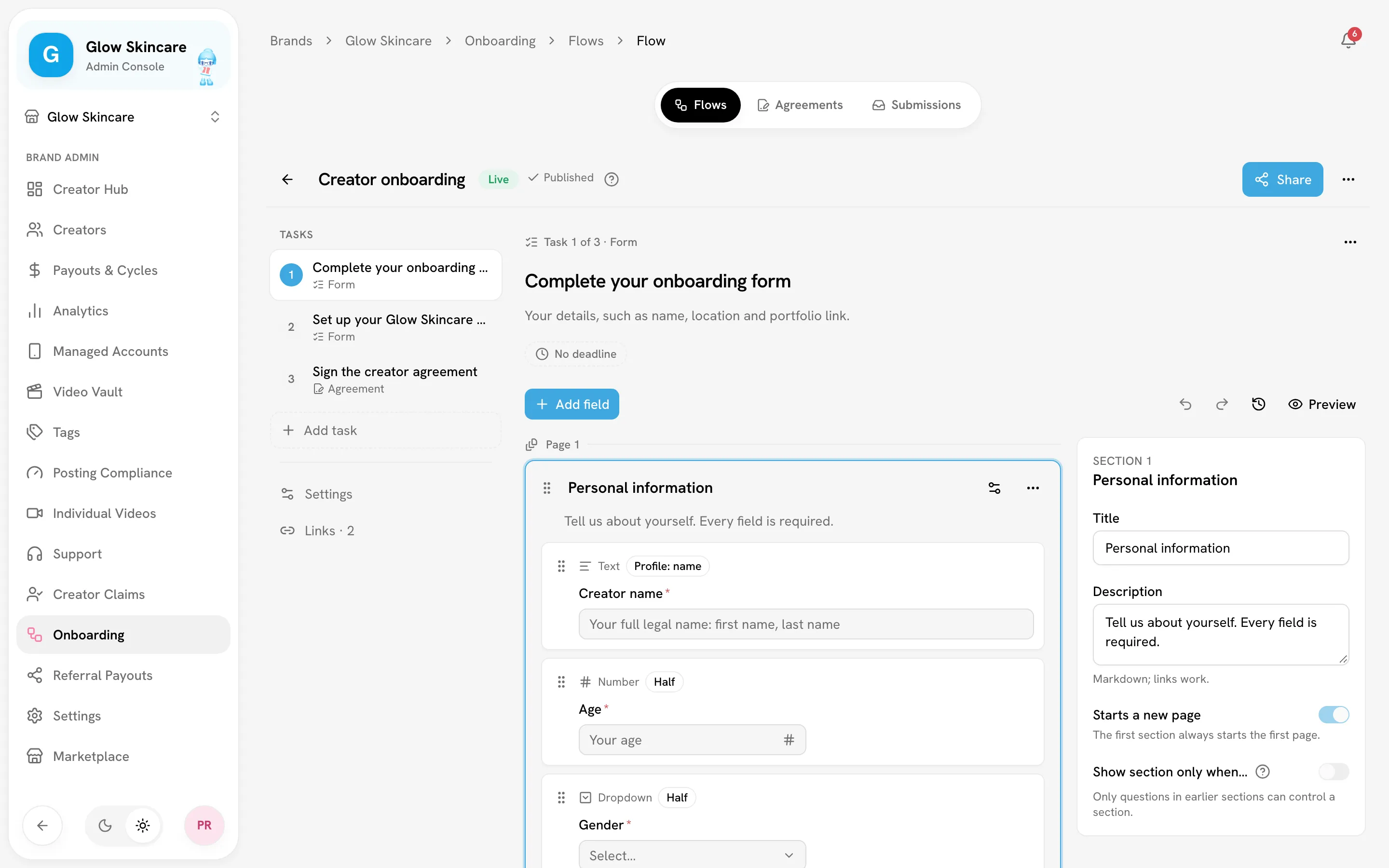
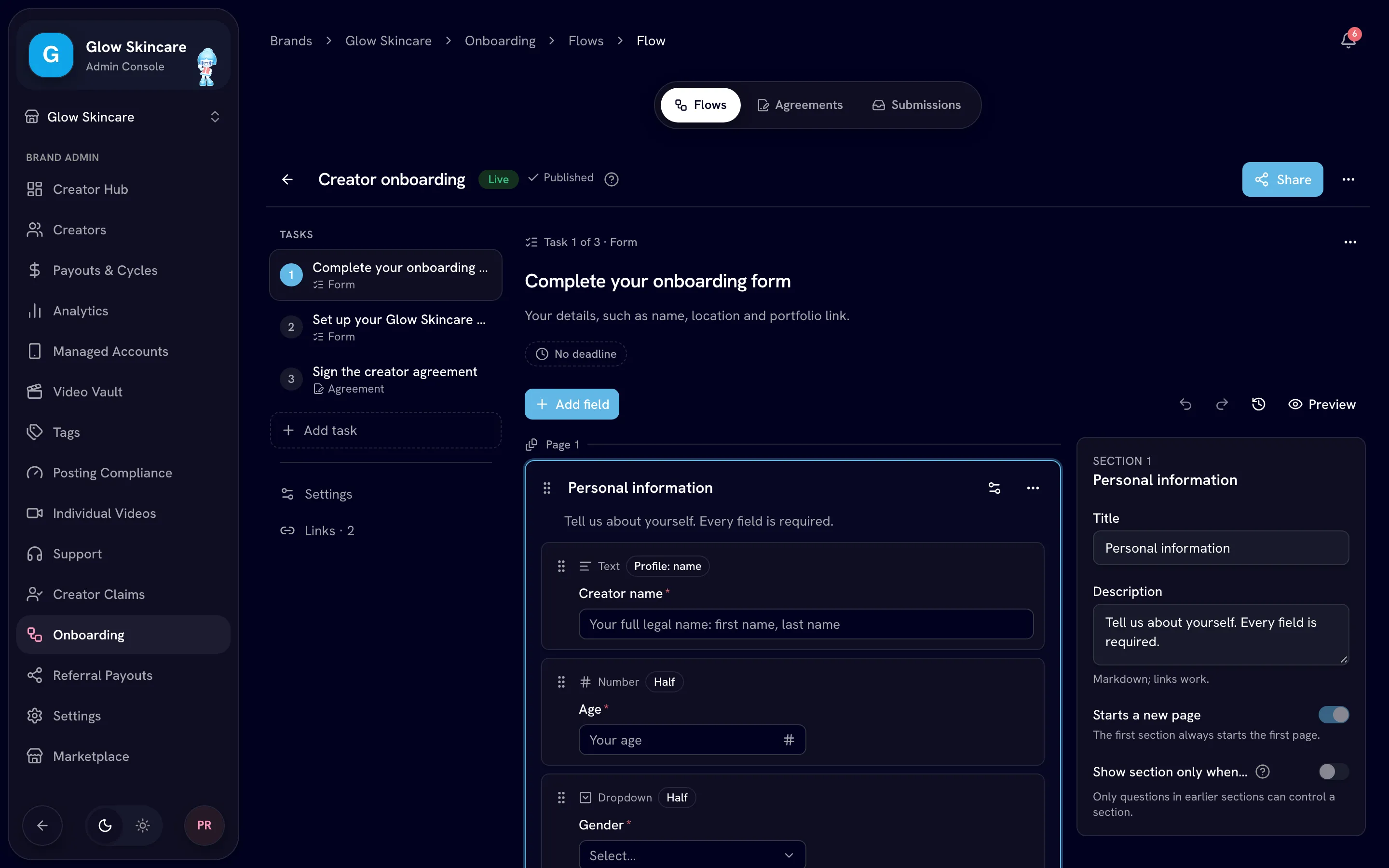
Everything you change saves on its own as a draft. Creators see it only after you publish.
Settings
Click Finish on the board, or the settings button (the sliders icon) in the bar at the top, to open the flow's settings. You can also rename the flow in the box at the top of the editor.
| Setting | What it does |
|---|---|
| Name | Shown to creators on their trail map. |
| Internal note | Only admins see it. |
| When a creator finishes | Join automatically, or Wait for your approval. |
| Add to group on joining | Adds everyone who joins through this flow to a creator group. When set, it replaces the group on the creator's link. |
| Mark videos posted before they join as irrelevant | Off by default. When on, everything already on a creator's accounts when they join is marked irrelevant, so only what they post after joining counts. Only for creators joining your brand for the first time. See Irrelevant videos. |
| Welcome message | Optional. Shown to creators when they join, and in their welcome email. |
| Finish message | Optional, in markdown. Shown on the page creators see once every task is done, whether they join straight away or wait for your review. Use it for next steps, like warming up accounts or filming. |
The name and internal note save straight away. The other settings reach creators when you publish.
Tasks
Drag a task type from Tasks, on the right of the board, to where you want it in the flow. Click one to add it at the end, or click the + on an arrow to add one there. While a task is open, use the + under the dots; on a phone, the + button. The types are:
| Type | What the creator does | What you edit in the task |
|---|---|---|
| Form | Answers your questions. | The questions, right in the task. See Form builder. |
| Agreement | Reads and signs an agreement. | Pick one of your agreement templates, or click New template to write or upload one in a dialog. No separate publish needed. See Agreement templates. |
| Info page | Reads a page of text you write (markdown) and clicks Continue. Use it for a step with no questions. | The text. |
To change the order, drag a task's node to its new place; the others move aside. On a touch screen, drag it by its handle (the dots on its right). You can also use Move up and Move down in the task's ⋯ menu.
At the top of an open task, click its title to rename it. Add a description… under it adds a line creators see under the title. No deadline, beside the task's ⋯ menu, sets a deadline in Hours or Days, up to 90 days. The ⋯ menu also moves the task or removes it. On the board, you can also remove a task with the bin that appears on its node's corner when you point at it (it's always shown on a touch screen). Undo in the message that appears brings a removed task back.
Each form belongs to its flow: editing it never changes another flow. To reuse questions, duplicate the flow, or save a section to the library and insert it in another form. Agreements are shared: several flows can use the same one.
Publish a flow
The top of the editor always shows the one thing to do next:
| You see | When | What it does |
|---|---|---|
| Go live | The flow is a draft. | Publishes the flow and makes its first link, which it shows ready to copy. |
| Publish changes | A live or paused flow has changes. | Publishes them, to new creators and to the tasks creators partway through haven't finished yet. |
| Share (the share icon) | The flow is live. | Shows its link with a Copy button, and opens Links to manage them or add another. |
| Resume | The flow is paused and has no changes. | Reopens it to new creators. |
Publishing covers everything in one go: tasks, settings, every form and the agreement templates the tasks use. Beside the flow's status, Unpublished changes means the draft differs from what creators get, and Published means it doesn't. With nothing to publish, there's no Publish button.
If something isn't ready, a warning with the number of things to fix sits on the button (for example ⚠ 2; click it for the list), the task's node on the board gets a dot, and the task shows what to fix at its top, for example a form with no questions, an agreement with no text, an info page with no text, or two forms in the flow that ask for the same social platform. Clicking Go live or Publish changes then shows the list instead; click a problem to open its task.
What publishing changes for creators partway through
Creators who already started get your published changes on every task they haven't finished: a question you made optional, new wording, a new task, a new agreement version. A task you remove disappears from their list if they hadn't finished it. Tasks they already finished, and agreements they already signed, stay exactly as they sent them. Creators who finished every task are left as they are.
Links
Flow statuses
| Status | What it means |
|---|---|
| Draft | Not live yet. Click Go live to let creators start it. |
| Live | Creators can start it from its links and invites. |
| Paused | New creators can't start it; creators partway through can finish. Resume reopens it. |
| Archived | Its links no longer work, and it can't be edited. Restore (Restore (paused) on the Flows tab) brings it back as Paused. |
Pause flow, Duplicate flow, Archive flow and Delete flow are in the editor's ⋯ menu; an archived flow shows Restore instead of Archive. Archive asks you to confirm first, and says how many of the flow's links stop working.
Delete a flow
Delete flow removes a flow for good: its tasks, its forms and every submission made through it, with their answers, uploaded files, signed agreements and history. It can't be undone.
- A flow nobody has started deletes after one confirmation.
- A flow with submissions shows how many will be deleted, including signed agreements and creators partway through, and asks you to type the flow's name to confirm.
- Its links stop working, and pending email invitations to it are cancelled.
- Creators who already joined stay on your roster.
To stop a flow but keep its submissions and signed agreements, archive it instead.
The Flows tab shows each flow as a card with its status, its tasks as a row of coloured tiles (forms, agreements and info pages), its numbers of tasks and links, when it was last updated, and how many creators are In progress (including awaiting approval) and have Joined. Click a flow to open it, or the dashed New flow card after the last one to add a flow. Archived flows are under Show archived. Each flow's menu has Duplicate, Pause or Resume, Archive (or Restore (paused)) and Delete. A duplicate is named Flow (copy), starts as a draft with copies of the flow's forms, and has no links.
When a creator finishes
| Setting | What happens after the last task |
|---|---|
| Join automatically | The creator joins your brand straight away and sees You're in. |
| Wait for your approval | The creator sees Waiting for review, and you get a finished onboarding notification. Approve or reject them on Submissions. |
When a creator joins:
- They start as Trial if your brand has trials turned on, otherwise as Active. See Trials.
- They're added to the flow's join group, or to the link's group if the flow has none.
- If the flow has Mark videos posted before they join as irrelevant on, every post from before the moment they join is marked irrelevant. With Wait for your approval, that moment is when you approve them.
- Answers to form fields set to Copy to creator profile fill their name, location, languages and bio where their profile doesn't have them yet, and the first social account they gave for each platform becomes their handle for that platform. Answers to questions their choices hid don't count. See Profile fields.
- You get a joined the brand notification, and they get a welcome email.
A creator you removed earlier can go through a flow again. When they join, their old profile and history come back.
Links and email invites
Share a link
Each flow has its own links, under Links in the flow editor. Go live makes the first one, Main link, for you. Links only work while the flow is active.
Create a link
Click New link. All fields are optional:
| Field | What it does |
|---|---|
| Label | A name to remember where you shared it, for example "TikTok bio". |
| Referred by | Credits everyone who joins through the link to that creator. See Referral payouts. |
| Add joiners to group | Used when the flow itself has no join group. Only shown once your brand has groups. |
| Max uses | How many creators can join through it. Blank means unlimited. See When a link is full. |
| Expires | The last day it works. It stops at 11:59 PM that day, in your brand's time zone. Blank means it never expires. |
Click Create link.
Share it
Click Copy link on the link and share it anywhere: a bio, a story, a group chat or an ad.
On each link you can:
- Turn it off and on with its switch, without deleting it.
- Click Show numbers to see how many people opened it, started, finished each task and joined.
- Click Edit link to change its settings.
- Click Delete link to remove a link nobody has used. A link creators have joined through stays for their records: you see This link can't be deleted, and Turn off link stops anyone else using it. A link someone has only started onboarding from can't be deleted either; turn it off instead.
A link that has expired or reached its max uses says so in the editor, and creators who open it see This link has expired.
When a link is full
Max uses counts creators who join, and Bloss checks it again at the moment a creator joins. Creators who started before the link filled up can still finish their tasks, but if the link is full when they finish, they don't join:
- The creator sees This link is full. Their answers are saved.
- For a flow set to Wait for your approval, Approve tells you the link is full, and the submission stays Awaiting approval.
Raise the link's Max uses, then approve again. For a flow that joins automatically, the creator joins the next time they open their onboarding.
Email one creator
On Creators, click Invite Creator, enter their Email address, and pick an Onboarding flow. Only active flows are listed. See Inviting creators.
Email invitations only work for the address they were sent to and expire after 7 days.
Invites from the marketplace
When you invite a creator from the marketplace, you also pick the flow they'll go through.
Links from before onboarding flows have expired
Invite links made before onboarding flows, and creator invitations sent before them, no longer work. Creators who open one see This link has expired. Create a flow and share its new links instead. Creators already on your roster aren't affected.
Deadlines and reminders
A task's deadline starts when the task opens for the creator, and can be up to 90 days. Creators see the time left on their trail, for example 1d 4h left. While a task is open:
- Bloss emails the creator a reminder before the deadline: 6 hours before, or halfway through when the whole deadline is 12 hours or less.
- At the deadline, Bloss emails the creator that the task is overdue, and the submission is marked Overdue.
- Admins get one notification a day, N onboarding tasks are overdue, while any are overdue.
Nothing closes on its own. An overdue creator can still finish. You decide whether to remind them, extend the deadline or close their submission. See Submissions.
Related
Last reviewed Nov 7, 2026
Removing creators
Archive a creator, restore them, or delete them permanently — and why creators who've been paid can never be permanently deleted.
Form builder
Build the forms creators fill in during onboarding right inside a flow's form tasks, with sections, pages, conditions, profile fields and social account checks.